 EN
EN  ES
ES  PT
PT  TR
TR  FR
FR  AR
AR 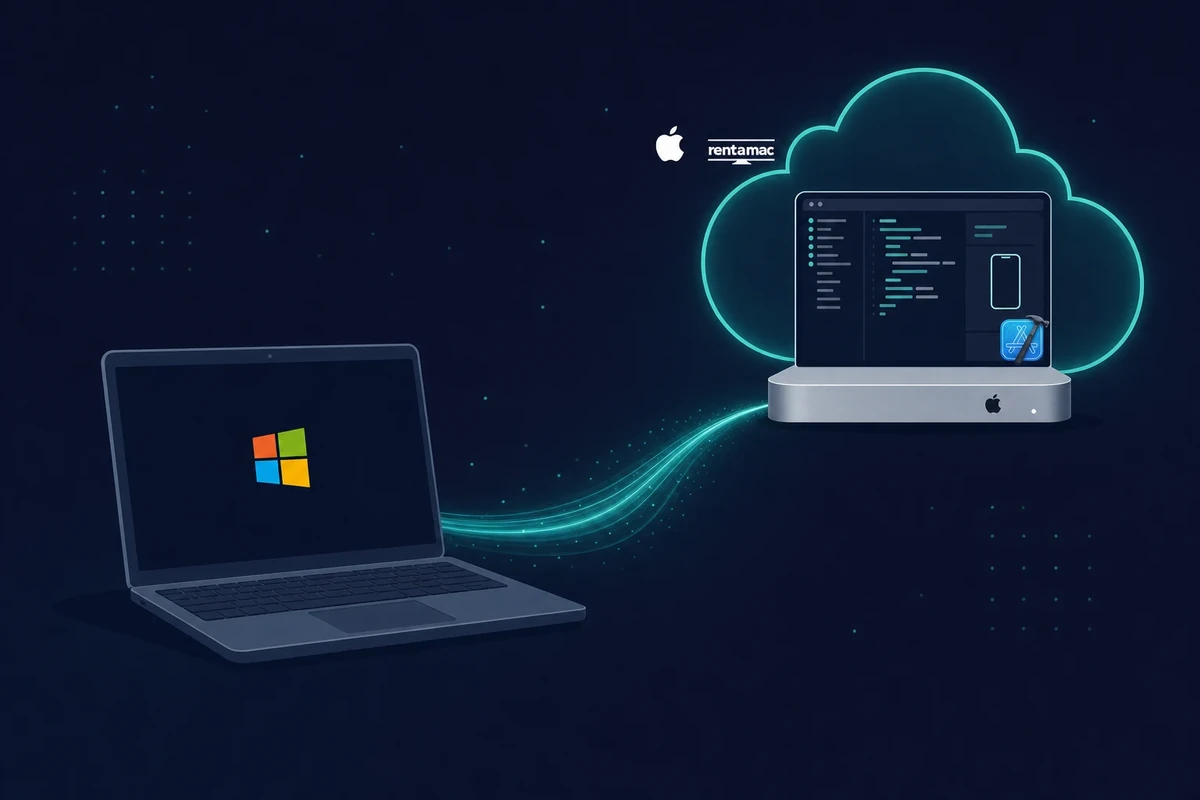
On this page
You can’t use Xcode on Windows. However, you can access Xcode on Windows by using rented Macs, creating a Hackintosh setup, running virtual macOS, or using cross-platform coding alternatives. The most dependable path is renting a cloud Mac.
Xcode is Apple’s official integrated development environment (IDE) for creating iOS, macOS, watchOS, and tvOS applications.
It comes with features like interface builder, simulator, and debugging instruments, making it a handy tool for macOS developers. However, since Xcode is designed to run only on macOS, it leaves developers who prefer Windows with a challenge.
The short version:
- You can’t run Xcode natively on Windows, and there is no official Windows download.
- Renting a cloud Mac is the most dependable way to get the full Xcode IDE.
- A macOS virtual machine, a Hackintosh, or cross-platform tools are the alternatives.
- Browser-based cloud simulators and Apple’s Xcode Cloud cover testing and builds.
- A real Mac running Xcode is still needed for the final sign and App Store step.
Xcode is deeply integrated with Apple’s ecosystem, as it relies on macOS libraries, system-level frameworks, and hardware compatibility. These are some of the reasons why Windows doesn’t natively support Xcode.
Apple also restricts official iOS app development to macOS as part of its ecosystem control. For this reason, there’s no official download of Xcode for Windows. This guide covers the practical ways to use Xcode and develop iOS apps on Windows.
Methods to Run Xcode on Windows
There are several workarounds that let you use Apple’s development environment indirectly. They vary in cost and effort. The table below sums up the four methods at a glance, and the sections under it add the detail.
| Method | Cost | Difficulty | Legality | Best for |
|---|---|---|---|---|
| macOS virtual machine | Free, but needs strong hardware | Moderate | Gray area | Tinkerers with a 16GB+ PC |
| Cloud Mac (recommended) | From $19/day or $119/month | Easy | Fully allowed | Most people who want it working fast |
| Hackintosh | Free, but needs compatible parts | Hard | Gray area | Hardware enthusiasts chasing speed |
| Cross-platform tools | Free to mid-range | Moderate | Allowed | Writing one codebase for iOS and Android |
1. Run macOS in a Virtual Machine
A virtual machine runs macOS inside Windows. If you prefer to use your own PC hardware, you can simulate iOS on Windows by setting up a VM that runs macOS. You’ll need software like VMware Workstation or Oracle VirtualBox.
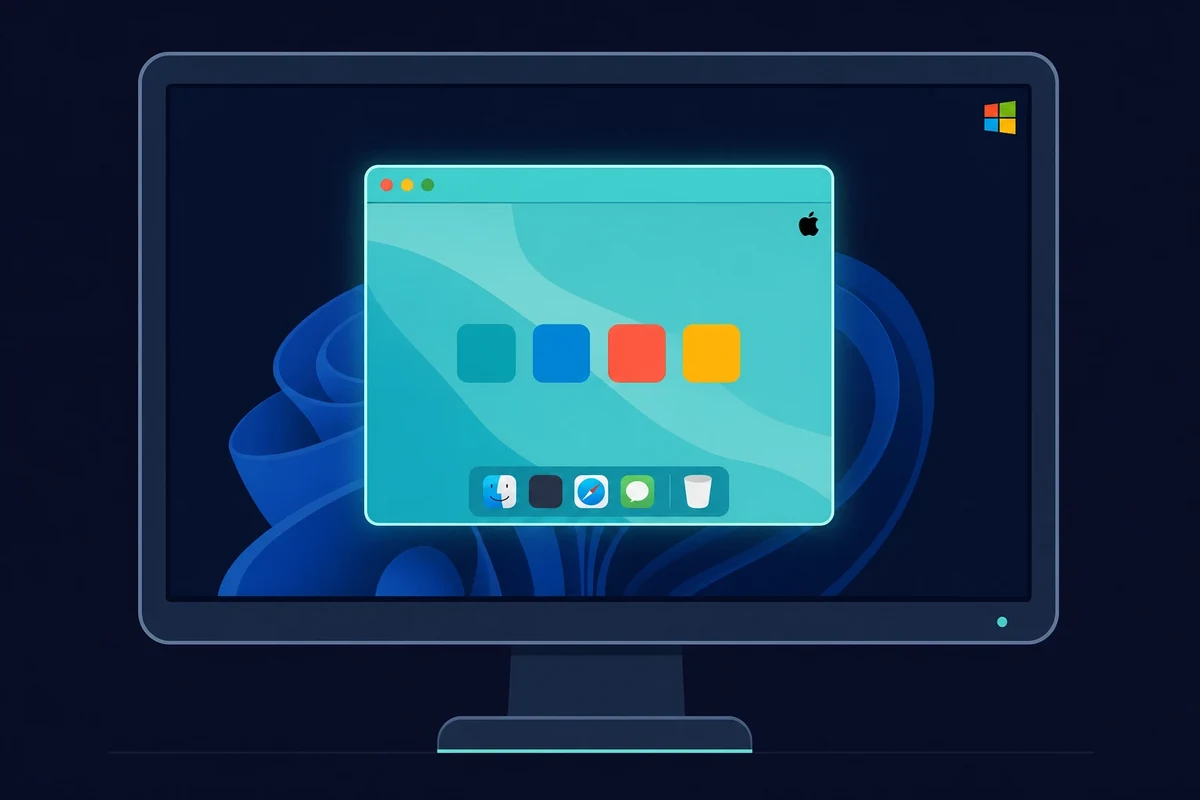
The VM has a real hardware bar. Give it at least 16GB of RAM (32GB is better), a multi-core CPU, and 50GB or more of free disk, because the macOS install file alone is around 14GB. Plan on a fast connection too, since 2026 install guides suggest 20 Mbps or more, and the Xcode download itself takes 30 to 60 minutes.
There’s also a version-matching gate that trips a lot of people up. Your Xcode version has to match your macOS version, so Xcode 26 needs macOS Sequoia 15.6 or newer, or the install is simply blocked. This route works the same on Windows 10 and Windows 11, and there is no separate Xcode for Windows 11 build to hunt for.
Once the VM is running, you install Xcode just as you would on a real Mac. On VMware you first patch it with the macOS unlocker, then install macOS and pull Xcode from the Mac App Store.
The method costs nothing up front. The catch is hardware, since you need a PC strong enough to run two operating systems at once. Apple’s licensing also limits macOS to Apple hardware, so this sits in a gray area.
2. Use a cloud Mac (recommended)
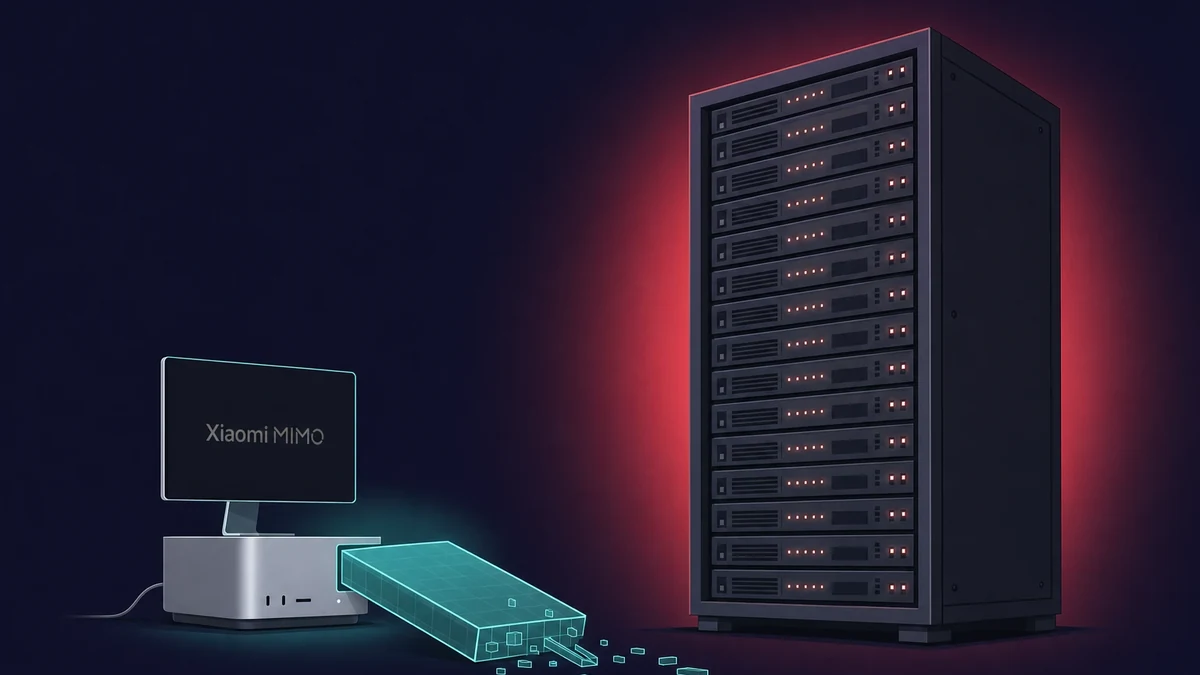
A cloud Mac is the most dependable route. You rent a Mac in the cloud and stream its desktop to your PC. You get a real macOS environment with the full Xcode IDE, no Apple hardware required, and you log in from Windows and work as if the Mac sat on your desk.
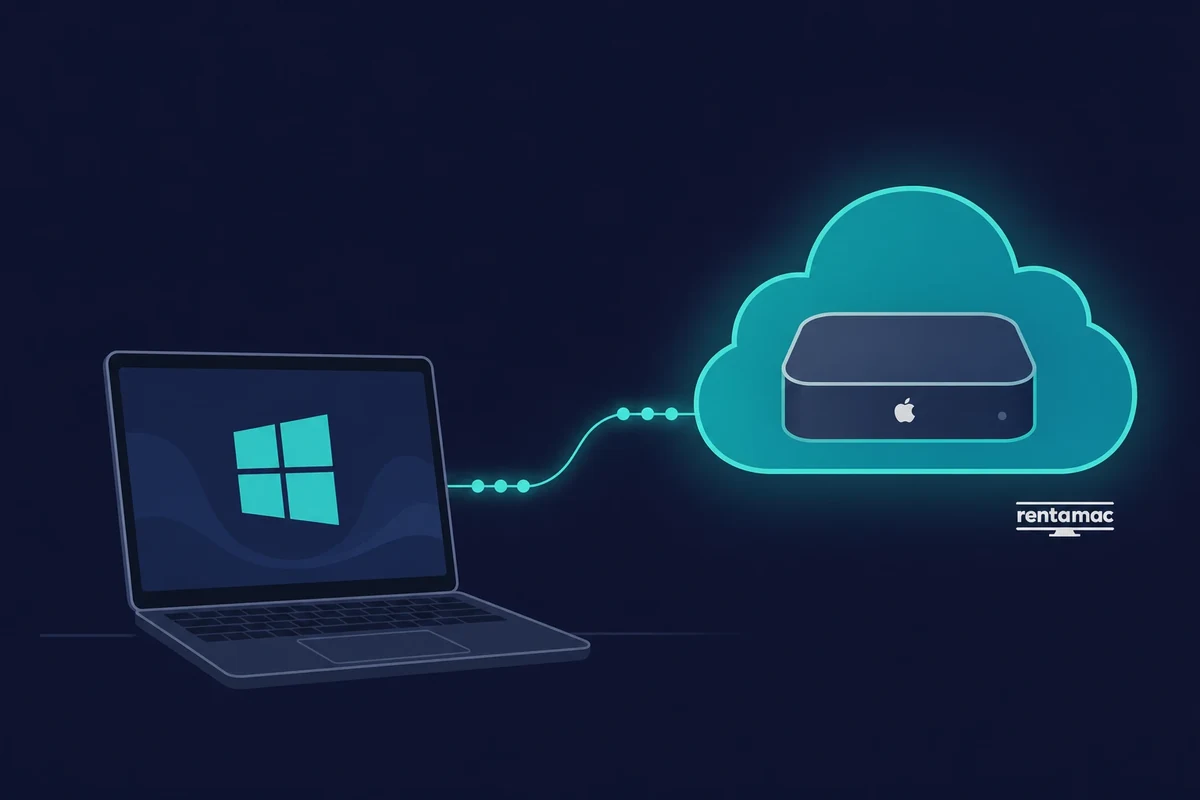
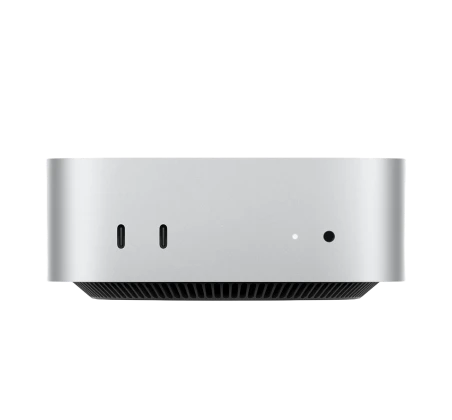
Cloud Mac rental services exist for exactly this, and Rentamac.io is one such service. You get a dedicated cloud Mac mini M4 (16GB RAM, 256GB SSD, macOS 27.0 or newer) with full admin access, reached through low-latency apps like DeskIn or Parsec.
Plans start at $19 a day or $119 a month. Setup is light. You subscribe, log in remotely, and run Xcode the same way you would on a physical Mac, with no licensing gray area and no slowdown from sharing your PC’s hardware.
3. Hackintosh Setup
A Hackintosh boots macOS on non-Apple hardware. It is the most complex method on the list, but it runs faster than a VM because macOS runs directly on your hardware rather than inside a guest. This is a task for real tech enthusiasts.
With compatible hardware and the right installation steps, you can build a Windows PC that also boots into macOS and runs Xcode natively. That speed is why hackintosh-plus-Xcode setups tempt power users despite the legal gray area.
The downsides are real. The setup is hard to configure, software updates can break the system, and Apple does not support it.
4. Cross-Platform Coding + Test on Mac
Cross-platform tools let you write most code on Windows. If you want to cut the cost of renting a Mac or the hours of configuring a VM, you can opt for cross-platform coding and write most of your app in Windows.
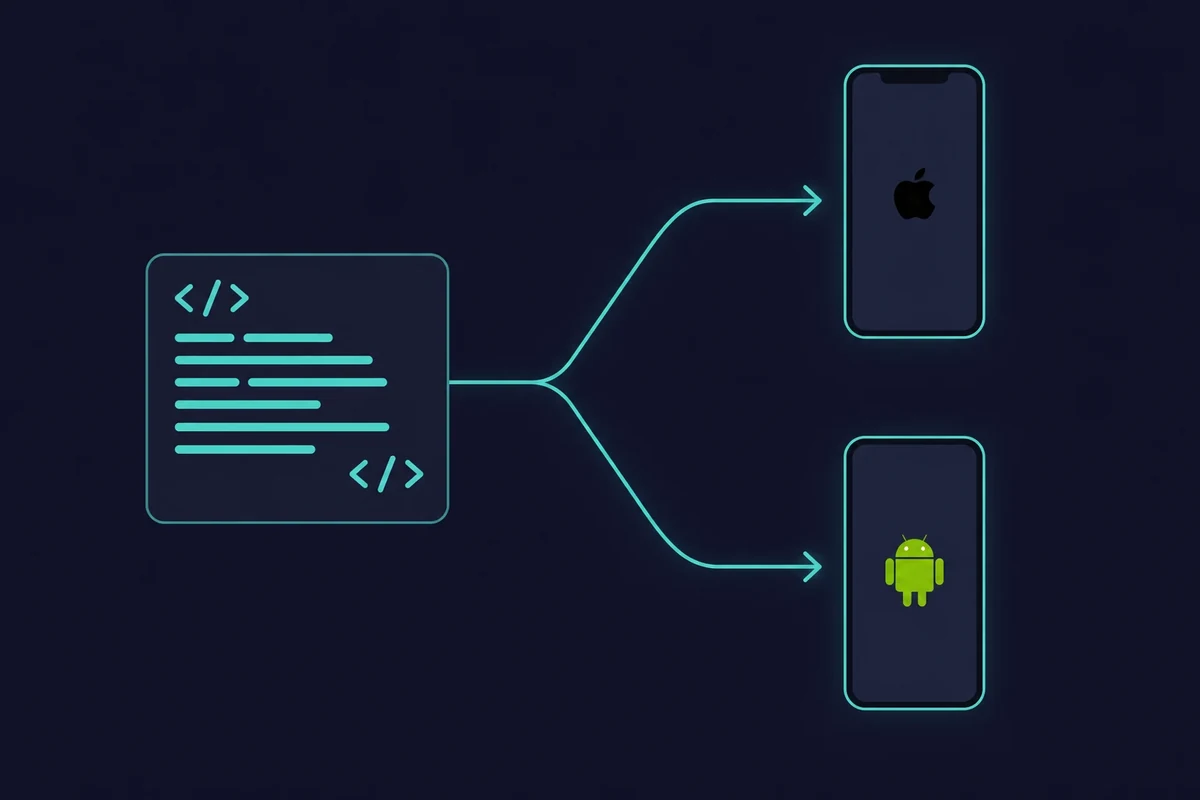
You can use Flutter, React Native, Xamarin, or other options to build and test apps on Windows using their simulators. You’ll still need Xcode running on a Mac for final compilation and signing. Here is what each tool brings:
- Flutter (by Google): An open-source framework that lets you write apps in Dart and compile them into native iOS and Android applications. Its hot-reload feature and broad community support make it a favorite for rapid iteration as you edit.
- React Native: Built by Meta, React Native lets developers use JavaScript and React to create cross-platform apps. Many well-known apps, such as Instagram, have been built with this framework.
- Xamarin (by Microsoft): A fit for developers who prefer C# and .NET. Xamarin lets you share code across Android, iOS, and Windows, while still accessing native APIs for each platform.
- Codemagic & Expo: These cloud-based platforms automate the build and testing process. They handle much of the heavy lifting, letting you code on Windows and push apps through their servers for iOS compilation.
Many developers pair cross-platform coding on Windows with occasional use of a rented or borrowed Mac for deployment.
How to test iOS apps on Windows without a full Mac setup
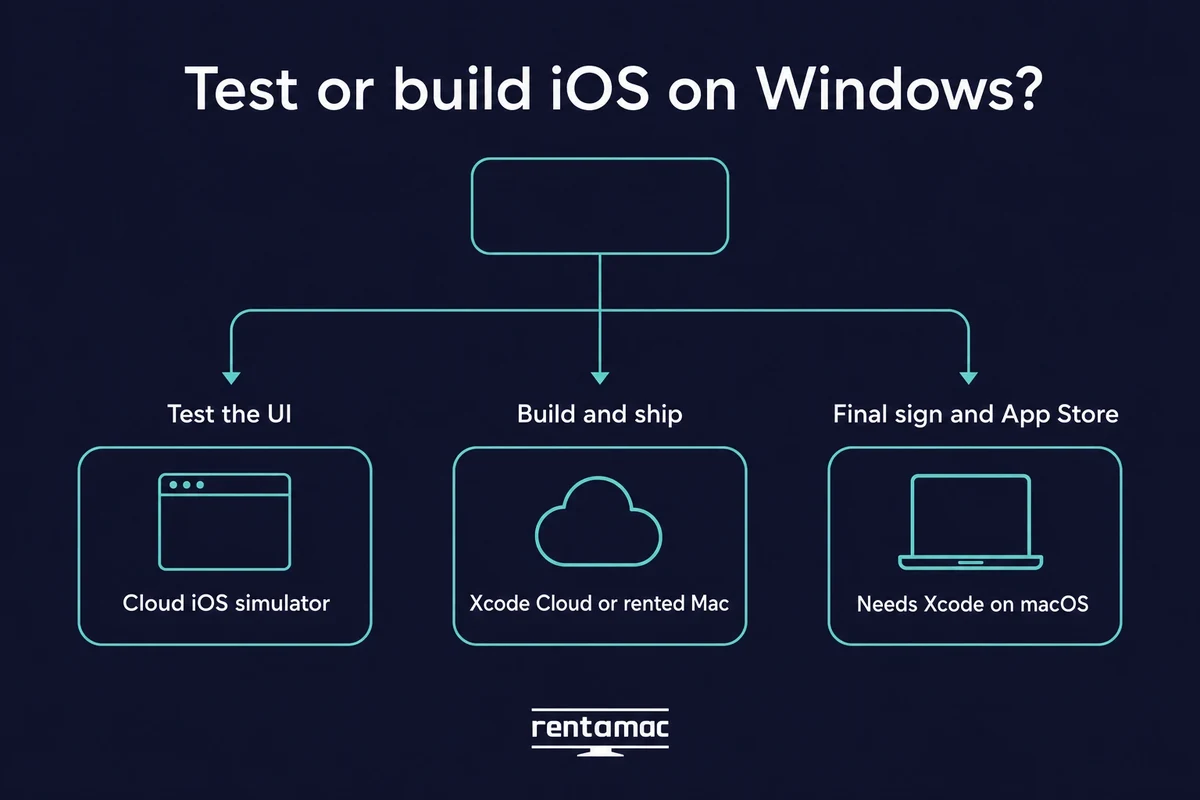
You can test iOS apps on Windows without owning a Mac. Browser-based cloud iOS simulators let you check how your app looks and behaves from a Windows PC, and Apple’s own Xcode Cloud can build and ship a project from Apple’s servers. Both have one hard limit, covered below.
A browser-based cloud iOS simulator runs in a normal Windows browser tab. You load your app and check how the screens look and react, no Mac needed for that part.
The device coverage is wide. Modern cloud simulators run everything from the iPhone 6 up to the latest iPhone Pro Max, across iOS 9 through iOS 26. There is no native Xcode simulator for Windows, but a browser-based cloud iOS simulator gives you the same on-screen test from your PC.
It helps to separate two ideas here. A simulator lets you test the interface, how the app looks and taps. A build service actually compiles and signs the app into something installable. They solve different problems.
Apple’s Xcode Cloud is Apple’s own build-and-test service. It builds your project and ships it to TestFlight from Apple’s servers, and the Apple Developer Program includes 25 compute hours a month free (paid tiers run from $49.99 for 100 hours up to far higher).
It is Apple’s option, configured from inside Xcode rather than a remote desktop you log into. You can trigger Apple’s Xcode Cloud builds from Windows once the project is set up, since the build itself runs on Apple’s servers, not your PC.
Here is the hard limit both share. A simulator only tests the UI, and even a cloud build service does not hand you the full Xcode IDE. The final compile, code signing, and App Store submission still need a real Mac running Xcode, which is exactly what a rented Mac gives you.
So plan for both. If your goal is the whole pipeline rather than a quick UI check, test iOS apps on Windows with a cloud simulator first, then move to a Mac for the build.
How to Pick the Best Renting Platform
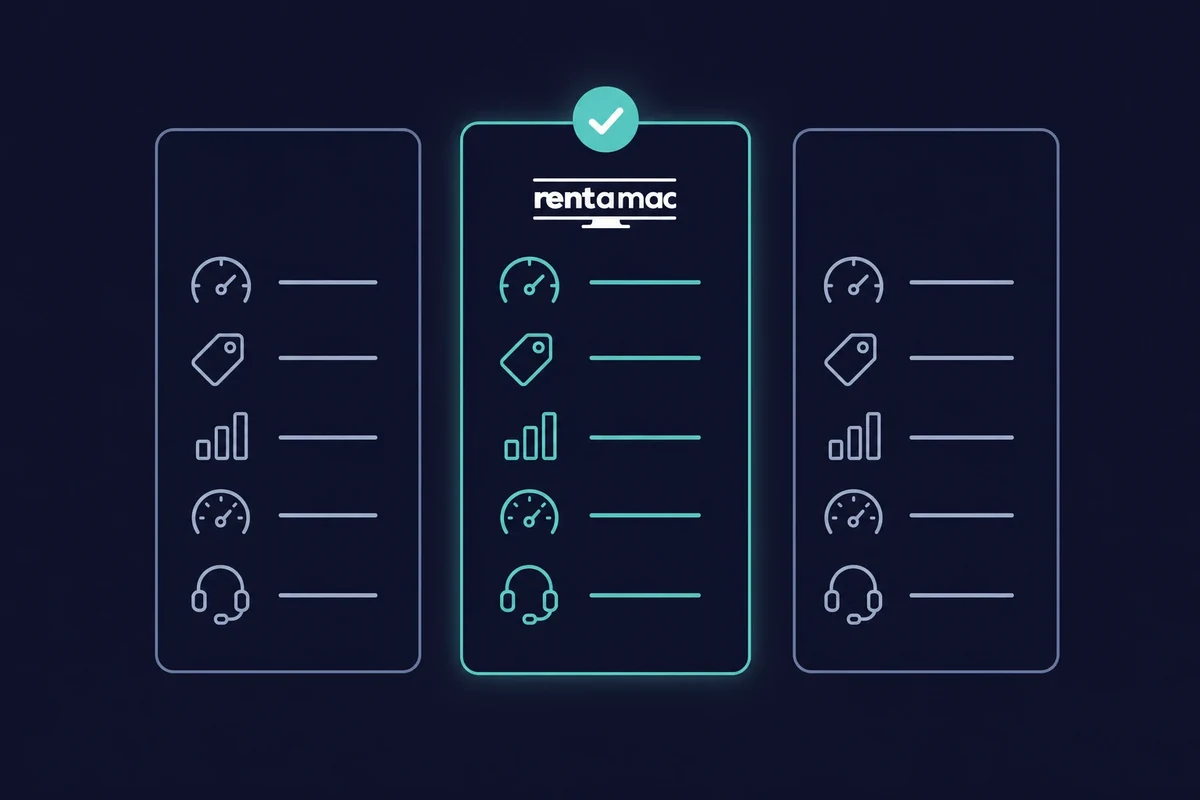
Renting Macs is one of the steadiest and most popular methods, so it pays to know what to look for. Not all providers offer the same hardware, reliability, or support. Weigh these five points before you pick one:
- Performance and hardware: Look for dedicated Mac hardware with the RAM, CPU, and storage your project needs, especially if you plan to run iOS simulators.
- Pricing: Most providers offer weekly and monthly plans. Rentamac.io stands out with daily plans too, and renting from $19 a day or $119 a month is cheaper than buying a Mac outright.
- Latency: Apps like DeskIn and Parsec keep the lag low between your keypress and the Mac responding. A slightly weaker config with lower latency is often the calmer machine to work on day to day.
- Uptime and reliability: Check the provider’s historical uptime and read reviews from other developers before you commit.
- Support and docs: Depending on your comfort level, look closely at the quality of the documentation and customer support on offer.
Conclusion
Like with anything in the field of software development, there isn’t a one-size-fits-all option for developing Apps using Xcode on Windows. Instead, you should explore the different options and find the one that suits your needs.
Each of the methods we’ve mentioned comes with pros and cons, and varies in complexity and cost. If you’re a solopreneur building your app, renting a Mac for a day can be the best option. On the other hand, tech geeks might opt for their own Hackintosh setup.
It all boils down to understanding your short and long-term goals, and finding the method that suits you the best. While renting a Mac is the steadiest option for most people, other techniques can help you launch your product on the App Store, just the same.
FAQ
How can I run Xcode on Windows without buying a Mac?
You can use a remote Mac rental service such as Rentamac.io. This platform lets you connect to a Mac over the internet and run Xcode just as if you owned Apple hardware.
What is the best method to develop Mac apps on Windows?
The most reliable method is renting a remote Mac. It ensures stability, compliance with Apple’s rules, and direct access to the latest version of Xcode.
Is it safe to download Xcode for Windows from third-party sites?
No. Apple does not provide an official Windows version of Xcode. Any website offering “Xcode for Windows” is distributing unsafe or pirated software, which may contain malware. The only legitimate way to get Xcode is through the Mac App Store on macOS.
Can I develop macOS apps on Windows?
Partly. You can write code on Windows, but you need macOS at some point to build, sign, test, and ship a real macOS app.
Is Hackintosh a good way to install Xcode on Windows?
A Hackintosh can run macOS on non-Apple hardware, which allows you to install Xcode. While it offers better performance than a virtual machine, it’s difficult to set up, may break after updates, and isn’t officially supported by Apple