On this page
Yes, an Apple Silicon Mac handles real machine learning well, mainly for running models locally. A 64GB Mac loads a 70B model in 4-bit that a 24GB RTX 4090 cannot. And industries now adopt ML at record rates.
The short version
Built for inference: Apple Silicon through the M5 runs local models well. Push heavy training to the cloud.
- RAM sets model size: 16GB runs 7-8B, 24GB handles 13-22B, 48-64GB reaches a 70B at 4-bit.
- MLX is the 2026 default runtime: it powers Ollama and beats llama.cpp by 30 to 40% on the M5.
- No CUDA on Mac: big training jobs still need a cloud GPU.
Machine Learning Capabilities on Mac
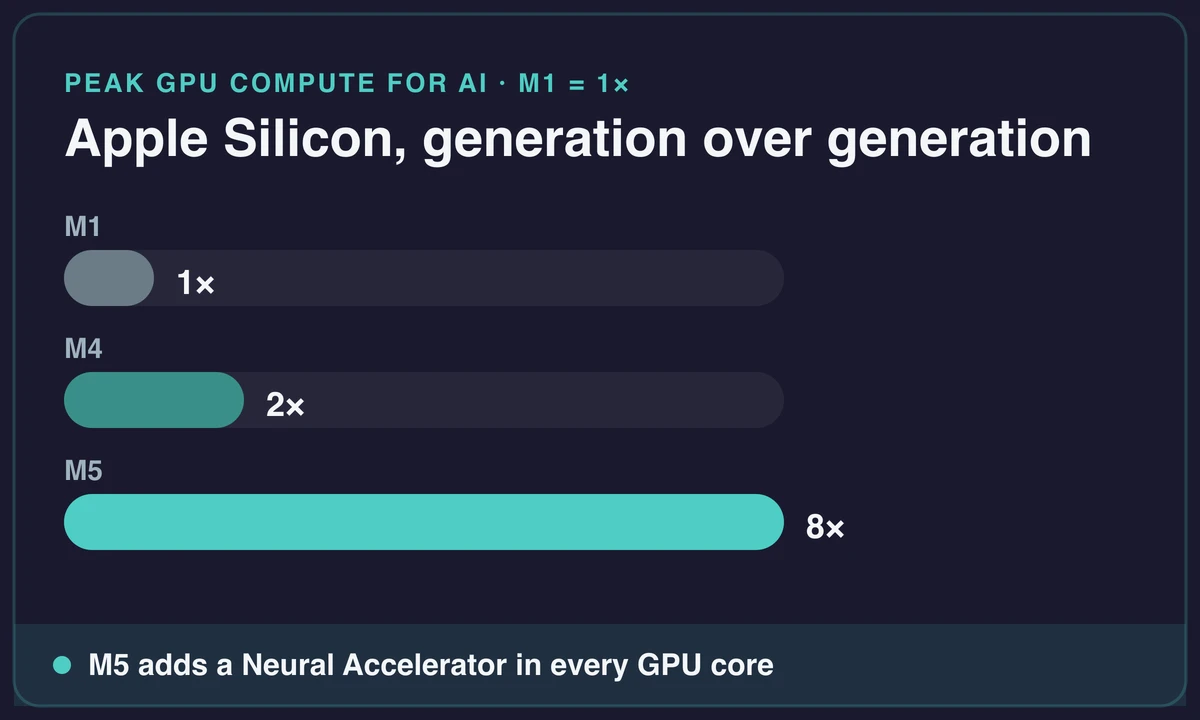
Yes, Apple Silicon is built for ML. Mac ML has come a long way. Through the M5 generation, your Mac now runs real machine learning workloads. The M5 adds a Neural Accelerator inside each GPU core. That gives over 4x the peak GPU compute for AI versus the M4, and up to 8x versus the M1.
The GPU and the memory share one pool. So the chip moves data fast, with no usual delays. You can see how Apple computers evolved into this kind of ML platform.
GPU Acceleration
The built-in graphics processor speeds up machine learning work, especially model training.
Unified Memory Architecture
On Mac, data stays in one place. It skips the slow transfers that bog down other systems, so models run fast: a 70B at 8 to 12 tokens per second.
Apple’s Native ML Solutions
Create ML
Create ML turns model training into a drag-and-drop system. You can consider it a Photoshop for machine learning:
- Image Classification: Spot defective products on a factory line
- Object Detection: Track soccer balls in live game footage
- Text Classification: Automatically tag customer emails as urgent or normal
- Hand Pose Classification: Build AR apps that respond to finger gestures
- Style Transfer: Turn vacation photos into Van Gogh paintings.
Core ML
Core ML is the bridge between raw models and real-world apps. Convert TensorFlow or PyTorch creations into Apple-friendly formats:
- Model Optimization: Trim computational fat without sacrificing accuracy
- Deployment: Run models offline on iPhones or iPads, best for instant on-device responses. This is particularly useful for developers building offline iOS features or working in setups where they develop iOS apps without Mac hardware.
Apple’s native stack now reaches past Create ML and Core ML. The Foundation Models framework, in its third generation as of June 2026, lets your app tap on-device language models. And at WWDC 2026, Apple introduced Core AI as the Core ML replacement.
Popular ML Frameworks and Their Performance on Mac
TensorFlow
TensorFlow’s Metal backend uses your Mac’s GPU to speed up work. Apple’s own tests showed it training up to 7x faster on an M1 MacBook Pro.
PyTorch
PyTorch is fully tuned for Apple’s hardware. It taps the Mac GPU, so you test an idea in seconds. For deep learning Mac work, both PyTorch MPS and MLX train smaller models on the GPU.
MLX
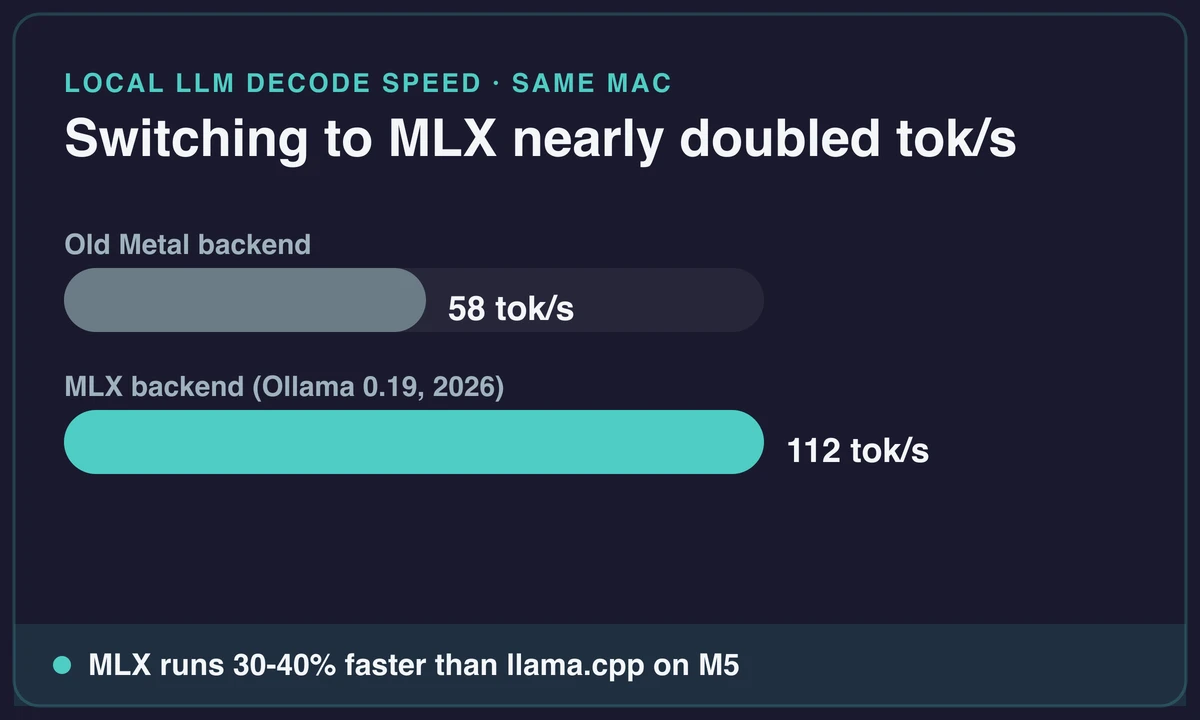
Apple’s MLX framework is now the default runtime for local AI on Apple Silicon. In March 2026, Ollama swapped its Metal backend to MLX, and decode speed jumped from about 58 to 112 tokens per second on the same hardware. MLX also runs 30 to 40% faster than the older llama.cpp backend:
- Automatic Differentiation: Handles the calculus behind the scenes
- Lazy Computation: Optimizes performance by computing only what’s needed
- Large-Scale Models: Runs transformer models efficiently
If you work with transformer-based LLMs, the numbers hold up. On a Mac Mini M4 Pro with 64GB, Llama 3.3 70B (4-bit) runs about 8 to 12 tokens per second.
How to Do Machine Learning on Mac: Step-by-Step Setup
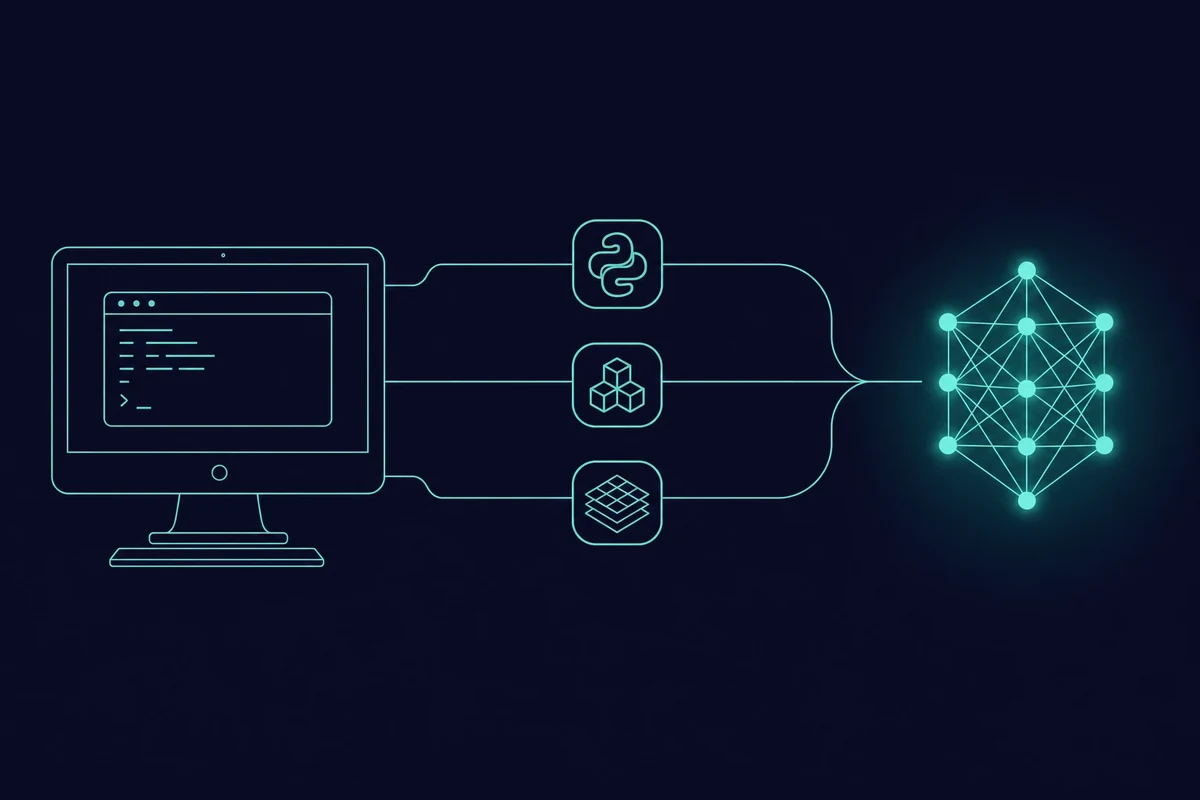
To set up a Mac for machine learning, install a few key frameworks, add Apple’s own ML apps, and you can train and run models right on your device.
1. Install Necessary Tools
- Use Homebrew (every Mac developer’s Swiss Army knife) to set up Conda environments
- Install TensorFlow (TensorFlow-Mac OS + TensorFlow-metal) or PyTorch
One Tahoe-era heads-up. The PyTorch MPS backend (the part that uses the Mac GPU) is still in beta. It has shown “built but not available” errors on macOS 26 with the 2.9.1 and 2.10 nightlies. If you hit it, pin a known-good build.
2. Explore MLX
- Install dependencies using pip install
- Test pre-built models like Stable Diffusion, and watch your Mac generate art from text prompts.
You can experiment with advanced models like DeepSeek using MLX on your Mac to test generative tasks like long-form reasoning or code completion.
3. Use Create ML
- Train models visually in the Create ML app
- Embed trained models into apps using Swift (Apple’s coding language). Even if you’re using Windows, it’s possible to engage in Swift development via remote Mac setups.
4. Optimize Models for Deployment
- Convert third-party models to Core ML format using Core ML Tools
Tips for Efficient Workflows
- Unified Memory Architecture: Let components share resources freely, like coworkers splitting a whiteboard
- Mixed Precision Training: Use 16-bit calculations where possible, it’s like shorthand for your GPU
- Benchmark Performance: Test different batch sizes to find your Mac’s performance sweet spot
Recommended Software and Tools for Mac Users
- TensorFlow to train on the GPU
- PyTorch for Python developers
- JAX for fast GPU math
- Create ML for quick prototyping
- Core ML tools for simple deployment
Pick by your need: a tight fit with Apple tools, or raw speed.
Limitations and Considerations
- NVIDIA GPU Gap: No CUDA-optimized tools, only Apple’s ecosystem
- Performance Realities: M-series chips impress, but NVIDIA’s GPUs still dominate massive model training
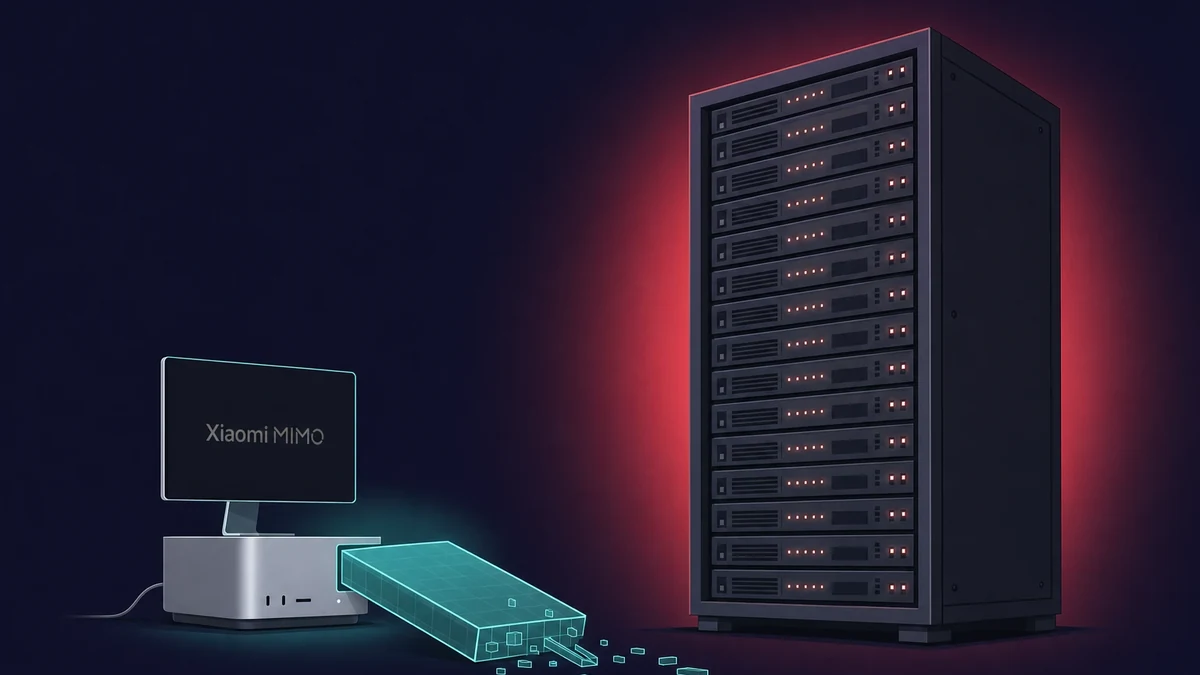
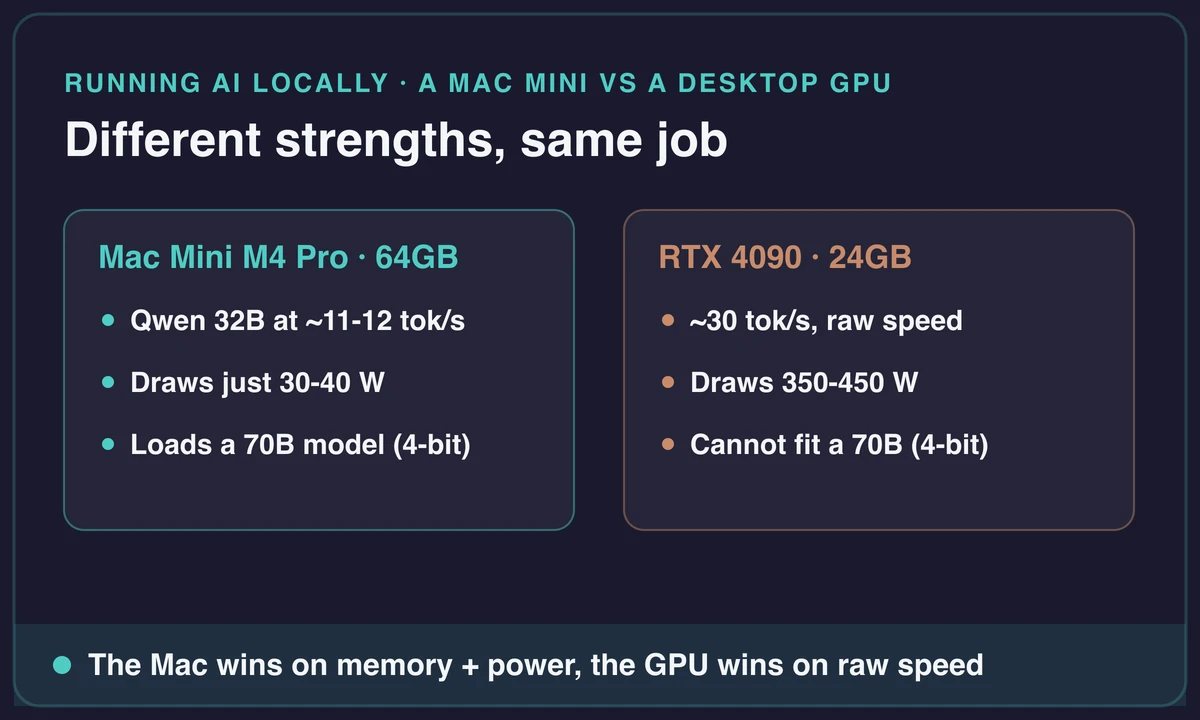
Think of an Apple Silicon Mac as an inference machine, not a training rig. A 64GB Mac can load a 70B model in 4-bit. A 24GB RTX 4090 cannot. So you run models locally and send heavy training to a cloud GPU. A Mac Mini for AI training is fine for fine-tuning small models. Just offload the big jobs.
The RAM you buy sets the model size, since it has to fit in memory.
| Unified RAM | Largest model you can run | Example local speed |
|---|---|---|
| 16GB | 7-8B models | small models, prototyping |
| 24GB | 13-22B models | comfortable mid-size local use |
| 48-64GB | 70B models at 4-bit | Llama 3.3 70B ~8-12 tok/s |
On a Mac Mini M4 Pro with 64GB, Qwen 32B runs at about 11 to 12 tokens per second. An RTX 4090 hits around 30, but draws 350 to 450 watts. The M4 Pro draws just 30 to 40. The Mac wins on power, the GPU wins on raw speed.
One note for older Intel Macs, like the iMac Pro. They lack the MPS GPU path and the Neural Engine, so on-Mac ML really starts with Apple Silicon.
FAQs
Can I train machine learning models without coding on a Mac?
Yes. Apple’s Create ML needs no coding at all. Drag your data into its visual interface, pick a task like spotting dog breeds in photos, and let it run.
How does macOS compare to Windows and Linux for machine learning development?
macOS offers a friendly interface and a Unix-like shell but may lack some Windows-specific tools. Linux is often preferred for its flexibility and broader ML framework support.
How much RAM do I need on a Mac for machine learning?
Picking a MacBook for ML comes down to RAM. 16GB runs small models, 24GB handles 13 to 22B local models, and 48 to 64GB is the practical floor for 70B-class models. Our guide on which MacBook to pick covers the trade-offs.
Can a Mac Mini run AI models?
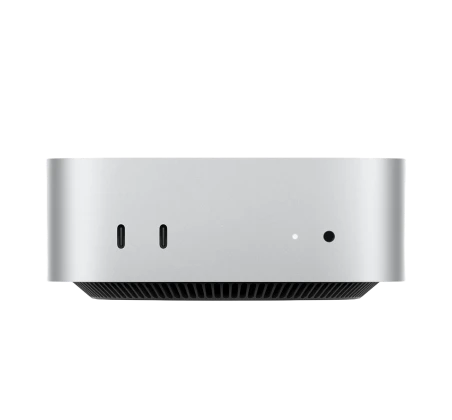
Yes. A Mac Mini M4 Pro with 64GB runs Qwen 32B at about 11 to 12 tokens per second while drawing just 30 to 40 watts. It is a quiet local-inference box, not a training rig.
Is Mac, Windows, or Linux best for machine learning?
It depends on your bottleneck. macOS wins on unified memory and portability for local models. Linux wins for serious CUDA training, and Windows splits the difference with WSL2 plus CUDA.