 ES
ES  EN
EN  PT
PT  TR
TR  FR
FR  AR
AR 
En esta página
Si estás desarrollando aplicaciones iOS en un ordenador Windows, puede que te hayas sentido atascado: las herramientas de Apple para el desarrollo de iOS sólo funcionan en Mac. Por lo tanto, no hay Xcode, no hay simulador de iOS, y no hay manera fácil de probar su aplicación a menos que cambie a un Mac.
Pero no todos los desarrolladores tienen acceso a un Mac. Muchos equipos, estudiantes y creadores independientes usan Windows. Por eso la idea de tener un simulador de iOS para Windows o de averiguar cómo desarrollar apps iOS sin Mac se ha hecho popular.
La buena noticia es que, aunque Apple mantiene las cosas bastante estrictas, hay formas de hacerlo:
- Previsualiza el aspecto de tu aplicación para iOS
- Pruebe el diseño y la navegación de su aplicación
- Depurar cualquier problema
- Simule gestos y funciones de hardware sin necesidad de un Mac
En esta guía, veremos las mejores formas de simular iOS en Windows, repasaremos las ventajas y desventajas de cada una y encontraremos la mejor forma de realizar pruebas de aplicaciones iOS sin hardware Mac, especialmente si quieres utilizar los simuladores reales de Xcode en un PC.
La respuesta corta
Apple incluye el simulador de iOS solo dentro de Xcode, y Xcode solo funciona en macOS. Ningún simulador de iOS real se instala en Windows. La vía fiable es un Mac alquilado en la nube, donde ejecutas el simulador de iOS real de Xcode y lo ves en tu PC.
¿Por qué es difícil crear aplicaciones iOS en Windows?
Simular iOS en Windows no es fácil. Apple limita sus herramientas de desarrollo, por lo que solo puedes usar herramientas como Xcode y el simulador de iOS en macOS.
Aunque los desarrolladores buscan a menudo un simulador de iOS o un simulador de iPhone para Windows, estas alternativas no suelen funcionar tan bien como las herramientas oficiales de Apple. Las búsquedas de un simulador de iPhone para Windows chocan con el mismo muro: Apple incluye el simulador solo dentro de Xcode en macOS. Este es el motivo:
- Xcode sólo funciona en macOS - No puedes instalar Xcode en un PC con Windows, lo que significa que te pierdes el simulador de iOS que viene con él.
- Funciones limitadas - La mayoría de los simuladores de Windows se limitan a imitar la interfaz de usuario. No pueden emular cómo interactúa una aplicación con hardware como GPS, cámaras o escáneres de huellas dactilares.
- Cuestiones jurídicas - Muchas opciones no oficiales, incluidas las máquinas virtuales, incumplen el Acuerdo de Licencia de Usuario Final (EULA) de Apple, por lo que no son ideales para desarrollar aplicaciones para la App Store o trabajar en equipo.
Aunque algunos desarrolladores prueban simuladores tipo Android o herramientas desde el navegador, a menudo no bastan para probar una app iOS en Windows, sobre todo para tareas como depurar o comprobar cómo rinde la app en dispositivos reales.
Qué puedes y qué no puedes probar en un simulador
El simulador de iOS puede simular Face ID, Touch ID y la ubicación, pero no puede usar la cámara real, el acelerómetro, el barómetro ni el magnetómetro. Así que las funciones de hardware siguen necesitando un dispositivo real o un Mac real, aunque todo lo demás funcione bien en pantalla. Conocer este límite te ayuda a planificar qué probar en cada sitio.
Así es el reparto en 2026:
- Se puede simular (desde Xcode 9): Face ID, Touch ID y la ubicación. Los configuras desde el menú del simulador, sin necesidad de un sensor real.
- No se puede simular: la cámara real, el acelerómetro, el barómetro y el magnetómetro. Todo lo que lea esos datos necesita un iPhone físico.
También existe un “simulador en Windows” oficial que mucha gente busca. Remote iOS Simulator de Microsoft para .NET MAUI muestra una ventana del simulador de iOS dentro de Visual Studio 2022 en Windows, pero sigue conectándose a un Mac que hace de host de compilación para el trabajo real, y el sonido solo se reproduce desde ese Mac. Así que incluso la herramienta oficial de Windows acaba necesitando un Mac detrás.
Lo mismo pasa con los frameworks multiplataforma. React Native, Flutter y .NET MAUI te permiten escribir la app en Windows, pero la compilación final para iOS y el envío al App Store siguen haciéndose en macOS con un Xcode actualizado.
Los propios foros para desarrolladores de Apple lo dicen claro: Xcode solo es compatible con macOS, así que no puedes ejecutarlo en un PC. Por eso también una búsqueda de instalar Xcode en Windows siempre te lleva de vuelta a un Mac real, y por eso alquilar uno es la solución más sencilla para Desarrollo de Swift en Windows.
3 formas de usar un simulador de iOS en Windows
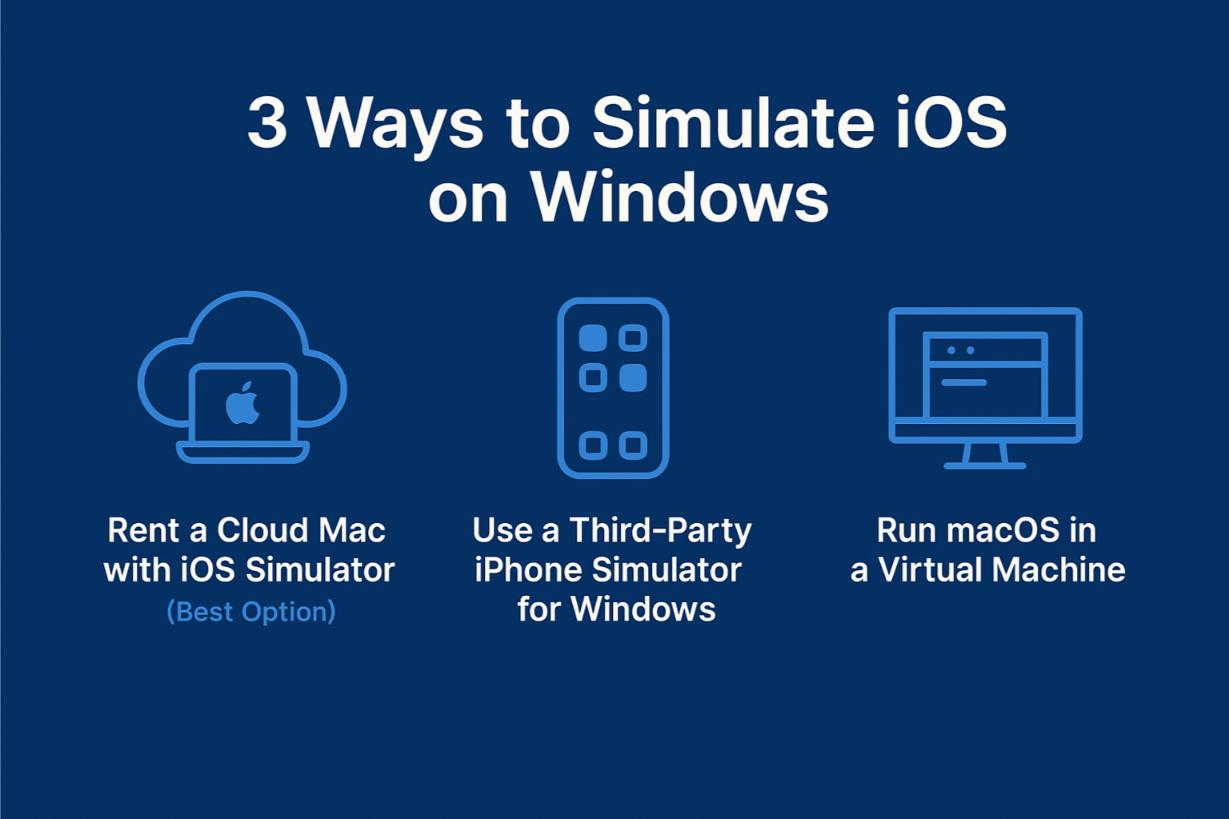
Para ejecutar iOS en un ordenador con Windows, puedes:
1. Alquila un Mac en la nube para acceder a un simulador de iOS real.
2. Prueba simuladores de iPhone de terceros que funcionan en el navegador.
3. Instala macOS en una máquina virtual.
Estas son las ventajas e inconvenientes de cada opción. Si buscas un simulador de iOS para PC, ten en cuenta que ninguna de ellas ejecuta iOS de forma nativa en Windows; solo un Mac real lo hace.
Primero, una aclaración sobre los nombres, porque confunde a casi todo el mundo. Un simulador ejecuta tu app en un entorno iOS solo de software, como el que incluye Xcode. Un emulador de verdad también copiaría el hardware del iPhone.
Así que, cuando alguien pregunta cómo emular iOS en Windows, la respuesta honesta es que no existen emuladores de iOS reales para PC. Por eso la vía fiable es macOS real, no un “emulador” que descargas.
1. Alquilar un Mac en la nube con simulador de iOS (la mejor opción)
Esta es, con diferencia, la opción más fiable. Con Rentamac.io, puedes alquilar un Mac real online y acceder a él desde tu ordenador Windows. Una vez dentro, podrás utilizar Xcode y el simulador oficial de iOS con el que trabajan los desarrolladores de Apple.
No se trata de una imitación barata, sino del auténtico producto. Esta opción es ideal para Pruebas de aplicaciones iOS sin un Mac.
Por qué funciona:
- Acceso completo al simulador de iOS en Xcode
- Funciona con Swift, Flutter, React Nativey Objective-C
- Puedes probar diseños, rendimiento, gestos y cualquier problema específico del dispositivo.
- Cumple las directrices de Apple
- Ideal para desarrolladores que deseen disfrutar de la auténtica experiencia de un simulador de iOS en Windows.
2. Utilice un simulador de iPhone de terceros para Windows
Algunas herramientas intentan cubrir ese hueco ofreciendo un simulador de iPhone para Windows. Las actuales son simuladores en la nube que funcionan en el navegador: abres una página, eliges un dispositivo y ves la pantalla de tu app sin instalar nada. En 2026 anuncian una cobertura amplia, aproximadamente del iPhone 6 al iPhone 17 Pro Max, de iOS 9 a iOS 26, y geolocalización en más de 170 países.
Por qué funciona:
- Simula la interfaz de usuario y las interacciones fundamentales
- Útil para previsualizar rápidamente el diseño
- No necesita macOS
Limitaciones:
- No tiene acceso a funciones nativas
- Carece de funciones reales de simulador de iOS
- No se puede enviar a la App Store ni probar de forma nativa
- Bueno para demostraciones rápidas o pequeños ajustes, pero no para pruebas exhaustivas.
Así que un simulador en el navegador sirve para revisar rápido un diseño. Para compilar y probar de verdad sigues necesitando un Mac real, que es justo la vía que explicamos en nuestra guía para ejecutar aplicaciones iOS en Windows.
3. Ejecutar macOS en una máquina virtual
Algunos desarrolladores intentan instalar macOS en una máquina virtual Windows utilizando herramientas como VirtualBox o VMware. Aunque esto te permite instalar Xcode, tiene importantes desventajas.
Limitaciones:
- Hay muchas posibilidades de que incumpla las normas de licencia de Apple
- Tiende a ser inestable y a no funcionar bien
- A menudo incompatible con las últimas versiones de Xcode
Si quieres probar apps iOS como es debido sin un Mac, esta no es la mejor opción. Para usos básicos, hay quien intenta ejecutar apps iOS en Windows con capas de emulación, aunque rara vez dan resultados fiables.
Por qué Rentamac.io es la mejor opción
Si quieres sumergirte en el desarrollo de iOS y no quieres recurrir a soluciones poco fiables, Rentamac.io es la mejor manera de simular iOS en Windows de forma legítima.
A diferencia de esos emuladores de terceros o de herramientas web poco fiables, Rentamac.io te conecta a hardware macOS real. En lugar de fingir, usas de verdad las herramientas de Apple directamente desde tu equipo con Windows.
Una vez configurado, puedes instalar Xcode, encender el simulador real de iOS y ponerte a trabajar como lo harías en un Mac. Es la mejor manera de experimentar el simulador de iOS para Windows sin romper ninguna regla.
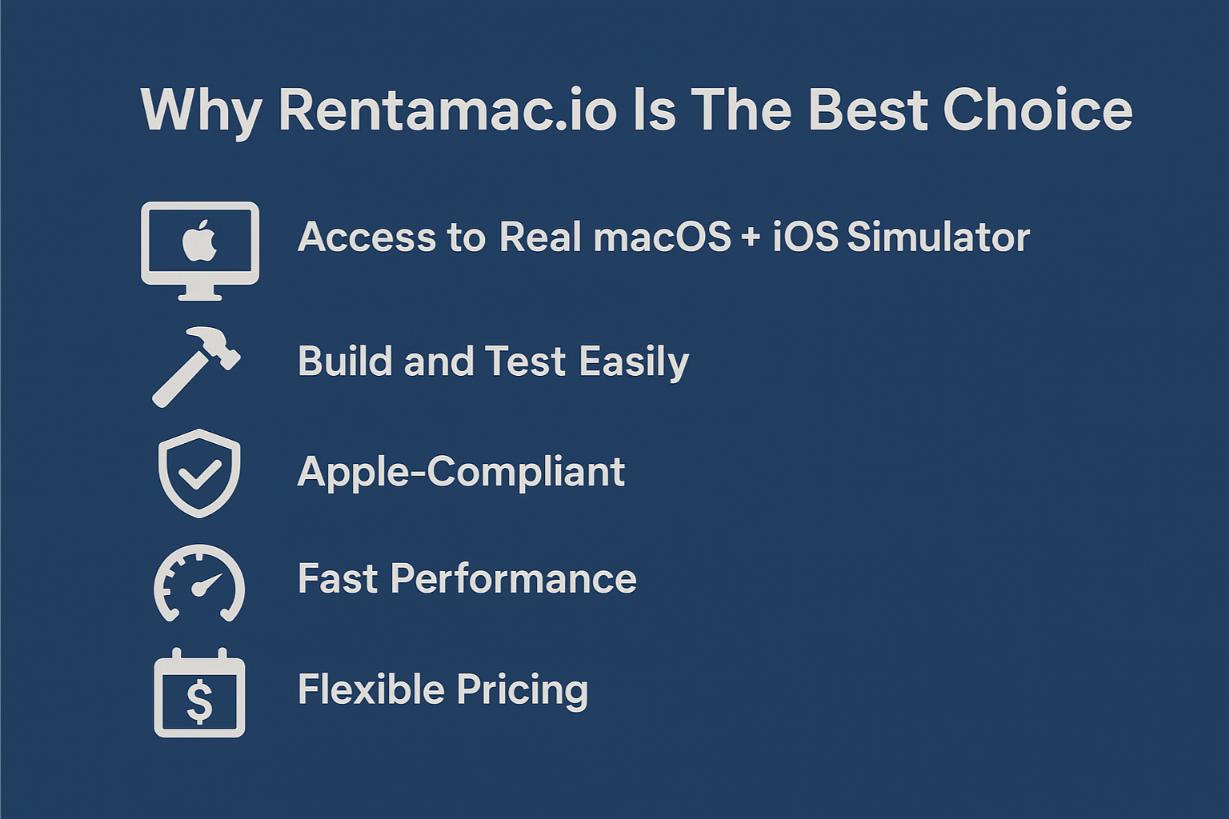
Esto es lo que hace de Rentamac.io una buena opción:
- Acceso a un simulador real de macOS + iOS - estás en la configuración oficial de Apple, no atascado con algún emulador limitado.
- Construya y pruebe fácilmente - funciona bien con React Native, Flutter, Swifty Objective-C.
- Compatible con Apple - A diferencia de las máquinas virtuales o las configuraciones Hackintosh, Rentamac.io obedece las reglas de Apple.
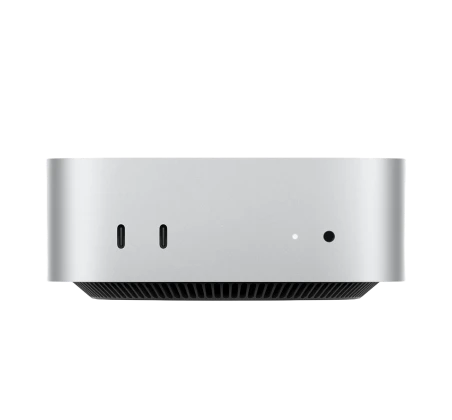
- Rendimiento rápido – cada instancia es un Mac Mini M4 dedicado con 16GB de RAM, un SSD de 256GB y macOS 27.0+, así que las compilaciones son rápidas y el simulador funciona con fluidez.
- Precios flexibles - Alquile por días, semanas o más tiempo. Sin necesidad de comprar un Mac caro por adelantado.
Cómo simular iOS con Rentamac
Usar Rentamac.io es sencillo. No tendrás que configurar máquinas virtuales ni buscar emuladores poco fiables. Solo sigue estos pasos para simular iOS en Windows con las herramientas oficiales, directamente desde tu PC.
Paso 1: Elija un plan y una opción de pago
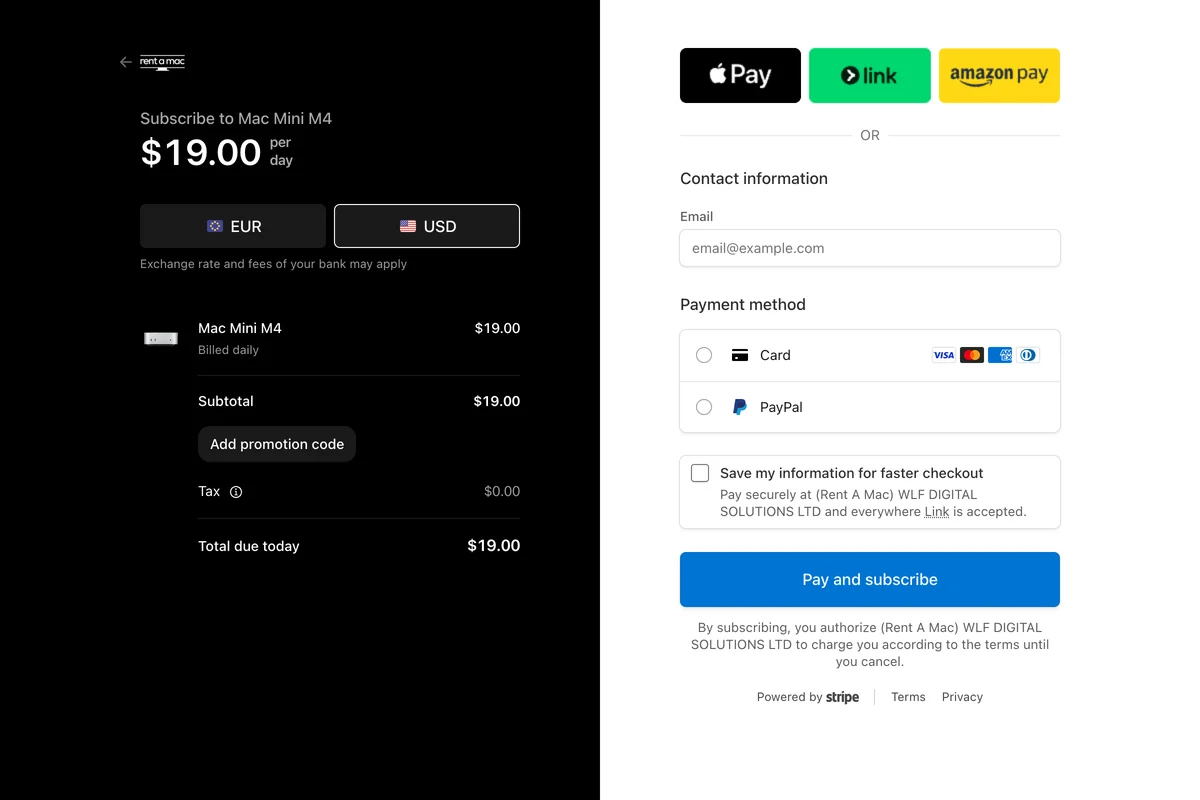
Primero, ve a la página de precios y elige el plan que mejor se adapte a ti. Después irás a una página de pago segura de Stripe, donde puedes pagar con tarjeta Visa o Mastercard, o con PayPal. El acceso es inmediato en cuanto se completa el pago.
Paso 2: Conectar al Mac Mini
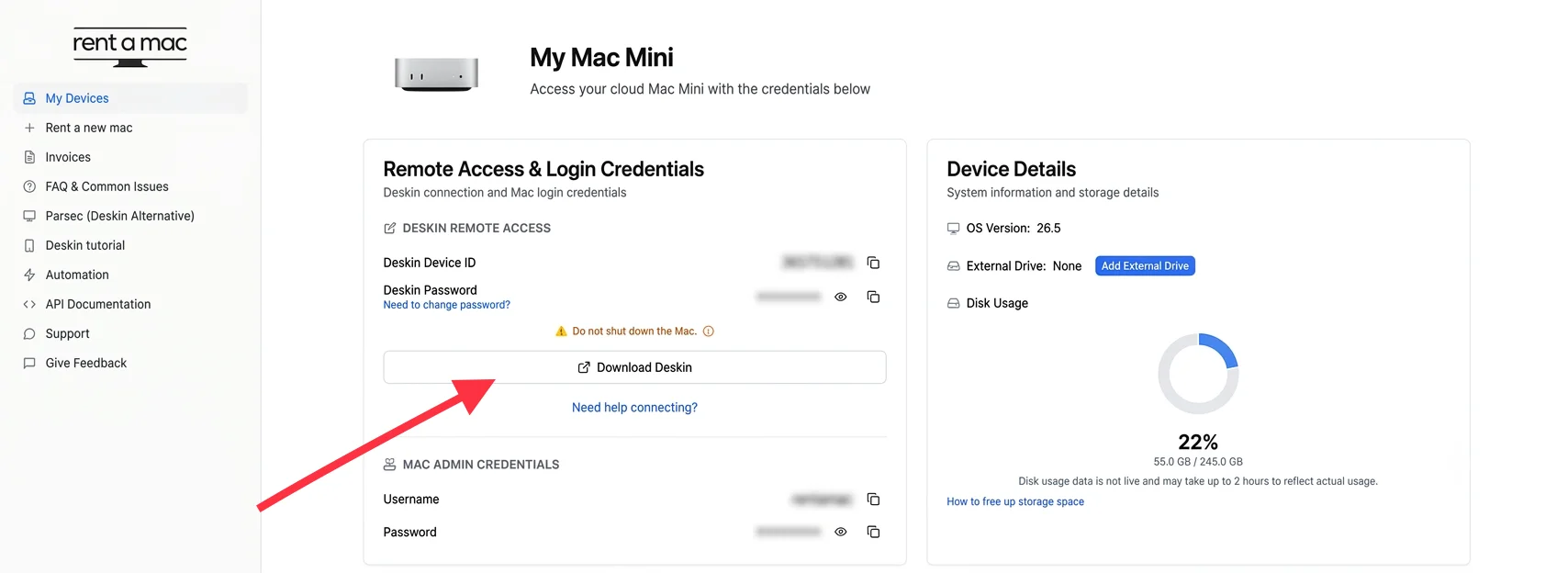
Al terminar el pago, recibirás tus datos de acceso remoto, incluidos los datos de inicio de sesión del Mac que aparecen en tu panel.
El acceso remoto se hace con DeskIn, una app de escritorio remoto que ya viene instalada y es gratuita en tu Mac alquilado, así que no hay nada que descargar. Abre DeskIn en tu PC con Windows, introduce los datos de conexión del panel y listo. Si la conexión se cae, hay un botón “Restart DeskIn” en el panel para recuperarla.
Paso 3: Instalar Xcode e iniciar el simulador de iOS
Si Xcode aún no está en tu Mac, abre la Mac App Store y descarga la versión actual, Xcode 26.4.1, que incluye el runtime más reciente del simulador de iOS y los perfiles de dispositivo de la gama iPhone 17 y del iPad Pro M5. Así tienes el simulador real de Xcode en Windows, funcionando en el Mac alquilado y transmitido a tu PC.
- Abra su proyecto iOS (como React Native, Swift, Flutter, etc.)
- Elige tu dispositivo
- Ejecute la aplicación en el simulador y empiece a probarla inmediatamente
Paso 4: Construir, probar y exportar
- Depura en tiempo real con las herramientas de Xcode
- Simula condiciones como la ubicación, la orientación, etc.
- Archiva y exporta tu aplicación como archivo .ipa para TestFlight o para enviarla a la App Store.
Una razón por la que el paso de compilación necesita un Mac actualizado: desde el 28 de abril de 2026, el App Store rechaza cualquier envío que no esté compilado con el SDK de iOS 26, que viene con Xcode 26.x. Un Mac real y actualizado es la única forma de cumplir ese requisito.
Preguntas frecuentes
¿Puedo utilizar el simulador de iOS en Windows?
El simulador oficial de iOS solo funciona en macOS, ya que forma parte de Xcode. Pero puedes usar Rentamac.io para acceder a él desde tu PC con Windows alquilando un Mac real y dedicado.
¿Existen simuladores legales de iPhone para Windows?
Existen algunos emuladores de terceros, pero no son oficiales y tienen sus límites. Rentamac.io ofrece una forma legal de utilizar las herramientas de Apple alquilando un Mac en la nube.
¿Cuál es la mejor forma de probar aplicaciones iOS sin un Mac?
Utilizar un Mac en la nube a través de proveedores fiables como Rentamac.io. Te permite simular, crear y probar aplicaciones iOS directamente desde tu sistema Windows.