 ES
ES  EN
EN  PT
PT  TR
TR  FR
FR  AR
AR 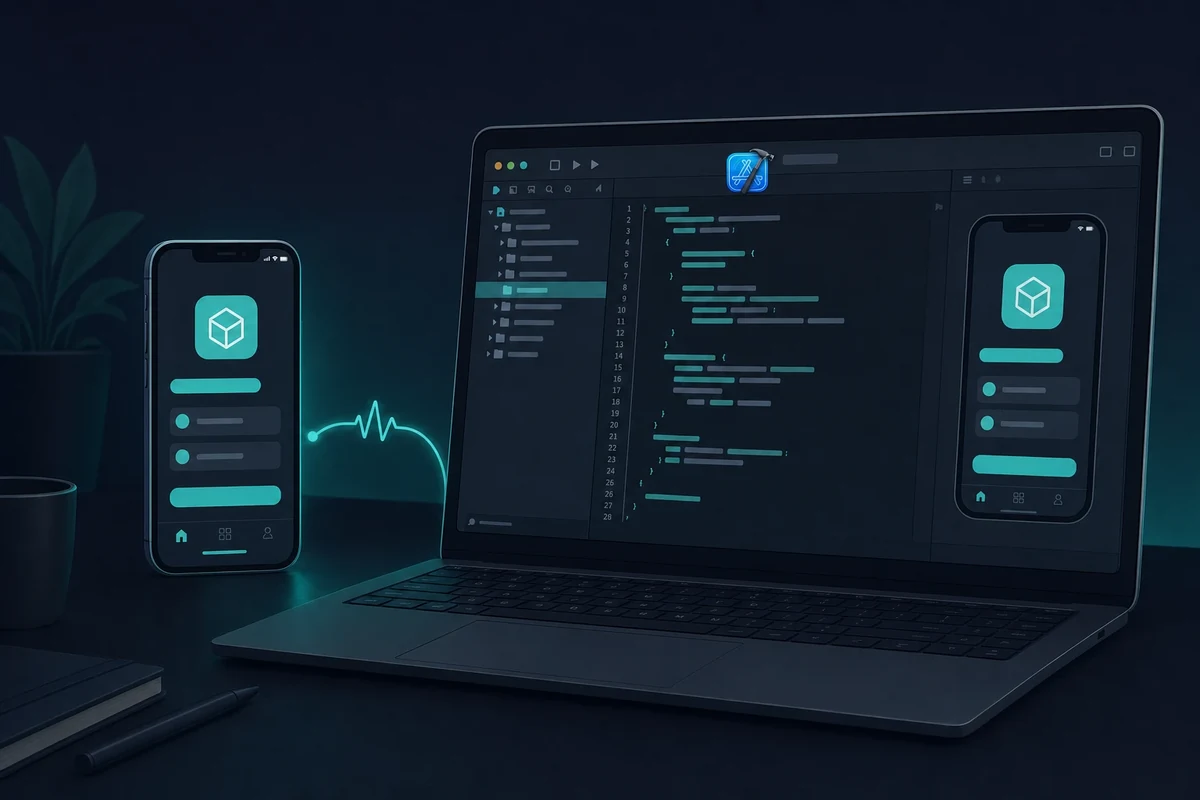
On this page
The short version
You can test and build iOS apps on Windows, but the build itself always needs real macOS. The most reliable path is a rented cloud Mac running Xcode, from $15 a day or $99 a month. There is no TestFlight client for Windows, and a free Apple ID is enough to test on your own iPhone (the paid $99/year Apple Developer account is only for App Store distribution).
If you’re developing mobile apps on a Windows PC, you’ve probably found it tough to test or build for iOS. That’s because Apple only lets Xcode – the official tool for iOS development – run on macOS.
So, if you don’t have a Mac, you can’t install Xcode, which makes testing iOS apps a challenge. Because of this, lots of teams have figured out ways to Crear aplicaciones iOS sin Mac.
Muchos desarrolladores de todo el mundo utilizan principalmente Windows. Tanto si trabajas en aplicaciones multiplataforma con herramientas como React NativeFlutter o Ionic, la necesidad de probar aplicaciones iOS en Windows es bastante común.
La buena noticia es que, aunque Apple tiene sus reglas, existen formas prácticas de probar e incluso crear aplicaciones iOS en Windows sin necesidad de un Mac. En esta guía, vamos a ver las mejores opciones disponibles, incluyendo la mejor opción para los desarrolladores que quieren una experiencia completa macOS en su PC.
¿Por qué es difícil crear aplicaciones iOS en Windows?
Apple mantiene muy unidas sus herramientas de desarrollo. Xcode es el principal programa que necesitas para crear, ejecutar y publicar aplicaciones iOS, pero solo funciona en macOS.
Aunque utilices herramientas multiplataforma como React Native o Flutter, hay un problema: no puedes ejecutar ni compilar aplicaciones de iOS sin macOS. Esto es así tanto si estás probando funciones como depurando o preparando tu aplicación para el App Store.
There is no way to run Xcode without a Mac on your own Windows machine, so the practical answer is a real Mac you reach remotely.
Aunque existen algunos métodos para simular iOS en Windowspero no suelen ofrecer una verdadera experiencia de desarrollo.
Algunos desarrolladores intentan evitar esto utilizando máquinas virtuales o configuraciones Hackintosh, pero esto conlleva algunos problemas importantes:
- Van en contra del Acuerdo de Licencia de Usuario Final de Apple.
- Pueden ser inestables y lentos, y normalmente no reciben soporte de las actualizaciones de Xcode.
- No funcionarán para el envío a la App Store.
So, while Windows is useful for development, it doesn’t provide the right tools to build or test iOS apps effectively. You can still build an iOS app on Windows without a Mac, but every reliable path routes the final build through real macOS, so the trick is reaching that Mac the right way.
3 formas de probar aplicaciones iOS en Windows
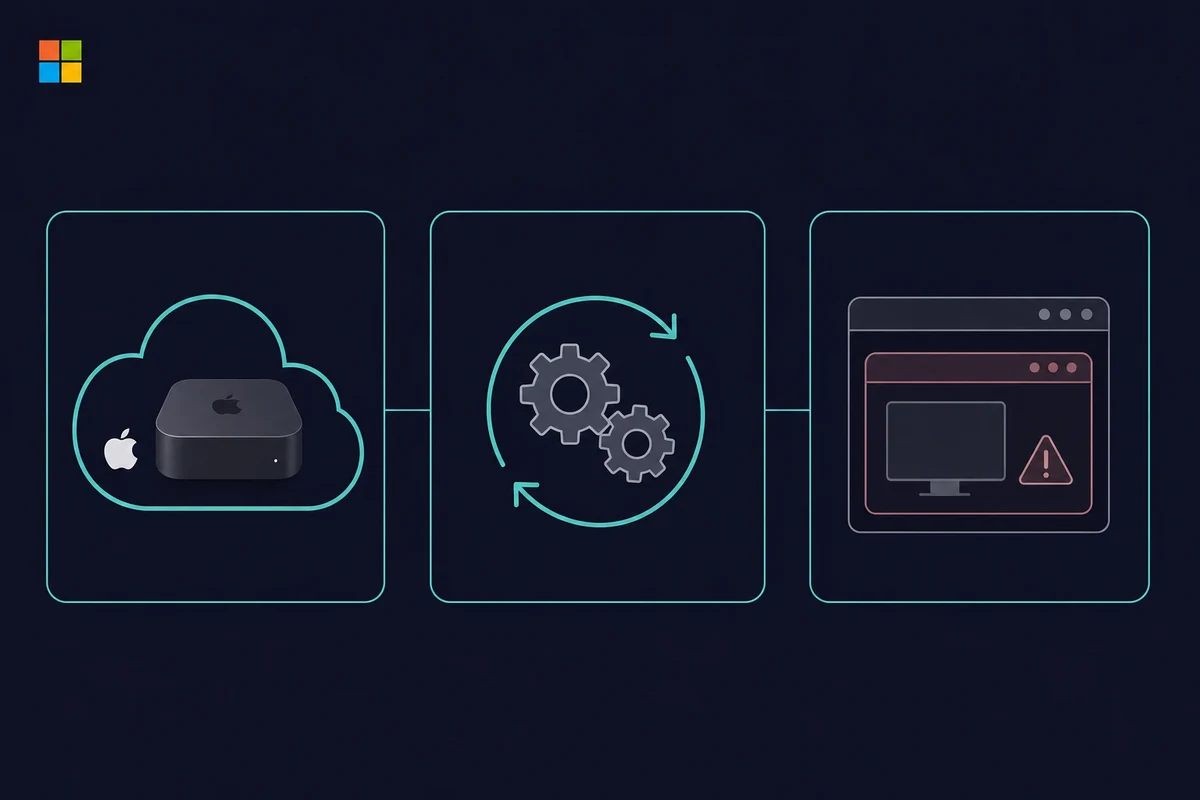
If you’re developing on Windows, you’ll run into Apple’s macOS requirement sooner or later. Testing iOS apps on Windows comes down to three reliable paths, and only one gives you the full Xcode experience to build iOS apps right from your Windows machine.
1. Utilizar un Mac en la nube (mejor opción - RentAMac.io)
La forma más sencilla de probar aplicaciones iOS sin un Mac es alquilar en línea un dispositivo Apple real.
Con Rentamac.io, you can use a remote Mac setup with Apple Silicon and install Xcode to run iOS Simulators efficiently. It’s like working on a real Mac from your Windows computer.
Por qué funciona:
- Acceso completo a Xcode para crear y probar aplicaciones iOS
- Real Apple hardware, no hacks or emulators needed
- Funciona con React Native, Flutter, Swift, etc.
- Bueno para el desarrollo, la depuración y la implantación en el App Store.
Whether you’re testing performance or want to build iOS apps on Windows, a rented cloud Mac takes five short steps to set up.
2. Use a Cloud Build Service
If you want automated builds, a cloud build service can compile iOS apps from your Git repo without a local Mac. You connect your repository, and the service builds on its own hosted Macs.
Por qué funciona:
- Admite compilaciones de iOS basadas en la nube para Flutter, React Native y aplicaciones nativas.
- Puedes descargar tu archivo .ipa compilado
- Funciona con GitHub, GitLab, Bitbucket
Limitaciones:
No dispondrá de una interfaz gráfica ni de un simulador, lo que no es la mejor opción para realizar pruebas prácticas.
Lo mejor para:
Equipos que dependen de procesos automatizados y no necesitan pruebas interactivas.
3. Utilizar macOS en una máquina virtual
Algunos desarrolladores intentan ejecutar macOS en VirtualBox o VMware para imitar un entorno Mac.
Limitaciones:
- Incumple el acuerdo de licencia de Apple
- Propenso a errores, fallos y problemas de seguridad
- A menudo no funciona con las últimas versiones de Xcode
Si te tomas en serio la creación de aplicaciones para iOS, esta no es la mejor manera. Puede hacerte perder el tiempo e incluso acarrearte problemas legales.
The three methods compared
The three Windows-friendly testing paths trade off control, cost, and legality. A rented cloud Mac gives you the full Xcode and Simulator experience. A cloud build service compiles your app remotely but gives no interactive simulator. And a local macOS virtual machine breaks Apple’s licence and tends to be slow and fragile.
Here is how the three stack up if you want to desarrollar aplicaciones iOS en Windows without buying a Mac:
| Método | What you get | Rough cost | Legal and reliable |
|---|---|---|---|
| Cloud Mac (rented) | Full Xcode and Simulator, App Store deploy | From $15/day or $99/month | Yes, fully compliant |
| Cloud build service | A compiled .ipa, no GUI or simulator | Varies by service | Yes, but no interactive testing |
| macOS in a VM | A fragile macOS desktop | “Free” but heavy setup | No, breaks the Apple EULA |
A virtual machine looks free, but it wants around 16GB of RAM plus tens of gigabytes of disk, and it often breaks on the current Xcode release. For the paid hosted options, see our rundown of cloud Mac rental options.
Is TestFlight available on Windows?
No, there is no TestFlight for Windows. TestFlight is an Apple app that runs only on iOS, iPadOS, and macOS, so the download pages claiming otherwise are misleading. To upload a build to TestFlight or install a test build, you need a Mac, and the simplest one from a Windows PC is a rented cloud Mac running Xcode.
Some “TestFlight for PC” download pages even push an unrelated Android emulator instead of anything Apple, so skip them.
What you can actually do from Windows is reach a Mac remotely and drive the whole upload from there:
- Connect to a remote Mac and open your project in Xcode.
- Archive the app and upload the build to App Store Connect.
- Add and manage your testers in App Store Connect.
Your testers never touch Windows for this. They install the build on their own iPhone or iPad through the TestFlight app, the same way they would for any beta. Only the build-and-upload step needs a Mac, and that is exactly the archive-and-export flow covered in Step 5 below.
Por qué Rentamac.io es la mejor opción
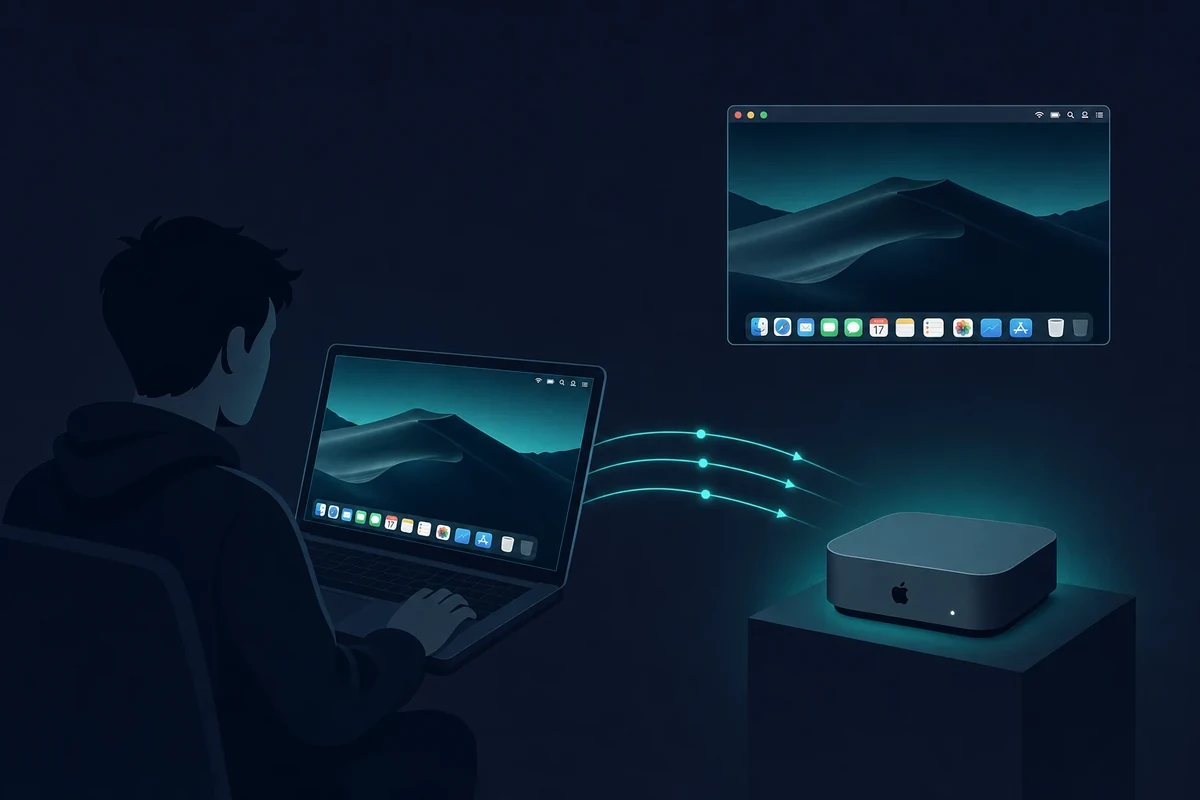
For compliant iOS testing without owning a Mac, Rentamac.io gives you a complete macOS setup you reach from your Windows PC. You log into a real Mac, use Xcode, run the iOS Simulator, test your app, or submit it to the App Store. Here is what makes it a good pick:
Experiencia real con macOS
Trabajas en una máquina Apple real con macOS, sin emuladores ni hacks. Esto significa que no tendrás problemas de compatibilidad ni incumplirás ninguna norma de Apple.
Crear y probar aplicaciones iOS desde Windows
Tanto si tu aplicación está hecha con React Native, Flutter, Swiftu Objective-C, puede compilar, probar y depurar directamente desde su PC Windows, gracias al acceso remoto a Mac.
Totalmente conforme
Rentamac.io sigue el Acuerdo de Licencia de Usuario Final de Apple, a diferencia de las máquinas virtuales o las configuraciones Hackintosh. Puedes utilizarlo sin preocuparte de tu cuenta de desarrollador de Apple o de la aprobación del App Store.
Gran rendimiento
Every instance is a real Mac Mini M4 with 16GB of RAM, so build times stay quick and the iOS Simulator runs smoothly while you debug.
Clear Pricing
You don’t have to buy a MacBook or set up complicated systems. Plans are Daily $15, Weekly $49, and Monthly $99, so you just rent what you need for as long as you need it. There is no hourly plan, since Apple’s macOS terms don’t allow one.
Cómo probar aplicaciones iOS con Rentamac
Setting up a Mac from a Windows PC might seem tricky, but with Rentamac.io it takes five short steps. You pick a plan from $15 a day, pay through Stripe, then connect to your own Mac Mini M4 with the pre-installed DeskIn app. From there you install Xcode from the App Store, open your project in the iOS Simulator to test it, and archive the build to export an .ipa file.
Here is the same flow as a quick checklist:
1. Pick a plan (Daily $15, Weekly $49, or Monthly $99) and pay through Stripe.
2. Connect to your Mac Mini with the pre-installed DeskIn app.
3. Install Xcode from the App Store on your rented Mac.
4. Test your app by running it in the iOS Simulator.
5. Build and export the .ipa file for TestFlight or the App Store.
Paso 1: Elija un plan y una opción de pago
Pick a plan. Choose the plan that fits your needs: Daily $15, Weekly $49, or Monthly $99. Once you choose, you go to a secure checkout page handled by Stripe, where you can pay with a Visa or Mastercard, or with PayPal. Access is immediate after payment.

Paso 2: Conectar al Mac Mini
Una vez que hayas pagado, recibirás tu propio Mac Mini dedicado. Recibirás tus credenciales de acceso remoto, incluidos los datos de acceso al Mac y los detalles de la herramienta de escritorio remoto.
Connect with DeskIn. It is a remote desktop app that comes pre-installed on your Mac at no extra cost and even works from a phone or tablet. Just open it from your Windows PC to control your rented Mac, and if a session ever drops, the dashboard has a “Restart DeskIn” button to bring it back.
Parsec and SSH over Tailscale are there too if you prefer them.

Paso 3: Instalar y ejecutar Xcode
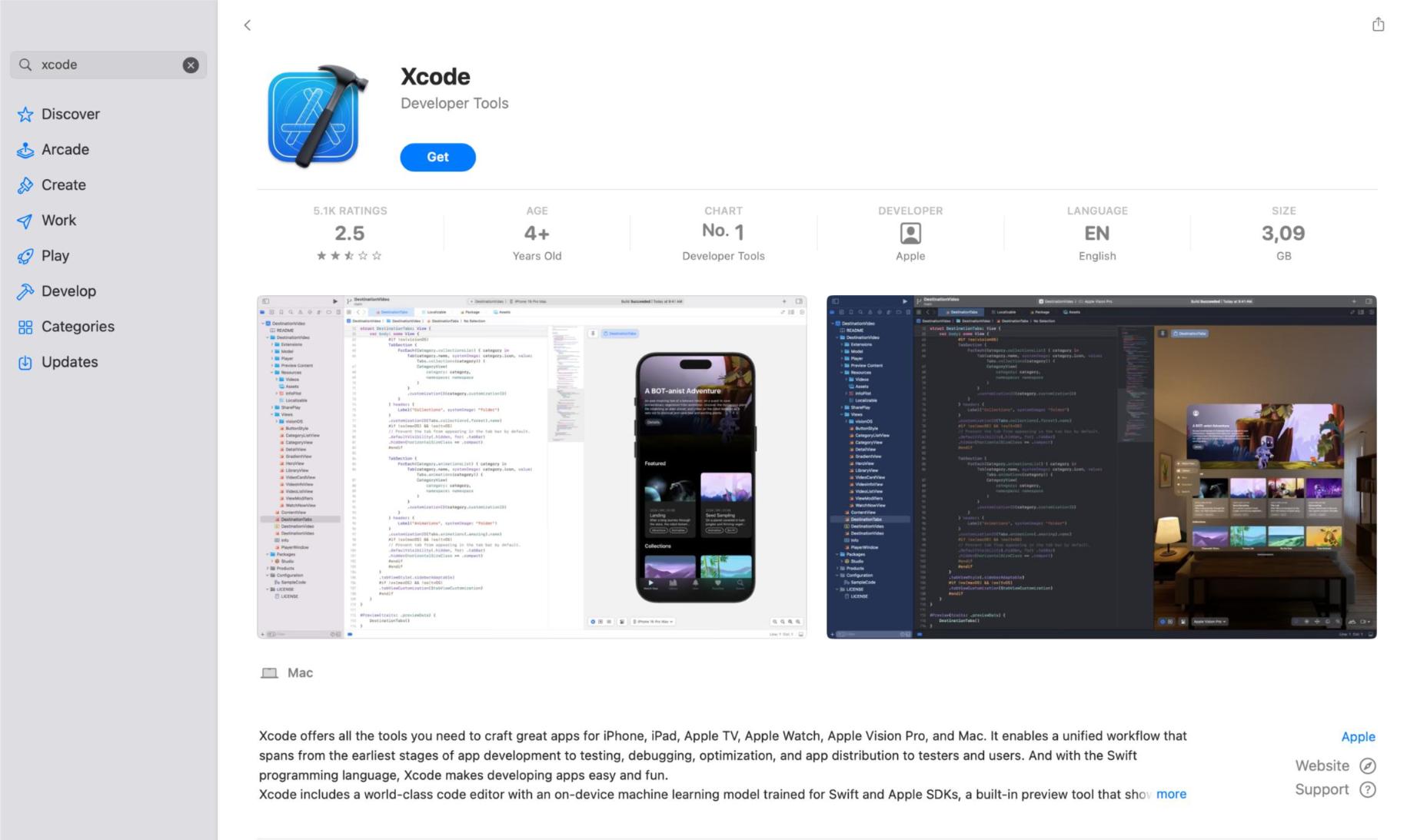
Xcode is Apple’s official tool for building iOS apps. Open the App Store on your rented Mac and install Xcode if it’s not already there. As of mid-2026 the current toolchain is Xcode 26 with iOS 26 and macOS Tahoe 26, so the App Store will pull the latest version for you.
Paso 4: Pruebe su aplicación iOS
- Abra su proyecto iOS (React Native, Swift, Flutter, etc.)
- Elige un dispositivo de destino en el simulador de iOS.
- Ejecuta la aplicación, depúrala sobre la marcha y comprueba su rendimiento.
Paso 5: Construir y exportar
When you’re ready, archive the app and export the .ipa file for TestFlight or App Store submission – all from Xcode on your rented Mac. This is also how you deploy an iOS app without a Mac of your own: you archive on the rented Mac, then submit from there.
Preguntas frecuentes
¿Puedo ejecutar Xcode en Windows?
Xcode es sólo para macOS. Si quieres usarlo en un PC con Windows, puedes probar Rentamac.io para acceder a un Mac real de forma remota.
¿Puedo crear y probar aplicaciones para iOS sin un Mac?
Absolutely. A rented cloud Mac lets you build and test iOS apps on Windows without buying any Apple devices.
¿Es legal ejecutar macOS en Windows?
Using macOS on non-Apple hardware, like virtual machines or a Hackintosh, usually goes against Apple’s license agreement and isn’t the best idea for development. A real Mac, or a rented cloud Mac, stays fully compliant. That makes it the safe path for any App Store work.
Do you need a paid Apple Developer account to test an iOS app?
Not for testing on your own device. A free Apple ID in Xcode 7 and later gives you a free certificate to install and run your app on an iPhone or iPad you own. The paid Apple Developer account, which costs $99 a year, is only needed to distribute through the App Store or to use TestFlight and in-app purchases.