 AR
AR  EN
EN  ES
ES  PT
PT  TR
TR  FR
FR 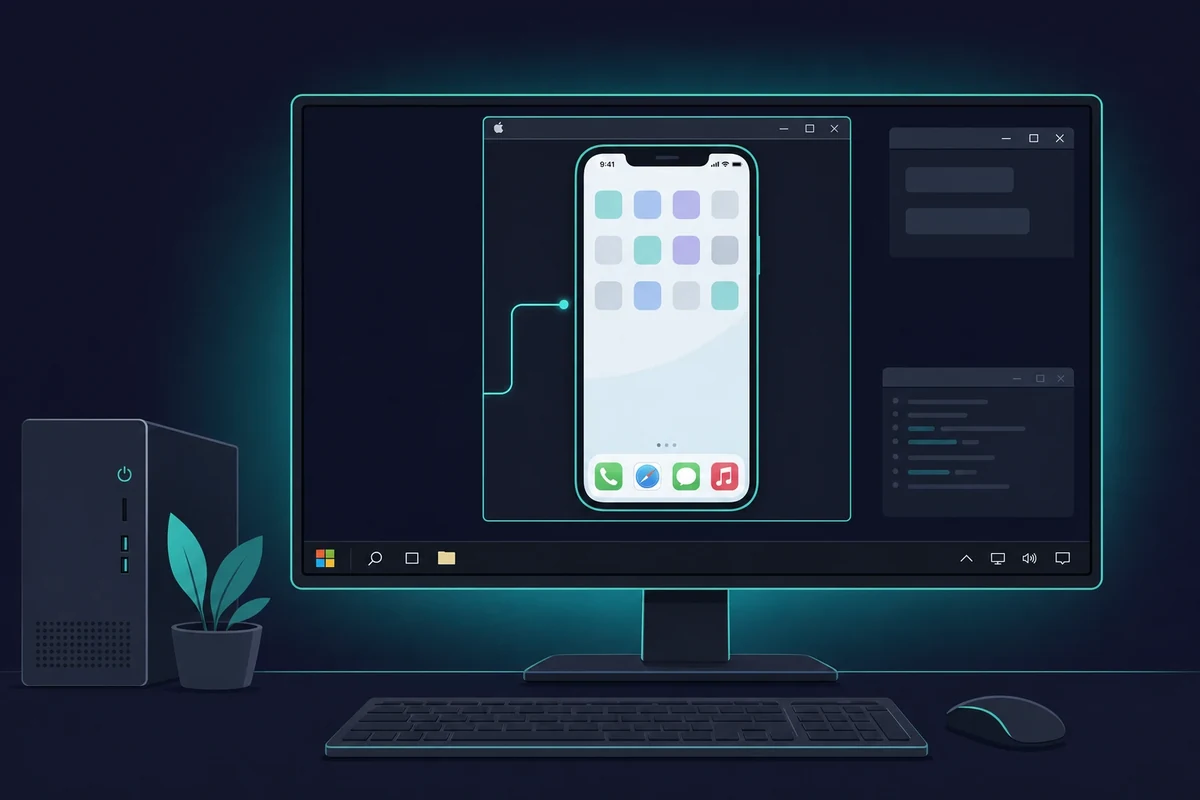
On this page
إذا كنت تقوم بتطوير تطبيقات iOS على حاسوب يعمل بنظام ويندوز، فربما شعرت بأنك عالق - أدوات أبل لتطوير iOS تعمل فقط على أجهزة ماك. لذا، لا يوجد Xcode، ولا محاكي iOS، ولا طريقة سهلة لاختبار تطبيقك ما لم تنتقل إلى جهاز ماك.
But not every developer has access to a Mac. Many teams, students, and indie creators use Windows. This is why the idea of having an iOS simulator for Windows or figuring out how to develop iOS apps without Mac أصبح شائعاً
والخبر السار هو أنه على الرغم من أن Apple تحافظ على الأمور ضيقة جداً، إلا أن هناك طرقاً لذلك:
- معاينة شكل تطبيق iOS الخاص بك
- اختبر تخطيط تطبيقك والتنقل فيه
- تصحيح أي مشاكل
- محاكاة الإيماءات وميزات الأجهزة دون الحاجة إلى جهاز Mac
في هذا الدليل، سنلقي نظرة على أفضل الطرق لمحاكاة نظام iOS على نظام ويندوز، وسنستعرض مزايا وسلبيات كل منها، وسنجد أفضل طريقة لإجراء اختبار تطبيقات iOS بدون أجهزة ماك، خاصةً إذا كنت تريد استخدام محاكيات Xcode الحقيقية على جهاز كمبيوتر.
The short answer
Apple ships the iOS Simulator only inside Xcode, and Xcode runs only on macOS. No real iOS simulator installs on Windows. The reliable path is a rented cloud Mac, where you run the actual Xcode iOS Simulator and stream it to your PC.
لماذا يعد إنشاء تطبيقات iOS على ويندوز صعباً؟
محاكاة iOS على ويندوز ليس بالأمر السهل. تحدّ Apple من أدوات التطوير الخاصة بها، لذا لا يمكنك استخدام أدوات مثل Xcode ومحاكي iOS على نظام macOS.
Even though developers often search for an iOS simulator for Windows or an iPhone simulator for Windows, but these alternatives usually don’t work as well as Apple’s official tools. Searches for an iPhone simulator for Windows hit the same wall: Apple ships the simulator only inside Xcode on macOS. Here’s why:
- يعمل Xcode فقط على نظام macOS - لا يمكنك تثبيت Xcode على كمبيوتر شخصي يعمل بنظام ويندوز، مما يعني أنك ستفقد محاكي iOS الذي يأتي معه.
- ميزات محدودة - معظم محاكيات Windows تحاكي واجهة المستخدم فقط. لا يمكنها محاكاة كيفية تفاعل التطبيق مع الأجهزة مثل GPS أو الكاميرات أو ماسحات بصمات الأصابع.
- المسائل القانونية - تنتهك العديد من الخيارات غير الرسمية، بما في ذلك الأجهزة الافتراضية، اتفاقية ترخيص المستخدم النهائي (EULA) الخاصة بشركة Apple، مما يجعلها غير مثالية لتطوير التطبيقات لمتجر التطبيقات أو العمل في فرق.
While some developers try using Android-type simulators or browser-based tools, these often aren’t enough to test an iOS app on Windows, especially for tasks like debugging or checking how the app performs on real devices.
What you can and can’t test on a simulator
The iOS Simulator can fake Face ID, Touch ID and location, but it cannot use the real camera, accelerometer, barometer or magnetometer. So hardware features still need a real device or a real Mac, even when everything else runs fine on screen. Knowing the line helps you plan what to test where.
Here is the split, as of 2026:
- Can be simulated (since Xcode 9): Face ID, Touch ID, and location. You set them from the simulator menu, no real sensor needed.
- Cannot be simulated: the real camera, accelerometer, barometer, and magnetometer. Anything that reads those needs a physical iPhone.
There is also an official “simulator in Windows” many people search for. Microsoft’s Remote iOS Simulator for .NET MAUI shows an iOS simulator window inside Visual Studio 2022 on Windows, but it still pairs to a Mac build host to do the actual work, and sound plays only from that Mac. So even the official Windows tool ends up needing a Mac behind it.
The same catch applies to cross-platform frameworks. React Native, Flutter, and .NET MAUI let you write the app on Windows, but the final iOS build and the App Store submit still run on macOS with a current Xcode.
Apple’s own developer forums say it plainly: Xcode is supported only on macOS, so you can’t run it on a PC. That is also why an install Xcode on Windows search always leads back to a real Mac, and why a rented one is the simplest fix for تطوير سويفت على ويندوز.
3 Ways to Run an iOS Simulator on Windows
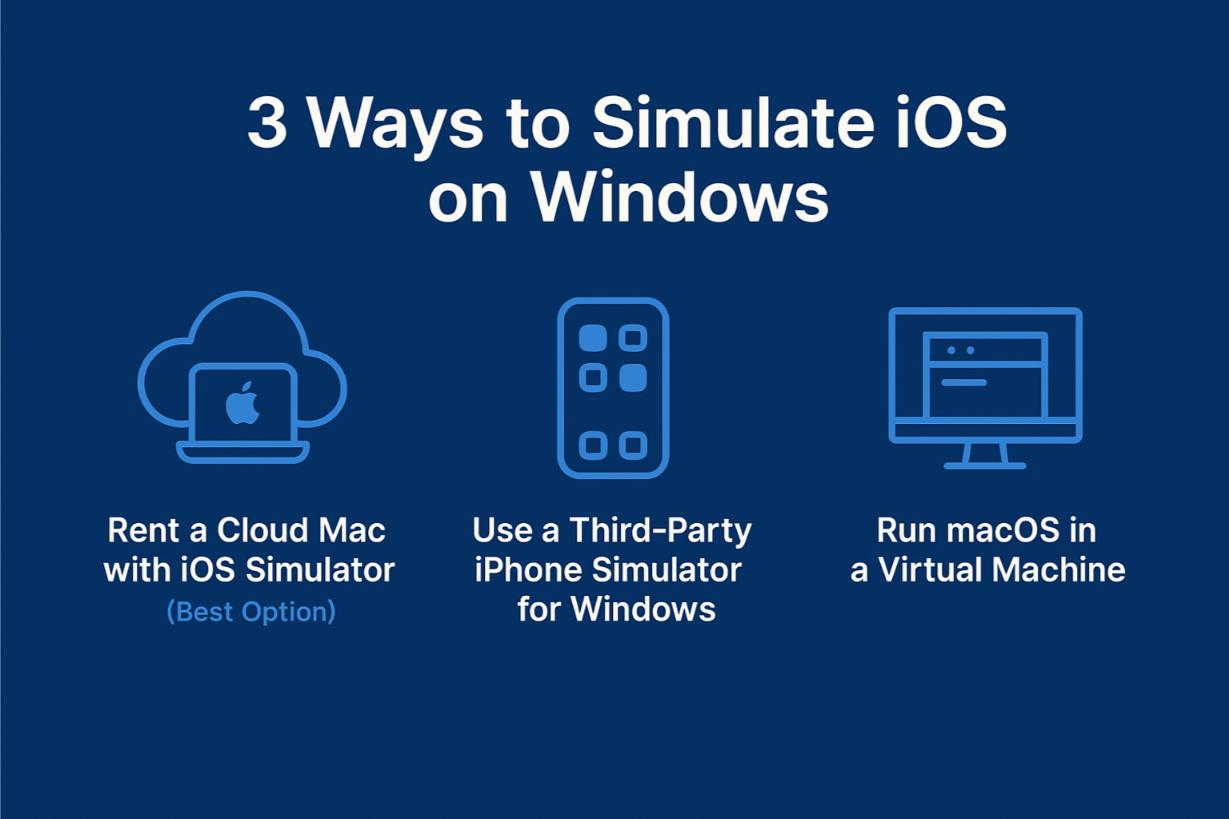
لتشغيل iOS على جهاز كمبيوتر يعمل بنظام ويندوز، يمكنك:
1. Rent a cloud Mac to access a real iOS Simulator.
2. Check out third-party iPhone simulators that run in your browser.
3. Set up macOS in a virtual machine.
Here are the pros and cons for each option. If you want an iOS simulator for PC, keep in mind that none of these run iOS natively on Windows; only a real Mac does.
First, a quick word on names, because it trips up most searches. A simulator runs your app in a software-only iOS environment, the kind Xcode ships. A true emulator would also copy the iPhone’s hardware.
So when people ask how to emulate iOS on Windows, the honest answer is that real iOS emulators do not exist on a PC. That is why the reliable path is real macOS, not an “emulator” you download.
1. استئجار جهاز Mac سحابي مع محاكي iOS (الخيار الأفضل)
هذا هو الخيار الأكثر موثوقية إلى حد بعيد. مع Rentamac.io، يمكنك استئجار جهاز ماك حقيقي عبر الإنترنت والوصول إليه من حاسوبك الذي يعمل بنظام ويندوز. بمجرد دخولك، يمكنك استخدام Xcode ومحاكي iOS الرسمي الذي يعمل به مطورو Apple.
أنت لا تستخدم فقط نسخة مقلدة رخيصة - أنت تتعامل مع الصفقة الحقيقية. وهذا يجعل هذا الخيار رائعاً ل اختبار تطبيق iOS بدون جهاز Mac.
لماذا يعمل:
- وصول كامل إلى محاكي iOS في Xcode
- يعمل مع Swift، ورفرفة, React Nativeو Objective-C
- يمكنك اختبار التخطيطات والأداء والإيماءات وأي مشاكل خاصة بالجهاز
- يتوافق مع إرشادات Apple
- مثالي للمطورين الذين يرغبون في الحصول على تجربة محاكاة iOS الحقيقية على Windows.
2. استخدم محاكي iPhone من طرف ثالث لنظام ويندوز
Some tools try to fill the gap by offering an iPhone simulator for Windows. The current ones are browser-based cloud simulators: you open a page, pick a device, and see your app’s screen without installing anything. As of 2026 they advertise wide coverage, roughly iPhone 6 through iPhone 17 Pro Max, iOS 9 through iOS 26, and geolocation across 170+ countries.
لماذا يعمل:
- يحاكي واجهة المستخدم والتفاعلات الأساسية
- مفيد للمعاينات السريعة للتخطيط
- لا حاجة لنظام التشغيل macOS
القيود:
- لا يمكن الوصول إلى الميزات الأصلية
- يفتقر إلى إمكانيات محاكي iOS الحقيقي
- لا يمكن الإرسال إلى متجر التطبيقات أو الاختبار محلياً
- جيد للعروض التوضيحية السريعة أو التعديلات الطفيفة، ولكن ليس للاختبار الشامل.
So a browser simulator is fine for a fast layout check. For an actual build and test, you still want a real Mac, which is exactly the path covered in our guide to تشغيل تطبيقات iOS على ويندوز.
3. تشغيل macOS في جهاز افتراضي
يحاول بعض المطورين إعداد macOS على جهاز افتراضي يعمل بنظام ويندوز باستخدام أدوات مثل VirtualBox أو VMware. في حين أن هذا قد يتيح لك تثبيت Xcode، إلا أنه يأتي مع سلبيات كبيرة.
القيود:
- هناك احتمالات كبيرة أنها قد تخرق قواعد ترخيص Apple
- يميل إلى أن يكون غير مستقر ولا يعمل بشكل جيد
- غالباً ما يكون غير متوافق مع أحدث إصدارات Xcode
If you want to do proper iOS app testing without a Mac, this isn’t the best way to go. For basic use cases, some still try to run iOS apps on Windows using emulation layers, though these rarely offer reliable results.
لماذا يعتبر موقع Rentamac.io الخيار الأفضل
إذا كنت تتطلع إلى الغوص في تطوير iOS وتريد تخطي الحلول المراوغة, Rentamac.io هو السبيل لمحاكاة نظام iOS على ويندوز - بطريقة شرعية.
Unlike those third-party emulators or sketchy web tools, Rentamac.io connects you to real macOS hardware. So, instead of pretending, you’re actually using Apple’s tools right from your Windows machine.
بمجرد الانتهاء من الإعداد، يمكنك تثبيت Xcode، وتشغيل محاكي iOS الحقيقي، والبدء في العمل تمامًا كما تفعل على جهاز Mac. إنها أفضل طريقة لتجربة محاكي iOS لنظام ويندوز دون خرق أي قواعد.
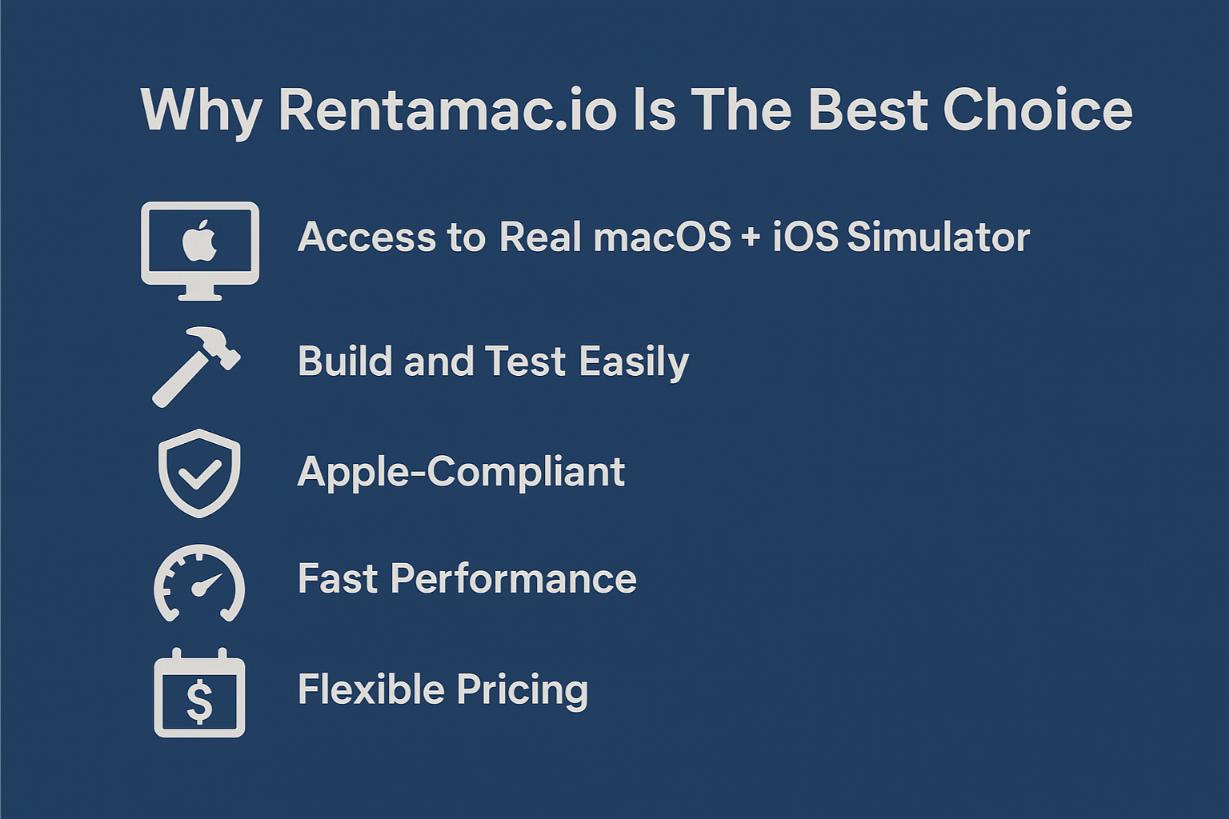
Here’s what makes Rentamac.io a good choice:
- الوصول إلى محاكي حقيقي لنظام macOS + iOS - أنت في إعدادات Apple الرسمية، ولست عالقًا مع محاكي محدود.
- البناء والاختبار بسهولة - يعمل بشكل جيد مع React Native وFlutter, سويفتومشاريع Objective-C.
- متوافق مع آبل - على عكس الآلات الافتراضية أو إعدادات Hackintosh، فإن Rentamac.io يخضع لقواعد Apple.
- أداء سريع – each instance is a dedicated Mac Mini M4 with 16GB RAM, a 256GB SSD, and macOS Tahoe 26.4+, so builds are quick and the simulator runs smoothly.
- التسعير المرن - استأجر باليوم أو الأسبوع أو لفترة أطول. لا حاجة لشراء جهاز Mac باهظ الثمن مقدماً.
كيفية محاكاة نظام iOS باستخدام رينتاماك
Using Rentamac.io is straightforward. You won’t need to set up any virtual machines or search for unreliable emulators. Just follow these steps to simulate iOS on Windows using the official tools right from your PC.
الخطوة 1: اختر الخطة وخيار الدفع
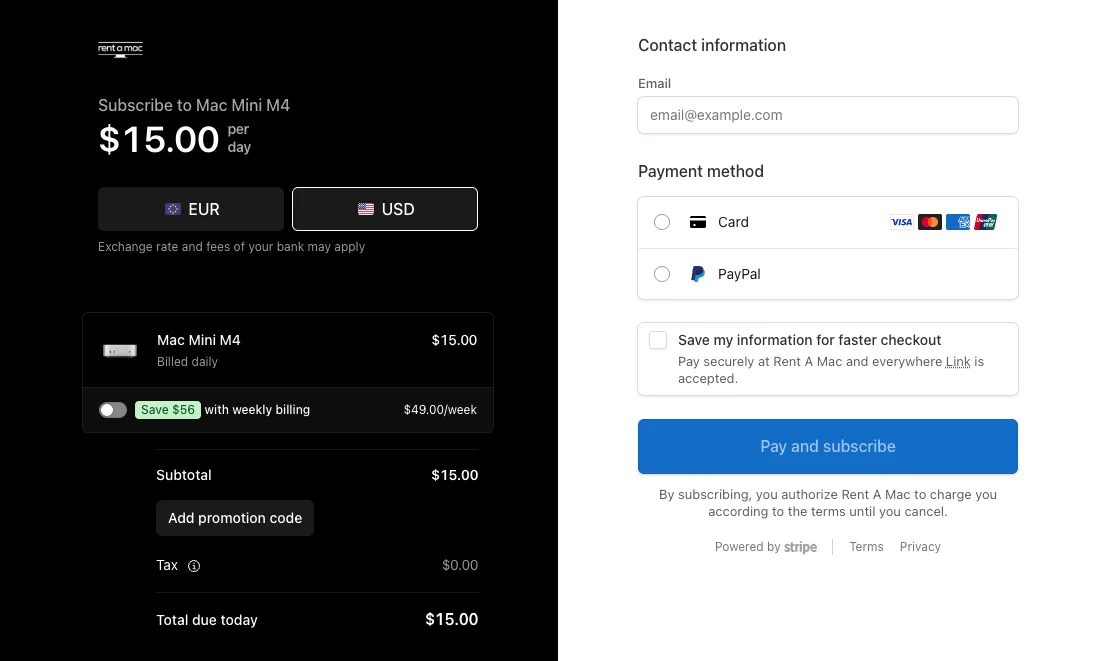
First, go to the pricing page and pick a plan that fits your needs. Once you make your choice, you’ll go to a secure Stripe checkout page where you can pay with a Visa or Mastercard card, or with PayPal. Access is immediate once the payment goes through.
الخطوة 2: الاتصال بجهاز Mac Mini الخاص بك
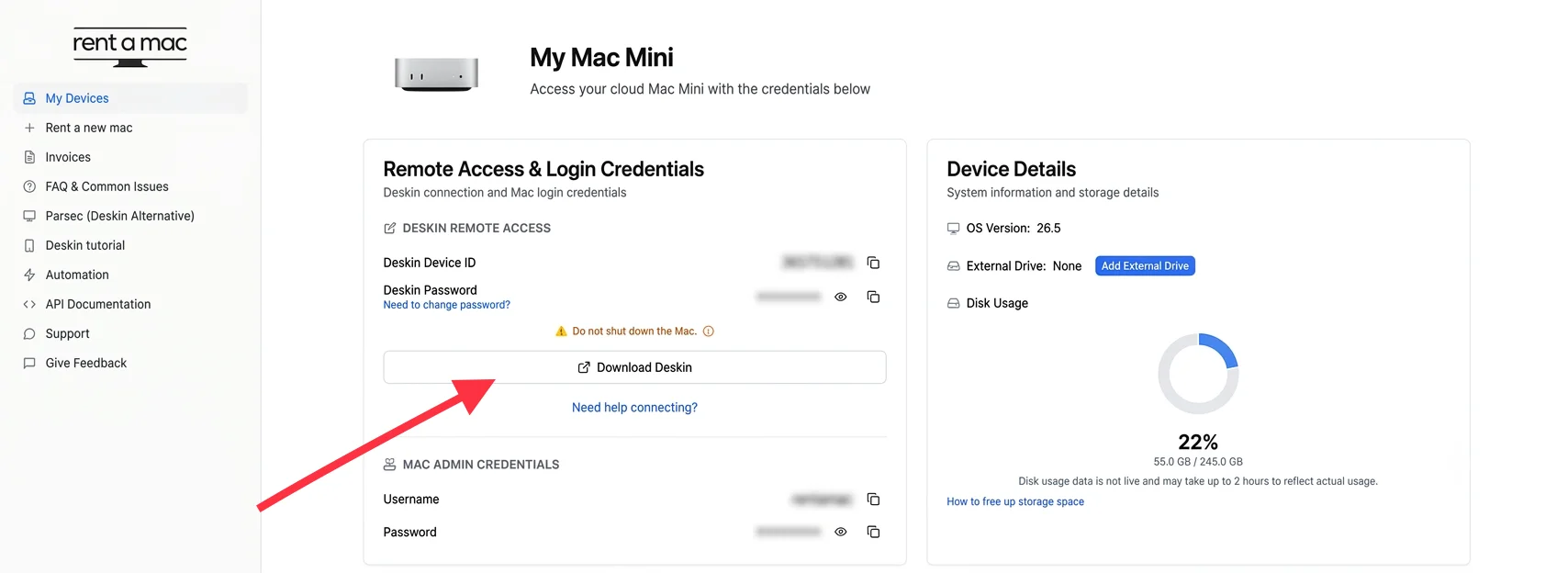
After you finish checking out, you’ll get your remote login details, including the Mac login info shown in your dashboard.
Remote access uses DeskIn, a remote desktop app that is already installed and free on your rented Mac, so there is nothing to download. Open DeskIn from your Windows PC, enter the connection details from the dashboard, and you’re in. If the connection ever drops, there is a “Restart DeskIn” button in the dashboard to bring it back.
الخطوة 3: قم بتثبيت Xcode وتشغيل محاكي iOS
If Xcode isn’t already on your Mac, open the Mac App Store and download the current Xcode 26.4.1, which bundles the latest iOS Simulator runtime and device profiles for the iPhone 17 lineup and iPad Pro M5. This gives you the real Xcode simulator on Windows, running on the rented Mac and streamed to your PC.
- افتح مشروع iOS الخاص بك (مثل React Native أو Swift أو Flutter أو Flutter، إلخ)
- اختر جهازك
- قم بتشغيل التطبيق في المحاكي وابدأ الاختبار على الفور
الخطوة 4: الإنشاء والاختبار والتصدير
- تصحيح الأخطاء في الوقت الحقيقي باستخدام أدوات Xcode
- محاكاة الظروف مثل الموقع والتوجيه وما إلى ذلك.
- أرشفة تطبيقك وتصديره كملف .ipa لاختبار فلايت أو لإرساله إلى متجر التطبيقات
One reason the build step needs a current Mac: as of April 28, 2026, the App Store rejects any submission not built against the iOS 26 SDK, which ships with Xcode 26.x. A real, up-to-date Mac is the only way to meet that bar.
الأسئلة الشائعة
هل يمكنني استخدام محاكي iOS على نظام التشغيل Windows؟
يعمل محاكي iOS الرسمي فقط على نظام macOS لأنه جزء من Xcode. ولكن يمكنك استخدام Rentamac.io للوصول إليه من حاسوبك الشخصي الذي يعمل بنظام ويندوز عن طريق استئجار جهاز ماك حقيقي مخصص.
هل توجد أجهزة محاكاة iPhone قانونية لنظام التشغيل Windows؟
هناك بعض المحاكيات الخارجية، ولكنها ليست رسمية ولها حدودها. يقدم Rentamac.io طريقة قانونية لاستخدام أدوات Apple من خلال استئجار جهاز Mac في السحابة.
ما هي أفضل طريقة لاختبار تطبيقات iOS بدون جهاز Mac؟
استخدام نظام Mac السحابي من خلال مزودين موثوقين مثل Rentamac.io. فهو يتيح لك محاكاة تطبيقات iOS وإنشاءها واختبارها مباشرةً من نظام ويندوز الخاص بك.