On this page
Last updated: July 2026
On this page
TL;DR: Pixelmator Pro is an Apple-only photo editor (Mac and iPad), so there is no version you can install on Windows. Its Apple Intelligence tools and support for 750+ RAW formats only run on Apple hardware. The reliable route: rent a cloud Mac and run the real app from your Windows PC.
So what do you do with a Windows PC when buying a Mac for one app makes no sense? You work around it. Pixelmator Pro cannot run natively on Windows, because Apple owns it now, having completed its Pixelmator acquisition in February 2025, and builds it on macOS-native technology.
A macOS virtual machine is fiddly and not one we recommend. A different Windows editor helps only if you can switch apps. The route that holds up is renting a real Mac in the cloud.
The first time I tried that for a client job, the rented Mac was the only setup that felt like the real thing.
Why You Can’t Install Pixelmator Pro Natively on Windows
Pixelmator Pro is very tightly integrated into the Apple ecosystem. It is made with macOS-native technologies like Metal, Core Image, and Core ML, which are not supported in Windows. Its newest AI tools, like Super Resolution and background removal, run on Apple Intelligence, so they only work on Apple hardware.
Apple owns Pixelmator now. The acquisition completed in February 2025, and the official Pixelmator Pro site now redirects to apple.com/pixelmator-pro. The current Creator Studio version needs macOS 26, one more reason a Windows PC cannot run it.
So unless you are switching to a Mac, running Pixelmator Pro on Windows means using one of the workarounds below.
3 Ways to Run Pixelmator Pro on Windows
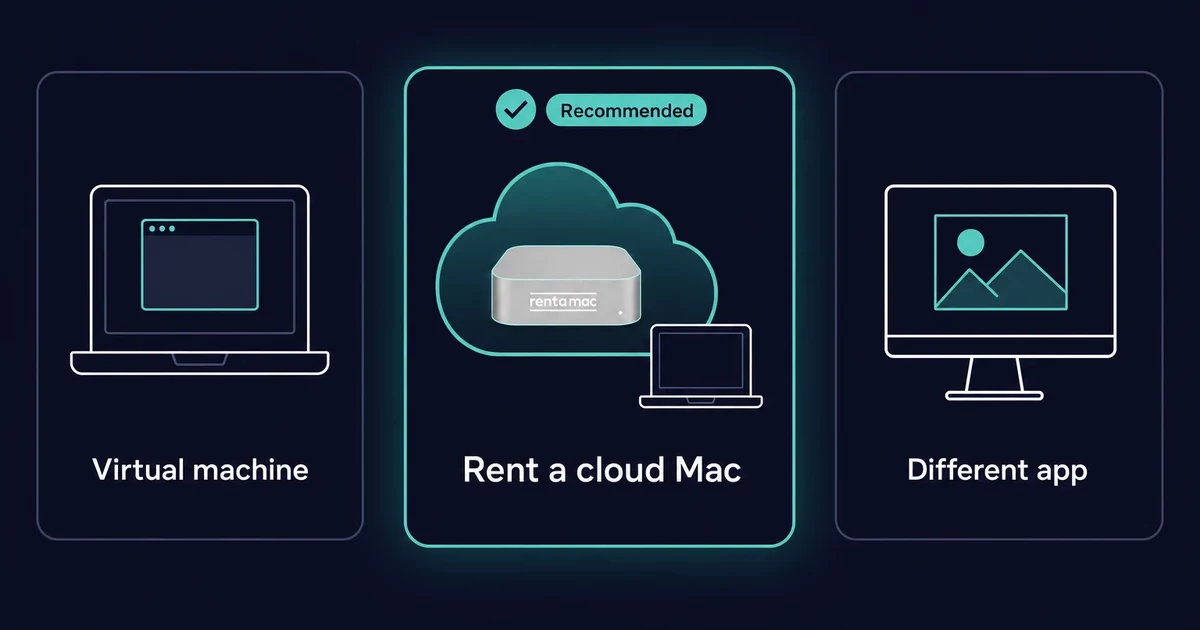
Only one route to Pixelmator Pro on Windows holds up. Renting a cloud Mac runs the real app and is the one I recommend. A macOS virtual machine breaks Apple’s terms, debunked below. A different Windows editor means switching apps.
Option 1: Virtual Machine
You can build a macOS virtual machine on Windows with VirtualBox or VMware, but it is not a route I would point you to. I tried that once: it runs against Apple’s macOS terms with no GPU acceleration, so a graphics-heavy app like Pixelmator Pro felt slow and crashed often. For real photo work, it is more trouble than it is worth.
Option 2: Renting a Mac
The most legit way to use Pixelmator Pro on a Windows PC is to rent an online Mac from a service like ours, Rentamac.io. This is the top option among cloud solutions for Pixelmator Pro.
We’ll provide you with a real macOS in the cloud, which you can access remotely. You can go ahead and log in from your Windows PC and install Pixelmator Pro from the App Store like you would from an actual Mac.
Pros:
- 100% legal, Apple compliant
- Complete macOS experience with GPU support
- No setup headaches
- Remote access from any Windows PC
Cons:
- Service fee (daily, weekly, or monthly, depending on your plan)
This is the one I recommend for the most straightforward setup. On my rented Mac, Pixelmator Pro ran exactly like it would on a machine sitting on my desk.
Option 3: Choose a Different Application
If you do not need Pixelmator Pro specifically, Windows photo editors offer comparable tools:
- Affinity Photo – A one-time purchase solution that provides professional features and is highly regarded as a good Pixelmator Pro alternative for Windows.
- Adobe Photoshop – The industry standard offers advanced tools for photo editing, but comes with a subscription cost.
- Photopea – A free, web-based editor that mimics Photoshop’s interface as a direct in-browser editor.
- GIMP – A free, open-source tool with an expansive toolset, but with a steeper learning curve.
There is no Pixelmator Pro online photo editor either. For a browser tool, Photopea or Pixlr are the closest web options.
How to Run Pixelmator Pro on Windows with RentAMac.io
Running Pixelmator Pro from Windows takes four steps on a dedicated cloud Mac from Rentamac.io. You pick a plan and pay through Stripe, get your Mac mini login, connect from Windows with DeskIn, then download it from the App Store.
1. Pick a plan and pay through Stripe.
2. Get your Mac mini login from the dashboard.
3. Connect from Windows using DeskIn.
4. Download Pixelmator Pro from the Mac App Store.
Step 1: Select a plan, the payment method, and proceed
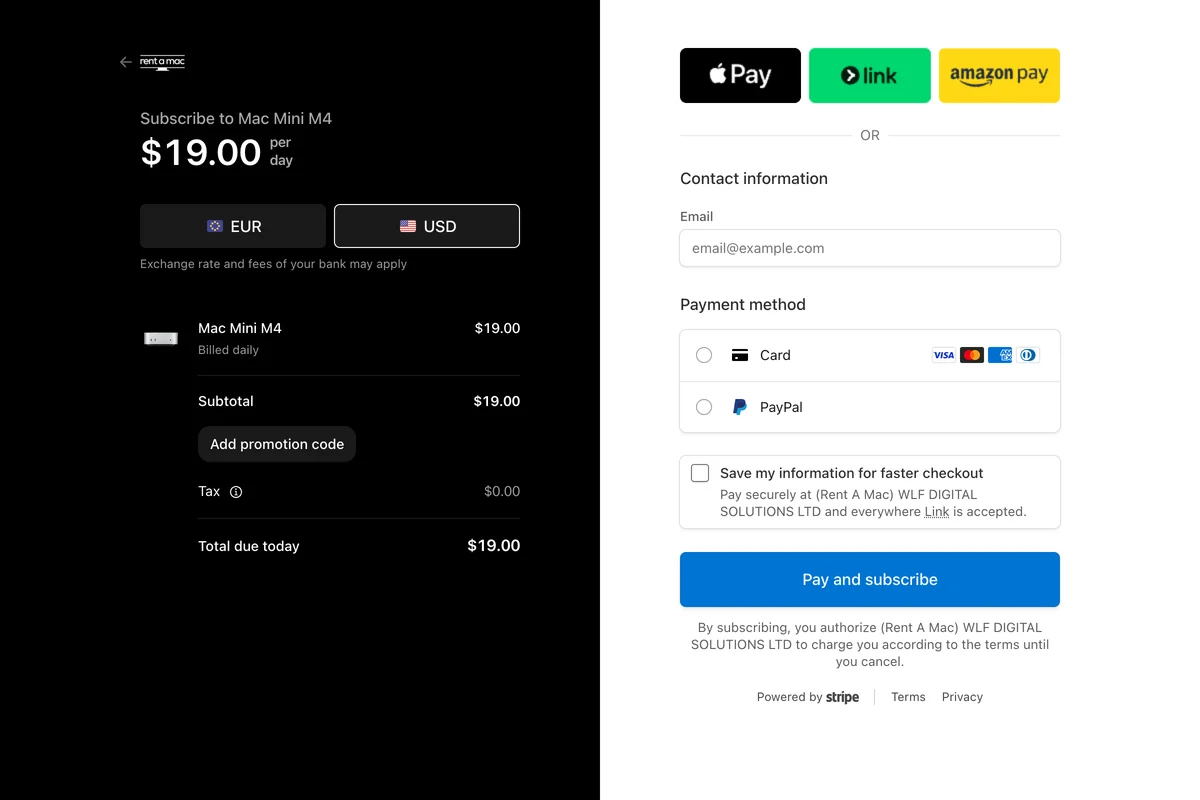
First, pick the plan that fits your needs on the pricing page. Once you choose a plan, you go to the checkout page, where you can pay with a credit or debit card or PayPal, all handled securely through Stripe.
Step 2: Connect to your Mac Mini
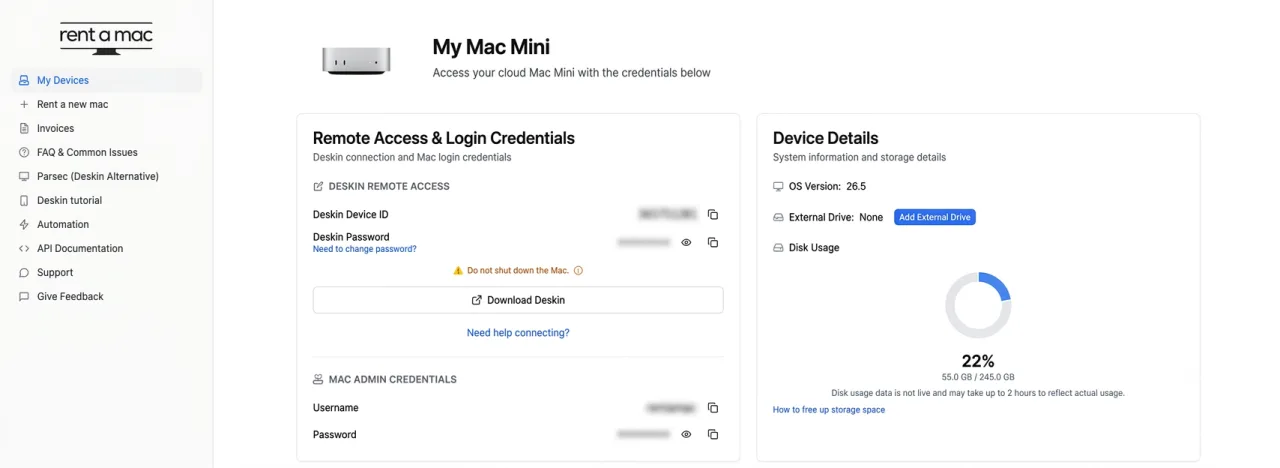
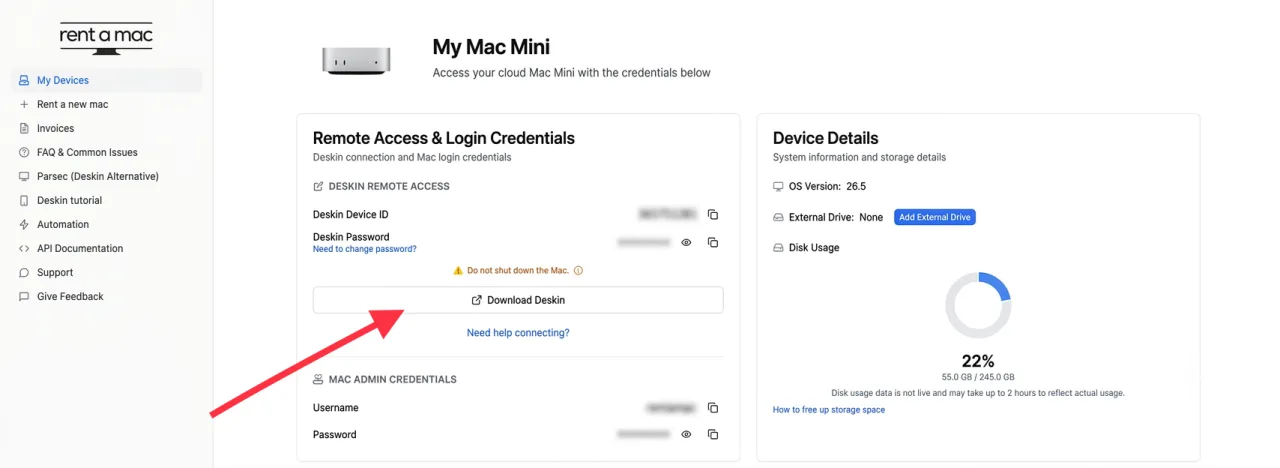
As soon as your payment clears, you land on the dashboard and can connect to the Mac mini from there. You get login credentials for macOS and the connection details, so you can start immediately.
Your Mac comes with DeskIn already installed. DeskIn is a secure, lightweight remote desktop app that also works from a phone or tablet, and the dashboard has a “Restart DeskIn” button if you ever need to reset the connection.
Step 3: Get access to your Mac through DeskIn
DeskIn comes pre-installed on your rented Mac, so there is nothing to set up there. From your Windows PC, open DeskIn, enter the ID and password from your dashboard, and you are in.
Within 60 seconds you are controlling the Mac mini from your Windows laptop, as if you were sitting in front of it. Prefer another tool? Parsec and SSH over Tailscale also work.
Step 4: Download Pixelmator Pro from the App Store
Once logged in, open the App Store on your rented Mac, sign in with your Apple ID, then search for Pixelmator Pro and download it. After it installs, launch it just like on any Mac. There is no Pixelmator Pro download for Windows; the Mac App Store on your rented Mac is where you get it.
As of 2026, there are two versions to choose from. One is a one-time $49.99 app. The other is Apple Creator Studio, a $12.99/month bundle (or $129/year) that includes Pixelmator Pro along with Final Cut Pro and Logic Pro.
| Version | Price | macOS needed |
|---|---|---|
| Pixelmator Pro (one-time purchase) | $49.99 once | macOS 12 or later |
| Apple Creator Studio bundle | $12.99/month or $129/year (students $2.99/month) | macOS 26 |
The newest Creator Studio version (the 4.x line) needs macOS 26. Your rented Mac mini runs macOS 27.0, so even the latest version installs cleanly.
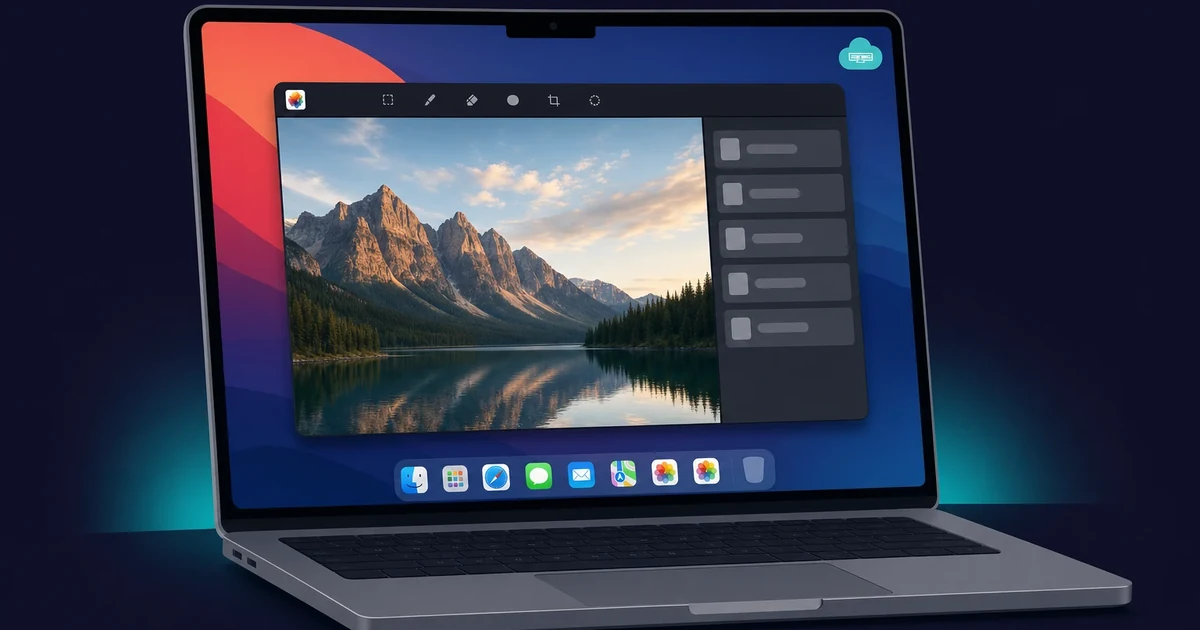
Now you have the full app: the Apple Intelligence photo tools and non-destructive layer editing, plus support for more than 750 RAW formats, all from your Windows PC. Save your work to whatever cloud storage you use, like iCloud or Dropbox.
Pixelmator Pro is not the only Apple photo app Windows users chase, and Photomator comes up just as often.
Can you run Photomator on Windows too?
Photomator has no Windows version either. It is Apple’s Lightroom-style photo app, available on Mac, iPhone, iPad, and Vision Pro only. So the same fix works: run it on a cloud Mac from your Windows PC. Photomator stays a separate subscription and is not part of Apple Creator Studio.
People mix up the two apps, which is fair. I did too at first. Pixelmator Pro is the Photoshop-style editor, built around layers and retouching. Photomator is the Lightroom-style app, built for organizing and batch-editing photos. Plenty of photographers use both.
It stays a separate subscription at $7.99 per month or $29.99 per year. Running it on Windows works the same way: sign in to the App Store on a cloud Mac from Rentamac.io and install it like Pixelmator Pro. Almost no guide covers Photomator on Windows, so the rented Mac is the working answer.
| Feature | Pixelmator Pro | Photomator |
|---|---|---|
| Apple analog | Photoshop (layers, retouching) | Lightroom (library, batch edits) |
| Price | $49.99 once, or in Creator Studio | $7.99/month or $29.99/year |
| Platforms | Mac and iPad | Mac, iPhone, iPad, Vision Pro |
| Runs on Windows? | No, use a cloud Mac | No, use a cloud Mac |
FAQ
Is there a chance that Pixelmator Pro will develop a Windows version?
Not really. Apple owns Pixelmator now, after completing the acquisition in February 2025, and development stays on Mac and iPad. No Windows version has been announced, and the product’s home is apple.com/pixelmator-pro.
Is it legal to run macOS on a VM?
Not really. Apple’s terms prohibit macOS from running on non-Apple hardware, including virtual machines on Windows.
What is the safest option for long-term use?
Renting a virtual Mac. It’s legal, stable, and rented monthly.
Is Photomator available for Windows?
No. Photomator is Mac, iPhone, iPad, and Vision Pro only, and it is not part of Apple Creator Studio. You run it on a cloud Mac the same way as Pixelmator Pro, on a separate $7.99 per month subscription.
Conclusion
There is no official Pixelmator Pro for Windows, but the workaround is real. Renting a cloud Mac is the option I keep coming back to, and it runs the genuine app at full speed.
The one honest catch is that you need a steady internet connection for the remote screen to stay smooth.