
On this page
iTerm2 is a top choice for many developers using macOS. They appreciate its handy features like split panes, search, autocomplete, tons of customization options, and great keyboard support. The catch: there’s no iTerm2 for Windows.
It can feel frustrating if you’re using Windows and want something like iTerm2. Since iTerm2 is explicitly built for macOS, it doesn’t work well outside of Apple’s environment. But don’t stress, there are ways to get a similar terminal experience on Windows.
In this guide, we’ll explain why iTerm2 isn’t available for Windows, explore your options, and show you how to get a Mac-like terminal setup. The current stable build, iTerm2 3.6.11, needs macOS 12.4 or newer, so a Mac sits somewhere in every option.
Why You Can’t Install iTerm2 Natively on Windows
iTerm2 is tailored just for macOS, so there’s no official version for Windows. Here’s why:
- macOS-Only Features: iTerm2 relies on specific libraries only found in macOS, and Windows doesn’t have those.
- Focus on Mac Users: The team behind iTerm2 has always aimed at Mac users. Moving it over to Windows would involve starting from scratch.
- No Native Windows Terminal Emulator with Full iTerm2 Features: While Windows has stepped up its terminal game, nothing matches iTerm2’s full suite of features natively.
So to get an iTerm2-like setup on Windows, you’ll need one of the routes below.
3 Ways to Run iTerm2 on Windows
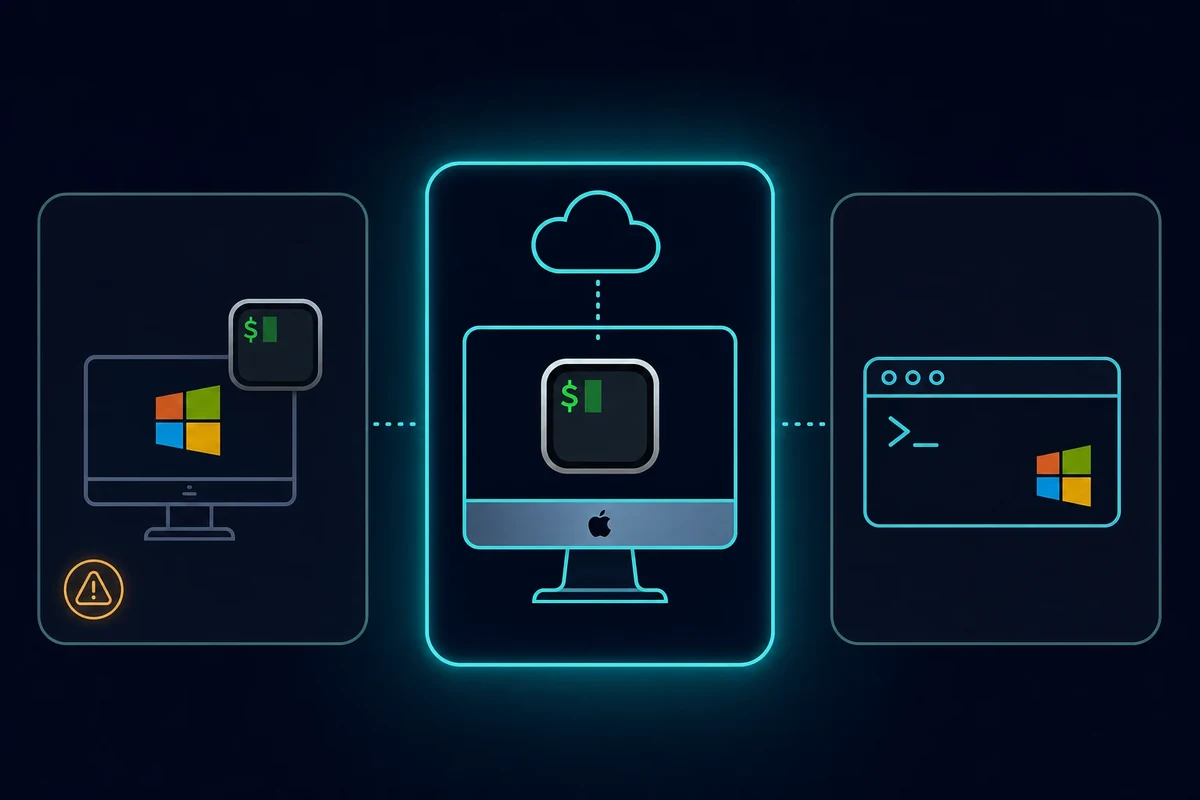
Option 1: Using a Virtual Machine
You may see guides that run macOS in VirtualBox or VMware to get iTerm2. Skip it. Apple’s licensing forbids macOS on non-Apple hardware, and the performance and stability are poor, so it is not a route we recommend.
Option 2: Renting a Virtual Mac
Instead of dealing with virtual machines, consider renting a real Mac in the cloud with Rentamac.io. You access the macOS system, and iTerm2, remotely from your Windows PC. It is the same idea behind other cloud Mac rental options: real Apple hardware you reach from anywhere, which is why so many people develop iOS apps on Windows this way.
Pros:
- Completely legal and uses actual Mac hardware.
- Full support for iTerm2, just like on a real Mac.
- No complicated setup; you can start right away.
- Reliable and fast access from Windows.
Cons:
- Service fee (daily, weekly, or monthly).
Option 3: Using an Alternative to iTerm 2
If you want a Windows-native terminal, Tabby is the closest in feel to iTerm2, while Windows Terminal paired with WSL is the most common default. Here is how the main Windows terminal alternatives compare.
Tabby brings the iTerm2 look to Windows with split panes, themes, and plugins. Windows Terminal is Microsoft’s official app, and paired with WSL (Windows Subsystem for Linux) it is what most developers settle on. Four more Windows-native options are worth knowing:
- ConEmu – the most-liked Windows-native console, with tabs and multiple consoles in one window.
- MobaXterm – a remote-computing toolbox with split panes and a built-in Linux command line.
- Warp – a newer terminal built in Rust with an AI assistant baked in.
- WezTerm – GPU-accelerated, configured with a Lua file, with a built-in multiplexer.
| Tool | Best for | Split panes | Windows-native | iTerm2-feel |
|---|---|---|---|---|
| Tabby | iTerm2-like look | Yes | Yes | Closest |
| Windows Terminal + WSL | Default setup | Yes | Yes | Medium |
| ConEmu | Tabs and consoles | Yes | Yes | Medium |
| MobaXterm | Remote work | Yes | Yes | Medium |
| Warp | AI in the terminal | Yes | Yes | Low |
| WezTerm | Speed and scripting | Yes | Yes | Low |
| Alacritty | Raw speed | No | Yes | Low |
| Hyper | Plugins and design | Yes | Yes | Low |
None of these fully replace iTerm2’s macOS-specific behavior. That is the honest reason the cloud-Mac route exists.
How to Run iTerm 2 on Windows with Rentamac.io
The most straightforward way to run iTerm2 from Windows is a virtual Mac. Rentamac.io gives you a real macOS setup in the cloud, with no messy installations or legal hassles. Here’s how to get started:
Step 1: Choose a Plan and Payment Option
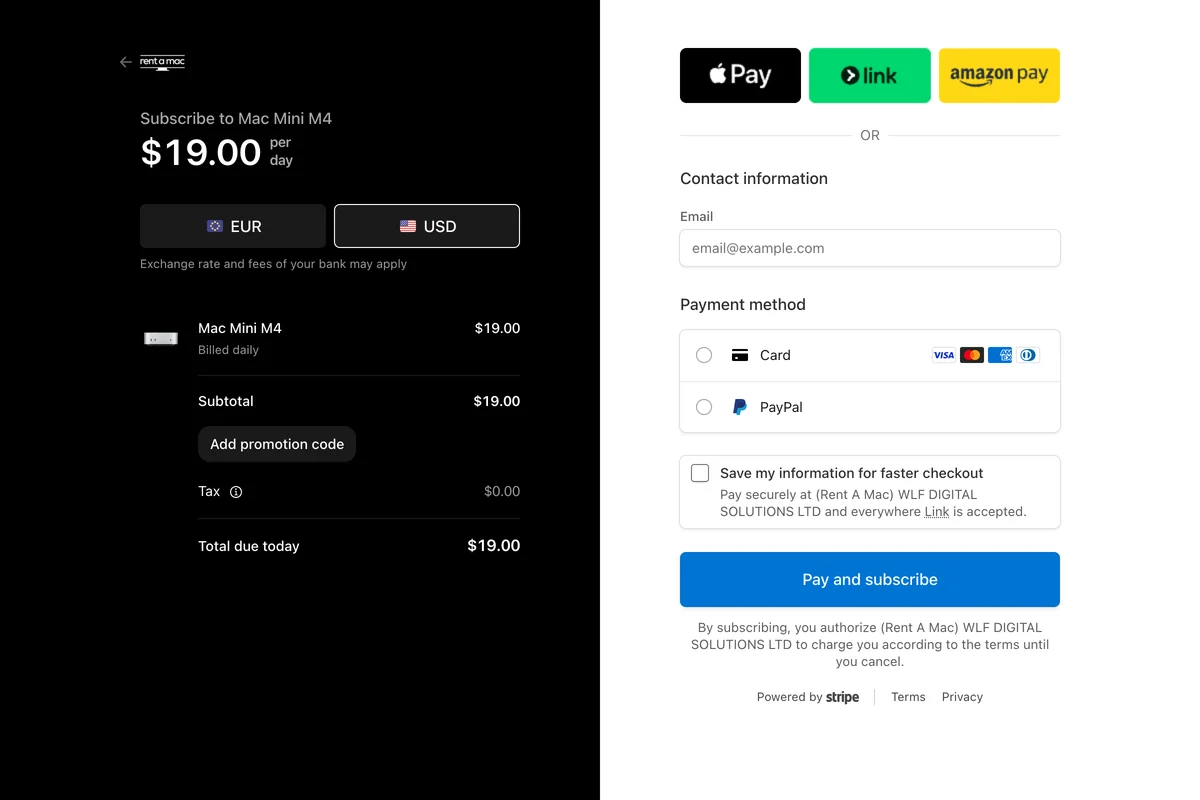
First, head to our pricing page and pick a plan that fits your needs. Once you make your choice, you’ll go to a secure checkout page. Payments are handled through Stripe, so you can pay with Visa, Mastercard, or PayPal.
Step 2: Connect to Your Mac Mini
After you’ve paid, you’ll get your own dedicated Mac Mini, along with your remote access credentials: the Mac login info and the details for the remote desktop tool.
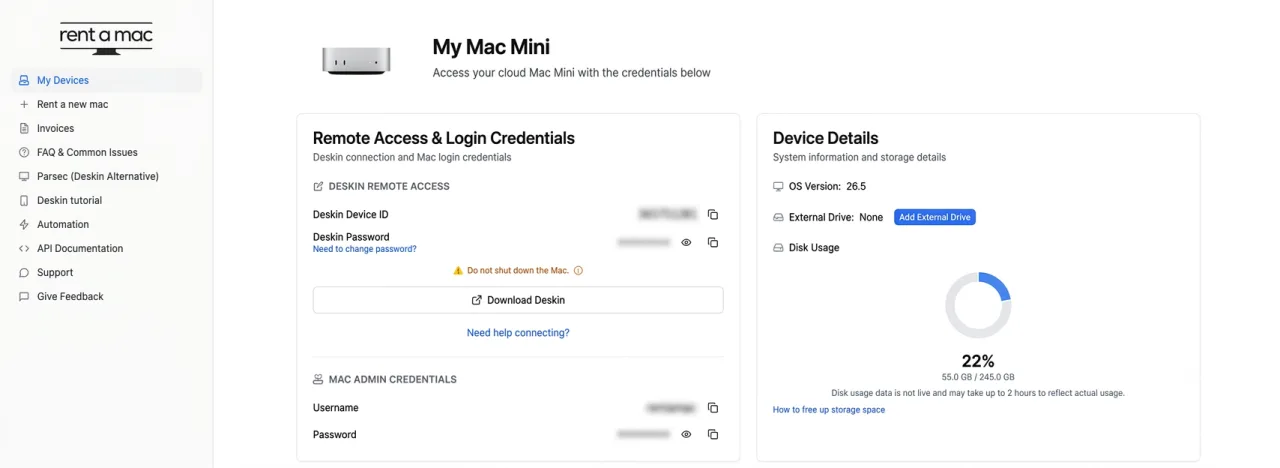
You’ll use DeskIn, a remote desktop app that comes pre-installed on your rented Mac and lets you control it from your Windows PC. It is free, works on mobile too, and there is a “Restart DeskIn” button in the dashboard if the connection ever drops.
Step 3: Open DeskIn and Access Your Mac
DeskIn is already on the Mac, so you only need it on your Windows side.
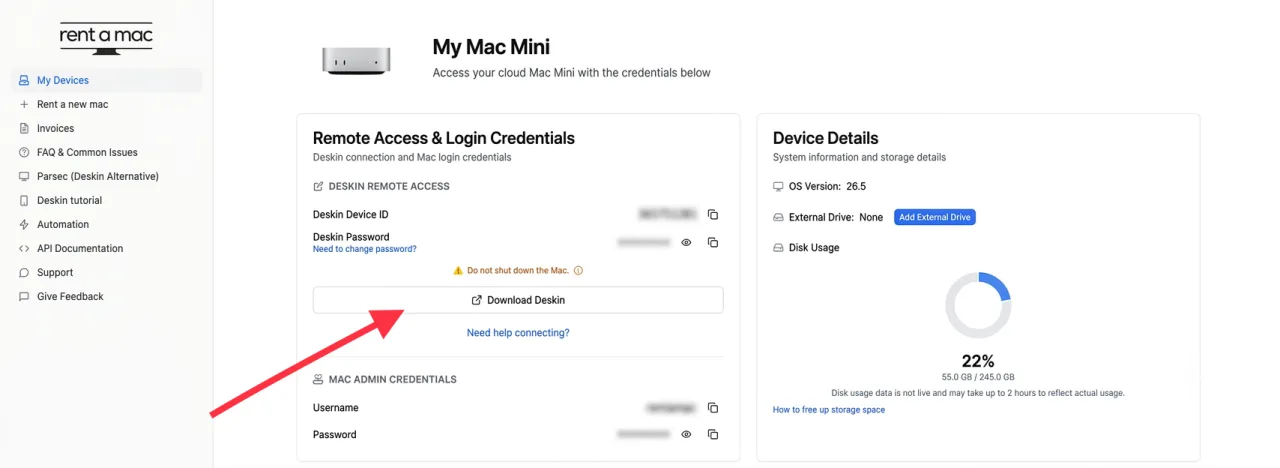
Open DeskIn on your Windows device and enter the access details from your dashboard to connect. You’re now controlling your macOS environment right from your Windows PC. If you’d rather use something else, Parsec works too, and you can reach the Mac over SSH using Tailscale.
Step 4: Download iTerm2 and Start Using It
Once you’re connected to your Mac Mini, grab the iTerm2 download from iterm2.com, the iTerm2 official site and the only place to get a safe, current build. The one to get is iTerm2 3.6.11 (built June 2 2026). To install iTerm2 on the Mac, run brew install --cask iterm2 or open the .dmg from the site.
The 3.6.x line needs macOS 12.4 or newer. On an older Mac, use the 3.5.14 branch, which covers macOS 10.15 and up.
After installation, you can use iTerm2 just like on a physical Mac, split panes, customization, and all. When you’re done, save your files and settings to a cloud service (like iCloud, Dropbox, or Google Drive) for easy access later.
Who Is This For?
Using a virtual Mac for iTerm2 is great for:
- Windows developers wanting to work like they would on a Mac.
- Remote teams doing tasks that only work on Mac.
- System admins juggling different operating systems.
- Students picking up macOS/Linux command-line skills.
- Freelancers needing Mac access without buying Apple devices.
FAQs
Is there an iTerm2 version for Windows?
No, iTerm2 is only for macOS. However, you can rent virtual Macs, check out native Windows alternatives, or use a virtual machine.
Is it legal to use a virtual Mac?
Yes. Rentamac.io rents real Apple hardware in the cloud, so you are running macOS on a genuine Mac, exactly as Apple’s licensing requires. That is the difference between a rented Mac and a macOS virtual machine on a Windows PC, which breaks those licensing terms. You get the legal, supported route without owning the hardware.
What’s a good iTerm2 alternative for Windows?
Tabby is the closest in feel to iTerm2, with split panes, themes, and plugins. Windows Terminal paired with WSL is the common default most developers settle on, and ConEmu, MobaXterm, Warp, and WezTerm each cover a more specific need. None of them fully match iTerm2’s macOS behavior, so renting a Mac is still the way to run the real thing.
Is iTerm2 free?
Yes. iTerm2 is free and open-source, with no paid tiers or subscription.
Run other Mac-only tools on Windows
Need another Mac-only app on Windows? These guides use the same rented-Mac approach for other tools:
- Pixelmator Pro for Windows
- Sketch for Windows
- Ulysses for Windows
- Kaleidoscope for Windows
- Omnigraffle for Windows
- MindNode for Windows
- Seashore for Windows
Conclusion
There isn’t an iTerm2 version for Windows, but you have a few good options. Virtual machines are tricky and carry legal risks. Native Windows terminals like Tabby and Windows Terminal have great features, but don’t fully replace iTerm2.
Renting a virtual Mac is the easiest way to use iTerm2 on Windows while staying legal and getting the whole experience, and the same setup lets you run iOS apps on Windows whenever you need a real Mac.