 AR
AR  EN
EN  ES
ES  PT
PT  TR
TR  FR
FR 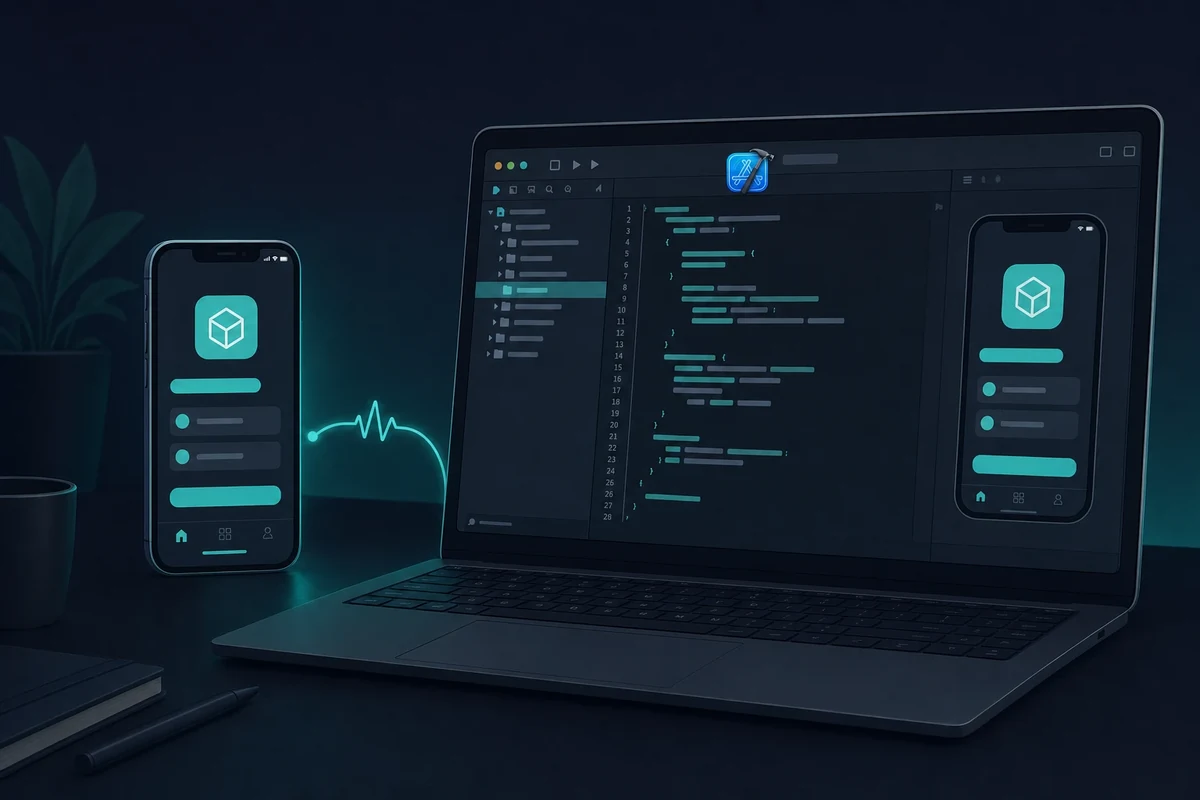
On this page
The short version
You can test and build iOS apps on Windows, but the build itself always needs real macOS. The most reliable path is a rented cloud Mac running Xcode, from $15 a day or $99 a month. There is no TestFlight client for Windows, and a free Apple ID is enough to test on your own iPhone (the paid $99/year Apple Developer account is only for App Store distribution).
If you’re developing mobile apps on a Windows PC, you’ve probably found it tough to test or build for iOS. That’s because Apple only lets Xcode – the official tool for iOS development – run on macOS.
So, if you don’t have a Mac, you can’t install Xcode, which makes testing iOS apps a challenge. Because of this, lots of teams have figured out ways to إنشاء تطبيقات iOS بدون جهاز Mac.
يستخدم العديد من المطورين حول العالم نظام ويندوز بشكل أساسي. سواء كنت تعمل على تطبيقات متعددة المنصات باستخدام أدوات مثل React Nativeأو Flutter، أو Ionic، فإن الحاجة إلى اختبار تطبيقات iOS على ويندوز أمر شائع جدًا.
والخبر السار هو أنه على الرغم من أن أبل لديها قواعدها، إلا أن هناك طرقاً عملية لاختبار وحتى إنشاء تطبيقات iOS على ويندوز دون الحاجة إلى جهاز ماك. في هذا الدليل، سنلقي نظرة على أفضل الخيارات المتاحة، بما في ذلك الخيار الأفضل للمطورين الذين يريدون تجربة macOS كاملة على حواسيبهم.
لماذا يعد إنشاء تطبيقات iOS على ويندوز صعباً؟
تحافظ Apple على أدوات التطوير الخاصة بها متماسكة. Xcode هو البرنامج الرئيسي الذي تحتاجه لإنشاء تطبيقات iOS وتشغيلها ونشرها، ولكنه يعمل فقط على نظام macOS.
حتى لو كنت تستخدم أدوات متعددة المنصات مثل React Native أو Flutter، هناك مشكلة: لا يمكنك تشغيل أو تجميع تطبيقات iOS بدون نظام macOS. هذا صحيح سواء كنت تختبر الميزات أو تصحح الأخطاء أو تجهز تطبيقك لمتجر التطبيقات.
There is no way to run Xcode without a Mac on your own Windows machine, so the practical answer is a real Mac you reach remotely.
في حين أن هناك بعض الطرق لـ محاكاة نظام التشغيل iOS على ويندوز، فإنها عادةً ما تكون أقل من تقديم تجربة تطوير حقيقية.
يحاول بعض المطورين تجاوز هذا الأمر باستخدام الأجهزة الافتراضية أو إعدادات Hackintosh، ولكن هذه تأتي مع بعض المشاكل الكبيرة:
- إنها تتعارض مع اتفاقية ترخيص المستخدم النهائي لشركة Apple.
- يمكن أن تكون غير مستقرة وبطيئة، وعادةً لا تحصل على دعم من تحديثات Xcode.
- لن تعمل لإرسالها إلى متجر التطبيقات.
So, while Windows is useful for development, it doesn’t provide the right tools to build or test iOS apps effectively. You can still build an iOS app on Windows without a Mac, but every reliable path routes the final build through real macOS, so the trick is reaching that Mac the right way.
3 طرق لاختبار تطبيقات iOS على ويندوز
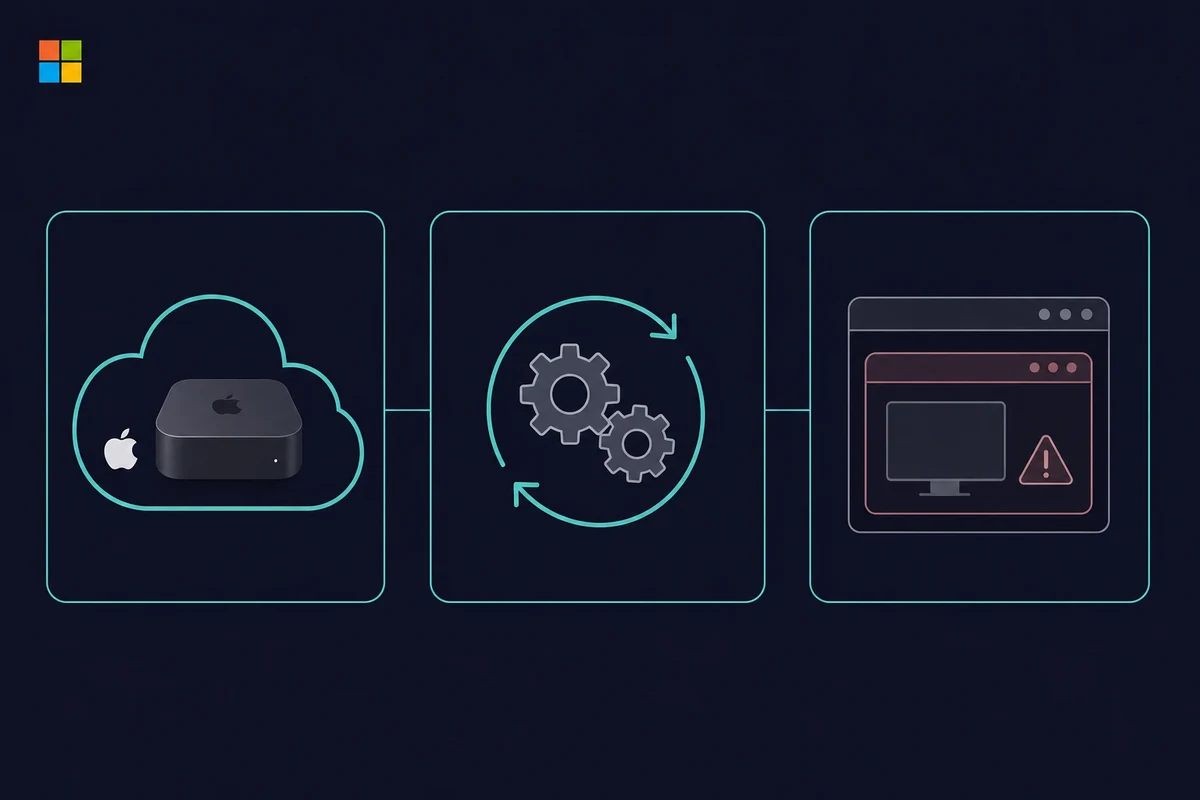
If you’re developing on Windows, you’ll run into Apple’s macOS requirement sooner or later. Testing iOS apps on Windows comes down to three reliable paths, and only one gives you the full Xcode experience to build iOS apps right from your Windows machine.
1. استخدم جهاز Mac السحابي (الخيار الأفضل - RentAMac.io)
أبسط طريقة لاختبار تطبيقات iOS بدون جهاز Mac هي استئجار جهاز Apple حقيقي عبر الإنترنت.
مع Rentamac.io, you can use a remote Mac setup with Apple Silicon and install Xcode to run iOS Simulators efficiently. It’s like working on a real Mac from your Windows computer.
لماذا يعمل:
- وصول كامل إلى Xcode لإنشاء تطبيقات iOS واختبارها
- Real Apple hardware, no hacks or emulators needed
- يعمل مع React Native وFlutter وSwift وغير ذلك الكثير
- جيد للتطوير وتصحيح الأخطاء ونشر متجر التطبيقات
Whether you’re testing performance or want to build iOS apps on Windows, a rented cloud Mac takes five short steps to set up.
2. Use a Cloud Build Service
If you want automated builds, a cloud build service can compile iOS apps from your Git repo without a local Mac. You connect your repository, and the service builds on its own hosted Macs.
لماذا يعمل:
- يدعم إنشاءات iOS المستندة إلى السحابة لتطبيقات Flutter و React Native والتطبيقات الأصلية
- يمكنك تنزيل ملف .ipa الذي تم تجميعه
- يعمل مع GitHub و GitLab و Bitbucket
القيود:
لن يكون لديك واجهة رسومية أو محاكي، وهو ليس الخيار الأفضل للاختبار العملي.
الأفضل لـ
الفرق التي تعتمد على العمليات الآلية ولا تحتاج إلى اختبار تفاعلي.
3. استخدام macOS في جهاز افتراضي
يجرب بعض المطورين تشغيل macOS في VirtualBox أو VMware لمحاكاة بيئة Mac.
القيود:
- يخرق اتفاقية ترخيص Apple
- عرضة للأخطاء والأعطال والمشكلات الأمنية
- غالباً ما لا يعمل مع أحدث إصدارات Xcode
إذا كنت جادًا في إنشاء تطبيقات iOS، فهذه ليست الطريقة المثلى. فقد تضيع وقتك وقد تؤدي إلى مشاكل قانونية.
The three methods compared
The three Windows-friendly testing paths trade off control, cost, and legality. A rented cloud Mac gives you the full Xcode and Simulator experience. A cloud build service compiles your app remotely but gives no interactive simulator. And a local macOS virtual machine breaks Apple’s licence and tends to be slow and fragile.
Here is how the three stack up if you want to تطوير تطبيقات iOS على ويندوز without buying a Mac:
| الطريقة | What you get | Rough cost | Legal and reliable |
|---|---|---|---|
| Cloud Mac (rented) | Full Xcode and Simulator, App Store deploy | From $15/day or $99/month | Yes, fully compliant |
| Cloud build service | A compiled .ipa, no GUI or simulator | Varies by service | Yes, but no interactive testing |
| macOS in a VM | A fragile macOS desktop | “Free” but heavy setup | No, breaks the Apple EULA |
A virtual machine looks free, but it wants around 16GB of RAM plus tens of gigabytes of disk, and it often breaks on the current Xcode release. For the paid hosted options, see our rundown of cloud Mac rental options.
Is TestFlight available on Windows?
No, there is no TestFlight for Windows. TestFlight is an Apple app that runs only on iOS, iPadOS, and macOS, so the download pages claiming otherwise are misleading. To upload a build to TestFlight or install a test build, you need a Mac, and the simplest one from a Windows PC is a rented cloud Mac running Xcode.
Some “TestFlight for PC” download pages even push an unrelated Android emulator instead of anything Apple, so skip them.
What you can actually do from Windows is reach a Mac remotely and drive the whole upload from there:
- Connect to a remote Mac and open your project in Xcode.
- Archive the app and upload the build to App Store Connect.
- Add and manage your testers in App Store Connect.
Your testers never touch Windows for this. They install the build on their own iPhone or iPad through the TestFlight app, the same way they would for any beta. Only the build-and-upload step needs a Mac, and that is exactly the archive-and-export flow covered in Step 5 below.
لماذا يعتبر موقع Rentamac.io الخيار الأفضل
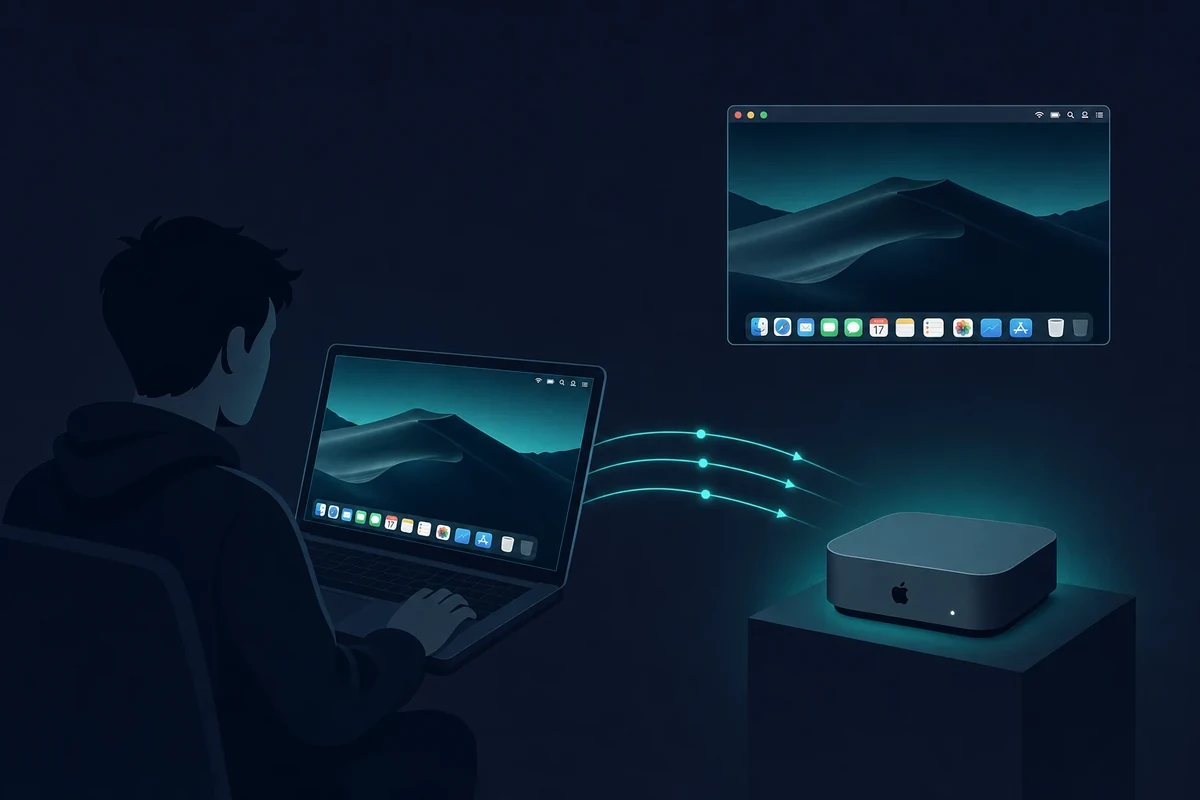
For compliant iOS testing without owning a Mac, Rentamac.io gives you a complete macOS setup you reach from your Windows PC. You log into a real Mac, use Xcode, run the iOS Simulator, test your app, or submit it to the App Store. Here is what makes it a good pick:
تجربة macOS حقيقية
أنت تعمل على جهاز Apple حقيقي يعمل بنظام macOS - بدون محاكيات أو اختراقات. هذا يعني أنك لن تواجه مشكلات في التوافق أو تخرق أيًا من قواعد Apple.
إنشاء تطبيقات iOS واختبارها من ويندوز
سواء كان تطبيقك مصنوعًا باستخدام React Native أو Flutter, سويفتأو Objective-C، يمكنك التحويل البرمجي والاختبار والتصحيح مباشرةً من حاسوبك الشخصي الذي يعمل بنظام ويندوز، وذلك بفضل الوصول عن بُعد إلى جهاز Mac.
متوافق تماماً
يتبع برنامج Rentamac.io اتفاقية ترخيص المستخدم النهائي من Apple، على عكس الأجهزة الافتراضية أو إعدادات Hackintosh. يمكنك استخدامه دون القلق بشأن حساب Apple Developer الخاص بك أو موافقة متجر التطبيقات.
أداء رائع
Every instance is a real Mac Mini M4 with 16GB of RAM, so build times stay quick and the iOS Simulator runs smoothly while you debug.
Clear Pricing
You don’t have to buy a MacBook or set up complicated systems. Plans are Daily $15, Weekly $49, and Monthly $99, so you just rent what you need for as long as you need it. There is no hourly plan, since Apple’s macOS terms don’t allow one.
كيفية اختبار تطبيقات iOS باستخدام رينتماك
Setting up a Mac from a Windows PC might seem tricky, but with Rentamac.io it takes five short steps. You pick a plan from $15 a day, pay through Stripe, then connect to your own Mac Mini M4 with the pre-installed DeskIn app. From there you install Xcode from the App Store, open your project in the iOS Simulator to test it, and archive the build to export an .ipa file.
Here is the same flow as a quick checklist:
1. Pick a plan (Daily $15, Weekly $49, or Monthly $99) and pay through Stripe.
2. Connect to your Mac Mini with the pre-installed DeskIn app.
3. Install Xcode from the App Store on your rented Mac.
4. Test your app by running it in the iOS Simulator.
5. Build and export the .ipa file for TestFlight or the App Store.
الخطوة 1: اختر الخطة وخيار الدفع
Pick a plan. Choose the plan that fits your needs: Daily $15, Weekly $49, or Monthly $99. Once you choose, you go to a secure checkout page handled by Stripe, where you can pay with a Visa or Mastercard, or with PayPal. Access is immediate after payment.

الخطوة 2: الاتصال بجهاز Mac Mini الخاص بك
بعد أن تدفع، ستحصل على جهاز Mac Mini المخصص لك. ستحصل على بيانات اعتماد الوصول عن بُعد، بما في ذلك معلومات تسجيل الدخول إلى Mac وتفاصيل أداة سطح المكتب البعيد.
Connect with DeskIn. It is a remote desktop app that comes pre-installed on your Mac at no extra cost and even works from a phone or tablet. Just open it from your Windows PC to control your rented Mac, and if a session ever drops, the dashboard has a “Restart DeskIn” button to bring it back.
Parsec and SSH over Tailscale are there too if you prefer them.

الخطوة 3: تثبيت Xcode وتشغيله
Xcode is Apple’s official tool for building iOS apps. Open the App Store on your rented Mac and install Xcode if it’s not already there. As of mid-2026 the current toolchain is Xcode 26 with iOS 26 and macOS Tahoe 26, so the App Store will pull the latest version for you.
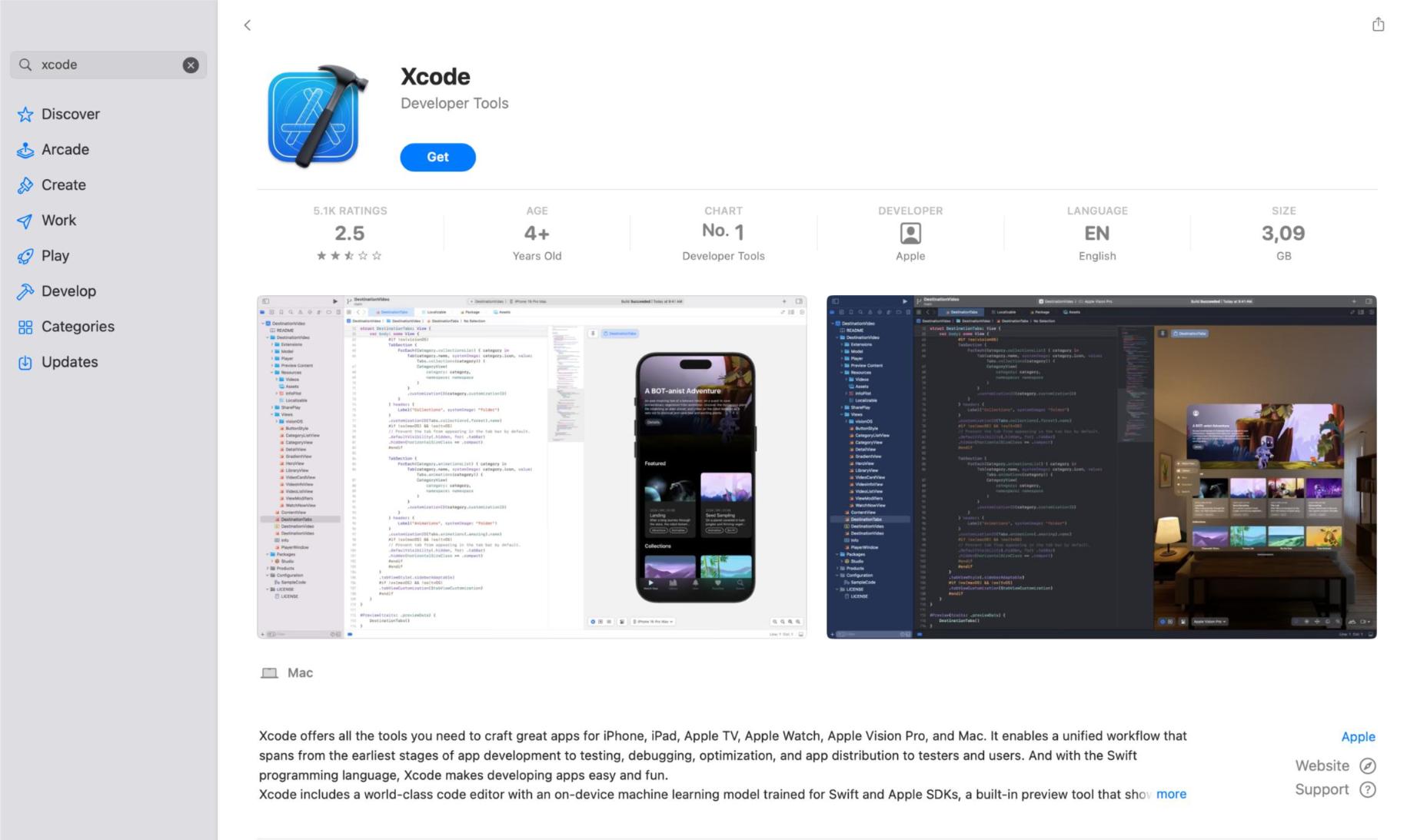
الخطوة 4: اختبر تطبيق iOS الخاص بك
- افتح مشروع iOS الخاص بك (React Native أو Swift أو Flutter أو غير ذلك)
- اختر جهازاً مستهدفاً في محاكي iOS.
- شغّل التطبيق، وصحح أخطاءه أثناء التنقل، وتحقق من أدائه.
الخطوة 5: الإنشاء والتصدير
When you’re ready, archive the app and export the .ipa file for TestFlight or App Store submission – all from Xcode on your rented Mac. This is also how you deploy an iOS app without a Mac of your own: you archive on the rented Mac, then submit from there.
الأسئلة الشائعة
هل يمكنني تشغيل Xcode على ويندوز؟
Xcode مخصص لنظام ماك فقط. إذا كنت ترغب في استخدامه على جهاز كمبيوتر يعمل بنظام ويندوز، يمكنك تجربة Rentamac.io للوصول إلى جهاز ماك حقيقي عن بُعد.
هل يمكنني إنشاء تطبيقات iOS واختبارها بدون جهاز Mac؟
Absolutely. A rented cloud Mac lets you build and test iOS apps on Windows without buying any Apple devices.
هل من القانوني تشغيل macOS على Windows؟
Using macOS on non-Apple hardware, like virtual machines or a Hackintosh, usually goes against Apple’s license agreement and isn’t the best idea for development. A real Mac, or a rented cloud Mac, stays fully compliant. That makes it the safe path for any App Store work.
Do you need a paid Apple Developer account to test an iOS app?
Not for testing on your own device. A free Apple ID in Xcode 7 and later gives you a free certificate to install and run your app on an iPhone or iPad you own. The paid Apple Developer account, which costs $99 a year, is only needed to distribute through the App Store or to use TestFlight and in-app purchases.