On this page
The new model Mistral 7B from the French startup has recently hit the headlines as a powerful competitor to GPT and Llama models in the same size category, and OpenAI has since answered with an open-weight model you can run on a Mac.
Mistral is lightweight, capable, and perfect for running locally on personal computers, much like models such as Llama that are optimized for Mac environments with limited hardware requirements.
In this guide, you’ll learn the tech specs, the tools, and the key steps to install and run Mistral on a Mac.
Let’s get started!
What you need to run Mistral on a Mac
To start with Mistral, you must check if your computer has the required specifications. To run the Mistral 7B model, you need:
- A Mac M4
- 16 GB RAM
- At least 50 GB of storage
- 10 minutes of your time
Mistral 7B is still the proven, lightweight default here, and the open weights stay free to download even though the same model retired on Mistral’s hosted API in March 2025. Mistral 7B requirements on a Mac are modest: about 4.1GB on disk at Q4 and roughly 8GB of RAM in use, so 16GB is the comfortable floor. At the opposite extreme sits a 1T model like Kimi K2.6, which only loads on a 240GB-plus Mac.
You can also run Mistral on other versions of Macs, as Apple’s M1, M2, and M3 chips are engineered for machine learning workloads. Yet, the Mac M4 Mistral performance will be the best in the range.
Tools to run Mistral on Mac
LM Studio is the best tool for running LLMs on Mac. Its beginner-friendly interface allows anyone to download and run Mistral for personal or business use in several steps.
Integrated with Hugging Face, it gives access to over 1 million models, including tools previously used to run models like DeepSeek or Gemma directly on Macs.
You can install Mistral on a Mac in a few clicks with LM Studio, or with one command using Ollama (covered in the next section).
How to run Mistral on Mac locally?
To run Mistral on Mac, you have to follow these steps:
1. Download and install LM Studio on your Mac
2. Select the needed model from the list
3. Download the selected model
4. Run the model.
Both LM Studio and Ollama let you run Mistral locally on a Mac, fully offline. Let’s review the LM Studio steps closely.
Download and install LM Studio on your Mac
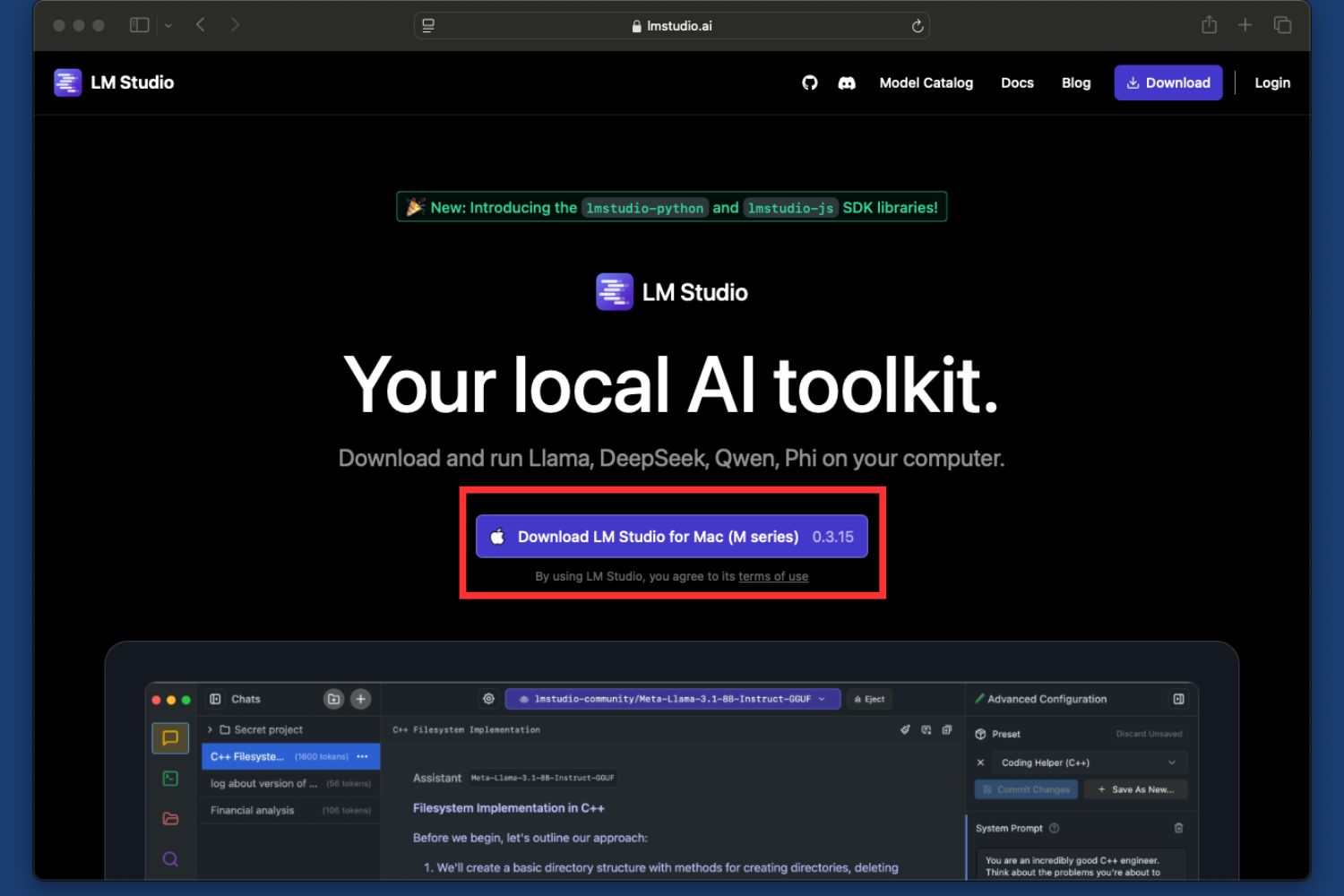
To download LM Studio, go to the official app’s website.
After downloading LM Studio on your Mac, the system asks you to save the app to the Applications folder.
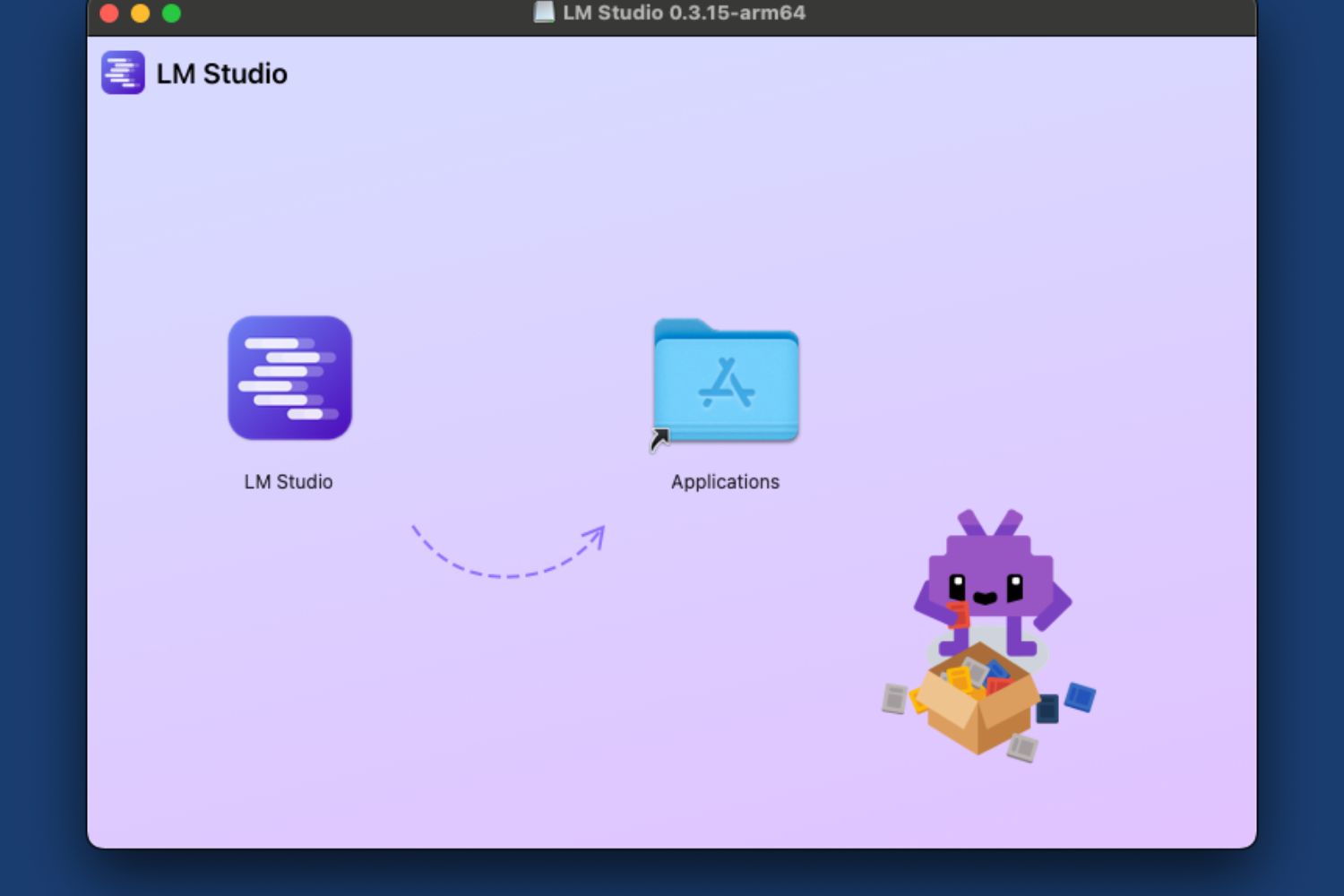
After saving the app to the apps folder, you have everything ready to install Mistral on Mac.
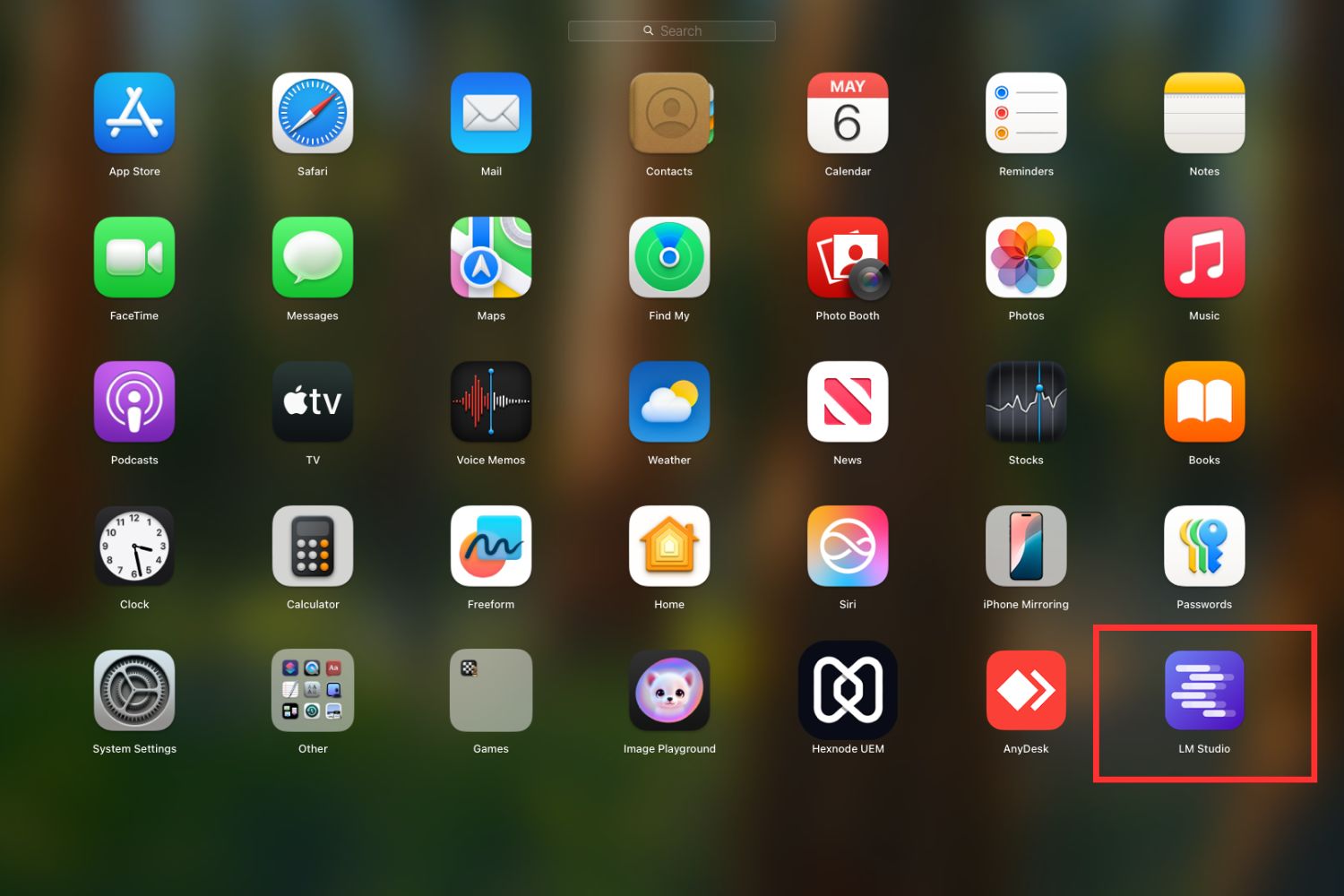
Search for Mistral models
LM Studio has over 600 different Mistral models to work with. Different model variations are better tuned for various specific tasks.
On a 16GB Mac, Mistral 7B and the 12B Nemo model are the safe picks, since they fit in memory with room to spare. The 24B Mistral Small model needs more than 16GB of RAM, so most people on a 16GB Mac skip it. Memory is the wall for bigger models, and at the far end DeepSeek V4 Flash needs a 128GB Mac before it loads at all. The newest Small release also folds the old Codestral and Pixtral roles into one general model.
To find the model you need, do the following:
Step 1. Go to the LM Studio search functionality.
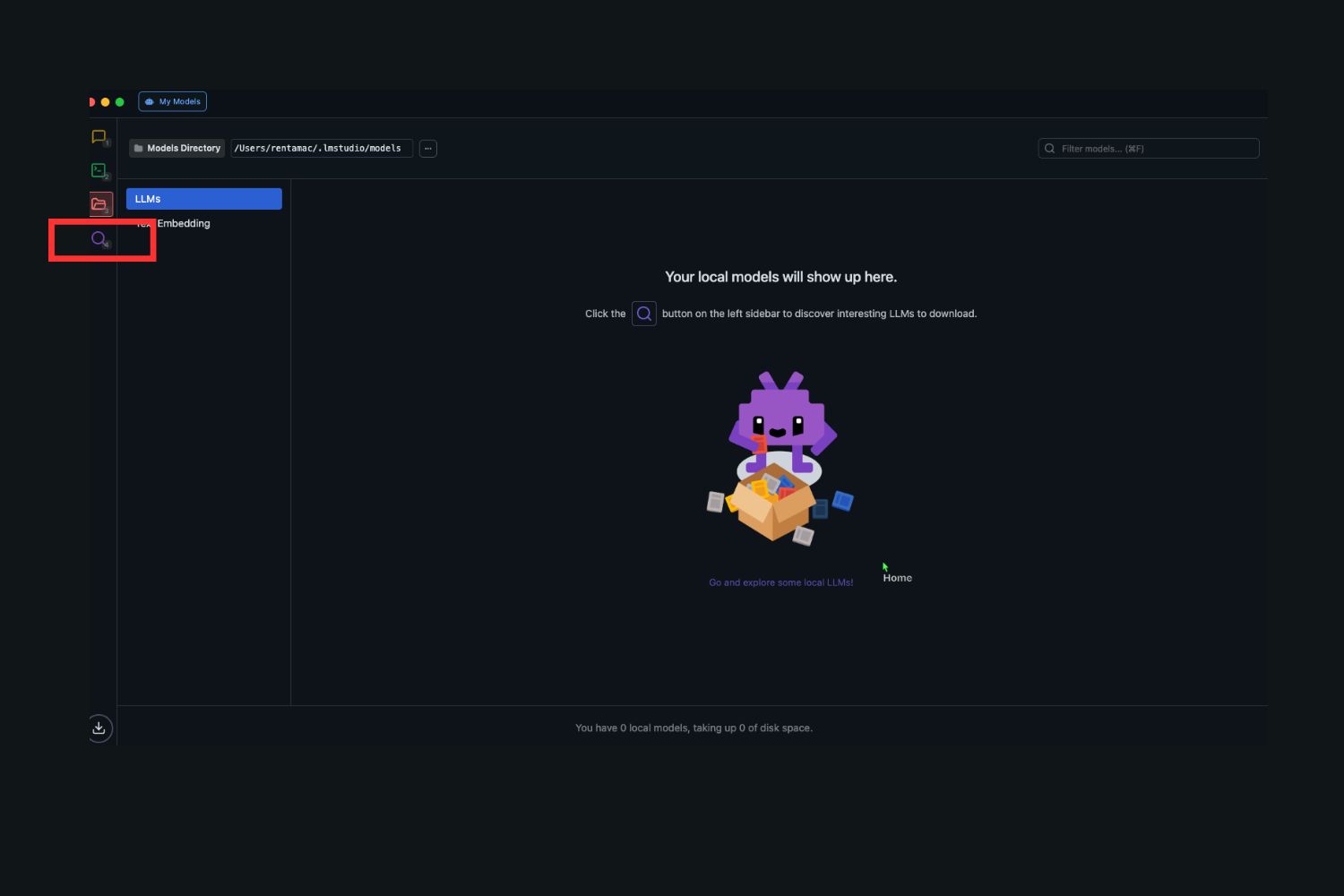
Step 2. Type the name of the model in the Search field.
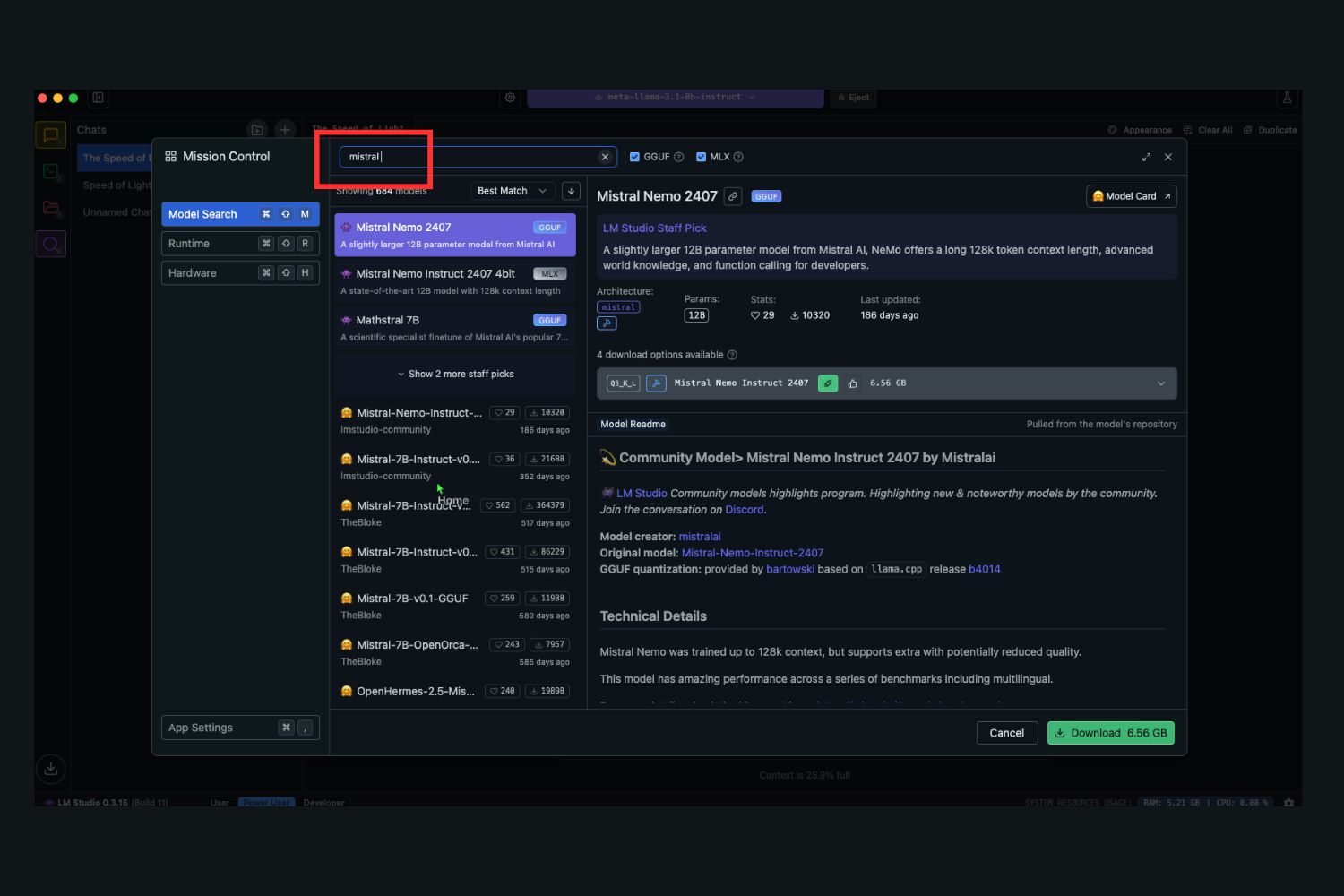
Step 3. Scroll down to select the variant of the model you need.
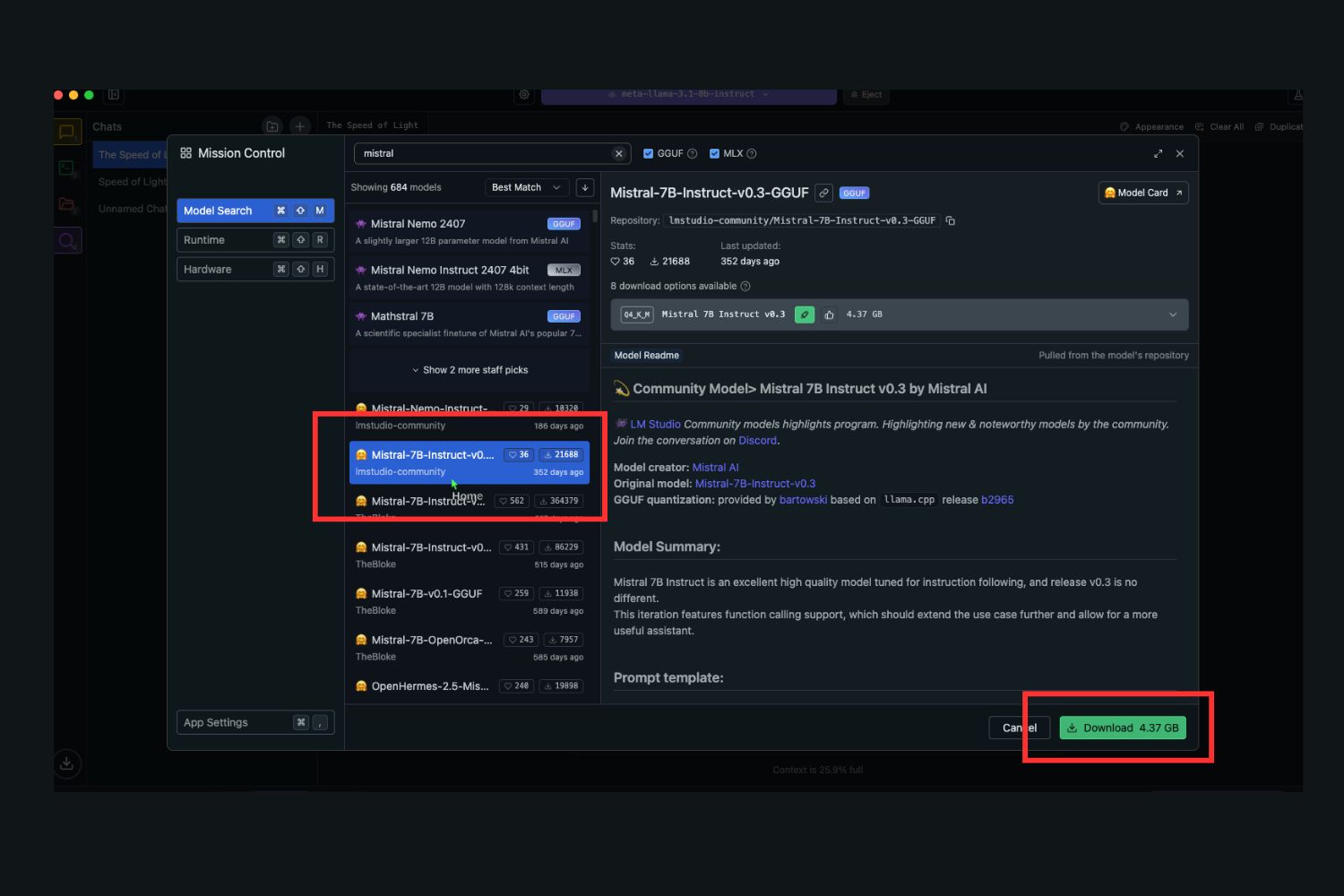
Download the selected model
The Mistral download on a Mac is about 4.1GB for 7B at Q4, so it finishes in a few minutes, not seconds.

Run the model
After downloading, you must load the model to start working with it.

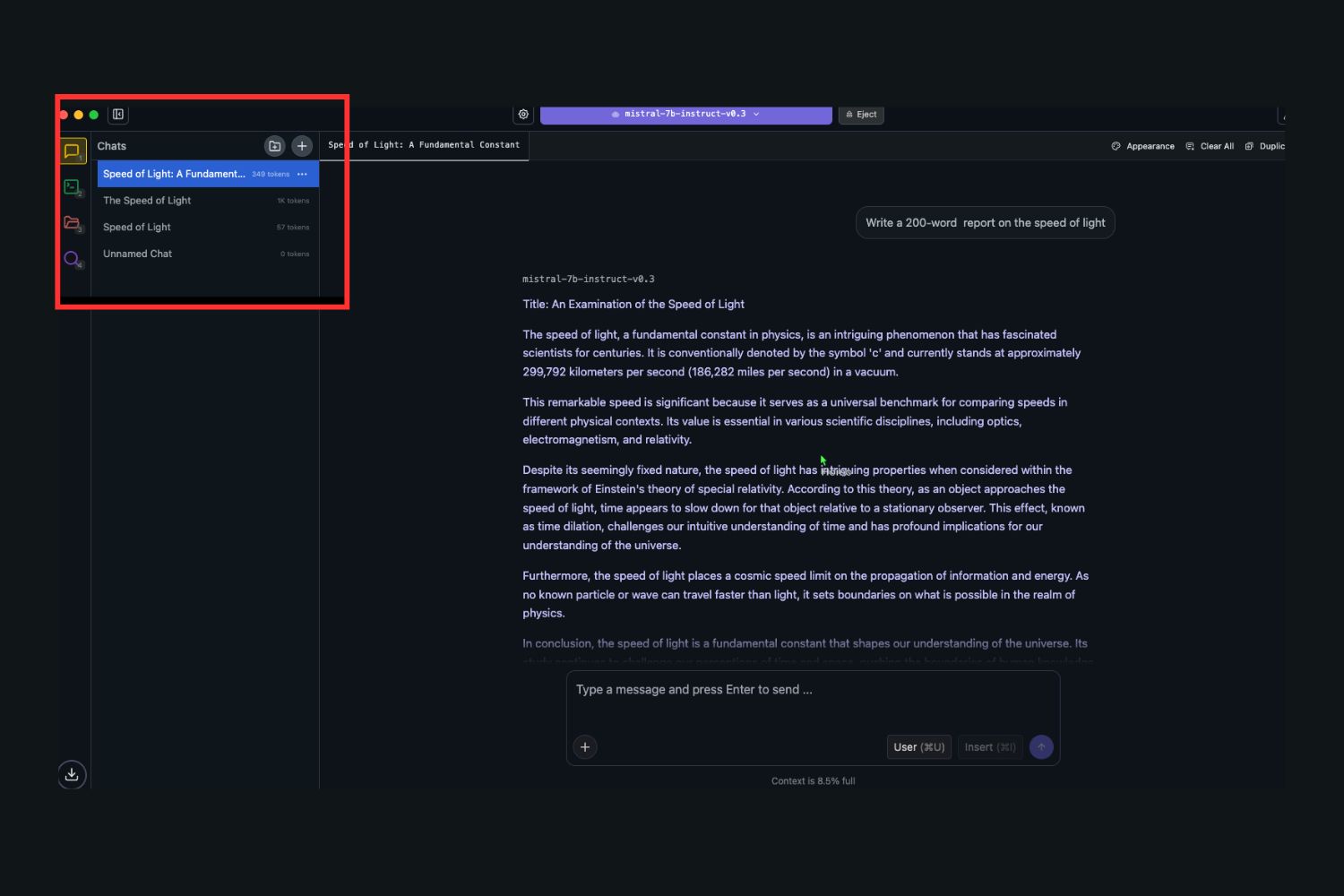
LM Studio allows you to work with Mistral using a straightforward chat interface. You can save your queries as separate projects and return to them later. !mistral save project
How to run Mistral with Ollama (one command)
The fastest way to run Mistral on a Mac is Ollama. Install the Ollama app, then run one command in Terminal: ollama run mistral. That command downloads Mistral 7B (about 4.4GB) in roughly 10 to 15 minutes, then chats with you locally and offline. No account, no GUI needed.
Ollama is the runtime, not the model itself. It pulls the files the first time you ask, then serves the model straight from your Mac, so nothing leaves the machine after the download.
Which one should you pick? Both run Mistral on the same engine, and the speed gap stays under about 5%, so it comes down to how you like to work.
| Tool | How you run it | Best for |
|---|---|---|
| LM Studio | Click through a window, search and pick a model | A visual, no-Terminal setup |
| Ollama | One command: ollama run mistral | A quick CLI you can script |
One note on speed. As of April 2026, Ollama added an MLX preview on Apple Silicon that can run some models faster, but Mistral is not on that path yet, so it still uses the standard Metal backend in both tools. Pick the interface you prefer. The same one-command approach also works to run Qwen locally.
Why run Mistral on Mac locally?
Mistral 7B is more capable of doing different tasks than other models of the same size.
That is because of advancements in architecture, which allow Mistral to perform complex tasks with fewer parameters.
Mistral’s model outperforms the 13B Llama-2 in Math, coding, reasoning, and comprehension. All this is done with 7 billion parameters, allowing it to run this model on a personal PC.
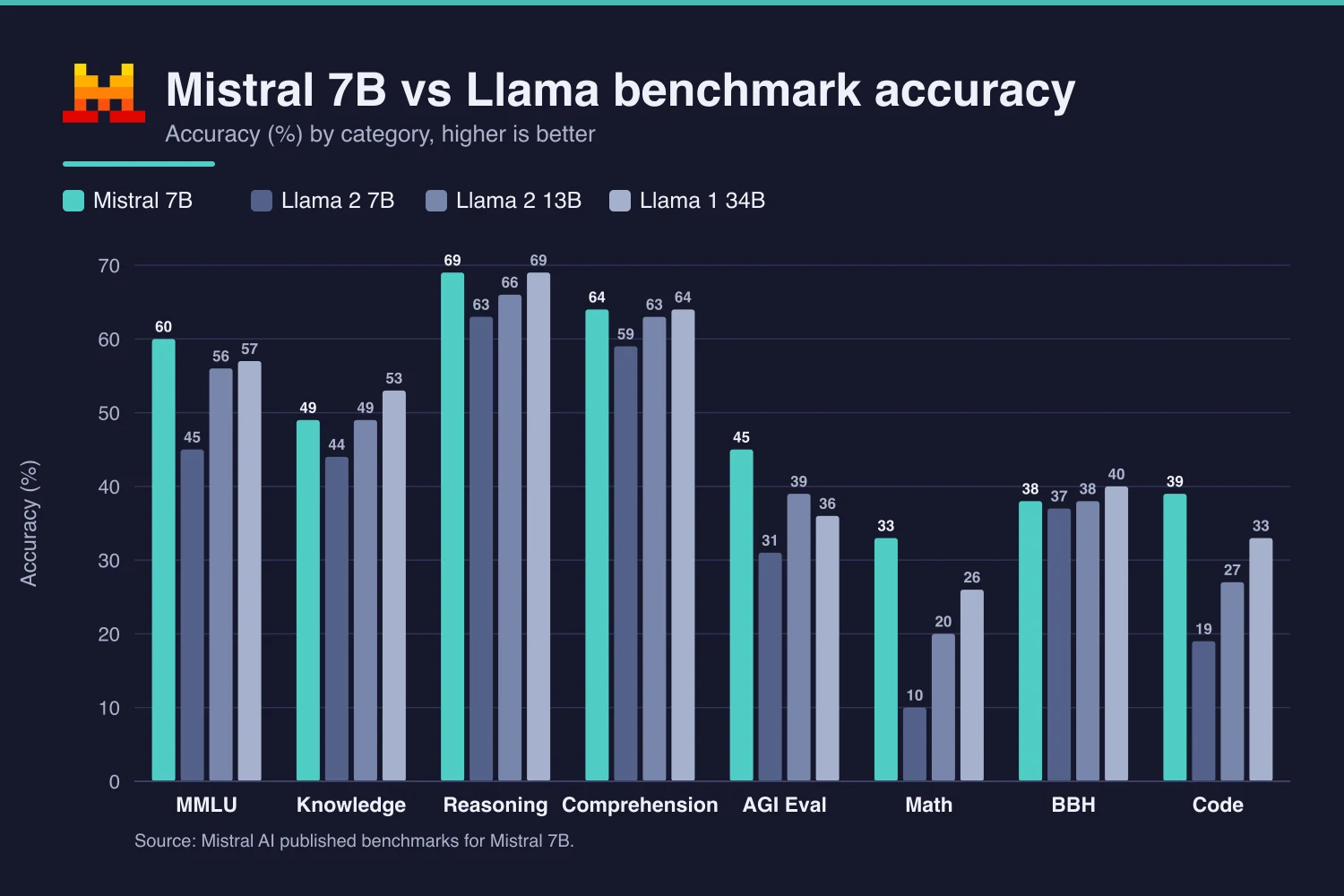
It is also quick enough to use. On a 16GB Apple Silicon Mac, Mistral 7B (Q4_K_M, around 4.1GB) runs at roughly 20 to 30 tokens per second, which reads like a steady stream of text.
Mistral architecture advancements
Mistral changed the transformer design so a 7B model can match the quality of much larger ones and still fit on a Mac with 16GB of RAM.
The free, lightweight models promote machine learning adoption by medium and small businesses and individuals, who can now use Mistral models for various use cases.
Mistral use cases
Mistral models are suitable for a range of applications, such as business, software development, research, and personal use.
Here are some examples:
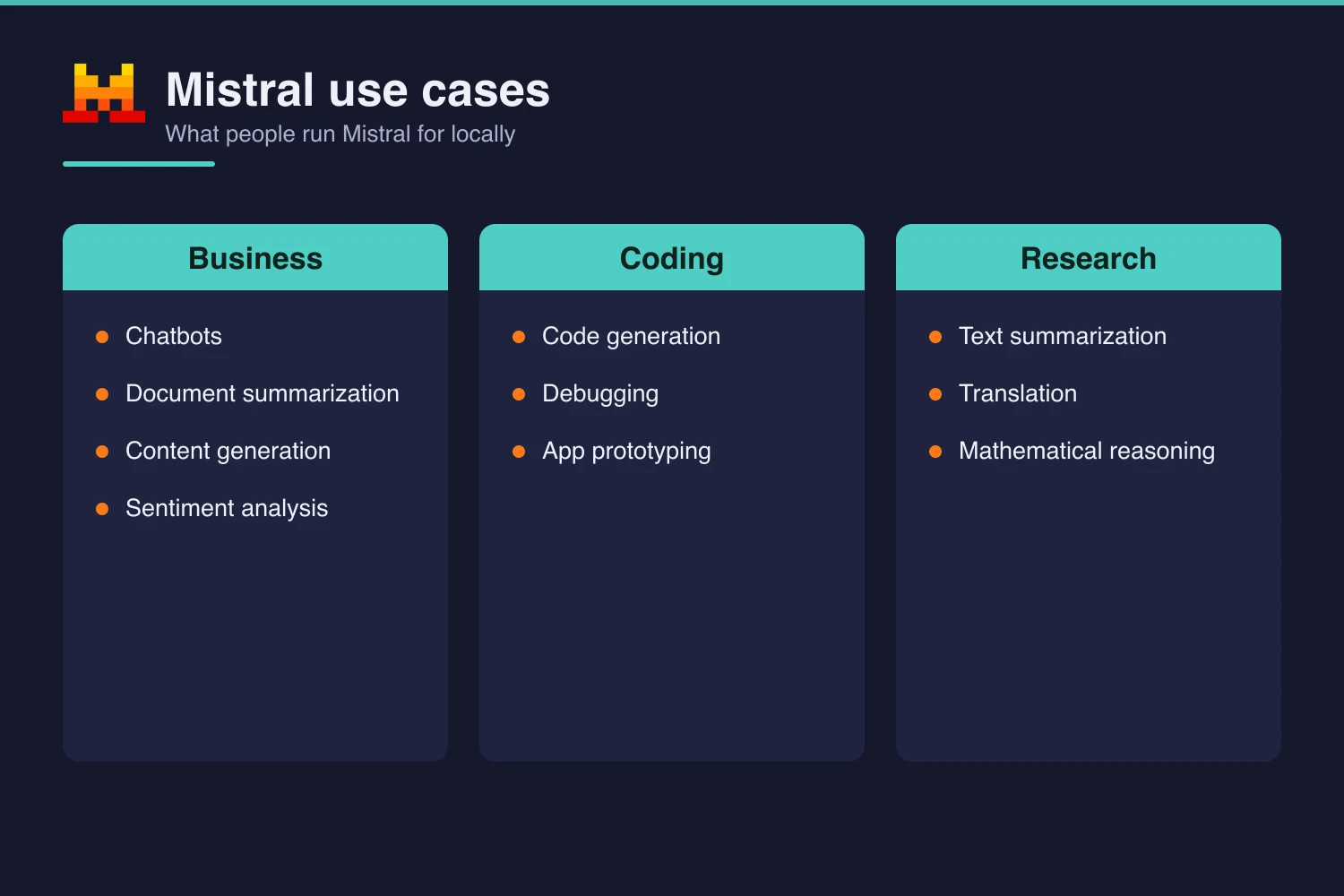
Business:
- Chatbots: You can use Mistral to create chatbots and virtual assistants for customer support tasks. Yet, when selecting a model for chatbot building in LM Studio, pay attention to the model description.
- Document summarization: Mistral can perform intelligent document processing tasks like base document summarization or data extraction.
- Content generation: Create content for marketing campaigns.
- Sentiment analysis: You can check the overall attitude of your audience toward your brand by asking Mistral to analyze your social media comments and reviews.
Software development:
- Code generation: Mistral supports multiple software languages and frameworks so that you can develop mobile applications, website code, or other projects. You can use it for the individual development of simple apps or their features, or code suggestions.
- Debugging: Mistral can read your code and point out possible improvements.
- Test generation: Use Mistral to enhance your code testing.
Research:
- Text summarization: Mistral is a great tool for summarizing sources for your research and navigating you through various learning resources.
- Translation: Mistral can help you translate publications or papers into other languages.
- Mathematical reasoning: Mistral is capable of mathematical reasoning if you need to support your research with calculations.
Benefits of running Mistral on Mac
There are multiple benefits of running Mistral locally on your Mac. They include:
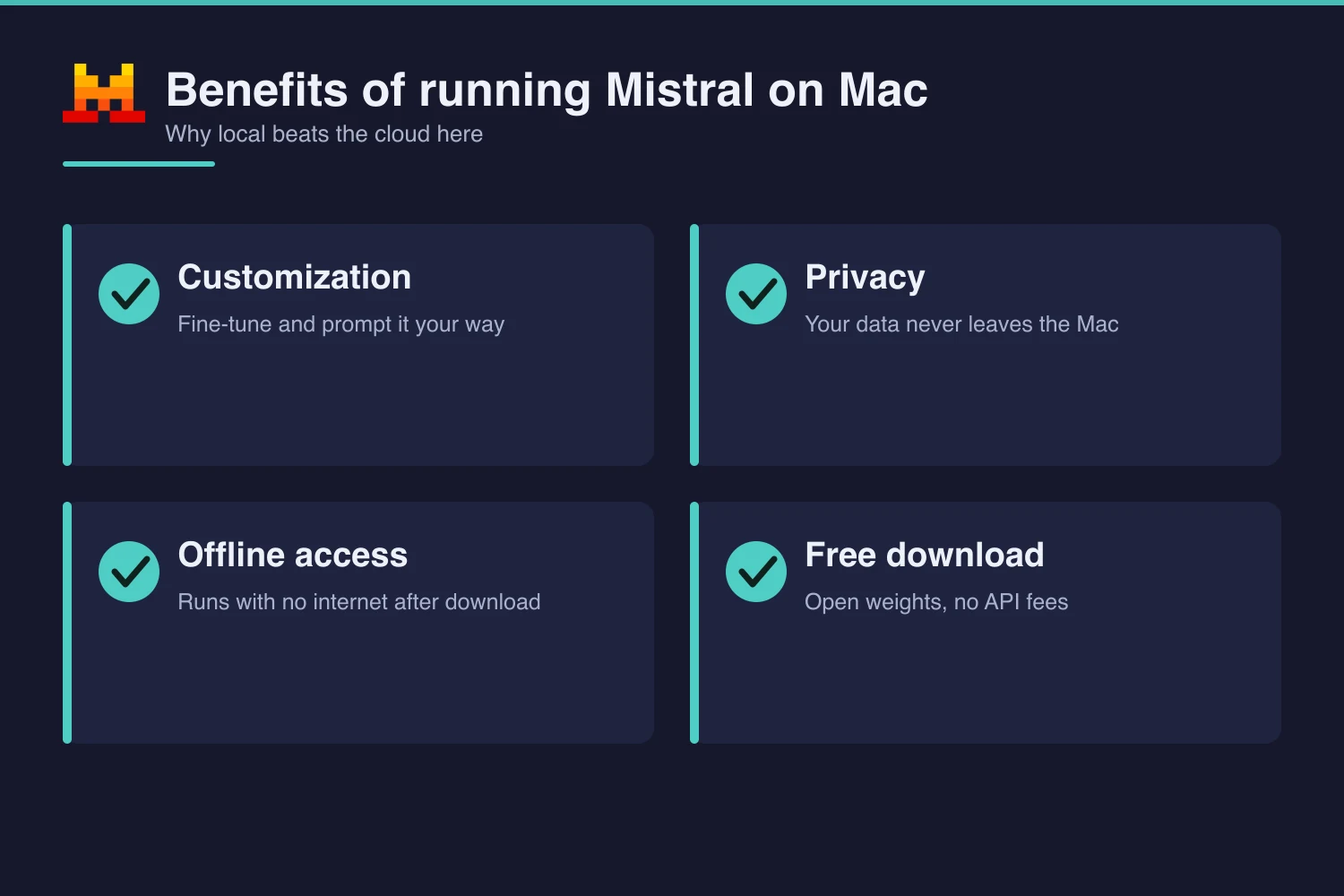
- Customization: Mistral offers hundreds of pretrained and base models, which you can tune for a number of business tasks
- Privacy: since you run Mistral on Mac locally, you don’t have to share your data with a third party and can be sure about privacy and compliance with regulations
- Offline access: You can run Mistral offline, meaning that you don’t lose your results due to unstable internet connections
- Free downloads: Mistral code is open-source, so you don’t have to pay fees to download the models.
Mistral on Mac FAQ
A few questions come up again and again when running Mistral on a Mac.
Is there a Mistral app for Mac?
There is no official Mistral Mac app. For the chat assistant, use the web app and Add to Dock. To run the model itself, use LM Studio or Ollama, which is the local setup this guide covers.
Can you run Mistral locally for free?
Yes. Mistral’s open-weight models are free to download and run on your own Mac. There are no API fees and no account needed once a model is on disk, and it keeps working offline.
How much RAM do you need to run Mistral on a Mac?
16GB of RAM comfortably runs Mistral 7B, which uses about 8GB while it answers and 4.1GB on disk at Q4. The 24B Small model needs more than 16GB, so 7B or 12B Nemo is the safe pick.
Is Mistral 7B free, and is it any good?
Yes. Mistral 7B ships under an open-weight Apache 2.0 license, free to download and use. It outperforms the larger 13B Llama-2 on math, coding, reasoning, and comprehension in Mistral’s own benchmark, which is why it runs well on a 16GB Mac.
Ollama vs LM Studio for Mistral on a Mac, which is better?
LM Studio gives you a click-through window with model search. Ollama gives you one command and a setup you can script. Speed is nearly identical, under about 5% apart, so pick by the interface you prefer.
Summing Up
Mistral is a lightweight, capable model you can run on your own Mac. On a 16GB machine, start with Mistral 7B: it fits in memory, downloads in minutes, and runs locally and offline.