 TR
TR  EN
EN  ES
ES  PT
PT  FR
FR  AR
AR 
On this page
Windows bilgisayarda iOS uygulamaları geliştiriyorsanız, kendinizi sıkışmış hissedebilirsiniz - Apple'ın iOS geliştirme araçları yalnızca Mac'lerde çalışır. Yani Mac'e geçmediğiniz sürece Xcode yok, iOS Simulator yok ve uygulamanızı test etmenin kolay bir yolu yok.
But not every developer has access to a Mac. Many teams, students, and indie creators use Windows. This is why the idea of having an iOS simulator for Windows or figuring out how to develop iOS apps without Mac popüler hale geldi.
İyi haber şu ki, Apple işleri oldukça sıkı tutsa da, bunu yapmanın yolları var:
- iOS uygulamanızın nasıl göründüğünü önizleyin
- Uygulamanızın düzenini ve navigasyonunu test edin
- Herhangi bir sorunda hata ayıklama
- Mac'e ihtiyaç duymadan hareketleri ve donanım özelliklerini simüle edin
Bu kılavuzda, Windows'ta iOS simülasyonu yapmanın en iyi yollarını inceleyecek, her birinin avantajlarını ve dezavantajlarını gözden geçirecek ve özellikle PC'de gerçek Xcode simülatörlerini kullanmak istiyorsanız, Mac donanımı olmadan iOS uygulama testi yapmanın en iyi yolunu bulacağız.
The short answer
Apple ships the iOS Simulator only inside Xcode, and Xcode runs only on macOS. No real iOS simulator installs on Windows. The reliable path is a rented cloud Mac, where you run the actual Xcode iOS Simulator and stream it to your PC.
Windows'ta iOS Uygulamaları Oluşturmak Neden Zor?
Windows'ta iOS simülasyonu yapmak kolay değildir. Apple, geliştirme araçlarını sınırlandırdığı için Xcode ve iOS Simülatörü gibi araçları yalnızca macOS üzerinde kullanabilirsiniz.
Even though developers often search for an iOS simulator for Windows or an iPhone simulator for Windows, but these alternatives usually don’t work as well as Apple’s official tools. Searches for an iPhone simulator for Windows hit the same wall: Apple ships the simulator only inside Xcode on macOS. Here’s why:
- Xcode yalnızca macOS üzerinde çalışır - Xcode'u bir Windows PC'ye yükleyemezsiniz, bu da onunla birlikte gelen iOS Simülatörünü kaçıracağınız anlamına gelir.
- Sınırlı özellikler - Çoğu Windows simülatörü sadece kullanıcı arayüzünü taklit eder. Bir uygulamanın GPS, kameralar veya parmak izi tarayıcıları gibi donanımlarla nasıl etkileşime girdiğini taklit edemezler.
- Yasal sorunlar - Sanal makineler de dahil olmak üzere birçok resmi olmayan seçenek, Apple'ın Son Kullanıcı Lisans Sözleşmesi'ni (EULA) ihlal ediyor ve bu da onları App Store için uygulama geliştirmek veya ekipler halinde çalışmak için ideal kılmıyor.
While some developers try using Android-type simulators or browser-based tools, these often aren’t enough to test an iOS app on Windows, especially for tasks like debugging or checking how the app performs on real devices.
What you can and can’t test on a simulator
The iOS Simulator can fake Face ID, Touch ID and location, but it cannot use the real camera, accelerometer, barometer or magnetometer. So hardware features still need a real device or a real Mac, even when everything else runs fine on screen. Knowing the line helps you plan what to test where.
Here is the split, as of 2026:
- Can be simulated (since Xcode 9): Face ID, Touch ID, and location. You set them from the simulator menu, no real sensor needed.
- Cannot be simulated: the real camera, accelerometer, barometer, and magnetometer. Anything that reads those needs a physical iPhone.
There is also an official “simulator in Windows” many people search for. Microsoft’s Remote iOS Simulator for .NET MAUI shows an iOS simulator window inside Visual Studio 2022 on Windows, but it still pairs to a Mac build host to do the actual work, and sound plays only from that Mac. So even the official Windows tool ends up needing a Mac behind it.
The same catch applies to cross-platform frameworks. React Native, Flutter, and .NET MAUI let you write the app on Windows, but the final iOS build and the App Store submit still run on macOS with a current Xcode.
Apple’s own developer forums say it plainly: Xcode is supported only on macOS, so you can’t run it on a PC. That is also why an install Xcode on Windows search always leads back to a real Mac, and why a rented one is the simplest fix for Windows üzerinde Swift geliştirme.
3 Ways to Run an iOS Simulator on Windows
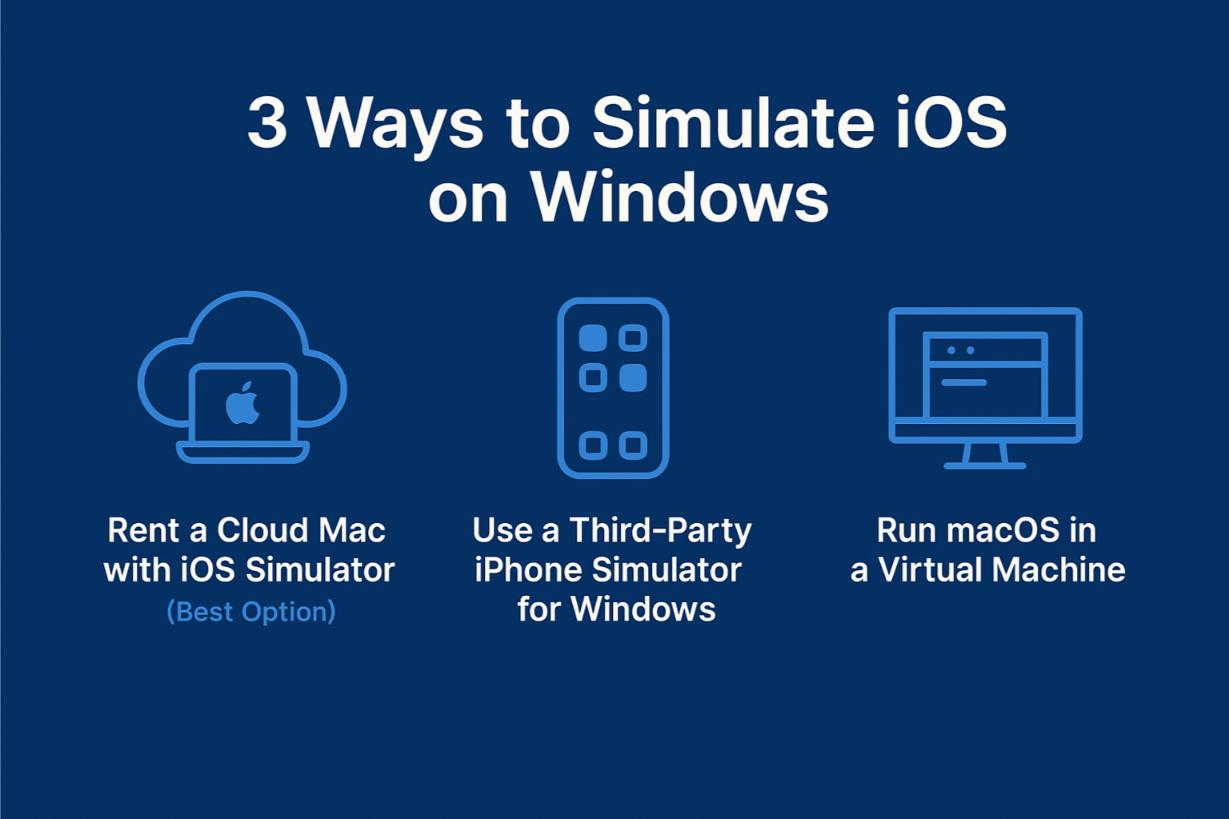
iOS'u bir Windows bilgisayarda çalıştırmak için şunları yapabilirsiniz:
1. Rent a cloud Mac to access a real iOS Simulator.
2. Check out third-party iPhone simulators that run in your browser.
3. Set up macOS in a virtual machine.
Here are the pros and cons for each option. If you want an iOS simulator for PC, keep in mind that none of these run iOS natively on Windows; only a real Mac does.
First, a quick word on names, because it trips up most searches. A simulator runs your app in a software-only iOS environment, the kind Xcode ships. A true emulator would also copy the iPhone’s hardware.
So when people ask how to emulate iOS on Windows, the honest answer is that real iOS emulators do not exist on a PC. That is why the reliable path is real macOS, not an “emulator” you download.
1. iOS Simülatörlü Bulut Mac Kiralama (En İyi Seçenek)
Bu açık ara en güvenilir seçimdir. Rentamac.io ile çevrimiçi olarak gerçek bir Mac kiralayabilir ve Windows bilgisayarınızdan erişebilirsiniz. İçeri girdikten sonra Xcode'u ve Apple geliştiricilerinin çalıştığı resmi iOS Simülatörünü kullanabilirsiniz.
Sadece ucuz bir taklit kullanmıyorsunuz - gerçek bir anlaşma ile çalışıyorsunuz. Bu da bu seçeneği aşağıdakiler için harika kılıyor iOS uygulama testi Mac olmadan.
Neden işe yarıyor?
- Xcode'da iOS Simülatörüne tam erişim
- Swift, Flutter ile çalışır, React Nativeve Objective-C
- Düzenleri, performansı, hareketleri ve cihaza özgü sorunları test edebilirsiniz
- Apple'ın yönergeleriyle uyumludur
- Windows'ta gerçek iOS simülatör deneyimi yaşamak isteyen geliştiriciler için idealdir.
2. Windows için Üçüncü Taraf iPhone Simülatörü Kullanın
Some tools try to fill the gap by offering an iPhone simulator for Windows. The current ones are browser-based cloud simulators: you open a page, pick a device, and see your app’s screen without installing anything. As of 2026 they advertise wide coverage, roughly iPhone 6 through iPhone 17 Pro Max, iOS 9 through iOS 26, and geolocation across 170+ countries.
Neden işe yarıyor?
- Kullanıcı arayüzünü ve temel etkileşimleri simüle eder
- Düzenin hızlı önizlemeleri için kullanışlıdır
- macOS'e gerek yok
Sınırlamalar:
- Yerel özelliklere erişimi yok
- Gerçek iOS Simülatörü özelliklerinden yoksun
- App Store'a gönderilemiyor veya yerel olarak test edilemiyor
- Hızlı demolar veya küçük ayarlamalar için iyi, ancak kapsamlı testler için değil.
So a browser simulator is fine for a fast layout check. For an actual build and test, you still want a real Mac, which is exactly the path covered in our guide to iOS uygulamalarını Windows'ta çalıştırma.
3. macOS'i Sanal Makinede Çalıştırma
Bazı geliştiriciler VirtualBox veya VMware gibi araçları kullanarak macOS'i bir Windows sanal makinesine kurmaya çalışır. Bu, Xcode'u yüklemenize izin verse de, önemli dezavantajları da beraberinde getirir.
Sınırlamalar:
- Apple'ın lisans kurallarını ihlal etme ihtimali yüksek
- Kararsız olma ve iyi çalışmama eğilimindedir
- Genellikle Xcode'un en son sürümleriyle uyumsuz
If you want to do proper iOS app testing without a Mac, this isn’t the best way to go. For basic use cases, some still try to run iOS apps on Windows using emulation layers, though these rarely offer reliable results.
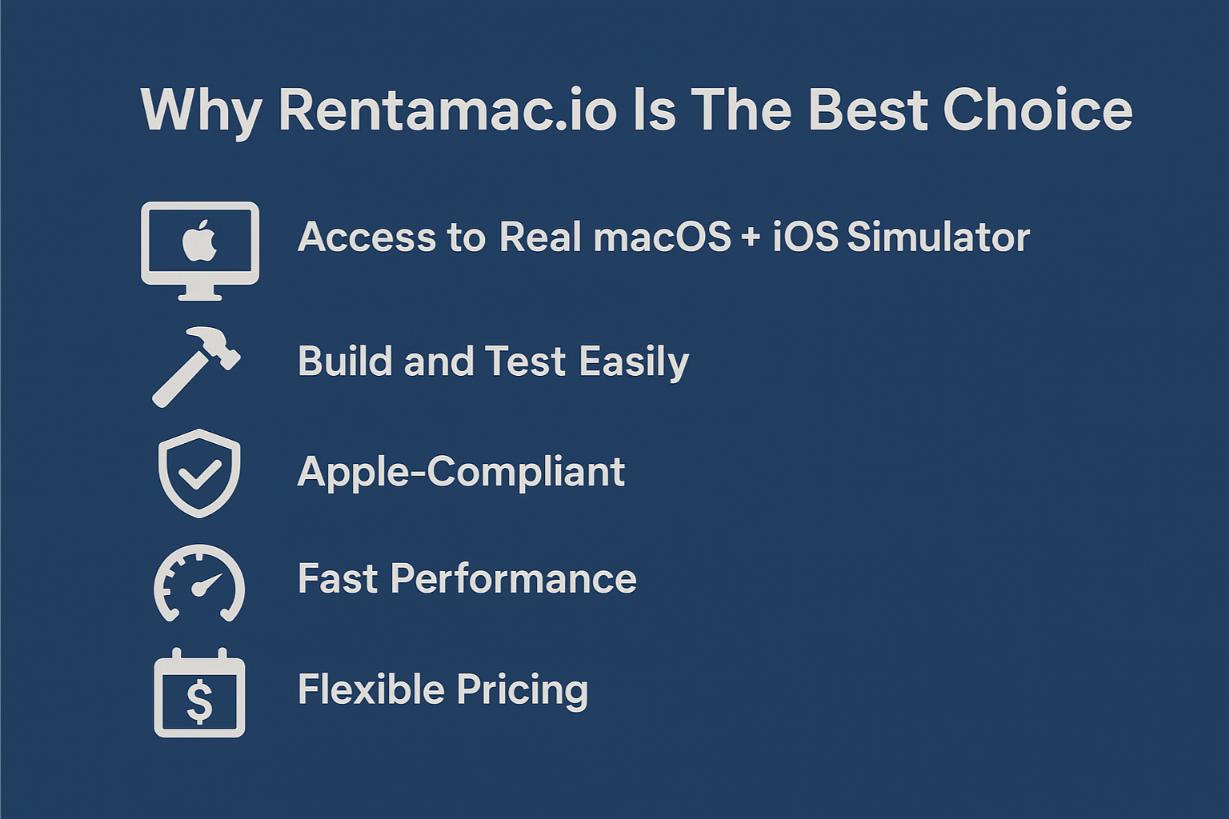
Rentamac.io Neden En İyi Seçim?
iOS geliştirmeye başlamak ve tehlikeli geçici çözümleri atlamak istiyorsanız, Rentamac.io iOS'u Windows'ta yasal bir şekilde simüle etmenin yoludur.
Unlike those third-party emulators or sketchy web tools, Rentamac.io connects you to real macOS hardware. So, instead of pretending, you’re actually using Apple’s tools right from your Windows machine.
Kurulumu tamamladıktan sonra Xcode'u yükleyebilir, gerçek iOS Simülatörünü çalıştırabilir ve tıpkı Mac'te yaptığınız gibi çalışmaya başlayabilirsiniz. Windows için iOS simülatörünü hiçbir kuralı çiğnemeden deneyimlemenin en iyi yolu budur.
Here’s what makes Rentamac.io a good choice:
- Gerçek macOS + iOS Simülatörüne Erişim - Apple'ın resmi kurulumundasınız, sınırlı bir emülatöre takılıp kalmadınız.
- Kolayca Oluşturun ve Test Edin - React Native, Flutter ile iyi çalışır, Swiftve Objective-C projeleri.
- Apple Uyumlu - Sanal makinelerin veya Hackintosh kurulumlarının aksine, Rentamac.io Apple'ın kurallarına uyar.
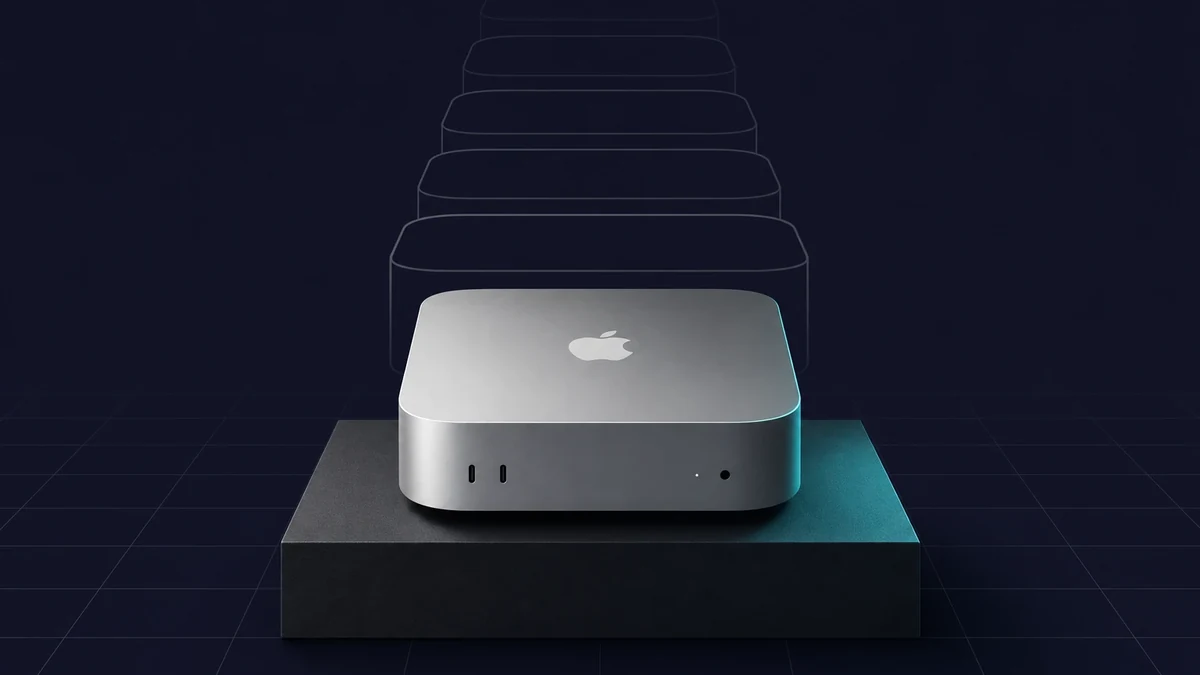
- Hızlı Performans – each instance is a dedicated Mac Mini M4 with 16GB RAM, a 256GB SSD, and macOS Tahoe 26.4+, so builds are quick and the simulator runs smoothly.
- Esnek Fiyatlandırma - Günlük, haftalık veya daha uzun süreli kiralayın. Pahalı bir Mac'i önceden satın almanıza gerek yok.
Rentamac Kullanarak iOS Simülasyonu Nasıl Yapılır
Using Rentamac.io is straightforward. You won’t need to set up any virtual machines or search for unreliable emulators. Just follow these steps to simulate iOS on Windows using the official tools right from your PC.
Adım 1: Bir Plan ve Ödeme Seçeneği Belirleyin
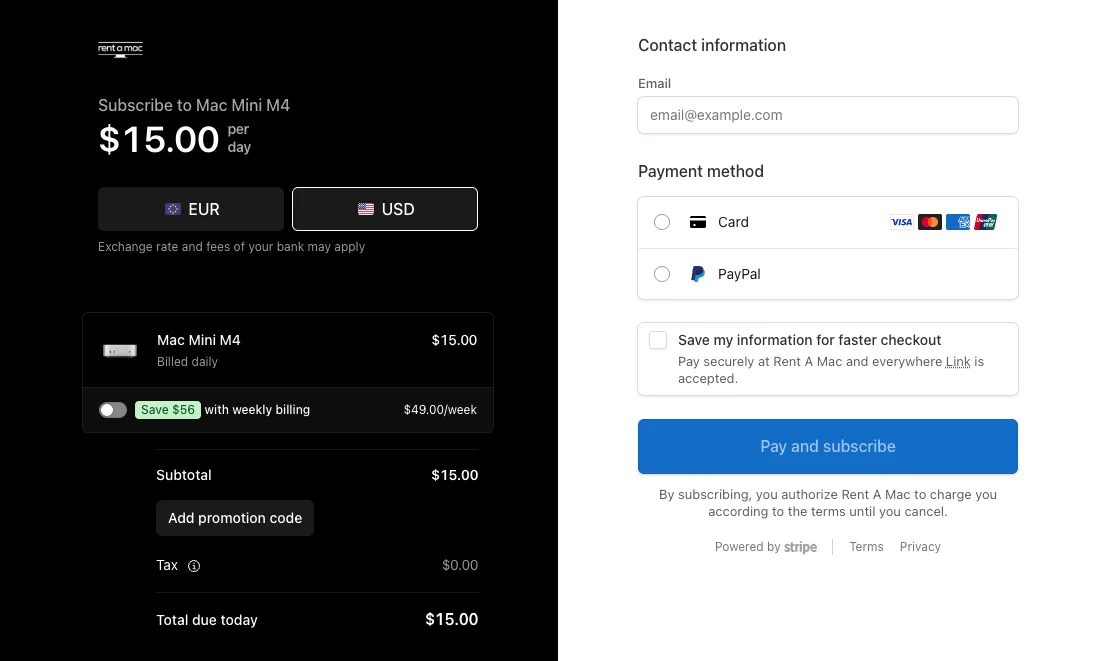
First, go to the pricing page and pick a plan that fits your needs. Once you make your choice, you’ll go to a secure Stripe checkout page where you can pay with a Visa or Mastercard card, or with PayPal. Access is immediate once the payment goes through.
Adım 2: Mac Mini'nize Bağlanın
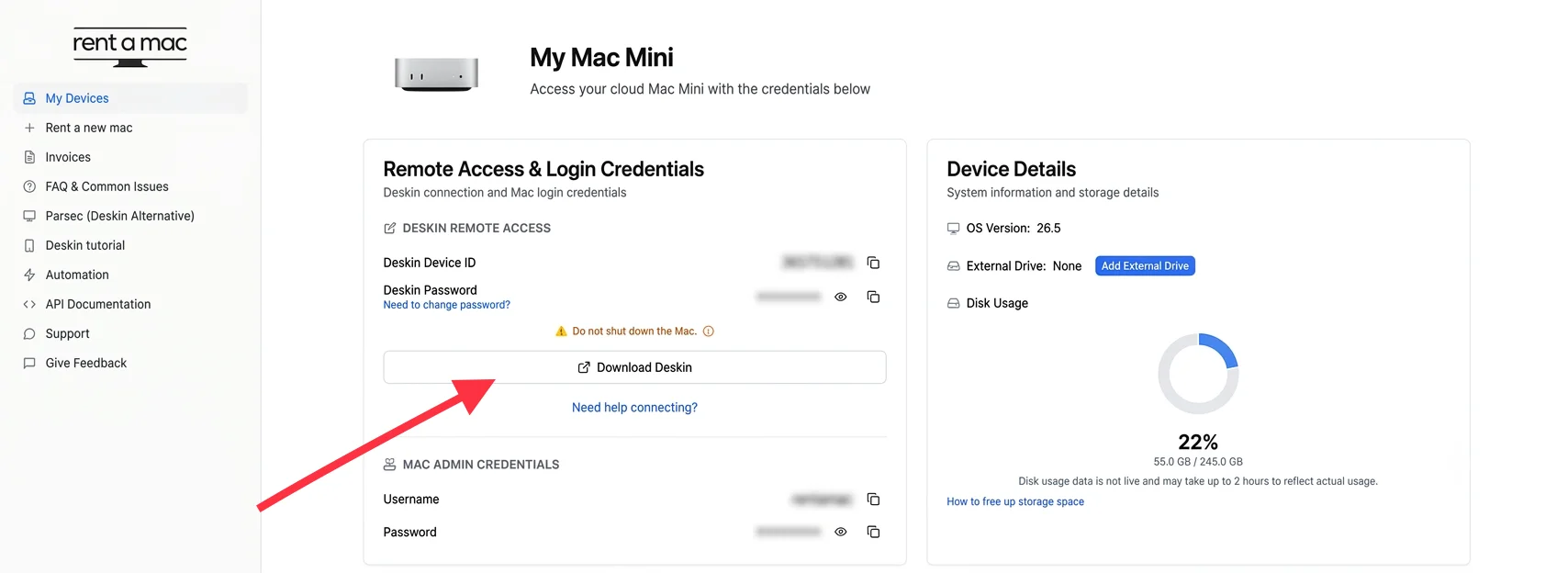
After you finish checking out, you’ll get your remote login details, including the Mac login info shown in your dashboard.
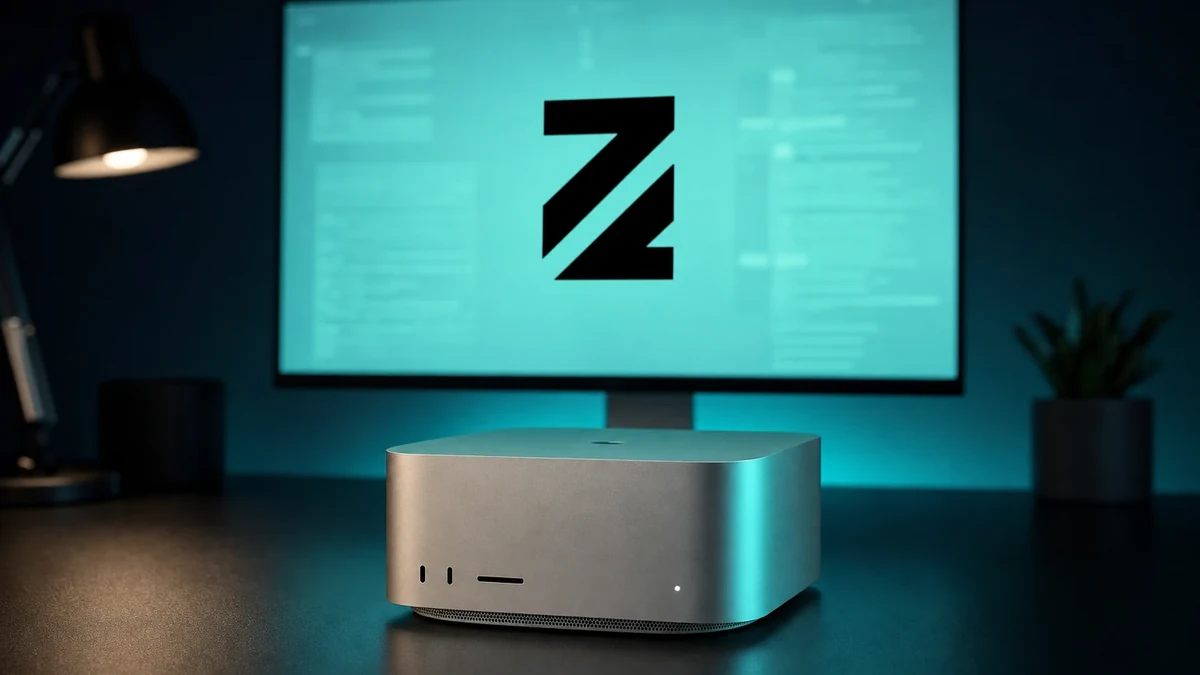
Remote access uses DeskIn, a remote desktop app that is already installed and free on your rented Mac, so there is nothing to download. Open DeskIn from your Windows PC, enter the connection details from the dashboard, and you’re in. If the connection ever drops, there is a “Restart DeskIn” button in the dashboard to bring it back.
Adım 3: Xcode'u Yükleyin ve iOS Simülatörünü Başlatın
If Xcode isn’t already on your Mac, open the Mac App Store and download the current Xcode 26.4.1, which bundles the latest iOS Simulator runtime and device profiles for the iPhone 17 lineup and iPad Pro M5. This gives you the real Xcode simulator on Windows, running on the rented Mac and streamed to your PC.
- iOS projenizi açın (React Native, Swift, Flutter vb. gibi)
- Cihazınızı seçin
- Uygulamayı simülatörde çalıştırın ve hemen test etmeye başlayın
Adım 4: Oluşturun, Test Edin ve Dışa Aktarın
- Xcode'un araçlarıyla gerçek zamanlı hata ayıklama
- Konum, yönlendirme vb. koşulları simüle edin.
- TestFlight için veya App Store'a göndermek üzere uygulamanızı arşivleyin ve .ipa dosyası olarak dışa aktarın
One reason the build step needs a current Mac: as of April 28, 2026, the App Store rejects any submission not built against the iOS 26 SDK, which ships with Xcode 26.x. A real, up-to-date Mac is the only way to meet that bar.
SSS
Windows'ta iOS simülatörünü kullanabilir miyim?
Resmi iOS Simülatörü, Xcode'un bir parçası olduğu için yalnızca macOS'ta çalışır. Ancak gerçek, özel bir Mac kiralayarak Windows PC'nizden erişmek için Rentamac.io'yu kullanabilirsiniz.
Windows için yasal iPhone simülatörleri var mı?
Piyasada bazı üçüncü taraf emülatörler var, ancak bunlar resmi değil ve sınırları var. Rentamac.io, bulutta bir Mac kiralayarak Apple'ın araçlarını kullanmanın yasal bir yolunu sunuyor.
Mac olmadan iOS uygulamalarını test etmenin en iyi yolu nedir?
Rentamac.io gibi güvenilir sağlayıcılar aracılığıyla bir bulut Mac kullanmak. Doğrudan Windows sisteminizden iOS uygulamalarını simüle etmenize, oluşturmanıza ve test etmenize olanak tanır.