
Last updated: July 2026
On this page
LM Studio is a free desktop app that runs these models on your own Mac, so your prompts stay local instead of going to a cloud service. It works on Apple Silicon, the M1, M2, M3, and M4 chips, running macOS 14.0 or newer, and it will not install on an Intel Mac.
Memory sets the real ceiling: a 7B model at 4-bit needs roughly 4GB, so 16GB gives you comfortable room, while an 8GB Mac still handles smaller 3B models. The app itself walks you through the rest: you search for a model, download it, load it into memory, and chat with it, all in one window.
Let’s get started!
Starting with LM Studio
To run an LLM on a Mac, you first download and install LM Studio, the local LLM desktop app for macOS. Setup takes just a few steps and a couple of minutes.
You can download LM Studio from their official site. LM Studio installs the same way on Mac or PC, and the models you download work on both. On the download page, choose the Apple Silicon build for any M1 to M4 Mac:
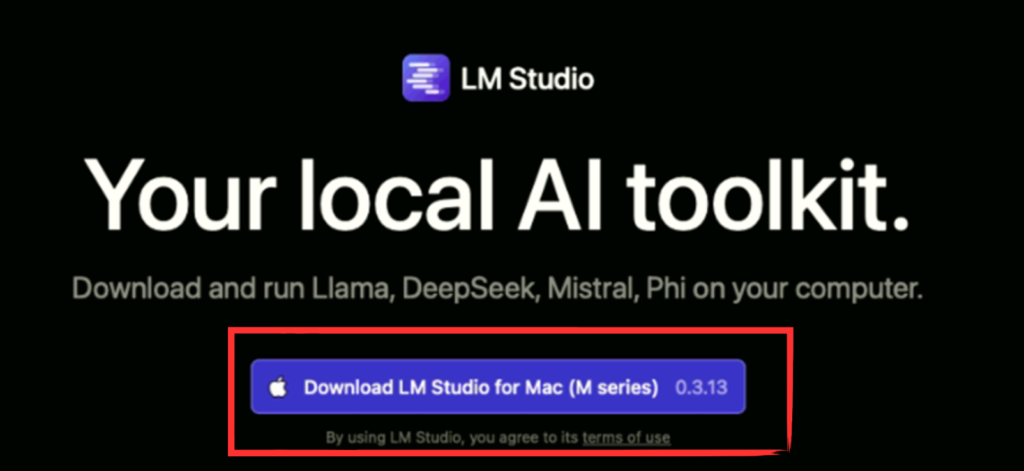
Download LM Studio for Mac
Once you run the app on your Mac, a Welcome tutorial opens, which you can skip and get to work directly with the selected LLM. The first time I opened it, I clicked past that Welcome screen and downloaded a model right away.

LM Studio Welcome Tutorial
Can your Mac run LM Studio? Requirements and Intel support
LM Studio runs only on Apple Silicon Macs, the M1, M2, M3, and M4 chips, on macOS 14.0 or newer, with 16GB of memory recommended (8GB works for smaller models). LM Studio doesn’t work on Intel Macs. If you have an Intel Mac, free apps like Ollama or llama.cpp run local models on Intel instead.
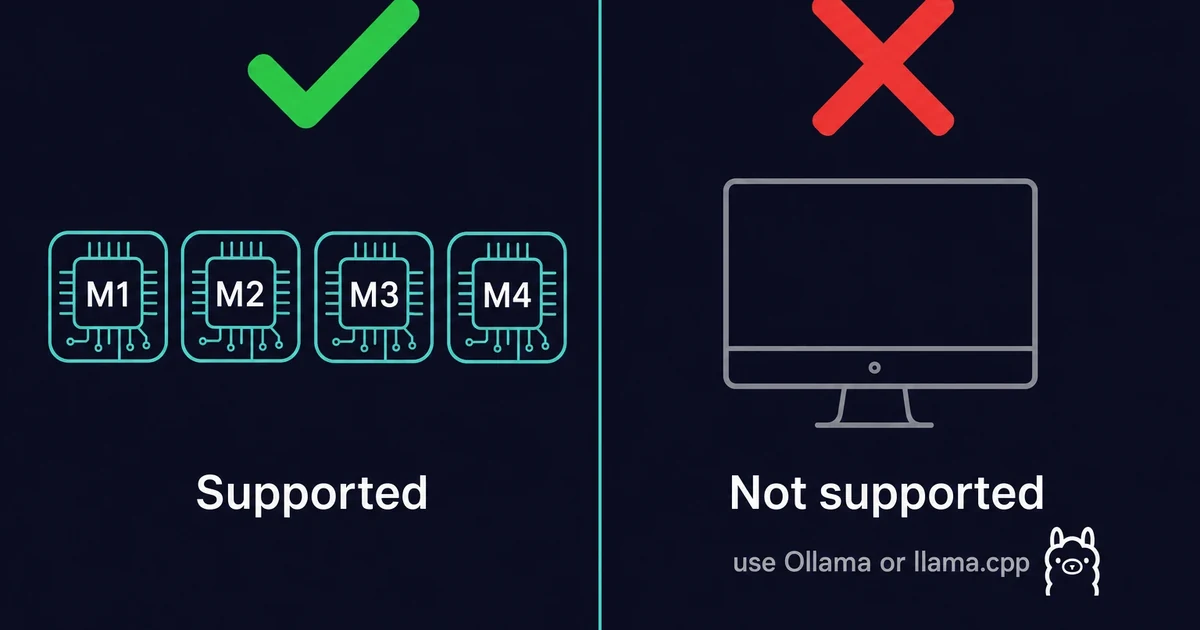
On an Intel Mac, this is the one place LM Studio stops you. As of 2026 it checks your chip on launch and simply will not install.
Apple Silicon is a good fit here. Its unified memory is shared between the processor and graphics chip, so the whole model sits in one pool, and LM Studio uses Metal (Apple’s graphics layer) to run it on the GPU. Even a small Mac runs a model quickly, with no separate graphics card.
A 7B model at 4-bit quantization uses about 4GB of memory, so 16GB leaves comfortable room. Model size maps to memory roughly like this:
| Model size | Example models | RAM you want |
|---|---|---|
| 3B | Phi-3 or Gemma 3B | 8GB Mac |
| 7B | Llama 3 or Mistral 7B | 16GB Mac |
| 13B | Llama 13B | 16 to 24GB Mac |
| 70B and up | DeepSeek or Llama 70B | 48GB Mac or more |
Rough guide: match the model size to your Mac’s memory.
A 16GB machine is the sweet spot for a first model. On a 16GB Mac mini M4, I ran a 7B model at 4-bit with room left for a browser.
The catch is memory. An 8GB Mac only handles smaller 3B models; load a 7B and it spills over and slows down. Picking a quantization too big for your RAM is the most common first-run mistake.
If you want a friendly place to start, Llama on Mac is a solid first download, and a 16GB Mac handles it with room to spare.
How to Install and Run an LLM on Mac with LM Studio?
Once you install and set up LM Studio, you can search and download any LLM you consider the best to work with on your Mac. Here are four simple steps:
1. Search for the LLM you need in the LM Studio search interface
2. Select the model you need. Pay attention to the size of the model version and choose the one compatible with your PC capabilities
3. Load the model
4. Run the LLM via the chat interface
Now, let’s review these steps closely.
Search for the LLM you need
LM Studio has a built-in model downloader integrated with Hugging Face. It will let you get any supported LLM to run on your Mac. To start, press the icon, as in the image:
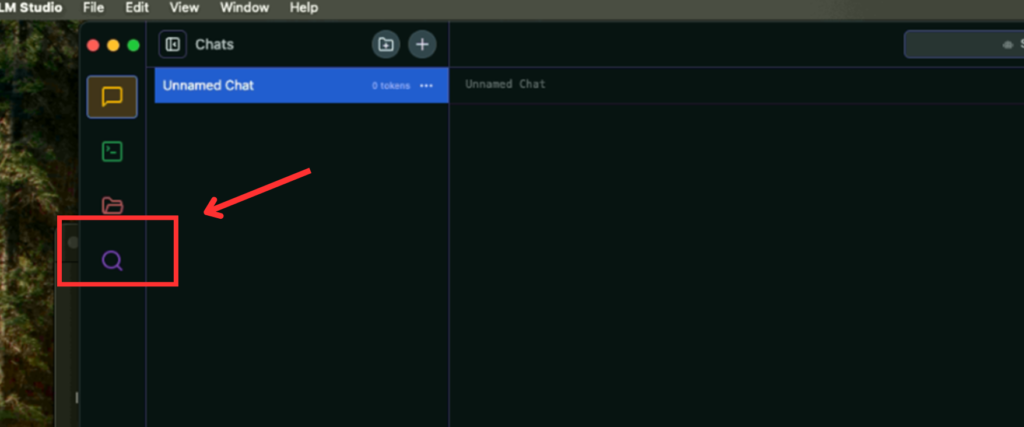
LM Studio Search Model Button
You can search by keyword, by Hugging Face URL, or by a specific user/model string. Models like LLaMA, Mistral, or DeepSeek all show up in the results.
Select and download the right model version
To download the model, you should enter the model name in the search field, select the model variant from the list and press the Download button.
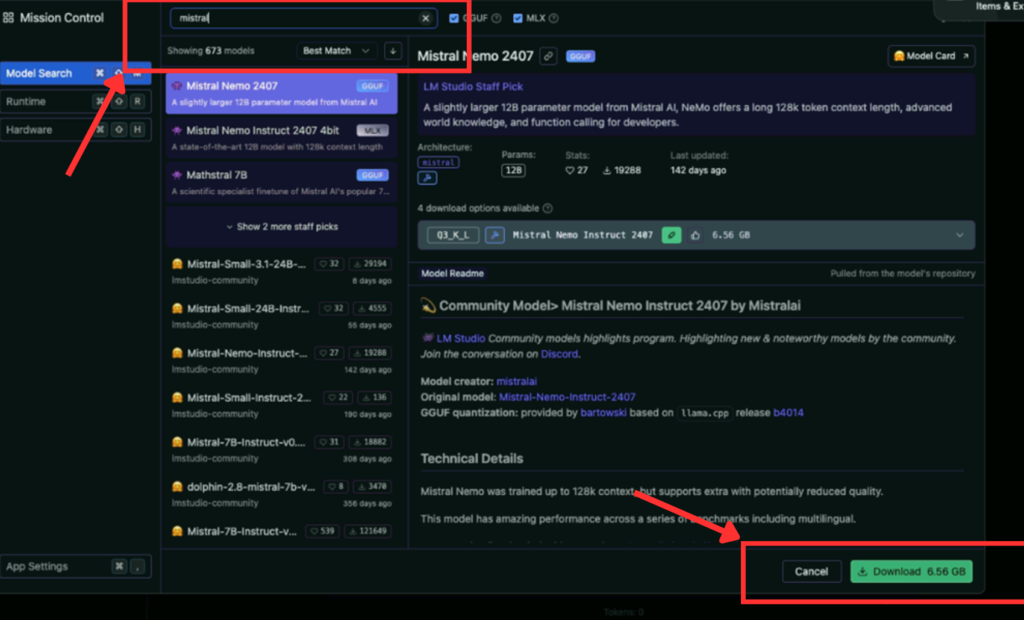
LM Studio Select and Download Functionality
You will often see several variants of the chosen model, some with names like Q3_K_S or Q_8. These are compressed copies of the same model created for PCs with different computing capabilities. The heaviest models lean hard on this: a 2-bit DeepSeek V4 Flash build only fits on a 128GB Mac.
“Q” here stands for “Quantization.” Quantization is the practice of compressing model files for the sake of memory while giving up some quality. To effectively install and run an LLM on a Mac, choose the 4-bit option or higher. The first model I pulled, I grabbed an 8-bit build out of habit and it dragged; the 4-bit version of the same model ran fine.
Load the model to your Mac memory
Loading a model means allocating your computer memory to accommodate the model’s weights and other parameters.
The corresponding button will appear in the Downloads window once the model download is complete.
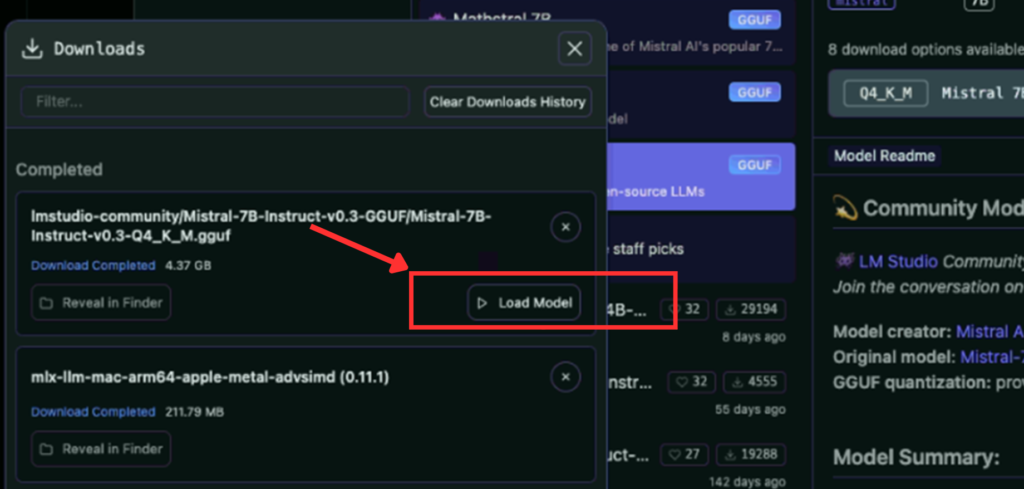
Load Model Button
Run the LLM
Once the model is loaded, you can go to the chat and start a back-and-forth conversation to perform your tasks.
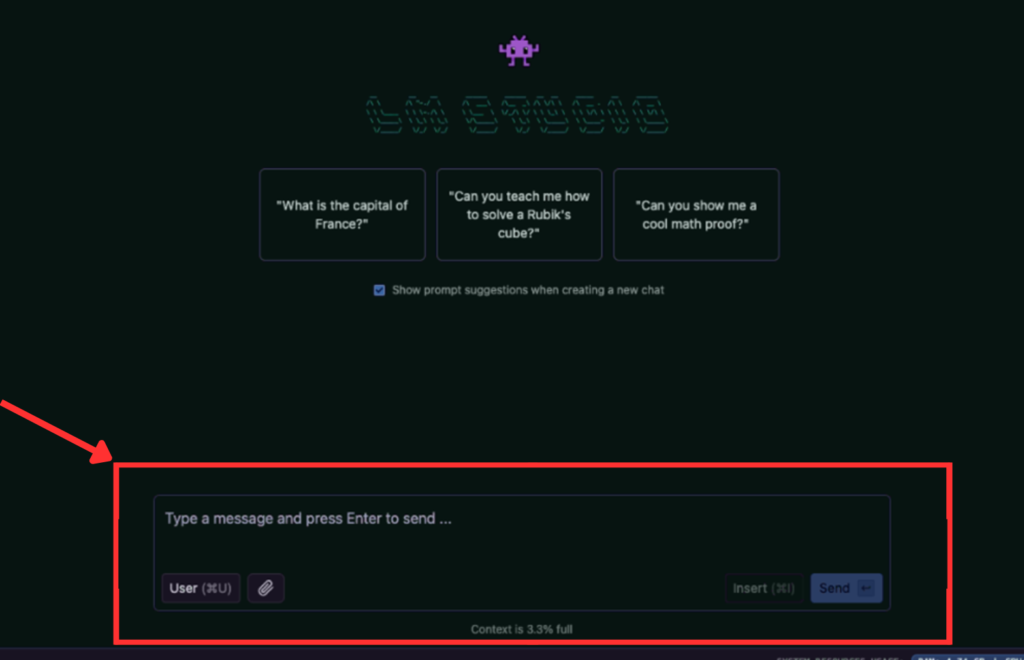
LM Model Chat Functionality
You can work with several different models, each with a separate chat thread stored in a dedicated folder. On macOS, LM Studio stores your downloaded models in a models folder inside your home directory. I keep two or three models in that folder and switch by task.
In the chat, you give the selected model the tasks on what to do with your data via prompts.
For example, you can ask a model to extract the relevant information from documents you attach to the model. LM Studio offers a prompt template for every model to simplify this process. This feature is super handy if you need to fine-tune an LLM on a Mac for your business or study purposes.
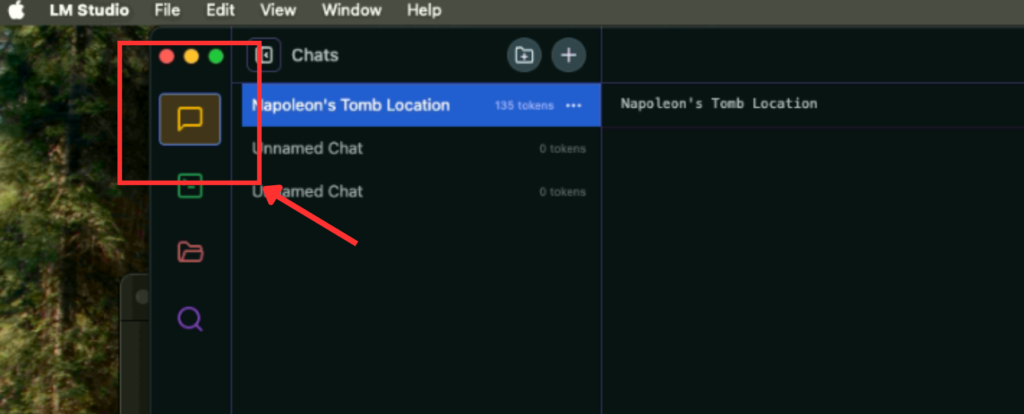
LM Model Folder with Model Chat
Summing up
With its chat-based interface, LM Studio covers the whole path to install and run an LLM on Mac and fine-tune ML models for your business or study needs. It runs everything locally on your own machine, which fits the broader workflows around running LLMs on Mac in various environments.
Apple’s unified memory architecture and GPU acceleration make macOS especially suited for model execution, as seen in broader trends in machine learning on Mac.
When you combine LM Studio and Mac, you get everything you need: speed, quality, and ease of use since MacOS is a perfect environment to play, experiment, and innovate with LLMs.