
On this page
Running LLMs locally has changed the rules of the game in the AI world. Resources like Hugging Face with free access to lightweight models democratize LLMs, like Llama. Every user with a modest PC, like a Mac, can run large language models locally and get excellent performance.
This time, we will discuss how to run Llama on a Mac. You’ll learn everything you need about tech specs, preparation, and tools to achieve the best experience while running a model.
Let’s get started!
Things to get started with Llama on your Mac
To run Llama on Mac for tasks like text generation, translation, code debugging, etc., you need at least:
- A Mac M4 (the best option, although other Macs of the M series are also suitable for machine learning)
- 16 GB RAM
- 50 GB of free space in your storage.
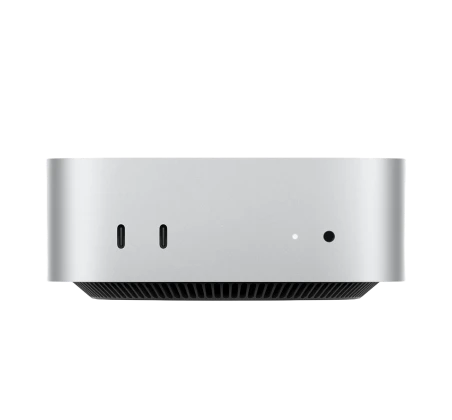
Multiple models of Apple devices for personal use, like MacBooks, can run LMMs of different weights. The latest Mac minis are also great at this sort of task. A Mac Mini M4 is a strong, low-power pick for running an LLM on a Mac mini at home.
Yet, the latest Mac M4s are best for this role among different models. They come with 16GB, 24GB, and 32GB RAM configurations, so all the models are suitable for running LLMs. As a rough guide, Llama 3.1 8B at 4-bit runs about 12 tokens per second on an M1, 18 on an M2, and 28 on an M3 Pro.
How to run Llama on Mac?
Starting with Llama on Mac is not a complicated process. All you need to do is set up your tools and choose the model variant you need. That takes up to ten minutes altogether.
The fastest way to run Llama on a Mac is Ollama. You install one app, then type one command in Terminal (the Mac app for typing instructions instead of clicking buttons), and the model downloads and opens a chat.
Here is the whole flow:
1. Download Ollama from ollama.com and open it.
2. In Terminal, type ollama run llama3.1:8b and press return. This one command downloads the 8B chat model (about 4.7GB), then drops you into a chat prompt.
3. For a bigger model, ollama run llama3.1:70b pulls the 70B version (about 39GB), but that one needs a high-RAM Mac, not a 16GB one.
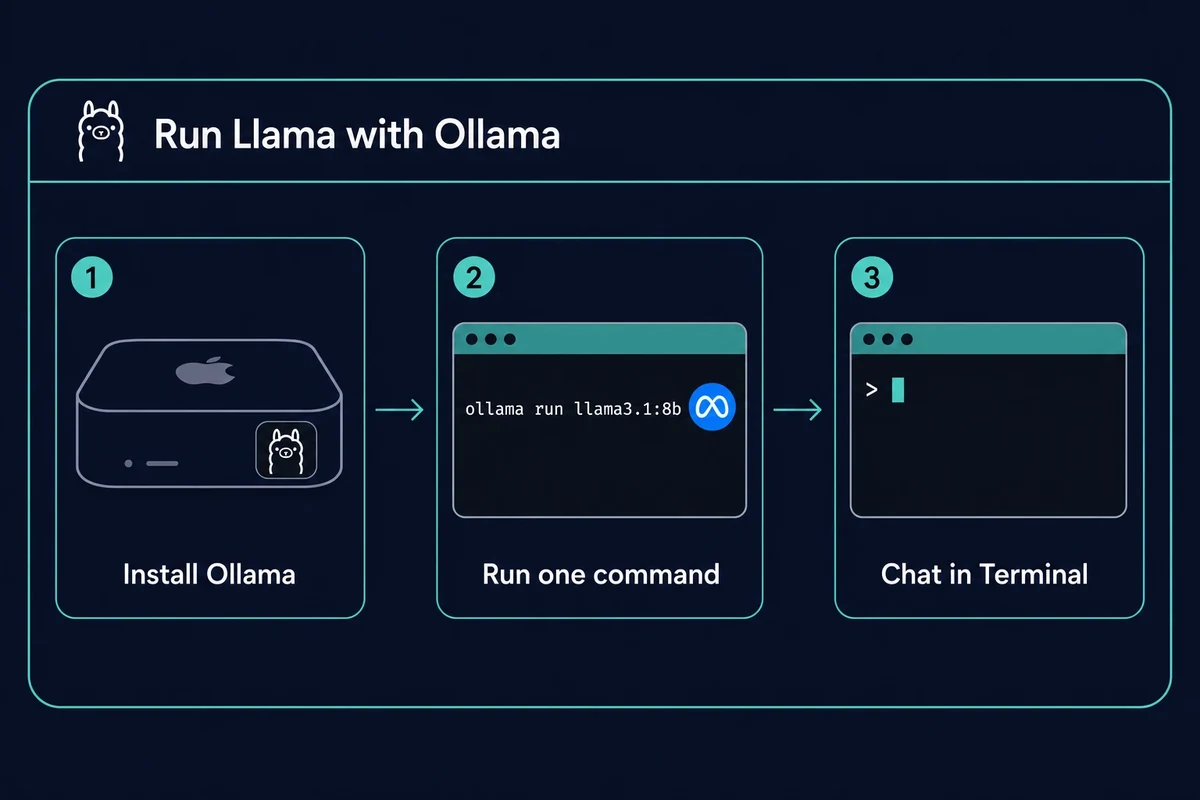
One note on speed: Ollama 0.19 switched to Apple’s MLX framework in March 2026, roughly doubling decode speed on Macs with more than 32GB of memory. A 16GB Mac, like the typical rented Mac Mini M4, stays on the older Metal path and still runs 8B models fine. The same command works for other open models, like Mistral, too.
If you would rather not touch Terminal, LM Studio is the best tool for LLM installation on a Mac through a window-and-buttons interface. It is free, fast to set up, integrates with Hugging Face, and lets you run models in a friendly chat interface.
Here are the steps to run Llama on Mac with LM Studio:
1. Download LM Studio on your Mac
2. Find the Llama model in the list
3. Download the selected model
4. Load and run the model locally.

Below, we will explain these steps in more detail.
Download LM Studio on your Mac
Running an LLM with LM Studio is simple and requires just a few steps.
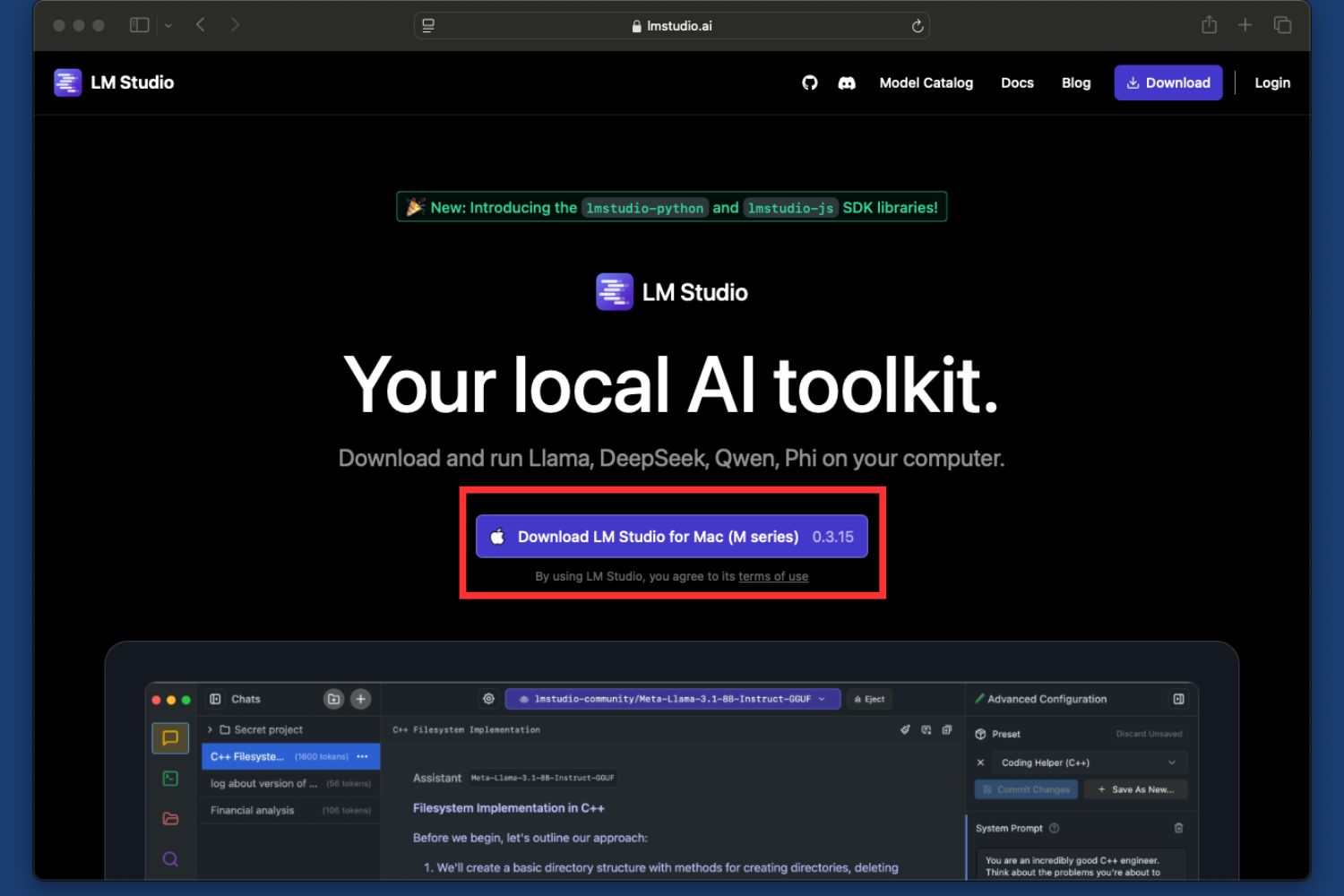
Step 1. Go to the official LM studio website and download the app to your laptop.
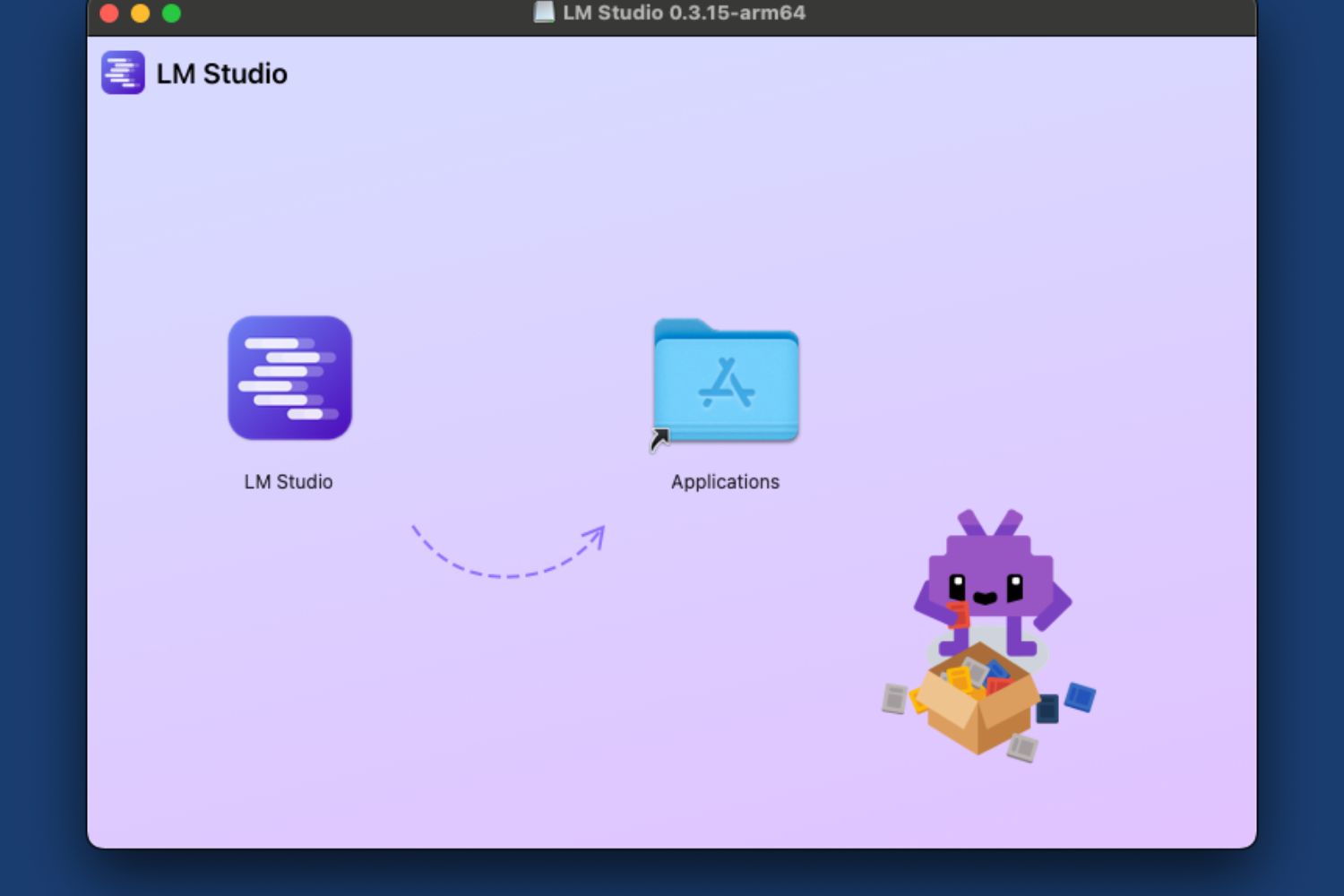
Step 2. As you download it, your Mac will ask you to transfer the app to the Applications folder.
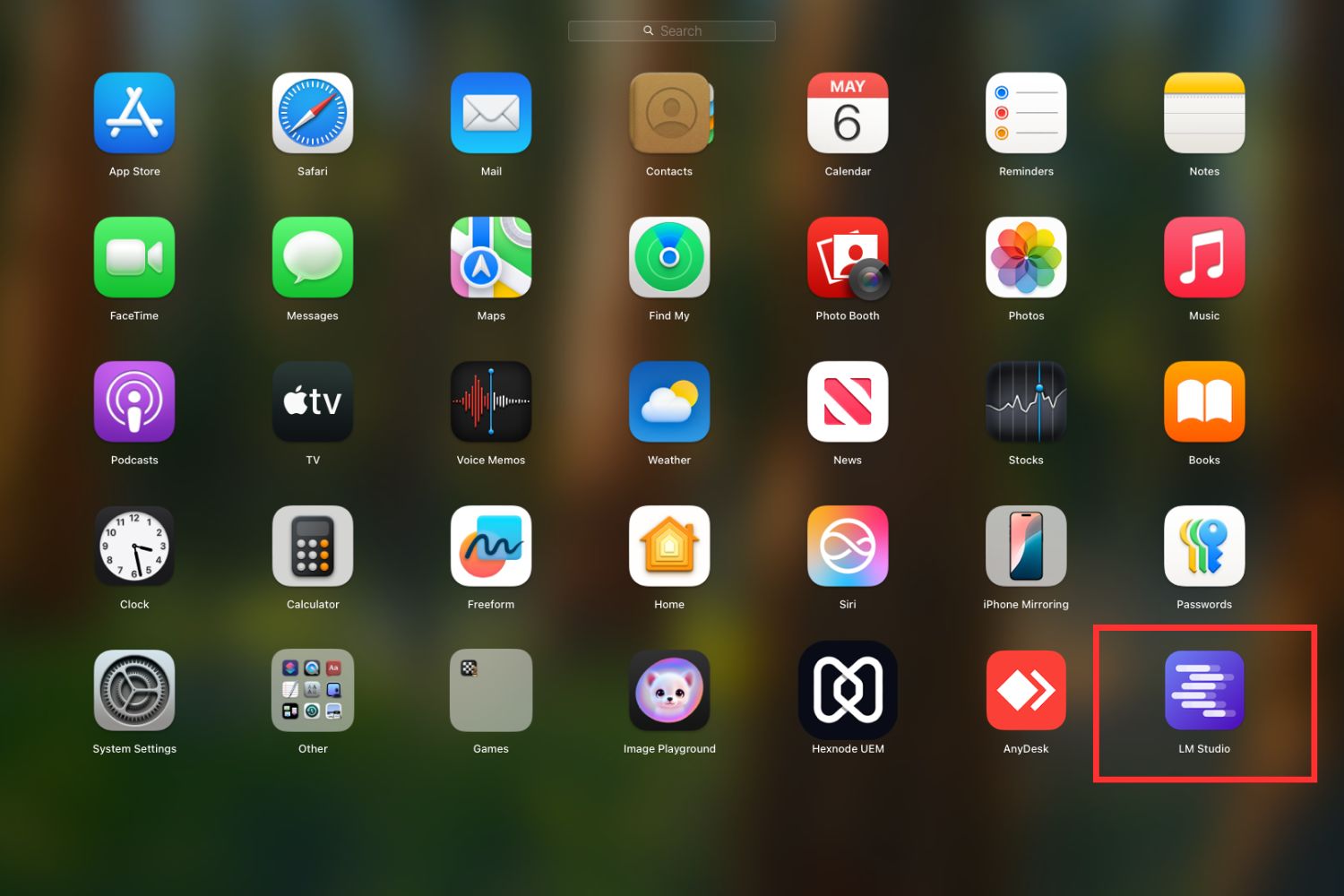
Step 3. Find LM Studio in the Applications folder and run it from there.
Find the Llama model in the list
LM Studio is integrated with Hugging Face so that you can access over 100K Llama models there.
Before you download the model, you must pay attention to its weights. The weights are defined by the number of parameters used by the model. For example, the Llama 3 model has over 70 billion parameters.
Llama 4 is a mixture-of-experts family: Scout is 17 billion active and 109 billion total, while Maverick is 17 billion active and about 400 billion total. So 400 billion is Maverick’s figure, not a single “Llama 4” number. OpenAI took the same route with its open-weight gpt-oss on a Mac, where only a few billion parameters fire per token.
The number of parameters influences the sophistication of tasks it can handle. Also, it requires a considerable volume of memory to use. This means you can run a classic 70B Llama version from a data center with powerful processors. The biggest open models now reach further than that, and getting DeepSeek V4 Flash running locally takes a 128GB unified-memory Mac.
But you should use a lighter model if you run it from a Mac. At Hugging Face, you can find models with 7, 8, or 12 billion parameters.
The math is friendly: a 4-bit (Q4_K_M) model costs about 0.55GB per billion parameters, so an 8B model needs roughly 5.5GB and a 14B about 9.5GB. Both fit a 16GB Mac.
Here are the steps to take when finding the Llama model you need in the list:
Step 1. Go to the search.
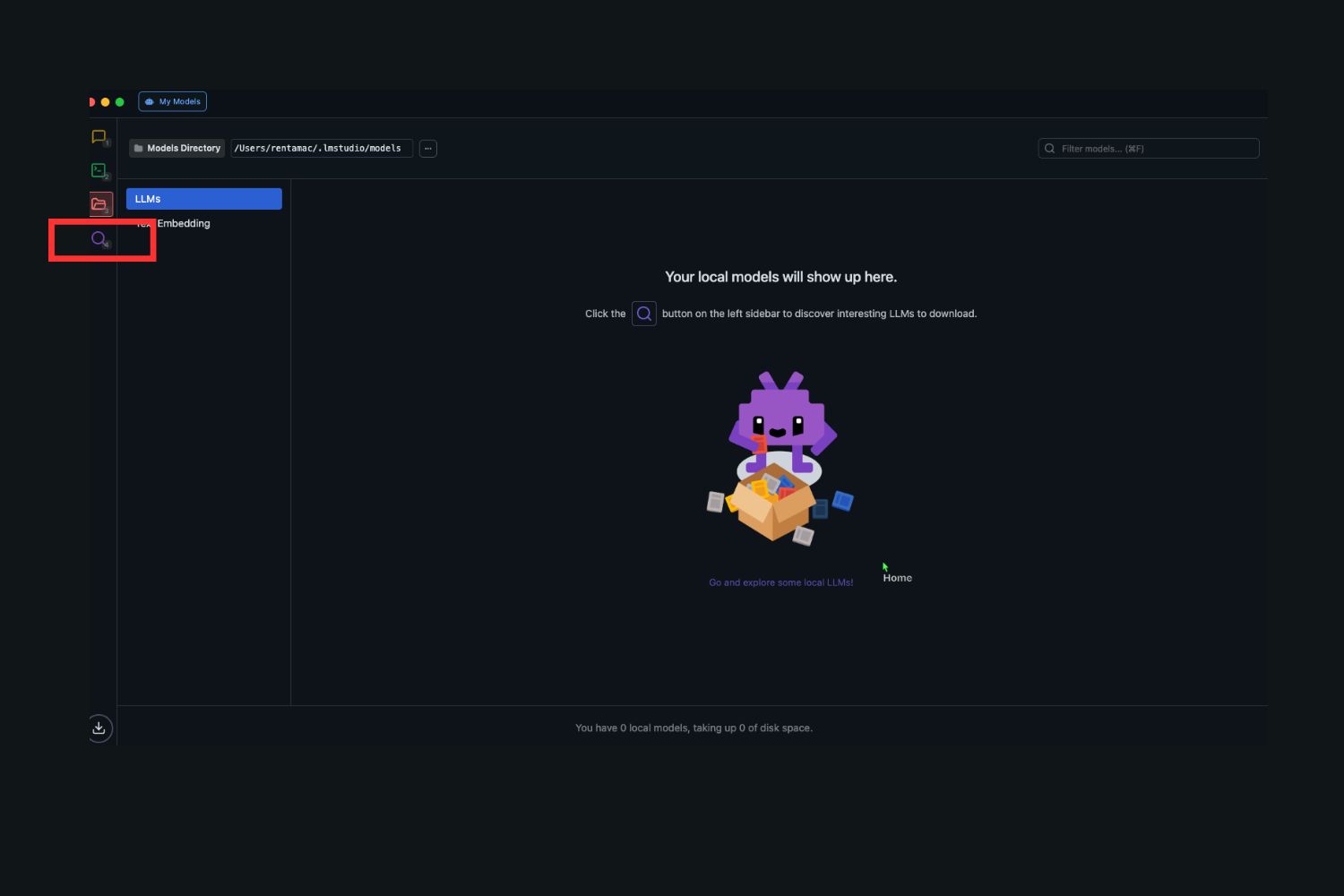
Step 2. Type the name of the model you need in the search bar.

Step 3. Select the model with the number of parameters you need.

Download the selected model
As you decide on the model you need, press the download button. The Download window will open, showing the status of the process.

Load the model and run it locally
At the last stage of the process, you load the model. After this, the chat interface is launched. There, you can write prompts to your model and get results.

Llama is designated for text-based tasks. It is excellent for text generation, coding assistance, and translations. For developers working across platforms, Llama can complement workflows like Swift development from Windows environments, especially when Mac access is handled virtually.
How many tokens per second does Llama get on a Mac?
On Apple Silicon, Llama 3.1 8B at 4-bit runs about 12 tokens per second on an M1, 18 on an M2, and 28 on an M3 Pro, up to roughly 35 on an M3 Max and 42 on an M2 Ultra. A Mac Mini M4 16GB handles an 8B model comfortably. Bigger Macs run it faster.
These numbers come from community and competitor benchmarks on Apple Silicon, measured through 2026:
| Mac chip | Model | Quant | Tokens/sec |
|---|---|---|---|
| M1 | Llama 3.1 8B | Q4 | ~12 |
| M2 | Llama 3.1 8B | Q4 | ~18 |
| M3 Pro | Llama 3.1 8B | Q4 | ~28 |
| M3 Max | Llama 3.1 8B | Q4 | ~35 |
| M2 Ultra | Llama 3.1 8B | Q4 | ~42 |
| M2 Mac Mini | Llama 7B | Q4_0 | ~22 |
| M4 Max (Mac Studio) | Llama 7B | Q4_0 | ~69 |
| M3 Max | Llama 70B | 4-bit | ~30 to 40 |
One caveat: these speeds shift with the quant level, prompt length, and backend. The MLX path is usually 20 to 40 percent faster than the older Metal path on the same chip, so treat the table as a baseline. You can run Qwen locally the same way to compare another small model.
Why run Llama locally on your computer?
Here is why you would run Llama locally on a Mac instead of calling a hosted API. There are multiple reasons:
- Privacy: A model that runs locally doesn’t share your data with third parties, so it is an excellent choice if you are concerned about privacy.
- Offline access: You can run the downloaded model offline, which means you can use it anywhere.
- Capability: The Llama models are quite capable of the tasks they are designed for, like translation, testing, and code generation.
- Free: you can save your projects, customize them, and get great results without paying for the model’s usage.
Summing up
Mac M4 Llama performance allows using generative AI locally at a usable pace: 8B models run at roughly 15 to 28 tokens per second on M3 and M4-class Apple Silicon at 4-bit. Whether you are using it for research, coding assistance, or personal projects, you can run a capable model on your own hardware while keeping your data private.