
Last updated: July 2026
On this page
TL;DR: To run Liquid LFM2.5 on a Mac, open Terminal and run ollama run lfm2.5:8b-a1b-q4_K_M. It downloads a roughly 5GB model that fits any Apple Silicon Mac with 8GB of memory, 16GB is comfortable, and answers fast. Prefer no Terminal? A free app called LM Studio runs it with a click.
LFM2.5 is Liquid AI’s family of small, fast models that run entirely on your own Mac, with nothing sent to the cloud. Two of them matter here.
The 8B-A1B is the smart one, a mixture-of-experts model that has 8.3 billion parameters in total but only wakes up about 1.5 billion for any given reply. So it thinks like a bigger model while using around 5GB of memory in the compressed build. The 1.2B is even lighter, under 1GB, with a “Thinking” version that shows its reasoning as it works.
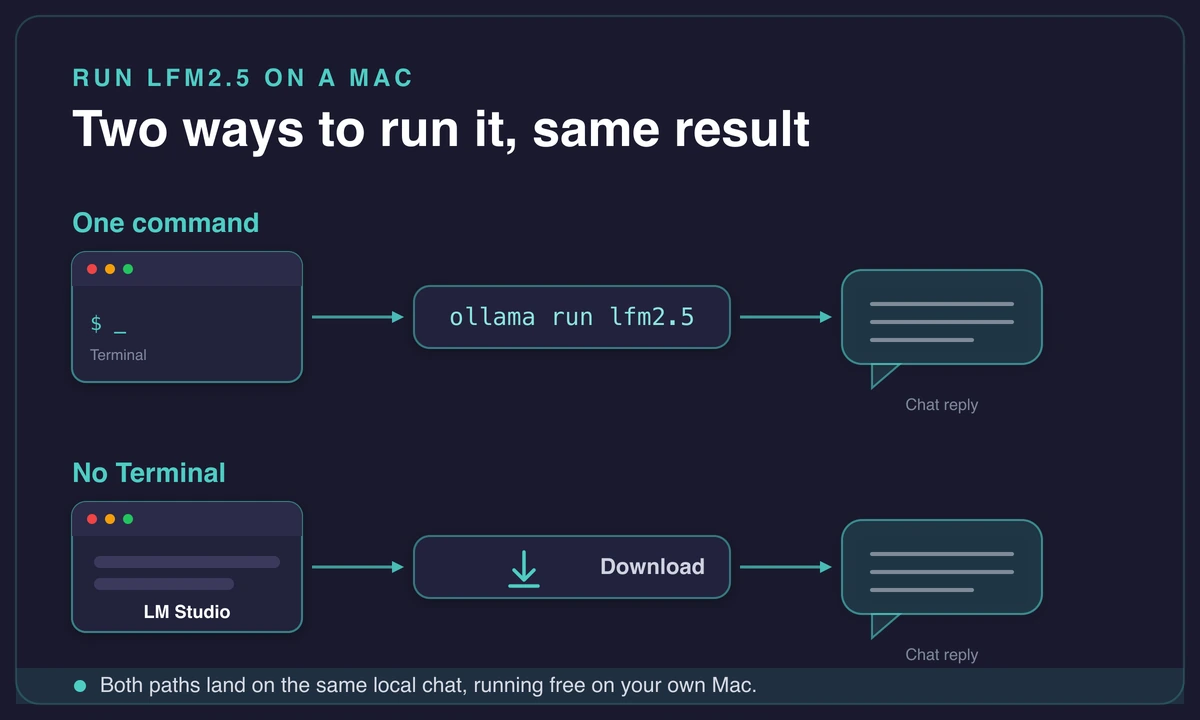
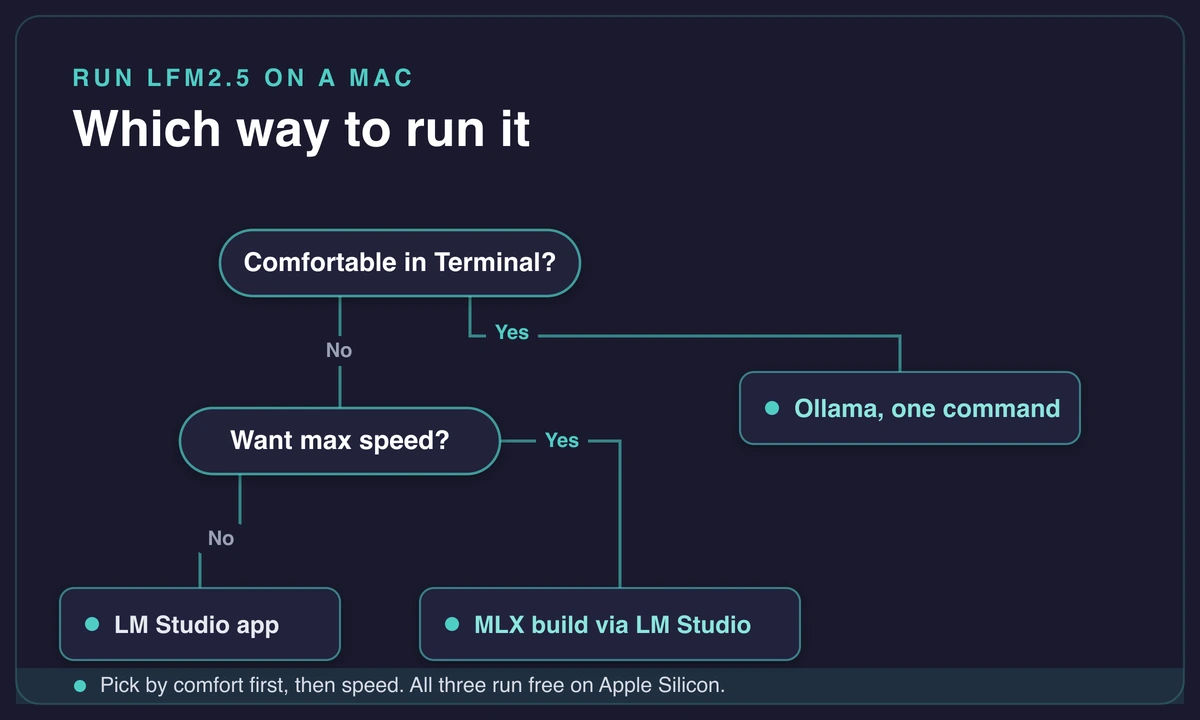
You have three ways to run it, all free. Ollama is one command in Terminal and the fastest to set up. LM Studio is a free desktop app with a normal chat window and no Terminal at all, the path a lot of first-timers take. MLX is Apple’s own format and squeezes the most speed out of Apple Silicon.
Any M-series Mac with 8GB of memory runs it, and 16GB is the sweet spot.
The first time I loaded the 8B-A1B on a 16GB Mac mini, the reply landed before I’d finished re-reading my own prompt. That speed is the whole point of a small local model. With the 2026 refresh, it’s why LFM2.5 earns a spot on the drive for the days your cloud tools are down.
Run LFM2.5 on a Mac with one Ollama command
The fastest way to run LFM2.5 on a Mac is Ollama. It’s a free tool that downloads and runs local models from Terminal, and once it’s installed the whole thing is a single line. That line pulls a roughly 5GB model the first time, then drops you into a chat prompt on your own machine.
Terminal is the plain text app that ships with every Mac (search for “Terminal” in Spotlight and it opens a window where you type commands instead of clicking buttons). First, install Ollama from ollama.com, it’s a normal Mac installer you double-click. Then open Terminal and run this one line:
ollama run lfm2.5:8b-a1b-q4_K_MHere’s what that does. The first time you run it, Ollama downloads the model, about 5GB, so it takes a few minutes on a normal connection. After that the model lives on your disk and loads instantly.
When the download finishes, you get a >>> prompt. Type a question there, press return, and the answer streams back from the model running on your own machine.
If you’d rather grab the model through the app’s own listing, it shows up in the Ollama library as lfm2.5:latest, the 8B build, at about 5.2GB. Same model, and it has already picked up more than 41,000 downloads.
The first time I ran a model this way, I stared at the blank prompt for a good ten seconds sure it had frozen. It hadn’t. The download had just finished and it was waiting on me.
Once you’re at that >>>, you can ask it to summarize a file you paste in, draft a reply, or call a tool. You’d set up Gemma the same way, one command and done. Closing the Terminal window ends the chat, but the model stays downloaded, so next time it’s instant.
Prefer no Terminal? Run LFM2.5 in LM Studio
If typing commands isn’t your thing, skip Terminal entirely. LM Studio is a free app with a normal chat window that finds, downloads, and runs local models for you, no command line involved. It’s the route most first-timers take, and it works on any Apple Silicon Mac.
The flow is short:
- Download and install LM Studio from its site, then open it.
- Search for “LFM2.5” in the app’s model browser.
- Pick the 8B-A1B on a 16GB Mac, or the smaller 1.2B if your Mac has 8GB.
- Click download, wait for it to finish, then open a chat and start typing.
That’s the whole thing, and it’s the app I point anyone new at. For a lot of people, LFM2.5 here is the first model they’ve ever run locally, and the reaction is almost always the same: they didn’t expect it to be this quick. It looks like any chat window you’ve already used.
When you download the model, the app asks which version, and you’ll see options labeled with things like “Q4”. Quantization is just a way of shrinking the model so it fits in less memory, for a tiny quality drop you won’t notice in light chat. It is the same lever that decides whether a giant model fits at all, from this 5GB build up to the 240GB-plus quants of Kimi K2.6.
Pick a Q4 build and you get the roughly 5GB footprint that fits a normal Mac. Tight on memory? A smaller quantization uses even less.
There’s a second no-Terminal option: a free app called Jan that does the same job. On a high-end Mac Studio, the 1.2B Thinking version runs in Jan at 201 tokens per second (a token is roughly a word-piece, so that’s text faster than you can read). Either app gets you to the same place; LM Studio is just the most common start.
Which LFM2.5 to run: 8B-A1B or 1.2B
You really only face one decision. If your Mac has 16GB of memory or more and you want the smartest answers, run the 8B-A1B. If your Mac has 8GB, or you just want the lightest option, run the 1.2B (or the 1.2B-Thinking version if you like watching the model reason).
Sizing a model to your Mac is the same call you make to run Llama on a Mac. The table below fills in the details.
| Variant | Active / total params | Memory | Context | Best for |
|---|---|---|---|---|
| 8B-A1B | 1.5B active / 8.3B total | ~5GB (Q4) | 128,000 tokens | 16GB Macs, smartest answers |
| 1.2B Instruct | 1.17B (16 layers) | Under 1GB | 32,768 tokens | 8GB Macs, light and quick |
| 1.2B Thinking | 1.17B | Under 900MB | 32,768 tokens | Visible step-by-step reasoning |
| 350M nano | 350M | 680MB | 32,768 tokens | Extreme efficiency, simple tasks |
The Thinking variant is worth a closer look if you like puzzles or step-by-step problems. It writes out its chain of reasoning before it lands on an answer, so you can see how it got there instead of just trusting the result.
And it stays tiny. It fits within about 900MB and hit 96 tokens per second on an Apple M4 Pro chip in one test. In one Mac Studio demo, it solved a classic nine-coins logic puzzle, showing every weighing step, in about 9 seconds. I keep it around mostly to watch it think out loud; the reasoning trace is oddly satisfying to read.
There are a couple more members of the family: a 350M “nano” model at around 680MB and a vision version that reads images. Both sit off to the side of the “run a chat model on my Mac” goal, so on any recent Apple chip, the 8B-A1B and the 1.2B are the two you’ll actually choose between.
I ran the 1.2B first because I assumed the 8B would be too much for a 16GB machine. Wrong call. The 8B-A1B sat comfortably and answered just as fast, so I switched to it as my default and only reach for the 1.2B on smaller hardware now.
How much RAM you need and the speed to expect
Here is how much RAM to run LFM2.5 on a Mac. The 8B-A1B needs about 5GB in the compressed build, so any Apple Silicon Mac with 8GB of unified memory can run it, and 16GB is the comfortable sweet spot. The 1.2B needs under 1GB, so it runs on basically anything.
Unified memory is just the shared pool your Mac’s chip uses for everything, so it’s your total system memory, not a separate video card like a Windows gaming PC has. That’s why even an 8GB Mac counts.
~5GB
The 8B-A1B model’s compressed footprint, small enough to fit an 8GB Mac, per modelfit.io’s Q4 build.
Now the speeds, and I want to be straight with you so you’re not disappointed. The headline numbers you’ll see quoted come from expensive, high-end Macs. Liquid measured 253 tokens per second on an Apple M5 Max chip. One Mac Studio demo hit 201 tokens per second, but it ran on a 256GB machine, and a compatibility checker estimated around 137 on an M5 Pro.
Those are ceilings, not what a normal Mac hits. Your Mac will land lower, and that’s fine.
The fast numbers come from expensive Macs
The 200-plus tokens per second figures come from high-end Macs like the M5 Max and a 256GB M3 Ultra. A 16GB Mac mini M4 runs slower than that ceiling, but LFM2.5 is small enough that replies still land almost instantly, which is the whole reason to run a model this size locally.
For a lower bound, the 1.2B build even hits 124 tokens per second on an iPad and 70 on an iPhone, so a Mac lands well above that.
A 16GB M3 or M4 machine is normal spec, not a poor one, and a rented Mac mini M4 with 16GB from Rentamac.io is exactly the kind of machine LFM2.5 shines on. It also puts the footprint in perspective: LFM2.5 sips about 5GB, while a frontier model like DeepSeek V4 needs 128GB before it will even load.
Get the most speed with MLX on Apple Silicon
MLX is Apple’s own machine-learning format, built specifically for Apple Silicon chips. For a model this size, the MLX build is typically faster on a Mac than the more general format Ollama uses under the hood. Liquid points to it as the best-performing option on Apple hardware, so reach for it if raw speed is the goal.
“Fastest format” doesn’t have to mean “hard to set up,” though. LM Studio can download and run the MLX build for you, the same one-click flow as any other model, so you get the speed without touching a command line. It’s the same trio of runtimes covered for Qwen, just pointed at a different model.
The files are tiny too. The 1.2B build is about 632MB at 4-bit, or 1.2GB at 8-bit, so it downloads in seconds.
Advanced readers can go further. A purpose-built Apple Silicon project on GitHub runs LFM2.5 with a custom chat interface and hit around 120 tokens per second on a single Mac, but it wants a code editor and a bit of setup.
Most people don’t need it. The MLX build through LM Studio gives you nearly all the benefit with none of the friction.
What LFM2.5 is actually good at (and where it falls short)
LFM2.5 is genuinely good at a few things and honestly limited at others. It’s strong at everyday chat, summarizing a file or a code project’s README, and calling tools, which is the job Liquid clearly built it to do well. And it does all of that in a blink, on your own machine, for free.
Tool calling is the standout. It issues tool calls reliably, so it works nicely as the brain for light agent tasks where a small model just needs to pick the right action. It also speaks 8 languages, including English, Japanese, Chinese, and Spanish, and the non-English output holds up fine.
Where it falls short is worth saying just as plainly. This is not the model for heavy programming, big build tasks, or hard math. I learned that the first time I handed it a real refactor and watched it flail, so don’t over-expect: calling it a replacement for a frontier coding assistant would be a stretch. For that heavier work you want a frontier-scale model like MiMo-V2.5 on a Mac.
It’s an edge model, built to run small on everyday hardware, so it trades raw reasoning power for speed and low memory use. Point it at a large codebase and you’ll hit its limits quickly.
Don’t expect it to replace a frontier coding assistant
LFM2.5 runs fast and calls tools reliably, but it struggles with anything that needs deep reasoning or big coding work. Treat it as a quick local helper for chat, summaries, and tool calls, and keep a bigger model around for the heavy lifting.
So why keep it installed? Because it’s a solid local option for the days your cloud tools are down, your connection drops, or you’d rather your text never leave the machine. Like running Phi-4 locally, it earns its disk space by being there when the cloud isn’t.
The numbers back the feel too. On the 8B-A1B, Liquid reports 91.84 on the IFEval instruction-following test and 88.76 on the MATH500 benchmark, both strong for a model this small.
It sits alongside the other small local models on a Mac: quick, private, free, and useful within its lane. Keep a bigger model for the heavy lifting, and let LFM2.5 handle quick chat, summaries, and tool calls at 200-plus tokens per second on the right hardware.
Frequently asked questions
How much RAM do I need to run LFM2.5 on a Mac?
The 8B-A1B build needs about 5GB in the compressed Q4 version, so any Apple Silicon Mac with 8GB of unified memory can run it, and 16GB is comfortable. The smaller 1.2B model needs under 1GB. If your Mac is short on memory, start with the 1.2B.
Can I run LFM2.5 on an 8GB Mac?
Yes. The 8B-A1B in the Q4 build fits in about 5GB, which leaves room on an 8GB Mac, and the 1.2B runs easily at under 1GB. Any M-series Mac handles it, even an original M1. 16GB just gives you more headroom.
Is LFM2.5 faster with MLX or Ollama on Apple Silicon?
MLX is Apple’s native format and is usually the fastest for a model this size on Apple Silicon, a bit ahead of the general format Ollama uses under the hood. For most people the difference is small, and Ollama’s one command is the easier start. Reach for the MLX build through LM Studio when you want that last bit of speed.
What is LFM2.5 good at?
Light chat, summarizing files or a project README, calling tools, and replying in 8 languages. It issues tool calls reliably, which makes it handy for light agent work. It is not built for heavy coding or hard reasoning, so treat it as a fast local helper rather than a full frontier assistant.