42,665. That’s how many OpenClaw instances security researcher Maor Dayan found sitting on the open internet in a single Shodan scan. Of those, 93.4% had auth bypasses. Eight had zero protection at all. No password, no token, full shell access to anyone who typed in the IP.
Then CVE-2026-25253 dropped. CVSS 8.8. A remote code execution flaw that let attackers exfiltrate your gateway token and take over the entire agent. One click.
And if that wasn’t enough, Snyk’s ToxicSkills audit found 341 malicious skills on ClawHub, the official marketplace. Some were exfiltrating API keys. Others were injecting prompts to override safety rails. The #1 ranked community skill? Cisco’s security team found nine vulnerabilities in it, including active data exfiltration via a hidden curl command.
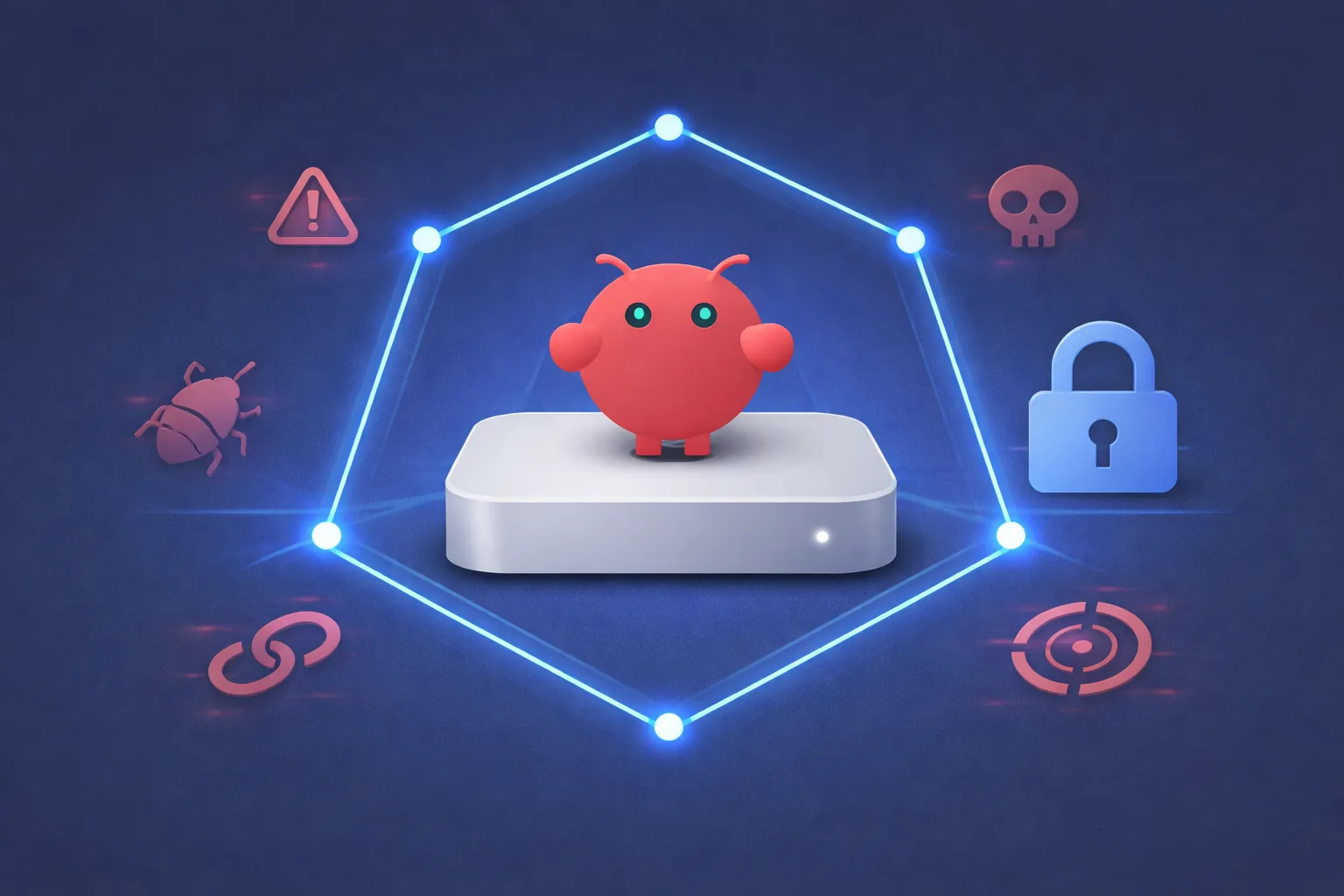
I run OpenClaw on a Mac Mini and I’m not telling you this to scare you off. I’m telling you because the default config is not safe, and most guides skip the security part entirely. This one won’t.

What makes OpenClaw insecure out of the box
OpenClaw started as a local-only experiment. A personal AI agent you run on your own machine and talk to through Telegram. Cool idea. But it exploded to 200K GitHub stars in weeks, and the security layer didn’t keep pace.
Here’s what you’re working with on a fresh install:
The gateway binds to 0.0.0.0 by default. That means every device on your network (and the internet, if you have port forwarding) can reach it. Your API keys for Anthropic, OpenAI, whatever LLM provider you picked? Stored in plaintext JSON under ~/.openclaw/. mDNS broadcasts the gateway’s existence to every device on the local network automatically, including TXT records that leak filesystem paths.
Palo Alto Networks called it a “lethal trifecta”: access to private data, exposure to untrusted content, and the ability to communicate externally. That’s not fearmongering. That’s the architecture.
So before you connect a single messaging channel, lock it down.
Five things to do before anything else
Not optional. Not “nice to have.” Do all five.
If you’re not comfortable running commands in Terminal, there’s a shortcut. Open Claude Desktop in Cowork mode and tell it: “Harden my OpenClaw install using these steps.” Cowork can run every command in this section for you. You just review and approve each one. Same result, no terminal experience needed.
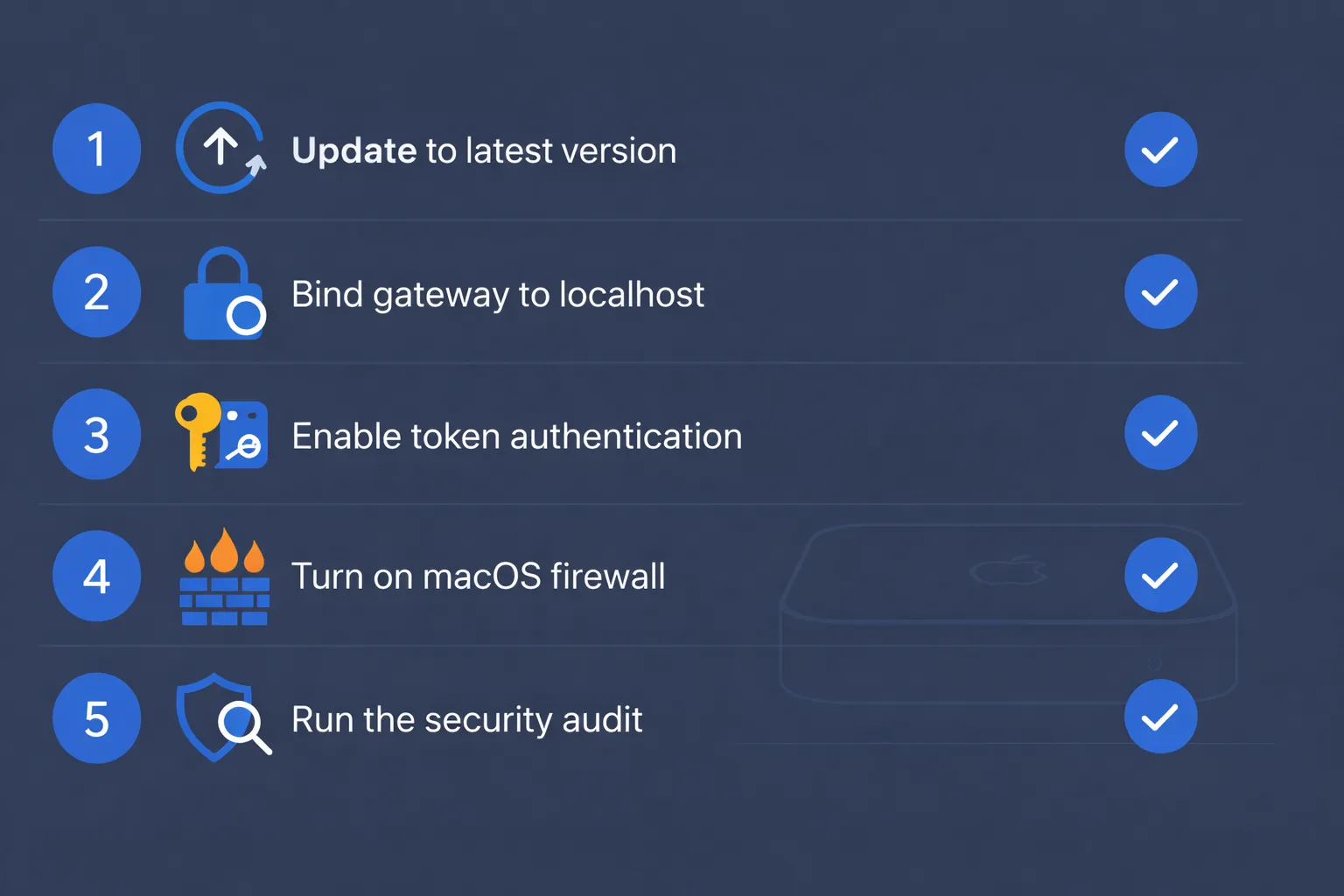
1. Update to the latest version
CVE-2026-25253 was patched in v2026.1.29. If you’re running anything older, you’re exposed to a 1-click RCE. Check your version and update:
openclaw --version
openclaw update
2. Bind the gateway to localhost
This is the single most important change. Open your config and set:
gateway.bind: "loopback"Then verify it actually worked:
ss -tulpn | grep 18789You want to see 127.0.0.1:18789. If you see 0.0.0.0:18789, something went wrong.
And here’s a nasty gotcha most guides don’t mention. If the loopback bind fails for any reason, the gateway silently falls back to 0.0.0.0. No warning. No error. It just quietly exposes itself to everything. Run openclaw security audit --deep after every restart to catch this. I learned about this from a GitHub issue where someone had been “locked down” for weeks and didn’t realize their gateway was actually wide open.
3. Turn on token auth
Even on localhost. Defense in depth means assuming one layer will break.
gateway.auth.mode: "token"
gateway.auth.token: "your-long-random-string-here"
Generate something strong. openssl rand -hex 32 works. Don’t reuse a password you use anywhere else.
4. Enable the macOS firewall
System Settings > Network > Firewall > flip it on. Then:
- Enable “Block all incoming connections”
- Turn on stealth mode (makes your Mac invisible to port scans)
For extra paranoia, block port 18789 explicitly even though you’ve already bound to localhost. Belt and suspenders.
5. Run the built-in security audit
openclaw security audit --deepThis checks for open DM policies, exposed gateway ports, weak permissions, missing auth, and a dozen other footguns. Then run:
openclaw security audit --fixThe --fix flag auto-tightens what it can. Review what it changed. Don’t blindly trust it, but it catches the obvious stuff.
Set up a dedicated macOS user
This is the step most people skip, and it’s the one that limits damage if everything else fails.
Don’t run OpenClaw on your admin account. Create a standard (non-admin) user just for it.
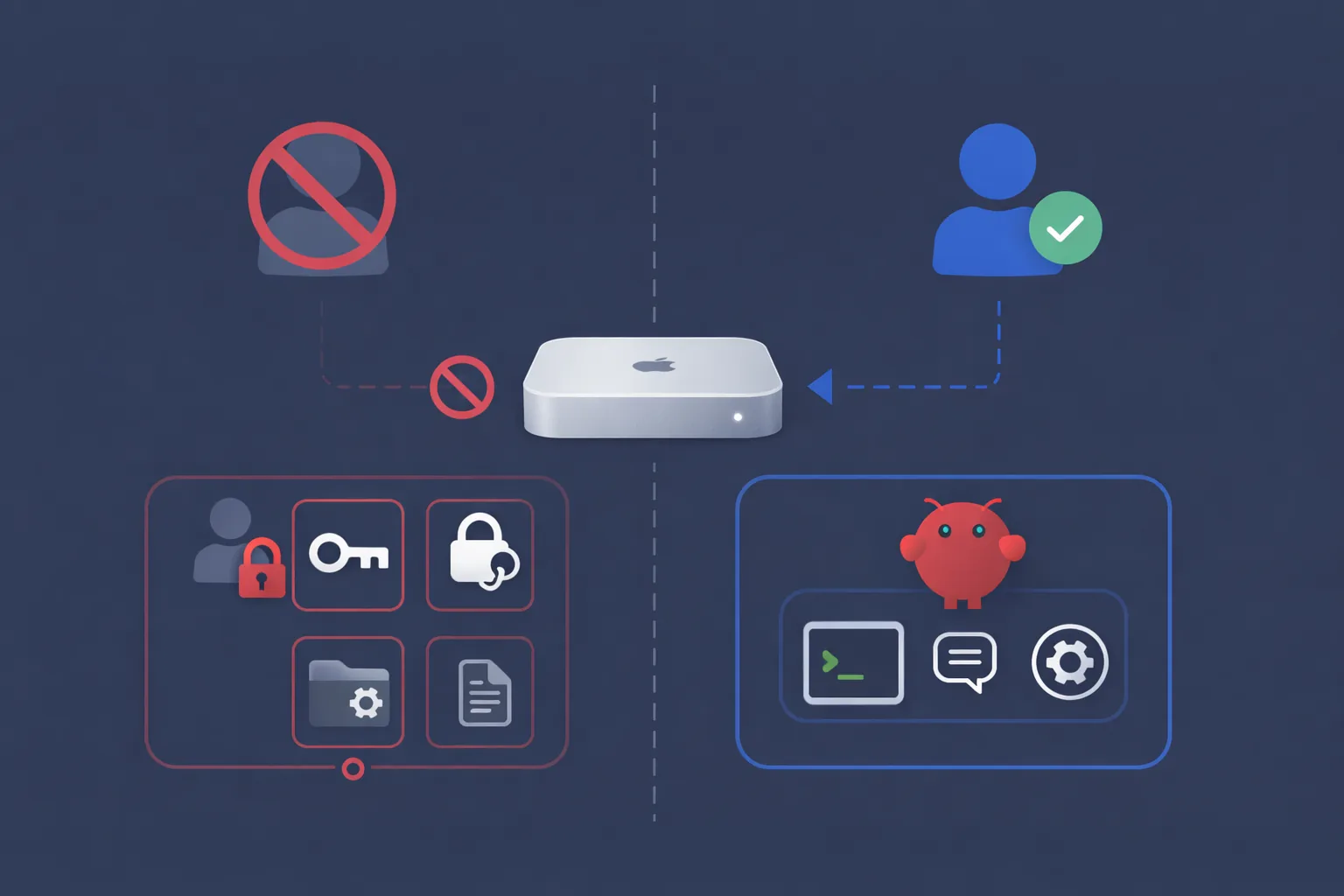
Go to System Settings > Users & Groups and add a new account. Standard, not admin. Name it something like openclaw-agent. Log in as that user and run your install there.
Why does this matter? If the agent gets tricked by a prompt injection (and eventually, one will get through), a standard account can’t touch system files, can’t access your SSH keys, can’t read your Keychain, can’t install system-level anything. The blast radius shrinks from “your entire Mac” to “one user’s home folder.”
Restrict what the agent can see by adding these to your config:
tools.fs.workspaceOnly: trueAnd explicitly deny sensitive paths. Keep ~/.ssh, ~/Library/Keychains, ~/.gnupg, and /etc out of reach.
One gotcha: if you use Homebrew, install dependencies from the admin account first. Then switch to the standard account and run openclaw doctor to verify everything works. Non-admin accounts can’t write to /opt/homebrew.
Want to take isolation further? Don’t run this on your personal machine at all. You can rent a dedicated M4 Mac Mini in the cloud at rentamac.io and use it as an isolated sandbox for AI agent development. If something goes sideways, you’re not debugging your personal machine. Your actual Mac stays untouched.
Lock down skills and tools
The skills marketplace is where the real danger lives. ClawHub is basically npm circa 2016. Anyone with a week-old GitHub account can publish a skill. No code signing. No sandbox. No review.
Snyk scanned 3,984 skills and found that 7.1% expose credentials in plaintext through the LLM’s context window. Not malware. Functional, popular skills that just happen to pipe your API keys through the model’s output logs where anyone monitoring can grab them.
The 341 malicious skills? Those were worse. Some ran curl commands to exfiltrate data to external servers. Others used prompt injection to override the agent’s safety instructions. One campaign (dubbed “ClawHavoc”) was a coordinated attack using 335 fake skills.
What to do:
Start with zero skills installed. Add them one at a time, and read the SKILL.md file before you install anything. If you see any curl or wget calls to external URLs, that’s a red flag. If the skill asks the agent to “ignore previous instructions,” delete it.
Lock down tool permissions in your config:
tools.exec.applyPatch.workspaceOnly: true
tools.fs.workspaceOnly: true
Require manual approval for high-risk operations like terminal execution, file deletion, and git pushes. OpenClaw has built-in VirusTotal scanning now, which catches known malware. But it won’t catch a brand-new exfiltration script nobody’s reported yet. Your eyes on the SKILL.md file are still the best filter.
If you want automated protection, look at ClawSec. It’s an open-source security suite that adds drift detection, skill integrity checks, and CVE monitoring. Not a silver bullet. But better than nothing.
Remote access: two safe options, everything else is wrong
Never expose port 18789 to the internet. I don’t care what your firewall rules look like. There are exactly two ways to reach your OpenClaw Mac Mini remotely.
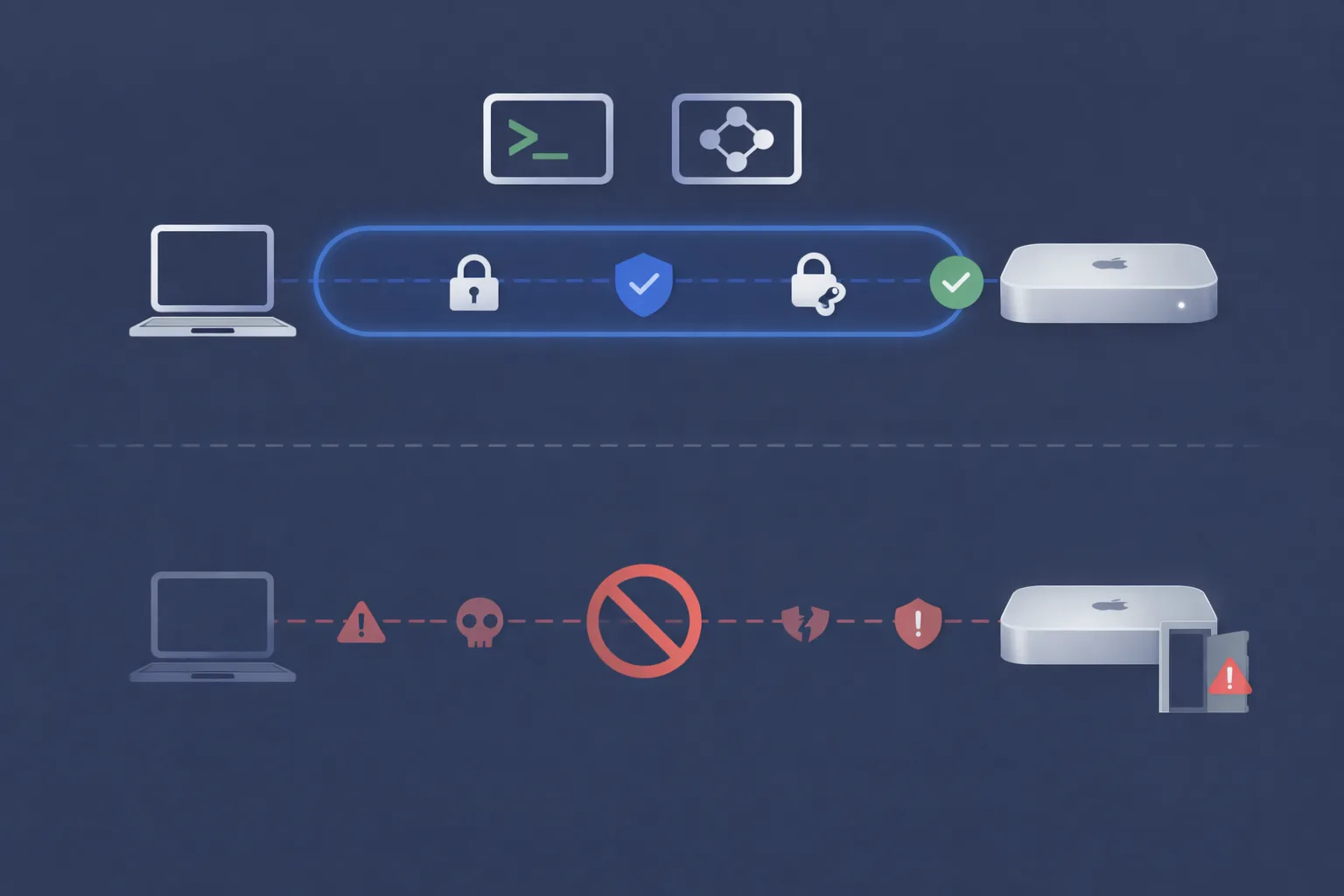
SSH tunnel. From your laptop:
ssh -N -L 18789:127.0.0.1:18789 user@your-mac-mini-ipThen open localhost:18789 in your browser. The gateway thinks you’re local. Use SSH key auth, not passwords.
Tailscale. Install it on the Mac Mini and your laptop. They join the same encrypted tailnet. OpenClaw has built-in Tailscale support:
gateway.auth.allowTailscale: trueWith this on, the gateway authenticates via Tailscale identity headers. No token needed for tailnet connections. I think Tailscale is the better option for most people because it “just works” across devices, but SSH tunnels are fine if you’re already comfortable with them.
Either way, kill the mDNS broadcast:
export OPENCLAW_DISABLE_BONJOUR=1Add that to the openclaw-agent user’s shell profile so it persists.
One more thing. If you want to see what OpenClaw is connecting to outbound, install LuLu (free) or Little Snitch ($49). These show every outgoing network connection from every process. You might be surprised what your “local” AI agent is phoning home to.
A handful of other things worth doing
Rotate your gateway token every few months. It’s a pain, but tokens leak in ways you don’t expect. Same for API keys. If your Anthropic key has been sitting in the same config file since January, swap it out.
After any config change, run the audit again:
openclaw security audit --deepFor the model itself, go with Anthropic’s Opus 4.6 if you can afford it. It’s the best at catching prompt injection attempts. Cheaper models are more easily manipulated.
Keep secrets in environment variables, not config files. And don’t trust “read-only” as a real boundary. The LLM can still leak anything it reads through its responses. If it can see your .env file, assume it’s been read.
The fastest way to check if you’ve missed something: openclaw doctor flags misconfigs. openclaw security audit --deep flags exposures. Run both after any change, and once a week even if nothing changed. That’s the habit that actually keeps you safe.