 PT
PT  EN
EN  ES
ES  TR
TR  FR
FR  AR
AR 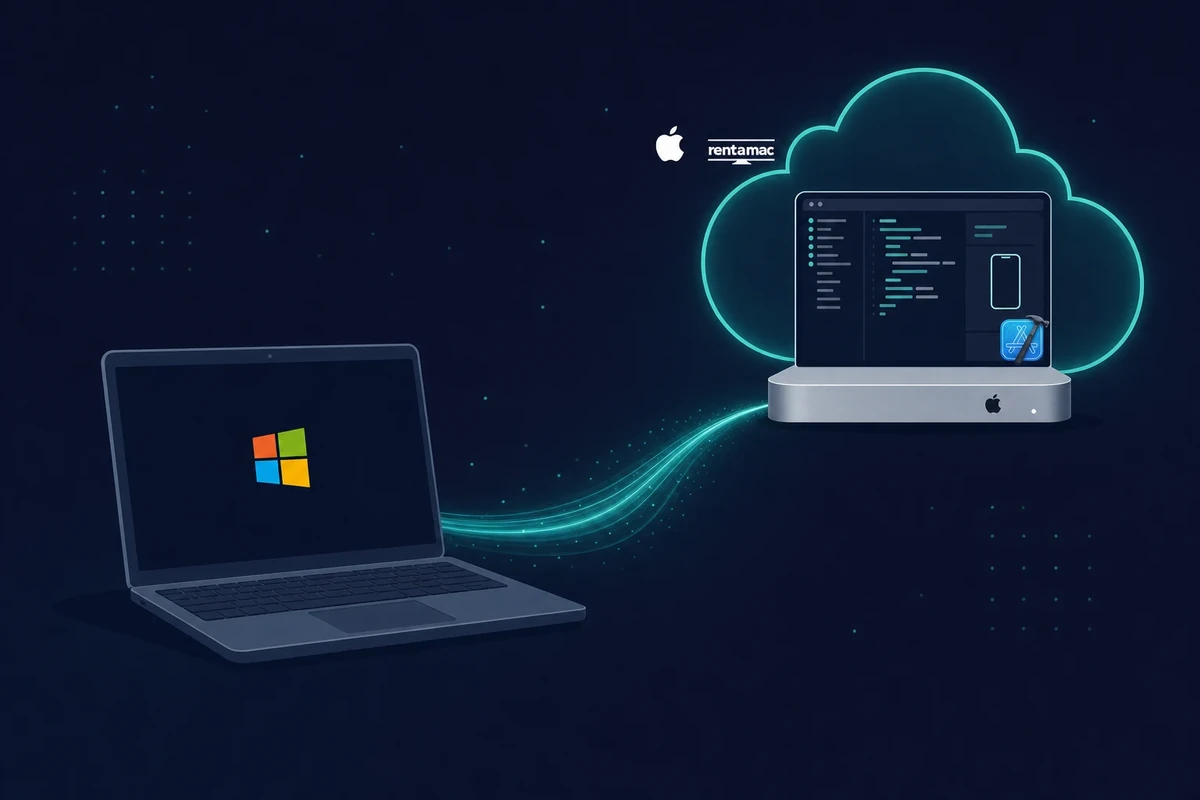
Nesta página
Você não pode usar o Xcode no Windows. No entanto, você pode acessar o Xcode no Windows alugando um Mac, montando um Hackintosh, rodando o macOS em uma máquina virtual ou usando alternativas de programação multiplataforma. O caminho mais confiável é alugar um Mac na nuvem.
O Xcode é o ambiente de desenvolvimento integrado (IDE) oficial da Apple para a criação de aplicativos iOS, macOS, watchOS e tvOS.
Ele traz recursos como o Interface Builder, o simulador e ferramentas de depuração, o que o torna muito útil para desenvolvedores macOS. Mas, como o Xcode foi feito para rodar só no macOS, quem prefere Windows fica com um problema.
A versão curta:
- Não é possível rodar o Xcode nativamente no Windows, e não existe download oficial para Windows.
- Alugar um Mac na nuvem é a forma mais confiável de ter o IDE completo do Xcode.
- As alternativas são uma máquina virtual com macOS, um Hackintosh ou ferramentas multiplataforma.
- Simuladores na nuvem pelo navegador e o Xcode Cloud da Apple cobrem testes e builds.
- Para a assinatura final e o envio à App Store, ainda é preciso um Mac de verdade com Xcode.
O Xcode está profundamente integrado ao ecossistema da Apple, pois depende de bibliotecas do macOS, estruturas em nível de sistema e compatibilidade de hardware. Esses são alguns dos motivos pelos quais o Windows não oferece suporte nativo ao Xcode.
A Apple também restringe o desenvolvimento oficial de apps iOS ao macOS como parte do controle do seu ecossistema. Por isso, não existe download oficial do Xcode para Windows. Este guia mostra as formas práticas de usar o Xcode e desenvolver aplicativos iOS no Windows.
Métodos para executar o Xcode no Windows
Existem várias soluções que permitem usar o ambiente de desenvolvimento da Apple de forma indireta. Elas variam em custo e esforço. A tabela abaixo resume os quatro métodos, e as seções seguintes trazem os detalhes.
| Método | Custo | Dificuldade | Legalidade | Melhor para |
|---|---|---|---|---|
| Máquina virtual com macOS | Grátis, mas exige um hardware potente | Média | Zona cinzenta | Entusiastas com um PC de 16GB ou mais |
| Mac na nuvem (recomendado) | A partir de $19/dia ou $119/mês | Fácil | Totalmente permitido | Quem quer tudo funcionando rápido |
| Hackintosh | Grátis, mas exige peças compatíveis | Difícil | Zona cinzenta | Entusiastas de hardware em busca de velocidade |
| Ferramentas multiplataforma | De grátis a preço médio | Média | Permitido | Escrever um único código para iOS e Android |
1. Executar o macOS em uma máquina virtual
Uma máquina virtual roda o macOS dentro do Windows. Se preferir usar seu próprio hardware de PC, você pode simular o iOS no Windows configurando uma VM que rode o macOS. Você vai precisar de um software como o VMware Workstation ou o Oracle VirtualBox.
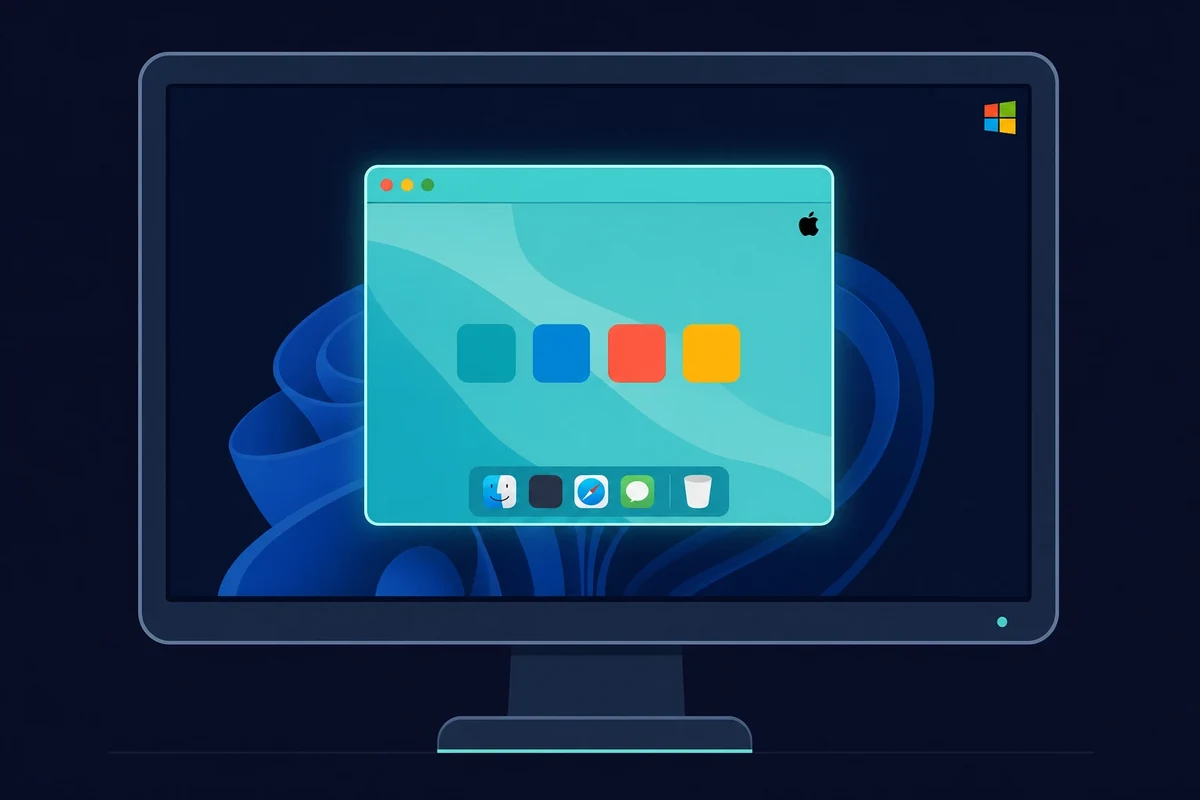
A VM exige hardware de verdade. Reserve pelo menos 16GB de RAM (32GB é melhor), uma CPU com vários núcleos e 50GB ou mais de disco livre, porque só o instalador do macOS tem cerca de 14GB. Conte também com uma conexão rápida: os guias de instalação de 2026 recomendam 20 Mbps ou mais, e o download do Xcode leva de 30 a 60 minutos.
Há também uma exigência de compatibilidade de versões que pega muita gente. A versão do Xcode precisa ser compatível com a do macOS, então o Xcode 26 exige o macOS Sequoia 15.6 ou mais recente, senão a instalação é bloqueada. Esse caminho funciona igual no Windows 10 e no Windows 11, e não existe uma versão do Xcode específica para Windows 11.
Com a VM funcionando, você instala o Xcode como faria em um Mac de verdade. No VMware, primeiro você aplica o patch macOS Unlocker, depois instala o macOS e baixa o Xcode da Mac App Store.
O método não custa nada no início. O problema é o hardware, já que você precisa de um PC forte o bastante para rodar dois sistemas operacionais ao mesmo tempo. Além disso, a licença da Apple restringe o macOS ao hardware da Apple, então isso fica numa zona cinzenta.
2. Use um Mac na nuvem (recomendado)
Um Mac na nuvem é o caminho mais confiável. Você aluga um Mac na nuvem e recebe a tela dele no seu PC. Você tem um ambiente macOS real com o IDE completo do Xcode, sem precisar de hardware da Apple, e acessa pelo Windows para trabalhar como se o Mac estivesse na sua mesa.
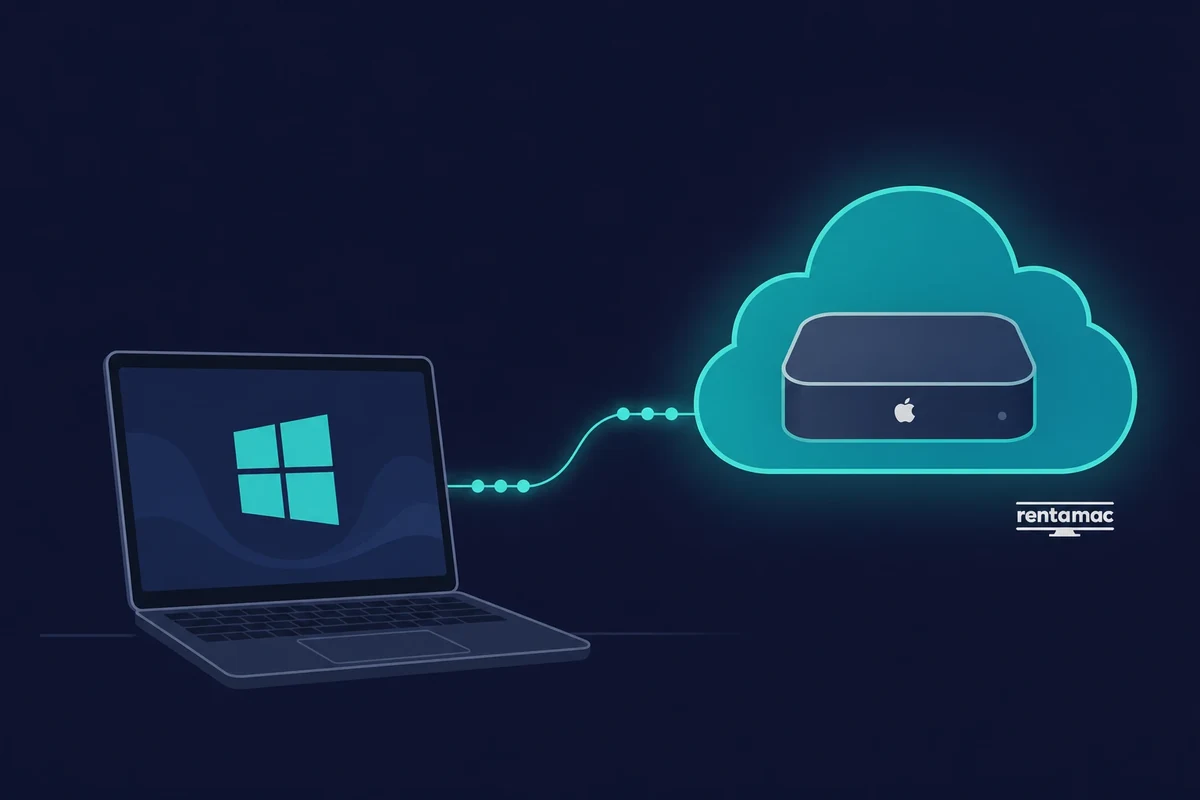
Os serviços de aluguel de Mac na nuvem existem exatamente para isso, e o Rentamac.io é um deles. Você recebe um Mac mini M4 dedicado na nuvem (16GB de RAM, 256GB SSD, macOS 27.0 ou mais recente) com acesso total de administrador, por meio de apps de baixa latência como DeskIn ou Parsec.
Os planos começam em $19 por dia ou $119 por mês. A configuração é simples: você assina, faz login remotamente e usa o Xcode como faria em um Mac físico, sem zona cinzenta de licença e sem lentidão por dividir o hardware do seu PC.
3. Configuração do Hackintosh
Um Hackintosh inicializa o macOS em hardware que não é da Apple. É o método mais complexo da lista, mas roda mais rápido que uma VM, porque o macOS funciona direto no seu hardware e não dentro de uma máquina convidada. É uma tarefa para verdadeiros entusiastas de tecnologia.
Com hardware compatível e os passos de instalação certos, você pode montar um PC com Windows que também inicializa no macOS e roda o Xcode nativamente. É essa velocidade que atrai usuários avançados para o combo Hackintosh com Xcode, apesar da zona cinzenta legal.
As desvantagens são reais: a configuração é difícil, atualizações podem quebrar o sistema e a Apple não oferece suporte.
4. Codificação multiplataforma + teste no Mac
Ferramentas multiplataforma permitem escrever a maior parte do código no Windows. Se você quer evitar o custo de alugar um Mac ou as horas configurando uma VM, pode optar pelo desenvolvimento multiplataforma e escrever a maior parte do app no Windows.
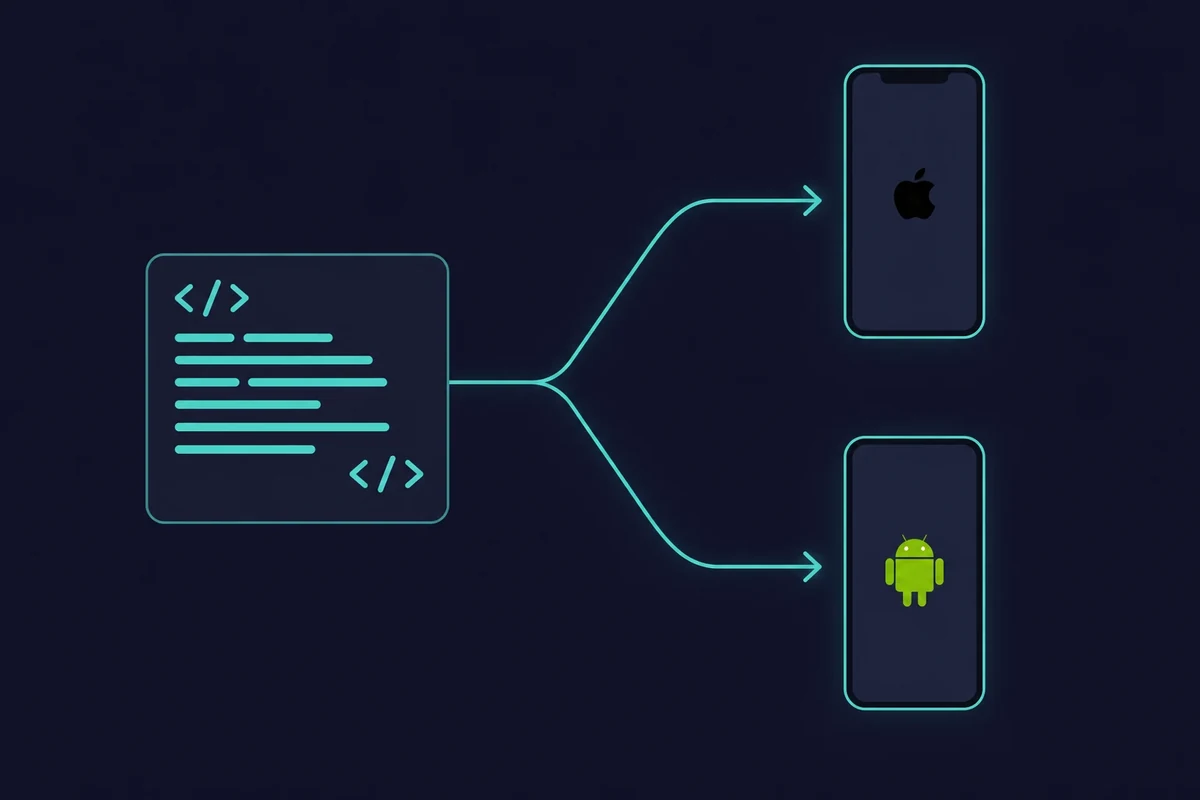
Você pode usar Flutter, React Native, Xamarin ou outras opções para criar e testar apps no Windows com os simuladores deles. Mesmo assim, vai precisar do Xcode em um Mac para a compilação e a assinatura finais. Veja o que cada ferramenta oferece:
- Flutter (do Google): Um framework de código aberto que permite escrever apps em Dart e compilá-los como aplicativos nativos de iOS e Android. O hot reload e a grande comunidade fazem dele um dos favoritos para iterar rápido enquanto você edita.
- React Native: Criado pela Meta, o React Native permite que desenvolvedores usem JavaScript e React para criar apps multiplataforma. Muitos apps conhecidos, como o Instagram, foram feitos com esse framework.
- Xamarin (da Microsoft): Ideal para desenvolvedores que preferem C# e .NET. O Xamarin permite compartilhar código entre Android, iOS e Windows, sem perder o acesso às APIs nativas de cada plataforma.
- Codemagic & Expo: Essas plataformas na nuvem automatizam a compilação e os testes. Elas fazem boa parte do trabalho pesado: você programa no Windows e envia os apps para os servidores delas para compilar para iOS.
Muitos desenvolvedores combinam o desenvolvimento multiplataforma no Windows com o uso eventual de um Mac alugado ou emprestado para a publicação.
Como testar apps iOS no Windows sem ter um Mac completo
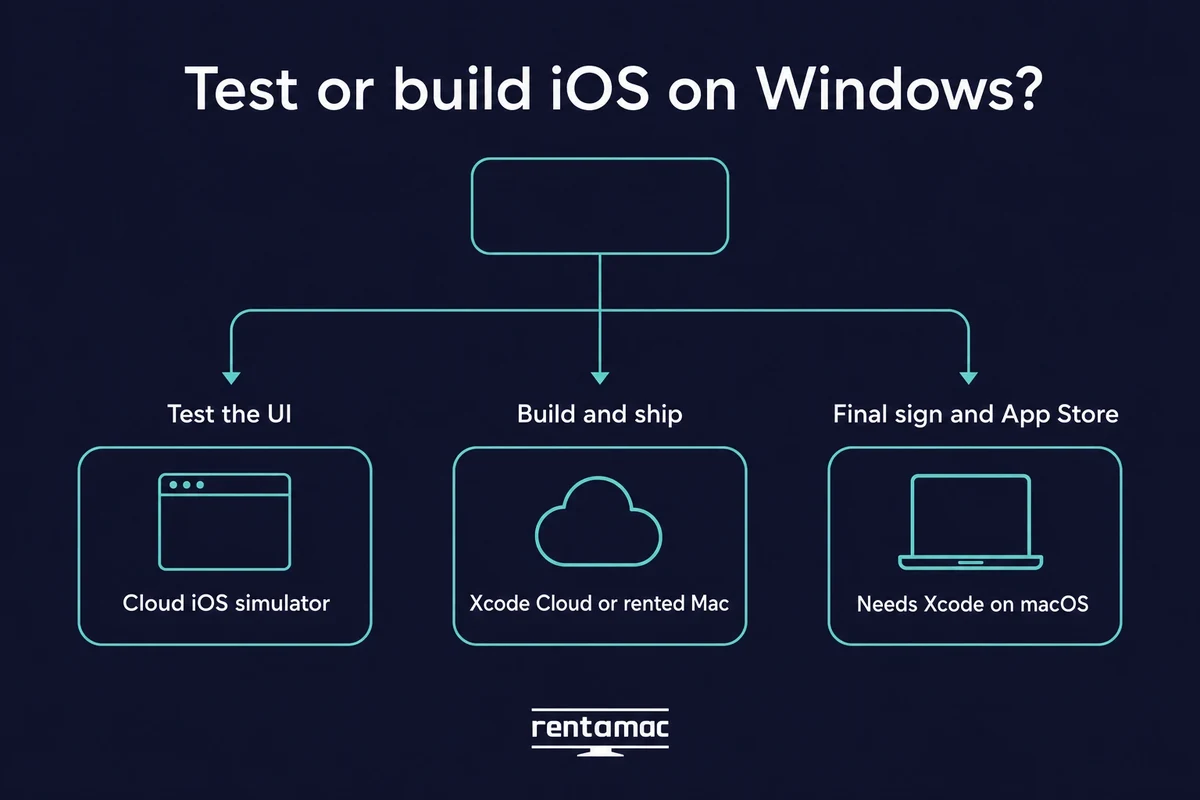
Você pode testar apps iOS no Windows sem ter um Mac. Simuladores de iOS na nuvem pelo navegador mostram como o app aparece e se comporta a partir de um PC com Windows, e o Xcode Cloud, da própria Apple, pode compilar e publicar um projeto a partir dos servidores da Apple. Os dois têm um limite importante, explicado abaixo.
Um simulador de iOS na nuvem roda em uma aba comum do navegador no Windows. Você carrega o app e confere como as telas aparecem e reagem, sem precisar de Mac nessa etapa.
A cobertura de dispositivos é ampla. Os simuladores na nuvem atuais vão do iPhone 6 até o iPhone Pro Max mais recente, do iOS 9 ao iOS 26. Não existe um simulador nativo do Xcode para Windows, mas um simulador de iOS na nuvem pelo navegador oferece o mesmo teste de tela no seu PC.
Vale separar duas ideias aqui. Um simulador testa a interface: como o app aparece e responde aos toques. Um serviço de build compila e assina o app para que ele possa ser instalado. Eles resolvem problemas diferentes.
O Xcode Cloud é o serviço de build e testes da própria Apple. Ele compila o seu projeto e envia para o TestFlight a partir dos servidores da Apple, e o Apple Developer Program inclui 25 horas de computação grátis por mês (os planos pagos vão de $49.99 por 100 horas até bem mais).
É a opção da Apple, configurada dentro do próprio Xcode, e não um desktop remoto em que você faz login. Depois que o projeto está configurado, você pode iniciar os builds do Xcode Cloud pelo Windows, já que a compilação roda nos servidores da Apple, e não no seu PC.
Este é o limite que os dois têm em comum. Um simulador só testa a interface, e nem mesmo um serviço de build na nuvem entrega o IDE completo do Xcode. A compilação final, a assinatura do código e o envio para a App Store ainda exigem um Mac de verdade com Xcode, que é exatamente o que um Mac alugado oferece.
Então planeje as duas coisas. Se o seu objetivo é o pipeline completo, e não só uma checagem rápida da interface, testar aplicativos iOS no Windows primeiro com um simulador na nuvem e depois passe para um Mac para fazer o build.
Como escolher a melhor plataforma de aluguel
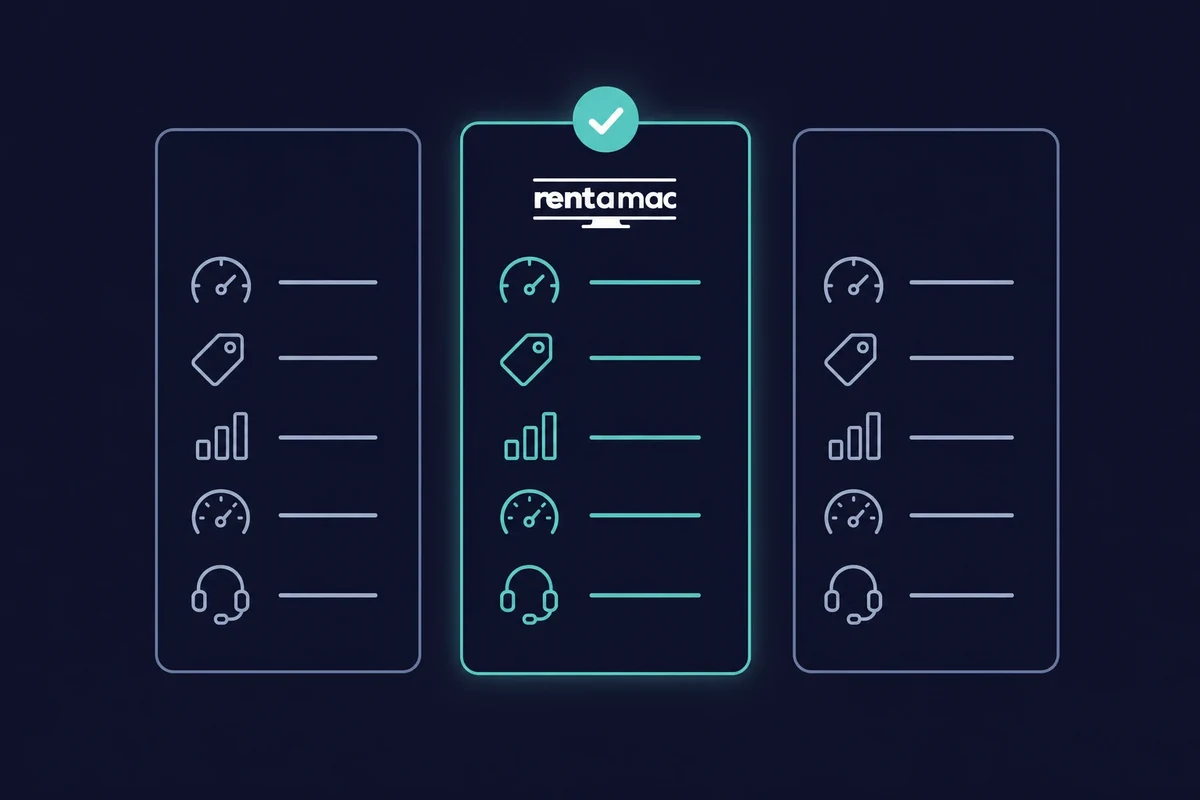
Alugar um Mac é um dos métodos mais estáveis e populares, então vale saber o que procurar. Nem todos os fornecedores oferecem o mesmo hardware, a mesma confiabilidade ou o mesmo suporte. Avalie estes cinco pontos antes de escolher:
- Desempenho e hardware: Procure hardware Mac dedicado com a RAM, a CPU e o armazenamento de que o seu projeto precisa, principalmente se você pretende rodar simuladores de iOS.
- Preço: A maioria dos fornecedores oferece planos semanais e mensais. O Rentamac.io se destaca por ter também planos diários, e alugar a partir de $19 por dia ou $119 por mês sai mais barato que comprar um Mac.
- Latência: Apps como DeskIn e Parsec mantêm baixo o atraso entre apertar uma tecla e o Mac responder. Uma configuração um pouco mais fraca, mas com latência menor, costuma ser a máquina mais tranquila para o dia a dia.
- Disponibilidade e confiabilidade: Verifique o histórico de disponibilidade do fornecedor e leia avaliações de outros desenvolvedores antes de fechar.
- Suporte e documentação: Dependendo da sua experiência, observe bem a qualidade da documentação e do atendimento ao cliente.
Conclusão
Como acontece com qualquer coisa no campo do desenvolvimento de software, não há uma opção única para o desenvolvimento de aplicativos usando o Xcode no Windows. Em vez disso, você deve explorar as diferentes opções e encontrar aquela que atenda às suas necessidades.
Cada um dos métodos mencionados tem seus prós e contras e varia em complexidade e custo. Se você é um empresário individual que está desenvolvendo seu aplicativo, alugar um Mac por um dia pode ser a melhor opção. Por outro lado, os geeks da tecnologia podem optar por sua própria configuração de Hackintosh.
No fim, tudo se resume a entender seus objetivos de curto e longo prazo e encontrar o método que combina mais com você. Embora alugar um Mac seja a opção mais estável para a maioria das pessoas, outras técnicas também podem ajudar você a lançar seu produto na App Store.
FAQ
Como posso executar o Xcode no Windows sem comprar um Mac?
Você pode usar um serviço de aluguel de Mac remoto como o Rentamac.io. Essa plataforma permite se conectar a um Mac pela internet e rodar o Xcode como se você tivesse um hardware da Apple.
Qual é o melhor método para desenvolver aplicativos para Mac no Windows?
O método mais confiável é alugar um Mac remoto. Ele garante estabilidade, conformidade com as regras da Apple e acesso direto à versão mais recente do Xcode.
É seguro baixar o Xcode para Windows de sites de terceiros?
Não. A Apple não fornece uma versão oficial do Xcode para Windows. Qualquer site que ofereça o "Xcode para Windows" está distribuindo software não seguro ou pirateado, que pode conter malware. A única maneira legítima de obter o Xcode é por meio da Mac App Store no macOS.
Posso desenvolver aplicativos do macOS no Windows?
Em parte. Você pode escrever código no Windows, mas precisa do macOS em algum momento para criar, assinar, testar e enviar um aplicativo macOS real.
O Hackintosh é uma boa maneira de instalar o Xcode no Windows?
Um Hackintosh pode executar o macOS em hardware que não seja da Apple, o que permite que você instale o Xcode. Embora ofereça melhor desempenho do que uma máquina virtual, é difícil de configurar, pode quebrar após atualizações e não é oficialmente suportado pela Apple