
On this page
Stable Diffusion is a popular open-source AI tool that helps you create impressive images right from text prompts. The best part? You can simply run it right on your Mac using the Draw Things app. There’s no need for cloud services, subscriptions, or tricky setups. Thanks to the easy Stable Diffusion Mac setup, even beginners can jump into making AI art in no time.
Tools You Need: Draw Things App
For most people, Draw Things is the best Stable Diffusion app for Mac in 2026: it is native, free, and fast. It runs Stable Diffusion right on your device, and it works well on Apple Silicon Macs, from the M1 through the M4.
There’s a reason it has become the go-to pick. Draw Things uses Apple’s own Metal engine (Metal FlashAttention), so on the same Mac it runs roughly 20% or more faster than the older ComfyUI route. The once-popular DiffusionBee, by comparison, has not had an update since August 2024, so it is effectively abandoned. Skip it and you avoid a dead app.
- Works on Mac and iOS devices (iPhone and iPad)
- Fully compatible with Apple Silicon (M1, M2, M3, M4)
- Comes with a built-in downloader that now pulls classic Stable Diffusion plus newer models like SDXL, SD3.5, and FLUX (version 1.20260518.2, May 2026)
- Easy to use, no tech skills required
Draw Things runs Stable Diffusion on macOS and iOS, so the same setup works across your Mac and iPhone. You can get it straight from the App Store. We’ll walk you through the installation process next.
How to Run Stable Diffusion on Your Mac, Step by Step
To run Stable Diffusion on your Mac, follow these easy steps:
1. Download and install Draw Things on your Mac.
2. Open the app and look for the model downloader section.
3. Pick a Stable Diffusion model from the list and download it.
4. Load the model and run it locally.
Let’s break down each of these steps.
Step 1: Download Draw Things
First, download *Draw Things: Offline AI* *Art* from the App Store.
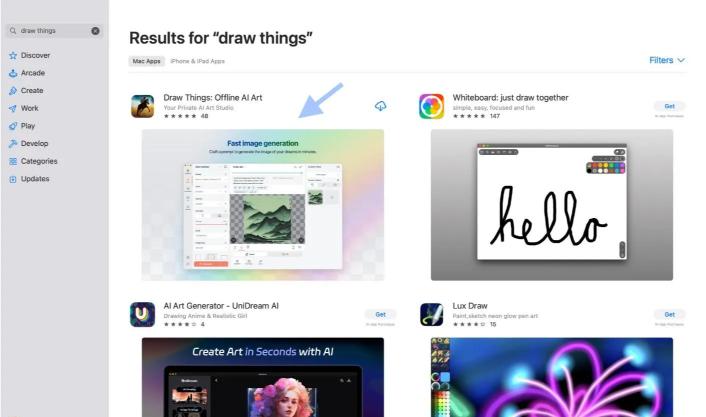
If you want it to run well, it’s best to use a Mac with Apple Silicon (like M1, M2, M3, or M4).
16GB of RAM is the practical floor: at that level SD 1.5, SDXL, and lighter Flux models land around 10 to 40 seconds per image. Step up to 24 to 32GB or more and the heavier Flux.1-dev and high-res jobs drop to roughly 5 to 25 seconds per image.
Step 2: Open the App and Load the Stable Diffusion Model
Once you have it installed, go ahead and open Draw Things. You’ll see a screen with three options:
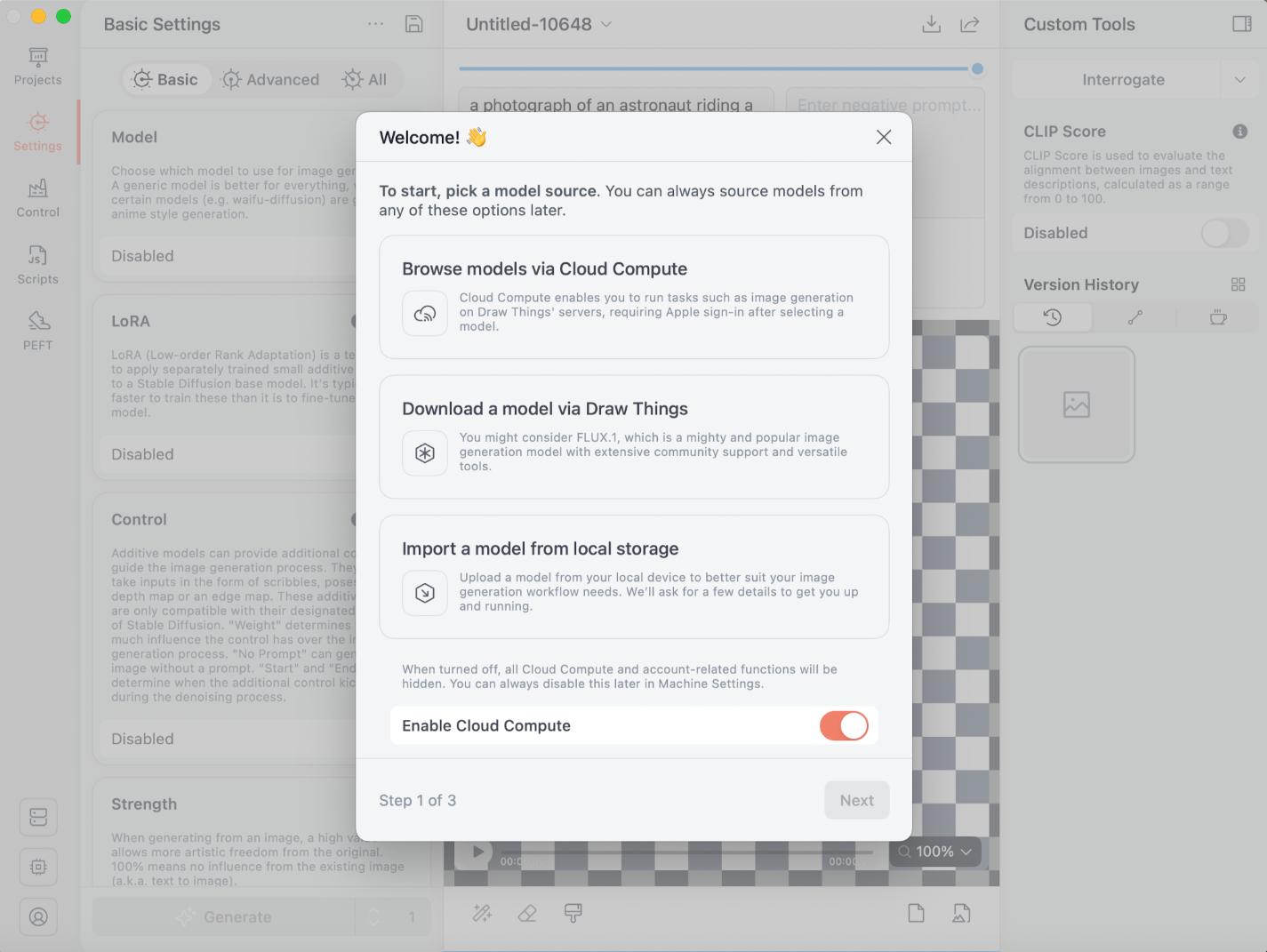
Choose the second option: *Download a model via Draw Things.* Then, look for “Stable Diffusion” in the models section:

You’ll find different versions to choose from. Pick one that works best for you. Once you select your model, the app will handle the download and installation for you.
Step 3: Adjust Settings (Optional)
Before you start making images, you can tweak some settings in Draw Things:
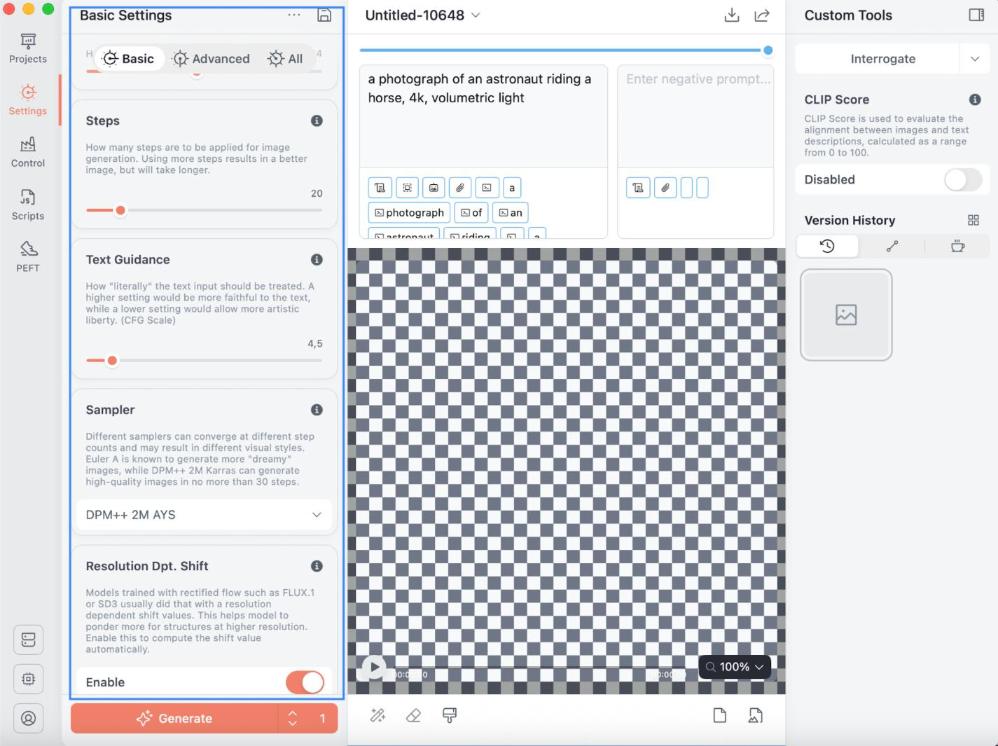
- Sampling Steps – More steps mean better detail, with options from 1 to 150.
- Image Size – You can choose from different suggested measurements. For best results, we recommend using 1:1 / Normal size.
- Strength – A high value of strength allows more artistic freedom from the original, ranging from 0% to 100%.
Step 4: Start Creating Images
After you’ve got your model set up, you can run Stable Diffusion locally by typing your prompts in Draw Things:
1. Type your text prompt in the prompt field.
For example: *“A futuristic city skyline at sunset.”*
1. Click Generate and wait a bit for your image to appear.
2. Your AI-generated image will save right on your Mac.

Since you’re using Stable Diffusion locally, you won’t need the internet after your initial setup.
Optional: Use the iPhone/iPad Version
You can also use Draw Things on your iPhone or iPad. This lets you run Stable Diffusion right on your phone or tablet, so you can make awesome AI art anytime, anywhere, even if you’re not connected to Wi-Fi.
Why Run Stable Diffusion Locally on Your Mac?

Running Stable Diffusion on your Mac has some solid perks:
- Full control over your model – no restrictions or censorship.
- Skipping cloud services fees – just use your Mac’s Apple Silicon instead of renting GPUs.
- Privacy – Everything runs on your machine, so your prompts and data remain private.
- Optimized for Apple Silicon – Working great on M1, M2, M3, and M4 chips.
- Cost savings – There are no ongoing costs.
With Apple Silicon, Macs are now powerful enough to handle complex AI tasks, whether generating text or creating images with models like Stable Diffusion, as seen with various LLMs running on Mac.
The speed is real too: on a 16GB M2 Pro, Draw Things makes an SD 1.5 image at 512×512 in about 8 to 15 seconds and an SDXL image at 1024×1024 in roughly 25 to 40 seconds, all with full privacy and control.
How fast is Stable Diffusion on a Mac?
On Apple Silicon, Stable Diffusion is quick for everyday models and slower for the big ones. With Draw Things on a 16GB M2 Pro, an SD 1.5 image at 512×512 takes about 8 to 15 seconds, and an SDXL image at 1024×1024 takes about 25 to 40 seconds. Newer chips and turbo models are faster still.
Memory is what sets the pace. 16GB is the practical floor, where SD 1.5, SDXL, and lighter Flux models come out around 10 to 40 seconds each.
Move up to 24 to 32GB or more and the heavier Flux.1-dev and high-res work drops to roughly 5 to 25 seconds per image. Stable Diffusion on a MacBook works well from the M1 Air upward, and the extra RAM mainly helps with the larger models.
In a hurry? The newer turbo models are built for it. SD 3.5 Turbo renders a 512×512 image in about 2 seconds on an M4 MacBook, so you can sketch out ideas almost as fast as you can type them.
Here is a rough read on typical generation time on a 16GB Apple Silicon Mac:
| Model | Typical image | Time on a 16GB Apple Silicon Mac |
|---|---|---|
| SD 1.5 | 512×512 | about 8 to 15 seconds |
| SDXL | 1024×1024 | about 25 to 40 seconds |
| SD 3.5 Turbo | 512×512 | about 2 seconds (M4) |
| Flux | 1024×1024 | a minute or more |
The big models ask for more patience. On a mid Apple Silicon Mac, a full Flux image can take a minute or more, while SD 1.5 stays in the seconds range. Flux has its own quirks on a Mac, so it is worth treating as a separate setup from the everyday Stable Diffusion models.
One honest note: a Mac is slower than a Windows PC with a dedicated graphics card for this kind of work.
What you get back is a setup that runs fully offline, with no cloud fees and nothing leaving your machine. There is also a terminal route (the Stable Diffusion WebUI) if you ever want it, but Draw Things stays the simplest path on a Mac.
FAQs
Can I run Stable Diffusion on any Mac?
Stable Diffusion works best on Apple Silicon Macs like M1, M2, M3, and M4. It might work if you have an older Intel Mac, but it’ll be a lot slower.
Do I need coding skills to install Stable Diffusion?
No, you don’t need any coding skills. You can easily install Stable Diffusion using the Draw Things app, which is pretty simple to use.
Is Stable Diffusion free?
Yes, it’s free! Stable Diffusion is open-source, so just download the model weights. Budget the disk space too: model files run about 2 to 4GB for SD 1.5, around 5GB for SD 2.1, and about 7GB for SDXL, so plan on 20 to 50GB if you keep several.