
On this page
Qwen is a large language model (LLM) that can create high-quality text from your prompts. The cool thing is you can run Qwen right on your Mac with tools like LM Studio – no subscriptions, no cloud servers, and no tricky setups.
Just like other large language models that can now run directly on Apple Silicon Macs thanks to local LLM Mac setups, Qwen works entirely offline while keeping your data private.
Tools You Need: LM Studio
To run Qwen on macOS with no code, LM Studio is one of the best solutions. On a 16GB Mac, pick Qwen3.5 9B and you get roughly 22 to 28 tokens per second, fine for everyday chat. It works on any Apple Silicon Mac, no Intel support.
The app lets you download, manage, and run different LLMs, including Qwen, right from your computer.
- It works natively on Apple Silicon (M1, M2, M3, M4) for the best performance.
- Recent LM Studio versions include an MLX engine that speeds up generation on Apple Silicon, and unlike some other tools it works on 16GB with no 32GB requirement.
- Once it’s set up, you don’t need an internet connection.
- It has a built-in model downloader that includes Qwen models.
- The user interface is simple, so you don’t need to know how to code.
- It’s free to download and use.
You can download LM Studio directly from lmstudio.ai, and we’ll guide you through the installation steps next.
How to Run Qwen on Mac, Step-by-Step
1. Download and install LM Studio on your Mac.
2. Open the app and go to the Discover section.
3. Search and download the selected Qwen model from the list.
4. Load and run the model locally.
The Qwen Mac setup only takes a few quick steps. Let’s go through them one by one.
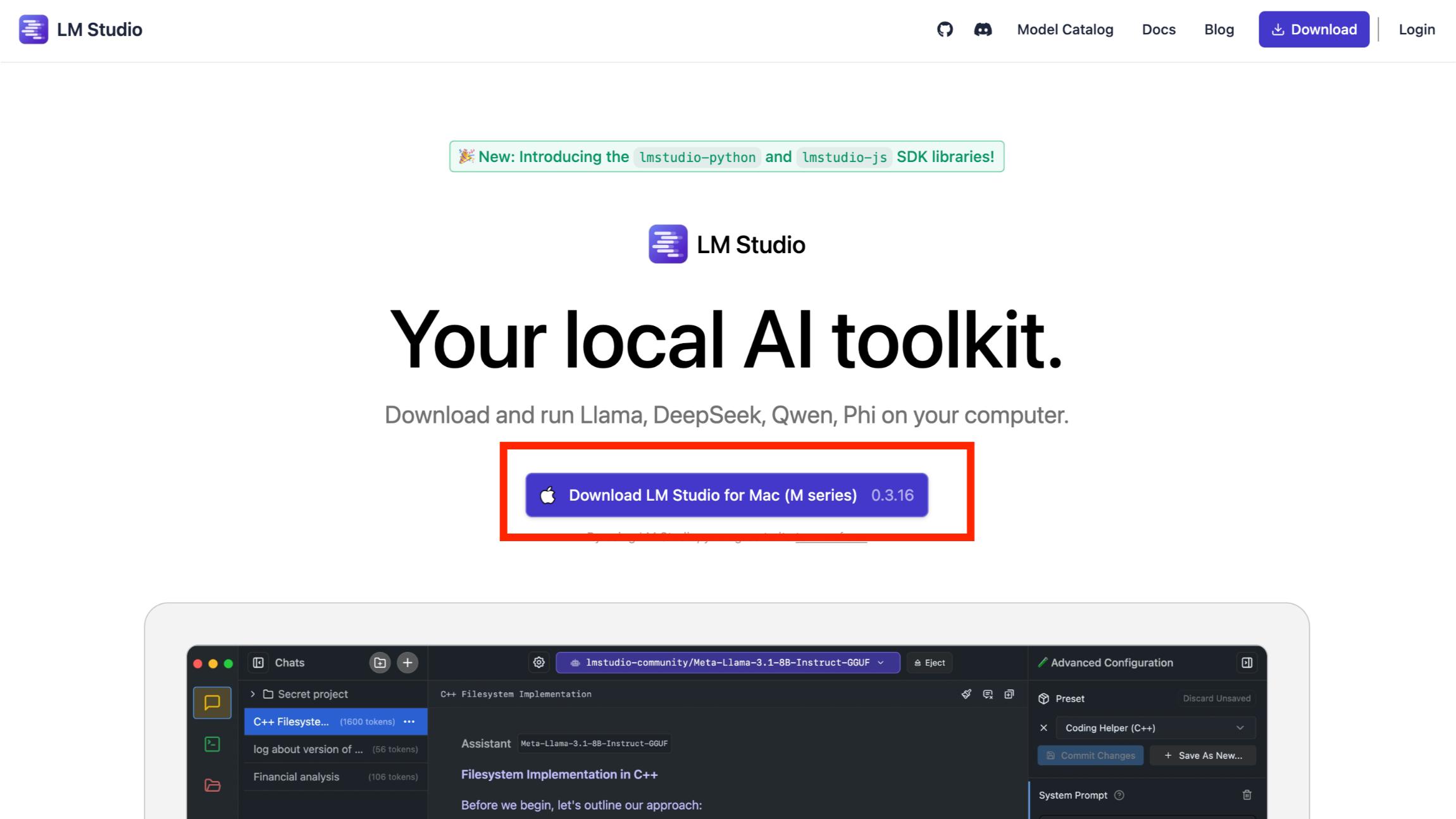
Step 1: Download LM Studio
To install Qwen on Mac, you first need to download LM Studio and install it on your Mac. The process is very fast and takes just a few intuitive steps.
You can download LM Studio from their official site:
Step 2: Open the App and Load the Qwen Model
Once you run the app on your Mac, a Welcome tutorial opens, which you can skip and get to work directly with Qwen. Once you install and set up LM Studio, you can search and download Qwen by clicking on the magnifying glass icon on the left:
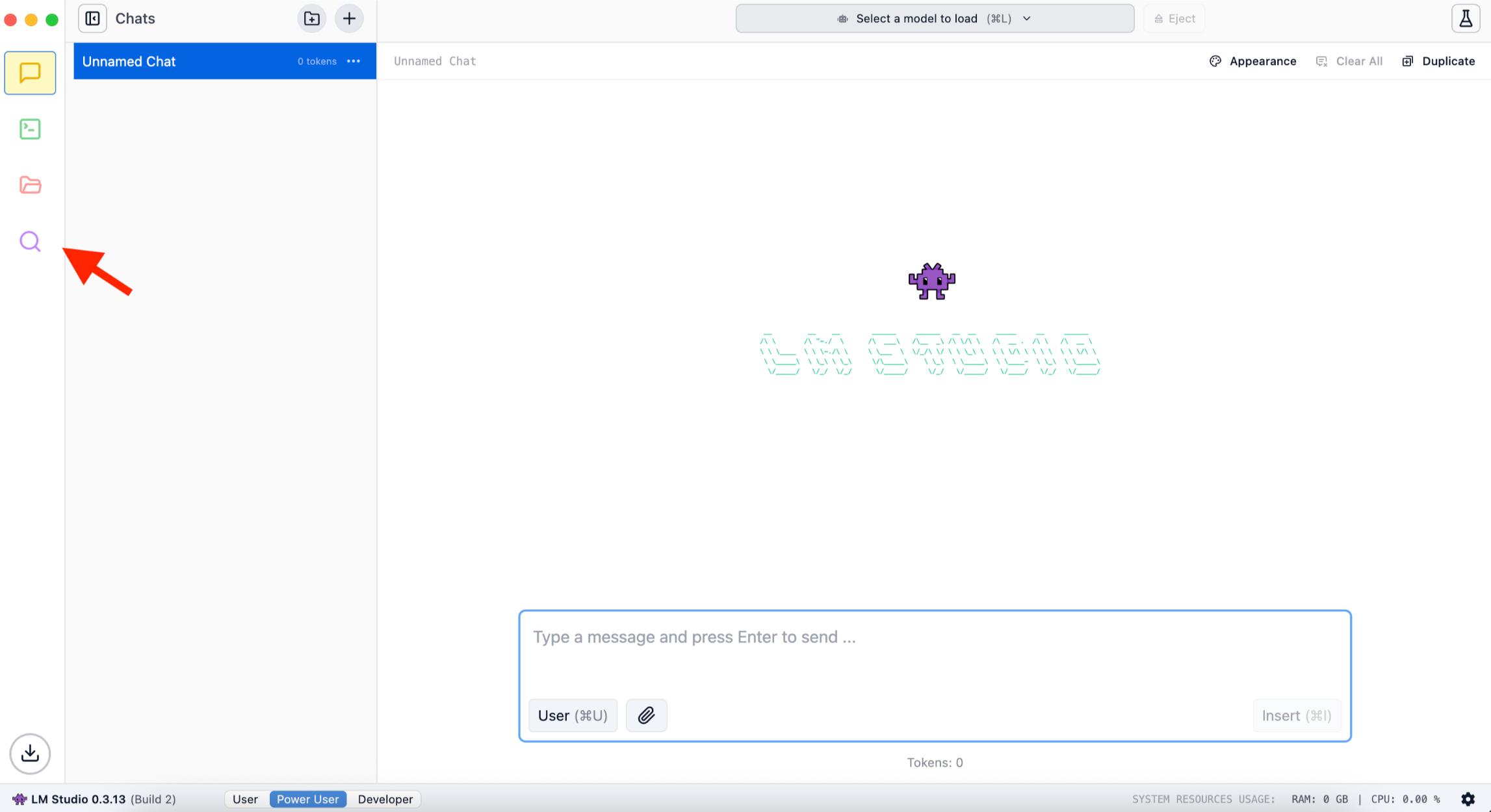
Then, search for Qwen in the LM Studio search interface and select the model you need.
As of 2026, LM Studio lists the current open-weight generations: Qwen3.5 (dense sizes from 0.6B up to 32B) and Qwen3.6 (a 27B dense model plus the 35B-A3B mixture-of-experts build). The newest flagship, Qwen3.7-Max, is API-only and can’t be downloaded, so it won’t appear as a local model. To run Qwen3 on a Mac, pick a current Qwen3.5 or Qwen3.6 build.
Choose a model version that fits your Mac. On a 16GB Mac, the safe pick is Qwen3.5 9B (the Q4_K_M version, about 6.6GB, roughly 22 to 28 tokens per second). Models above about 14B start swapping to the CPU and drop under 5 tokens per second, and anything 32B and up really wants 24 to 32GB.
On a Mac Mini M4 with 16GB, the 35B-A3B build still runs at about 17 tokens per second on the standard engine, or 25 to 35 with MLX, since it only activates a small slice of its parameters at a time. The same mixture-of-experts trick is what lets a 1T model like Kimi K2.6 run on a big-memory Mac Studio.
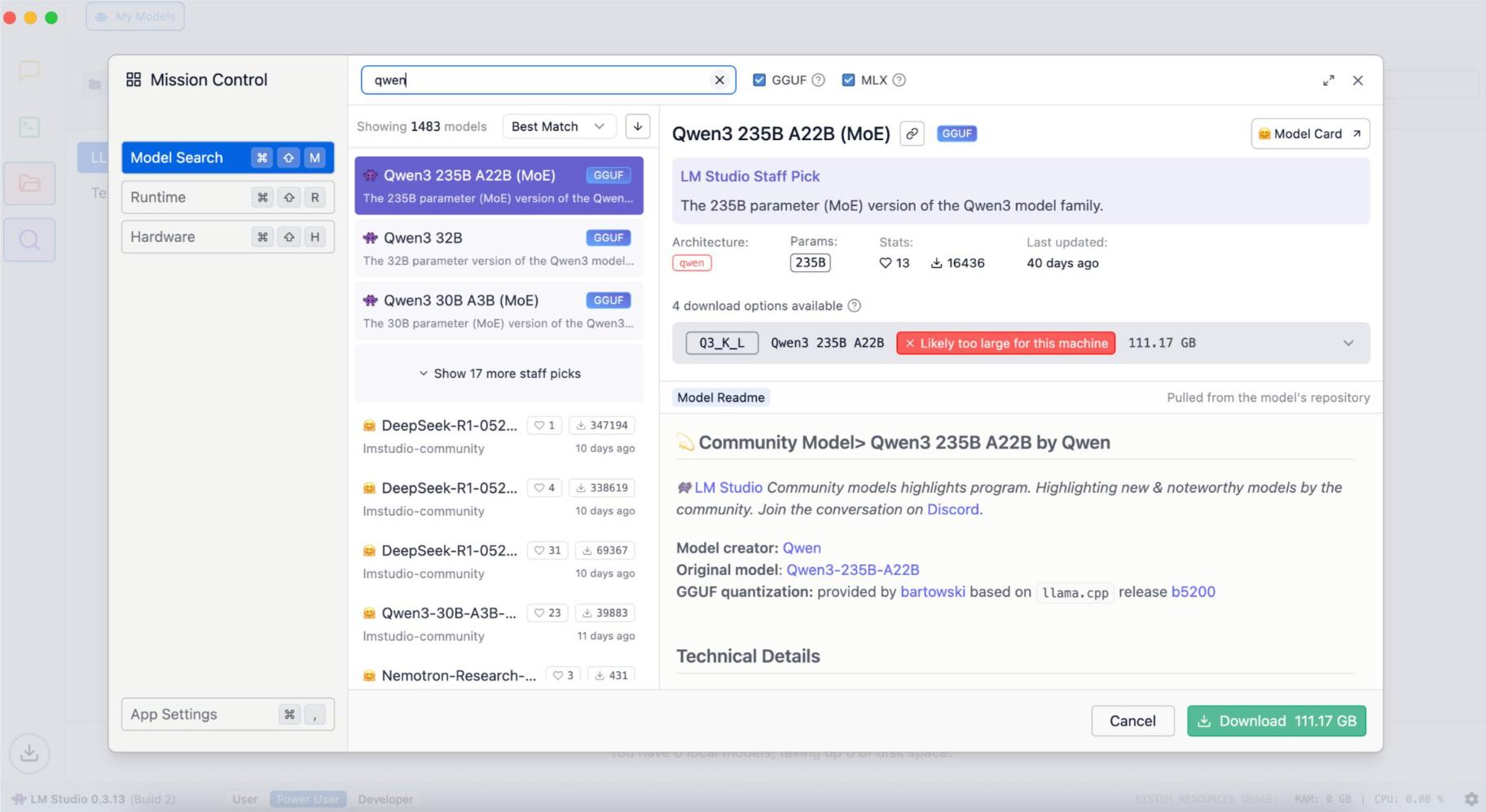
Load the model, and run Qwen via the chat interface.
Step 3: Adjust Settings (Optional)
Before you start generating text, LM Studio lets you change a few settings to get the best results:
- Context length – Change how much text Qwen can process at once.
- Temperature – This controls how creative the responses are – a higher temperature makes things more unpredictable
- Top-k / Top-p – These settings help you decide how varied or focused the outputs should be.
- Tokens limit – This sets the maximum amount of text that can be generated in one go.
If you’re just using it casually, the default settings are usually just fine. Feel free to try different options as you play around!
Step 4: Start Generating Text
Now that you’ve got everything set up, you can run Qwen on your computer:
- Just type your prompt in LM Studio.
- Click Generate.
- Qwen will give you a response right away, and it works offline.
Once you’ve done the initial setup, you don’t need the internet to generate text.
Other ways to run Qwen on a Mac (Ollama, MLX, and which model fits your RAM)
LM Studio is the easiest way in, but it isn’t the only one. If you’re comfortable in the Terminal, Ollama runs Qwen in a single line: ollama run qwen3:8b pulls about 5.2GB and works on any Apple Silicon Mac with 16GB. And for the fastest speeds on a Mac, MLX is the native option.
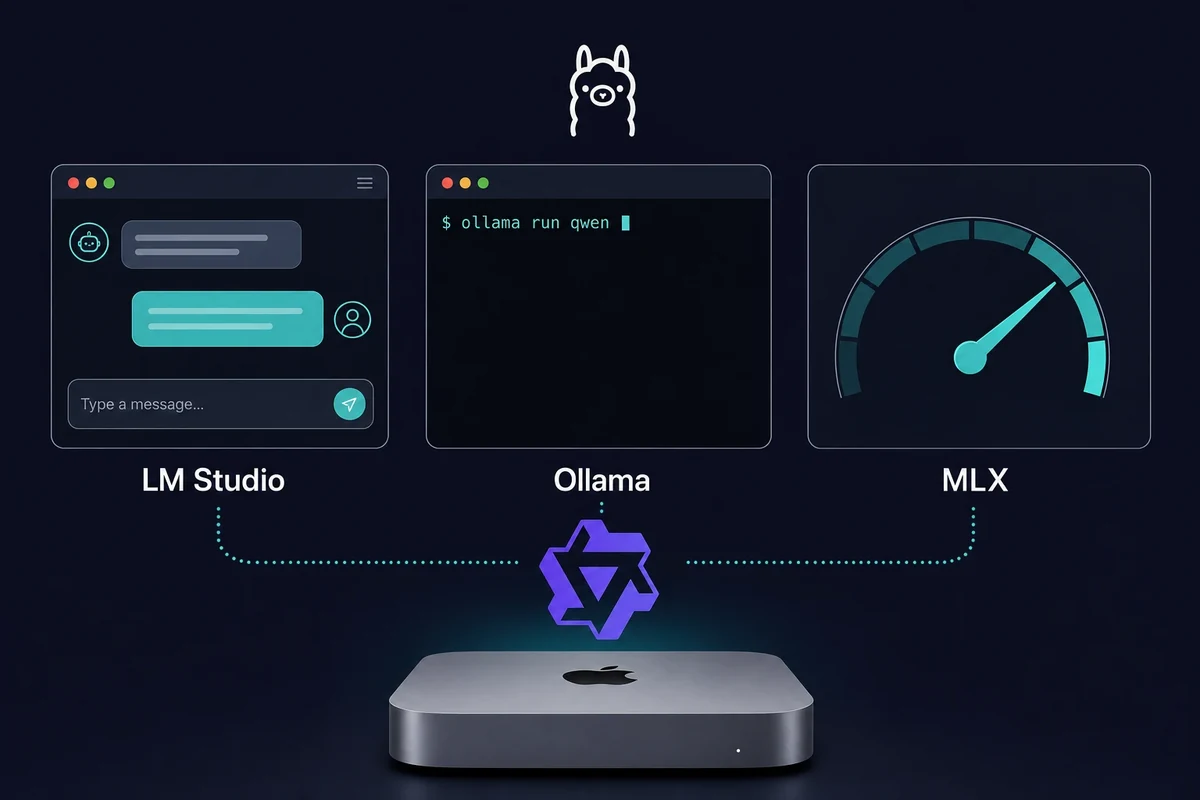
Ollama is a Terminal tool, so you type one command instead of clicking through an app. That single line downloads the model and starts it, and it runs on any Apple Silicon Mac with 16GB on macOS 14 Sonoma or newer.
MLX is Apple’s own machine-learning framework, and it squeezes the most tokens per second out of a Mac. Qwen on Apple Silicon gets its speed from the unified memory shared between the chip’s CPU and GPU, and MLX taps that directly. It’s more of a power-user path than LM Studio, so reach for it when raw speed matters most.
Here’s which Qwen size fits your Mac’s memory:
| Your Mac’s RAM | Qwen model to pick | Approx. size | Approx. speed |
|---|---|---|---|
| 16GB | Qwen3.5 9B (Q4_K_M) | ~6.6GB | ~22-28 tokens/sec |
| 16GB (ceiling) | Anything above ~14B | swaps to CPU | under 5 tokens/sec |
| 24-32GB | 32B and up | larger | depends on quant |
That 16GB row is the same Mac Mini M4 with 16GB you can rent from Rentamac.io. It handles a current Qwen build at a usable speed with zero swap, plenty for everyday chat and drafting, or for feeding a local agent.
If you’re pointing Qwen at coding or agent work, our notes on the best local models for OpenClaw cover which sizes keep up.
One thing to clear up: the official “Qwen” desktop app from qwen.ai is the cloud chat client, not a local model that runs on your own Mac.
Quick way to pick a local route: use LM Studio if you want a no-code window or Ollama if you want a one-line Terminal install. Reach for MLX when you want the top speed.
Why Run Qwen Locally on Your Mac?
Running Qwen locally offers multiple advantages, including:
- Complete control – No restrictions on what you can do and no usage limits
- Better privacy – Your data stays on your Mac and isn’t sent off to other servers
- Optimized for Apple Silicon – LM Studio and Qwen work well on M1, M2, M3, and M4 chips
- Save on costs – There are no ongoing subscription fees once you have it installed.
With Apple Silicon’s strong on-device AI performance, your Mac can easily handle Qwen without needing extra hardware. Running Qwen on a MacBook Air or Pro works the same way; just pick a model size that fits your RAM.
FAQs
Can I run Qwen on any Mac?
At the moment, Qwen works on Macs with Apple Silicon (M1, M2, M3, M4) when downloaded through LM Studio. It is incompatible with Intel Macs.
Do I need coding skills to install Qwen?
Not at all! LM Studio takes care of the installation with a simple and easy-to-use interface.
Is Qwen free to use?
Absolutely. Qwen models are open-source and free to download. Just make sure your Mac has enough storage and hardware to support it.