On this page
- ›Why run Qwen locally
- ›Best Tool to Run Qwen Locally: LM Studio
- ›How to Run Qwen Locally, Step-by-Step
- ›Faster option: run Qwen from the terminal with Ollama
- ›Real-World Cases to Use Qwen
- ›Minimum Hardware Requirements for Running Qwen
- ›What if your computer cannot run the bigger models?
- ›Conclusion
- ›FAQs
- ›Run Other AI Models Locally:
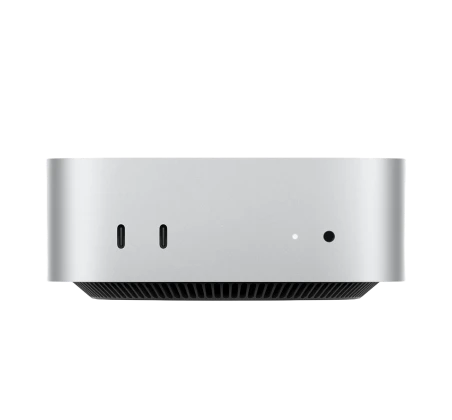
Qwen is a solid open-source AI language model that you can run completely offline. No subscriptions, and no need to code. With the LM Studio app, you can easily run Qwen on any compatible computer. If you don’t have one, you can rent a high-performance Mac mini from Rentamac.io and get going right away – no need to spend a bunch on new hardware.
This guide will help you set up and run Qwen locally on your computer, whether you’re using your own setup or renting one from Rentamac.io. You won’t need any complicated tools, terminal commands, or fancy GPU setups.
Why run Qwen locally
Running Qwen locally just means the model lives on your own machine instead of someone else’s server. Some people call it deploying Qwen locally, but it is the same thing: you download the model once and run it offline. That buys you what a cloud chatbot cannot.
- Full privacy – Your prompts and answers stay on your device, so there’s no worry about third-party access.
- Offline access – Once it’s set up, you don’t need the internet to use it.
- Total control – No usage limits, subscription fees, or API restrictions to worry about.
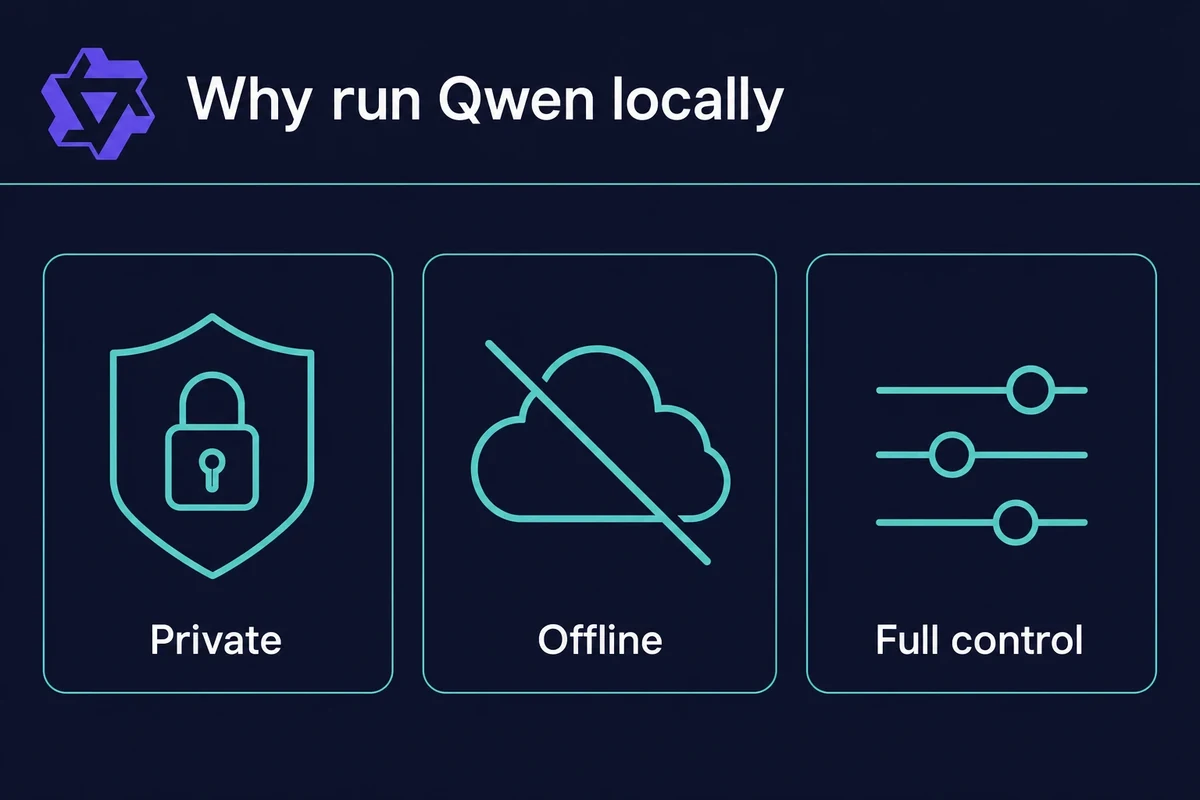
A common question is whether Qwen is safe to run locally. It is. Running it on your own device keeps every prompt and output local, and nothing in the open model weights sends your data back to Alibaba. The risk is the same class as any open model, such as Llama or Gemma.
It is quick and cheap, too. On Apple Silicon, a 30B model in an MLX build runs around 40 to 64 tokens per second, and even a 16GB Mac mini manages about 17 tokens per second on a 35B model. It also draws roughly 40 to 50 watts under load, against about 450 watts for a discrete-GPU rig.
Best Tool to Run Qwen Locally: LM Studio
If you want a simple way to run Qwen on your device, LM Studio is the way to go. It’s a free app that downloads and runs local AI models, including Qwen, in a few clicks with no terminal commands.
Why Choose LM Studio?
- Works Offline – After you install it, Qwen can run completely offline, so your info stays private.
- Model Downloader – You can find and install Qwen models right from the app.
- No Coding Needed – Just click, load it up, and start chatting.
- Free – There are no subscriptions, paywalls, or limits on use.
Whether you’re playing around with AI tools, writing creatively, or experimenting with ideas, LM Studio makes it super simple to install Qwen on Mac like a local ChatGPT, all while keeping your data safe and avoiding tech headaches.
Both LM Studio and Ollama let you run Qwen on a Mac with Apple Silicon in a few minutes. LM Studio is quick on a Mac for a reason: version 0.3.4 added an Apple MLX engine for on-device inference, which is what lets a Mac mini run Qwen at a usable speed.
It can also expose a local server that speaks the OpenAI format. A code editor or app can then talk to Qwen the same way it would talk to a cloud API.
How to Run Qwen Locally, Step-by-Step
Here is how to set up Qwen locally, step by step, with no coding required. The whole thing takes only a few clicks in LM Studio. To run Qwen locally, you can:
1. Download and install LM Studio on your device.
2. Open the app and go to the Discover section.
3. Search and install the selected Qwen model from the list.
4. Load and run the model locally.
The Qwen Mac setup only takes a few quick steps. Let’s go through them one by one.
Step 1: Download LM Studio
First, get LM Studio from their official site, lmstudio.ai. This app is lightweight and designed to run large language models on your computer.
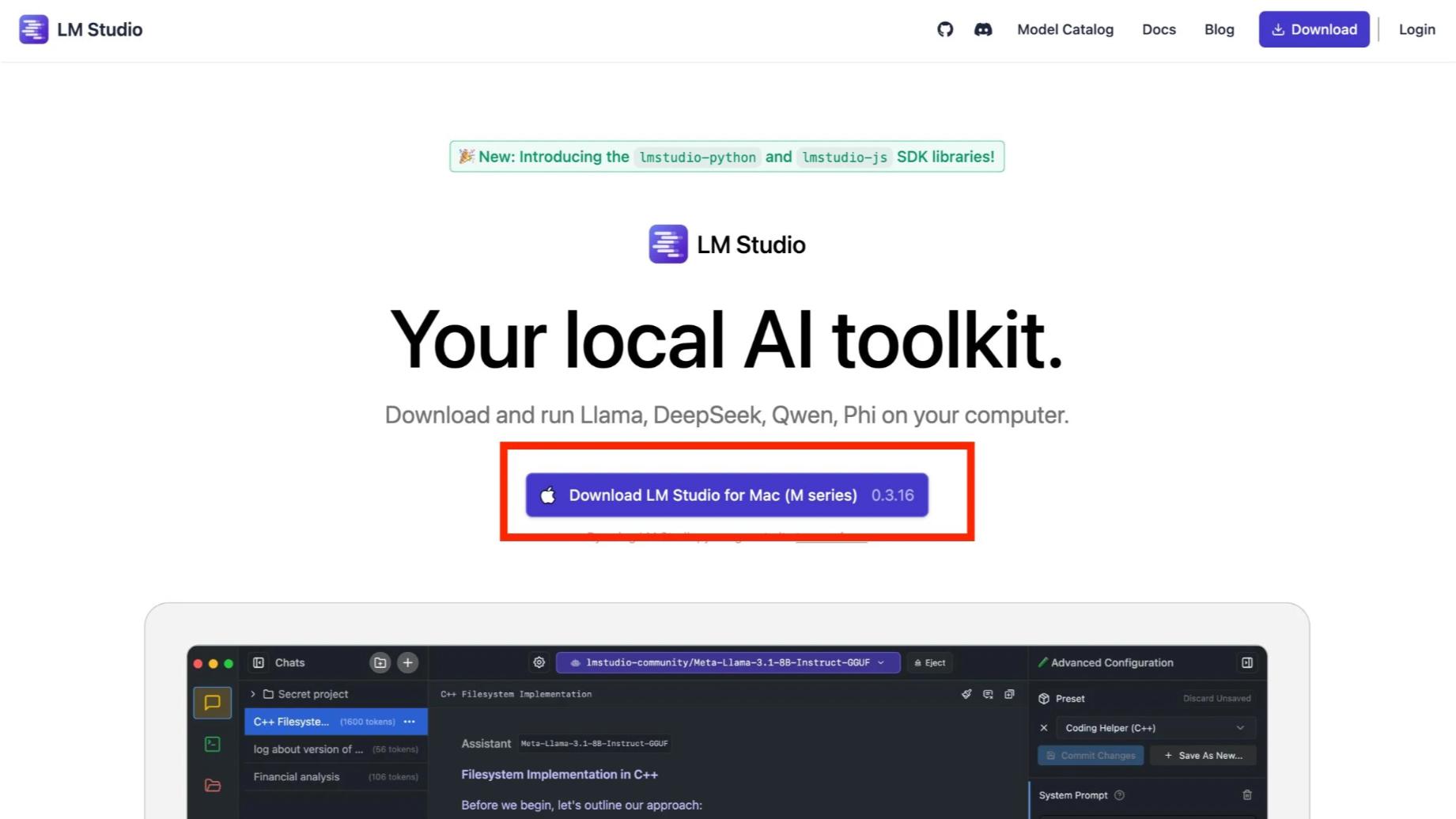
Just drag the app into your Applications folder and launch it like any other app.
Step 2: Open the App and Load the Qwen Model
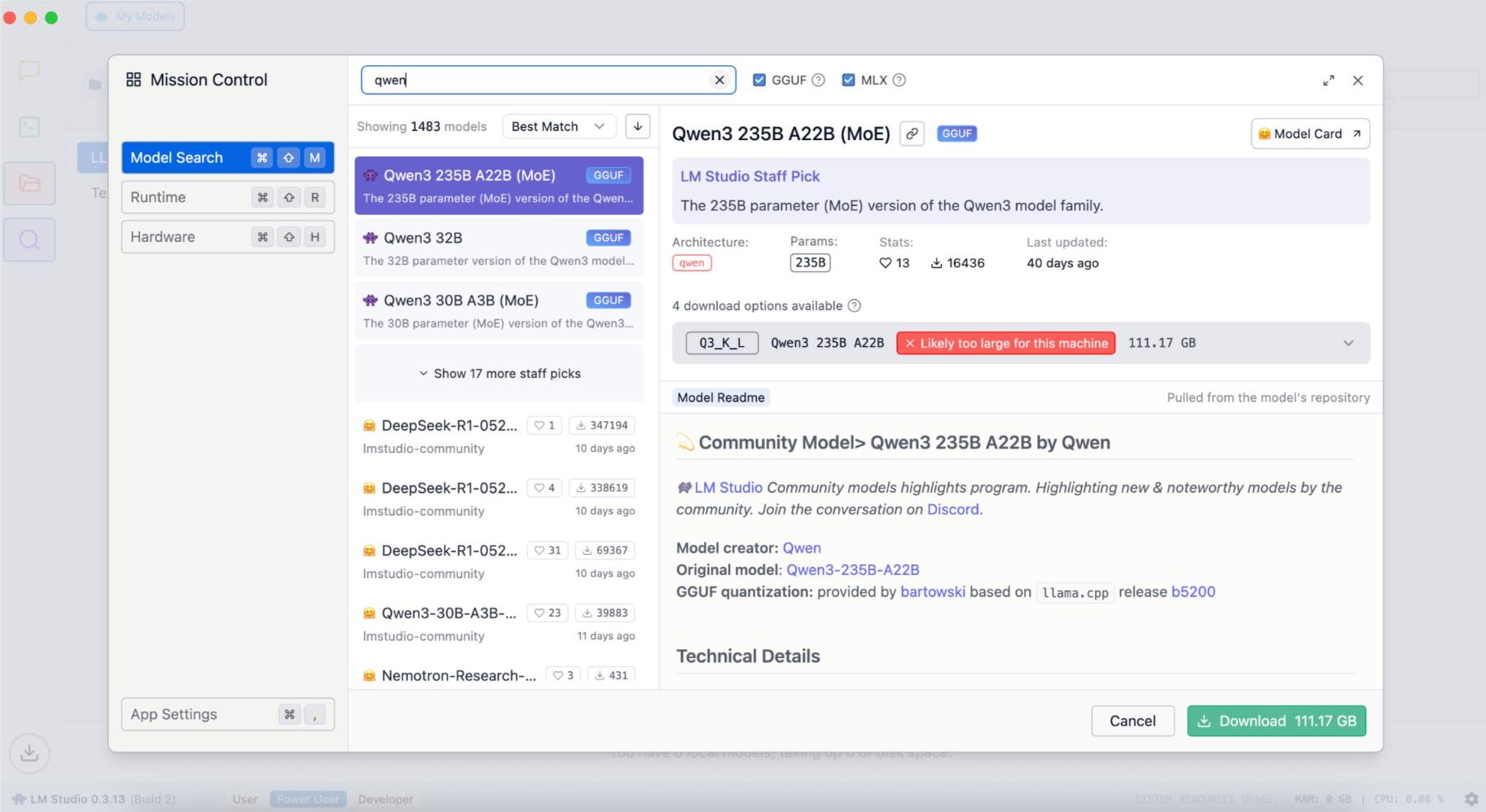
After you open LM Studio, skip the welcome guide and go to the Discover section by clicking the magnifying glass icon.
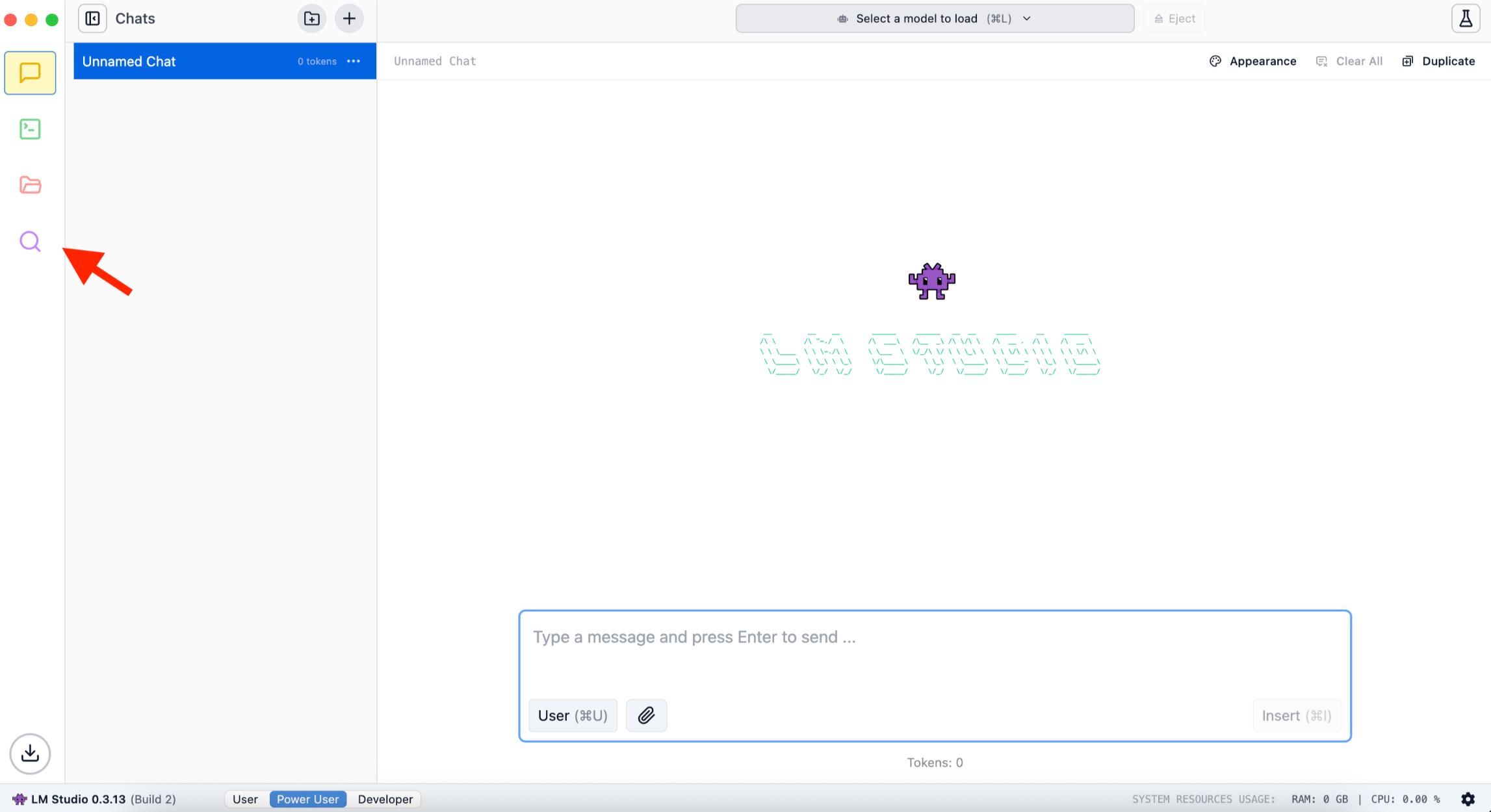
Type “Qwen” into the search bar. You’ll see the current Qwen3 family (as of 2026), which comes in sizes of 0.6B, 1.7B, 4B, 8B, 14B, and 32B. The smaller sizes are the ones that fit on a normal computer.
The model you pick depends on your device. On a 16GB machine, like a Mac mini from Rentamac.io, Qwen3-8B in its 4-bit version is a good first pull. Pick a smaller size, such as 4B, if you have less memory, and a larger one only if you have plenty of RAM to spare.
Pick your model, hit Download, and let LM Studio install it. Then, just load it in the Chat tab and you’re good to go.
Step 3: Adjust Settings (Optional)
Before you start generating text, you can tweak a few settings in LM Studio to customize how Qwen responds:
- Context length – How much text the model can remember. On a local Qwen3 model this is usually 40K tokens, and up to 256K on a few sizes.
- Temperature – Higher means more creativity, lower means more focus.
- Top-k / Top-p – Control how random or fixed the responses feel.
- Token limit – Set how much text can be generated at once.
If you’re new to this, the default settings should work fine, but feel free to play around with them.
One thing to know: current Qwen models can run in a “thinking” mode, reasoning through a prompt before answering. That helps on hard questions, but a simple prompt can loop for a minute or two. For a quick answer, turn the thinking toggle off in LM Studio (on the Ollama path below, the command is /set nothink).
Step 4: Start Generating Text
Now you’re ready! Just type your prompt into the LM Studio chat and click Generate.
Qwen will respond right away, and the best part? It all works offline – no internet or subscriptions needed.
Faster option: run Qwen from the terminal with Ollama
Prefer one command to a GUI? Ollama runs Qwen from the terminal. You install it once, then run ollama run qwen3 to download and start the model in a single step. It works the same on a Mac, Windows, or Linux. If terminals are not your thing, the LM Studio steps above already cover you.
You only need a handful of commands, and each does one plain job:
- Install Ollama from its website. It is one download, like any other app.
ollama pull qwen3downloads the model. A good default, Qwen3-8B, is about 5.2GB, so the first pull takes a few minutes.ollama run qwen3starts a chat in the terminal. Type a question and Qwen answers. If it reasons for too long, type/set nothinkto turn off thinking mode.
Here is a quick guide to which Qwen3 size to pull, by how much memory your machine has:
| Qwen3 size | Ollama download | Best for |
|---|---|---|
| 0.6B | ~0.5 GB | Quick tests on almost anything |
| 4B | ~2.5 GB | Light laptops and small jobs |
| 8B | ~5.2 GB | The 16GB sweet spot, a solid daily driver |
| 14B | ~9.3 GB | Machines with more memory to spare |
| 32B | ~20 GB | Big setups only |
Ollama also runs a local server in the OpenAI format at http://localhost:11434. You can point a code editor or a local LLM as an agent backend straight at Qwen, with no API key and no monthly bill. Because the model runs on your own device, you are effectively hosting Qwen locally.
For the wider picture, here is how to run an LLM on a Mac end to end.
A 4B or 8B Qwen (about 2.5GB to 5.2GB) handles everyday writing and quick code help offline. It is not a match for a frontier cloud model on the hardest reasoning, so reach for a bigger size or the cloud when a task needs it. To try a leaner alternative on the same machine, you can also run Liquid’s LFM2.5 locally.
Real-World Cases to Use Qwen
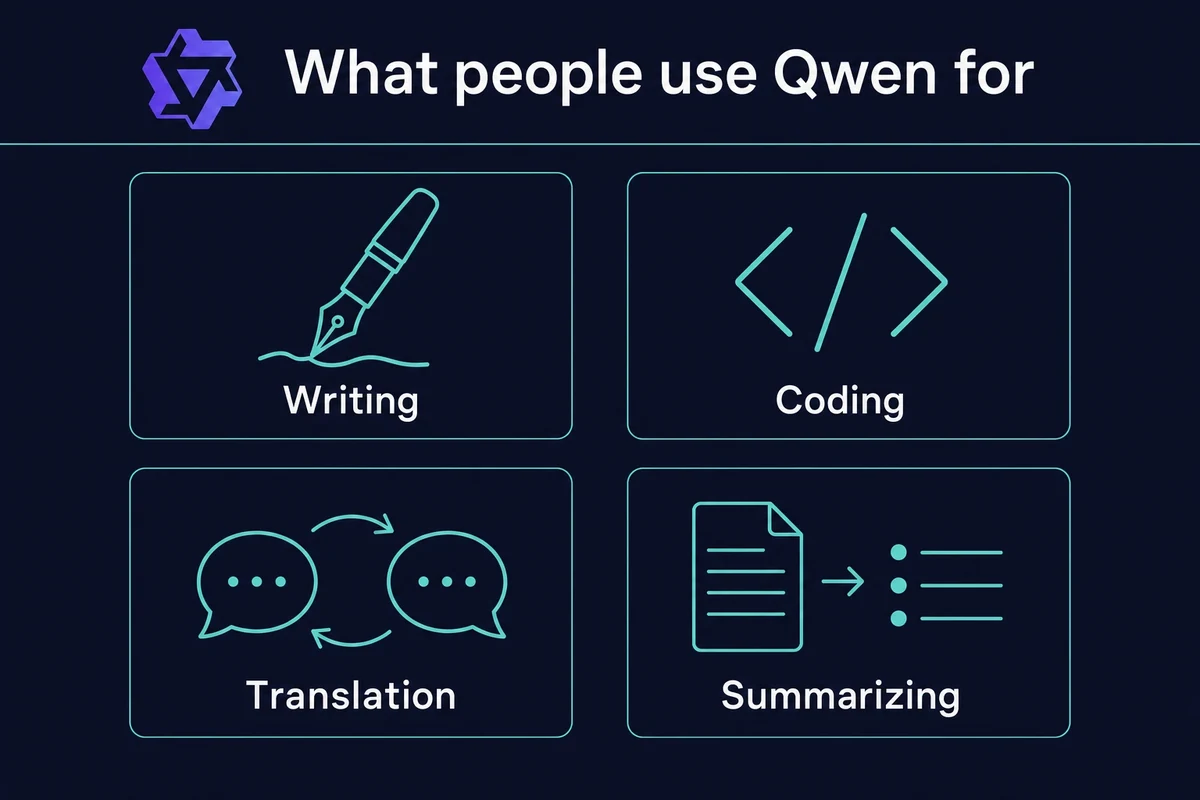
Using Qwen on your own device is more than just a tech trial – it’s a handy tool that can help with all sorts of tasks, whether creative, professional, or technical. Check out some things you can do with it:
- Content writing – Write up blog posts, social media updates, newsletters, or even longer articles – all without the need for the internet.
- Coding help – Get on-the-spot code generation, debugging advice, and script explanations without sending anything online.
- Translation – Translate text into different languages while keeping your private documents safe.
- Brainstorming – If you need name ideas, titles, or creative prompts, Qwen can whip up suggestions in no time.
- Summarizing/rewriting – Use Qwen to shorten long documents or change content to a different style or tone.
- Learning and research – Ask questions, dive into new subjects, and break down complicated ideas – think of it as your own offline tutor.
Whatever you need, running Qwen locally gives you quick access to strong AI while keeping your privacy and control intact.
Minimum Hardware Requirements for Running Qwen
To run Qwen locally with LM Studio, here are the requirements you need:
- CPU – A modern multi-core processor is best.
- RAM:
- 8 GB for smaller models (like Qwen3 1.7B or 4B)
- 16-32 GB or more for bigger models (like Qwen3 8B to 14B)
- Storage – You’ll need free space for the model file itself (see the table below for per-size downloads).
- Operating System – You can use macOS (with Apple Silicon processor) or Windows/Linux (availability of LM Studio may vary).
- GPU – It’s not a must. On a Mac, the unified memory does the job, so what matters is how much RAM the model needs to fit.
How much space and memory a model wants depends on its size. Here are the numbers for the current Qwen3 family in their efficient 4-bit form:
| Qwen3 size | Download | RAM/VRAM to run (4-bit) |
|---|---|---|
| 0.6B | ~0.5 GB | Runs on almost anything |
| 4B | ~2.5 GB | ~4 GB |
| 8B | ~5.2 GB | ~5-6 GB |
| 14B | ~9.3 GB | ~10 GB |
| 30B-A3B (MoE) | ~19 GB | ~19-24 GB |
| 32B | ~20 GB | ~20 GB |
| 235B | ~142 GB | Server-class only |
If your machine is short on RAM, larger models will run slowly or unreliably.
What if your computer cannot run the bigger models?
If a model is too big for your machine’s memory, it will not crash, it will just crawl. You have two options: pick a smaller size that fits, or run Qwen on a Mac with more memory. A 16GB Apple Silicon Mac handles the 8B sweet spot (about 5.2GB in 4-bit) and steps up to larger sizes from there. A huge model like MiniMax pushes past that entirely, which is why a Mac mini’s memory limits cap what you can run.
If you do not own one, you can rent a cloud Mac mini (16GB, Apple Silicon, macOS) from Rentamac.io and run the same setup remotely, without buying new hardware. It is real Mac hardware, not an emulator, so LM Studio and Ollama behave exactly as they would on a Mac on your desk.
Conclusion
Running Qwen locally takes four clicks in LM Studio. You don’t need subscriptions, coding skills, or internet access. With LM Studio and Apple Silicon, your Mac runs Qwen offline at 40 to 64 tokens per second on a 30B model, close to cloud speeds.
Whether you’re writing, coding, or translating, Qwen gives you that flexibility in a simple local setup.
If you want to install Qwen on Mac, now’s a great time to get started. If you own a machine or want to rent one, Rentamac.io helps you run strong models like Qwen without the hassle or high costs of setting up your own hardware.
FAQs
Can I run Qwen on any Mac?
Qwen works best on Macs with Apple Silicon (M1, M2, M3, M4). Right now, LM Studio doesn’t support Intel Macs.
Do I need to know how to code to use Qwen?
Not at all. LM Studio has a straightforward interface. Just install the app, download the model, and you’re ready to chat. Ollama is there if you do want the command line, but you never need it.
Is Qwen free to use?
Yes! Qwen models are open-source and totally free to download and run on your device.
What size Qwen model should I choose?
Match the model to your memory. On a 16GB machine, Qwen3-8B in its 4-bit version is a good default. Pick a smaller size for less RAM, and a larger one if you have more.
Is Qwen safe to run locally?
Yes. Running it locally keeps every prompt and output on your own device, and nothing in the open model weights sends data back to Alibaba. The technical risk is the same class as any open model, such as Llama or Gemma.
Should I use Ollama or LM Studio for Qwen?
Both run Qwen locally and are free. Pick LM Studio for a click-only app with no terminal. Pick Ollama if you want one command and a local API to wire into an editor or agent. Plenty of people install both and switch between them.